Scheduling & Routes
Build, organize, and run your pool service routes in Pool Runs — the office sets up the schedule on the web, technicians run it from the mobile app.
Scheduling & Routes
Plan Work in the Web App
Download video · Captions (VTT) · Transcript (TXT)
Use Schedule to plan recurring visits, one-off jobs, and tasks together.
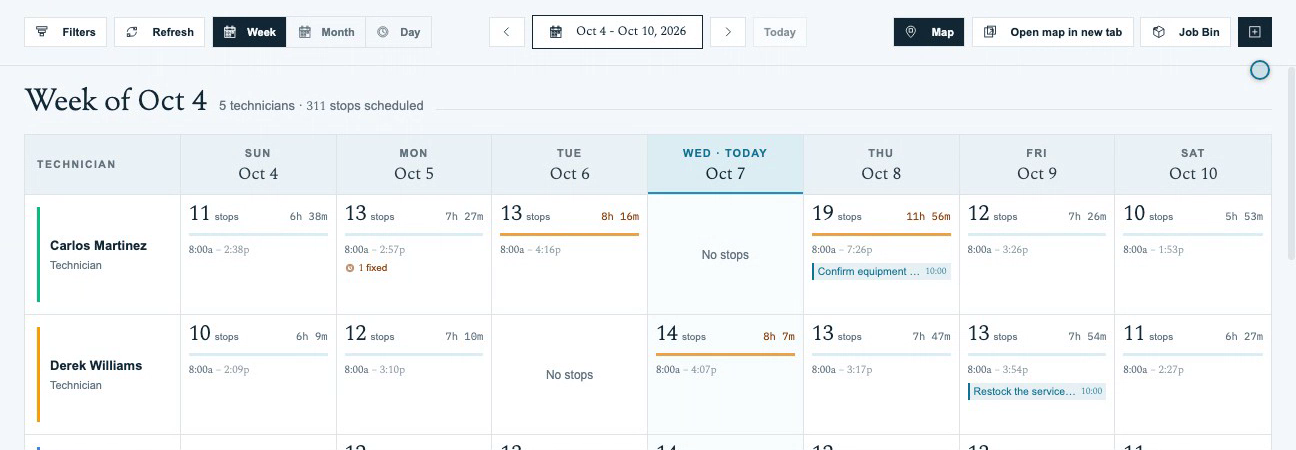
- Open Schedule → Week to compare technician workload. Use Filters to narrow technicians, statuses, or work-order types, then Apply Filters.
- Click a route cell to inspect its ordered visits and status for that technician and date.
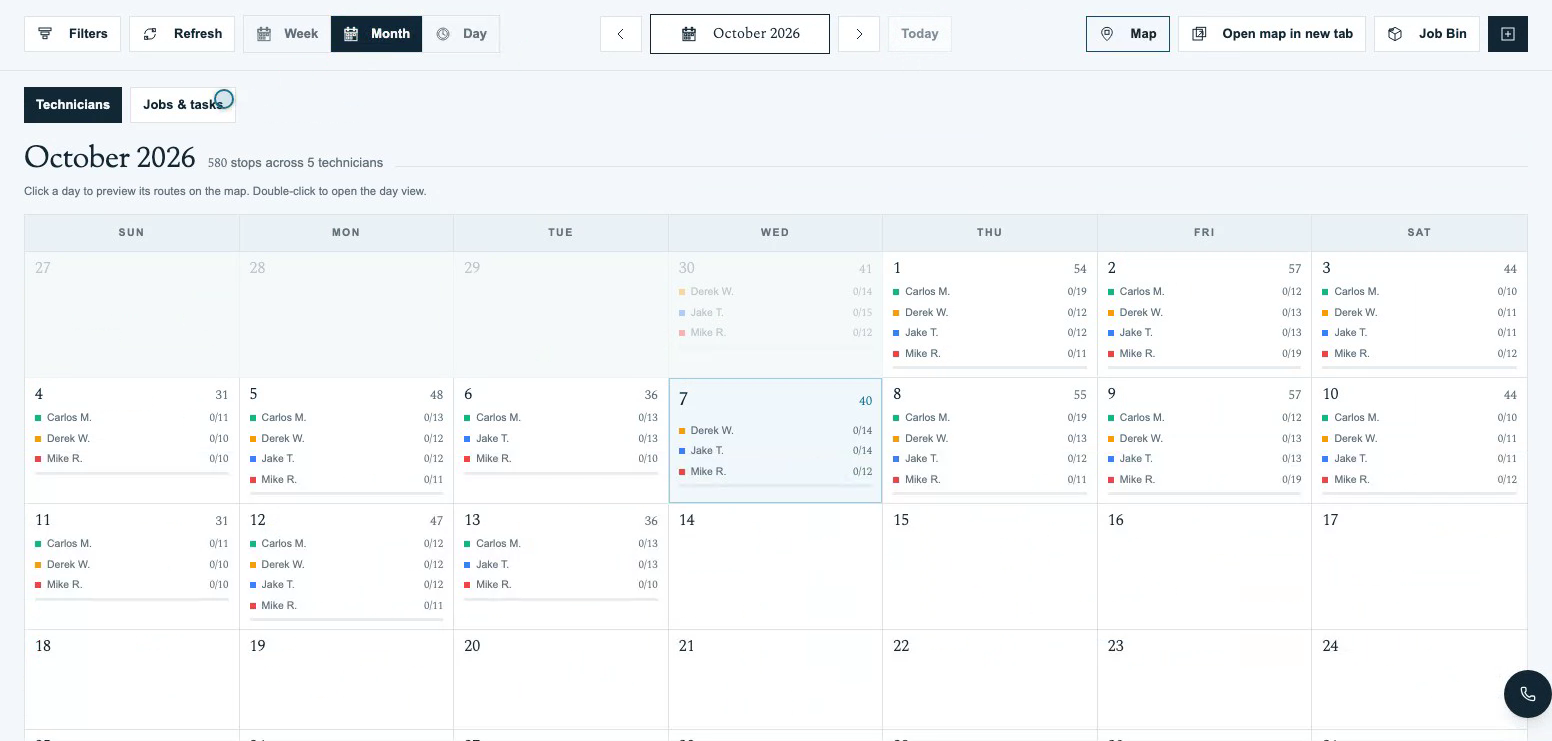
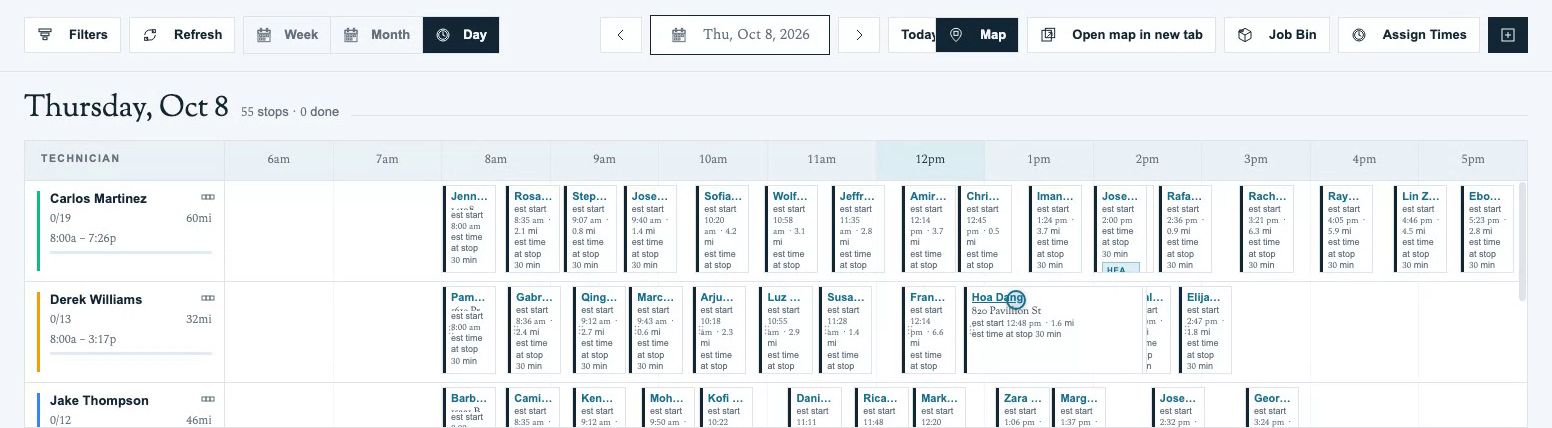
- Choose Month → Technicians for the wider route picture. Click a date to preview its routes on the map, or double-click it to open Day and compare timing. The date arrows move between days; Today returns to the current date.
- In Month → Jobs & tasks, inspect work orders on their scheduled date and tasks on their due date. Use the search box to narrow the calendar.
- Hover a day for the crew preview, then click its date to keep the preview open. Hide route stops and Show route stops switch between compact jobs/tasks and the recurring visits; Open day view opens the full timeline.
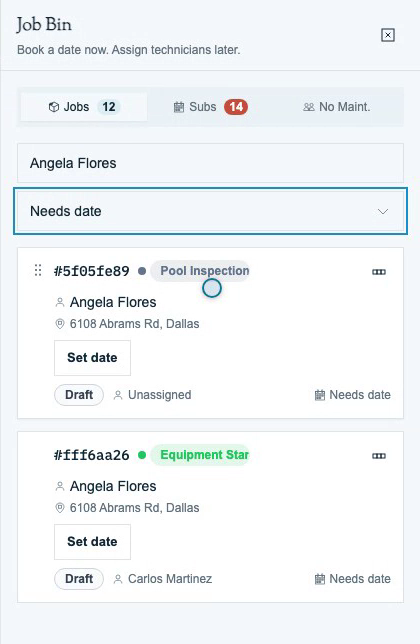
- Open Job Bin and search for work awaiting a date or technician. Filter by Needs date or Needs technician. Choose Set date, select the scheduled date and crew, and click Save schedule.
- Close the bin and confirm the saved job on its chosen calendar date, with the intended technician and generated visit.
Recurring assignments are maintained under Route Management; the Schedule shows the dated visits those assignments generate. See Creating a Route for the recurring setup.
Run Visits in the Mobile App
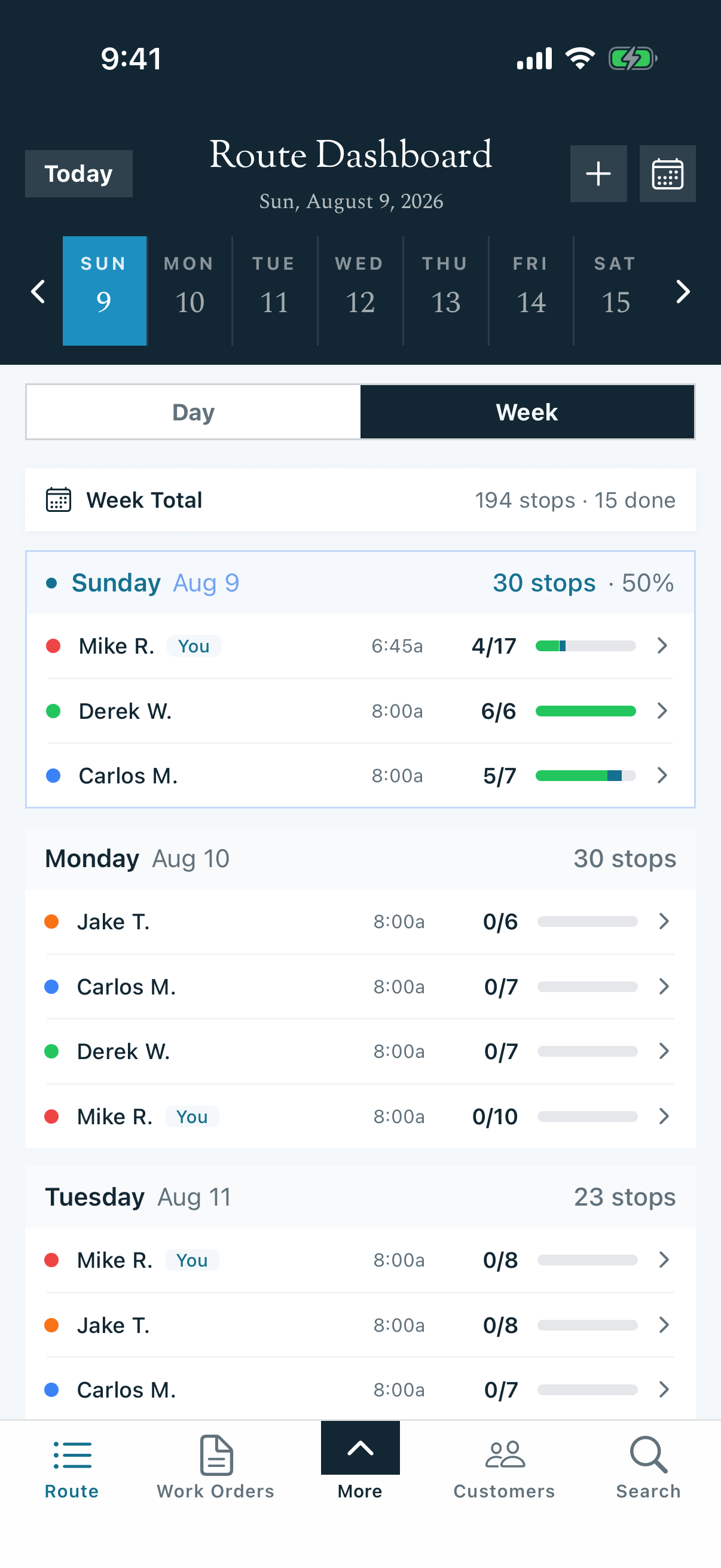
Routes are the backbone of a pool service business. They turn a list of customers into a predictable weekly rhythm — who gets serviced, on what day, by which technician, and in what order. Pool Runs splits this work across two apps:
- The web app is where the office builds and manages the schedule — creating routes, sequencing the day, generating stops, and handling changes.
- The mobile app is where the technician runs the route in the field — driving stops, logging chemistry, completing or skipping visits.
This section is organized the same way. New to how routes work? Start with Routes Overview for the mental model, then jump to the side you're working on.
Start Here
- Routes Overview — What a route is, how the recurring assignment becomes a daily stop, frequencies, and the weekly cycle. Read this first.
Web App — Build & Manage the Schedule (Office)
- Creating a Route — Add a single recurring stop with the form, or bulk-build a tech's whole day in the Builder.
- Route Builder — The two-pane builder UI (stop list + live map, drag-to-reorder) and Route Optimization for shortest drive time.
- Managing Routes — Edit, move, change frequency, end, or delete a route; reassign when a tech is out; capacity and the "migrate stops" dialog.
- Recurring Schedules — Choose service every one, two, three, or four weeks and anchor the schedule with its start date.
- Route Generation — How recurring schedules become concrete daily stops (Days Ahead, Generation Time, Generate Now), service-completion rules, and adjusting stops after generation.
- Skip Reasons & Holidays — Configure skip reasons and handle holiday and weather closures.
Mobile App — Run the Route (Technician)
- Your Daily Route — Read today's route: the Route Dashboard, stop list, statuses, drive times, and the list/map toggle.
- Running a Stop — Start the timer, log water chemistry, work the checklist, add photos, and complete the stop.
- Skipping a Stop — Record a skip with a reason and the audit trail your office and insurance need.
- Reordering Your Route — Optimize, move, and bulk-move stops from the field.
How the Two Sides Connect
The office's recurring route assignments (web) are materialized into daily route stops by Route Generation. Those stops appear on the technician's daily route in the mobile app. When a tech completes or skips a stop, that flows back to the web dashboard and into billing. Set the schedule up once; Pool Runs handles the weekly materialization automatically.
Related Sections
- Customer Management — Active customers and their properties feed your routes
- Work Orders — One-off repairs that also generate route stops
- Settings — Route generation settings, skip reasons, and roles
Importing Customers from QuickBooks Online
Bring your existing customer book into Pool Runs through the QuickBooks Online integration — auto-matching, sub-customers as properties, and what does and doesn't come over.
Routes Overview
What a route is in Pool Runs, how the recurring assignment becomes a daily stop, the frequency options, and the weekly cycle.