Routes Overview
What a route is in Pool Runs, how the recurring assignment becomes a daily stop, the frequency options, and the weekly cycle.
Routes Overview
Use Route Assignments to maintain the recurring service plan for a technician and weekday. Use Schedule to review the visits booked for specific dates.
Download video · Captions (VTT) · Transcript (TXT)
Assignment vs. Stop
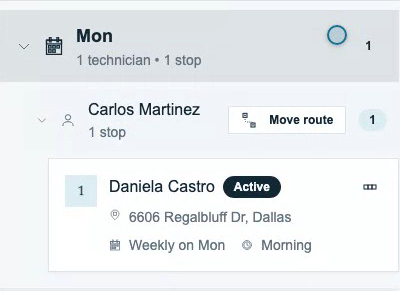
A route assignment connects a property and its selected water features to a technician, weekday, frequency, and position in the recurring route. It also has a Start Date and optional End Date that bound the service plan.
A route stop is an actual visit on a scheduled date. It has its own technician, position, timing, and status: Scheduled, In progress, Completed, or Skipped. Recurring stops are generated from assignments; a scheduled work order can also create a dated stop.
For a lasting change to the service plan, update the assignment. For a change to one visit, use the dated stop on Schedule. See Managing Routes for the effects of each kind of change.
Find the Recurring Assignment
- Open Route Management → Route Assignments.
- Search for the customer or service address. Expand the weekday and technician group to find the property.
- Check the property, assigned technician, weekday, frequency, and order. Use the assignment's menu and Edit to review the full settings, including its water features and date bounds.
Use Creating a Route to add an assignment, or Managing Routes to change an existing plan.
Frequency Options
Choose Day of Week and Frequency in the assignment form. Each frequency stays on the selected weekday:
| Frequency | Interval |
|---|---|
| Every week | 7 days |
| Every 2 weeks | 14 days |
| Every 3 weeks | 21 days |
| Every 4 weeks | 28 days |
Every 4 weeks follows a 28-day cycle, rather than the same date each calendar month. Choose the frequency agreed with the customer.
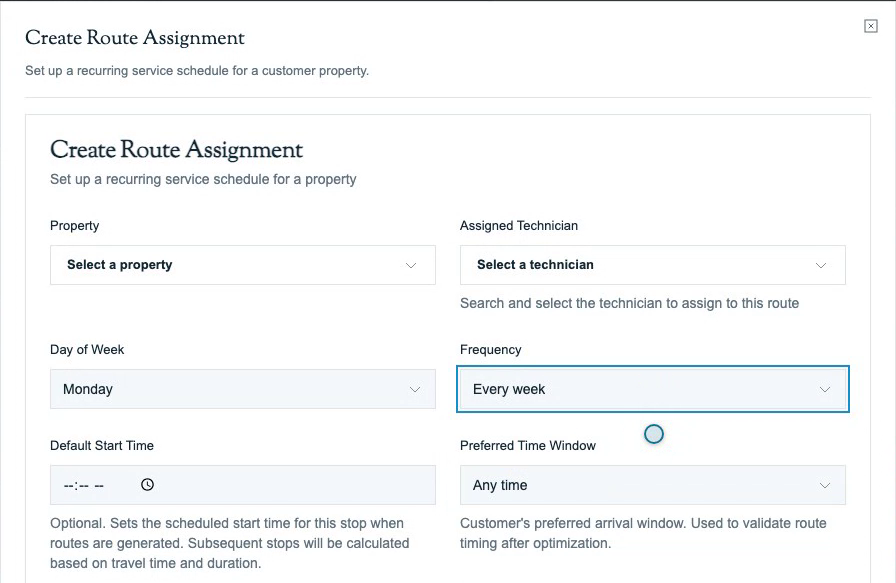
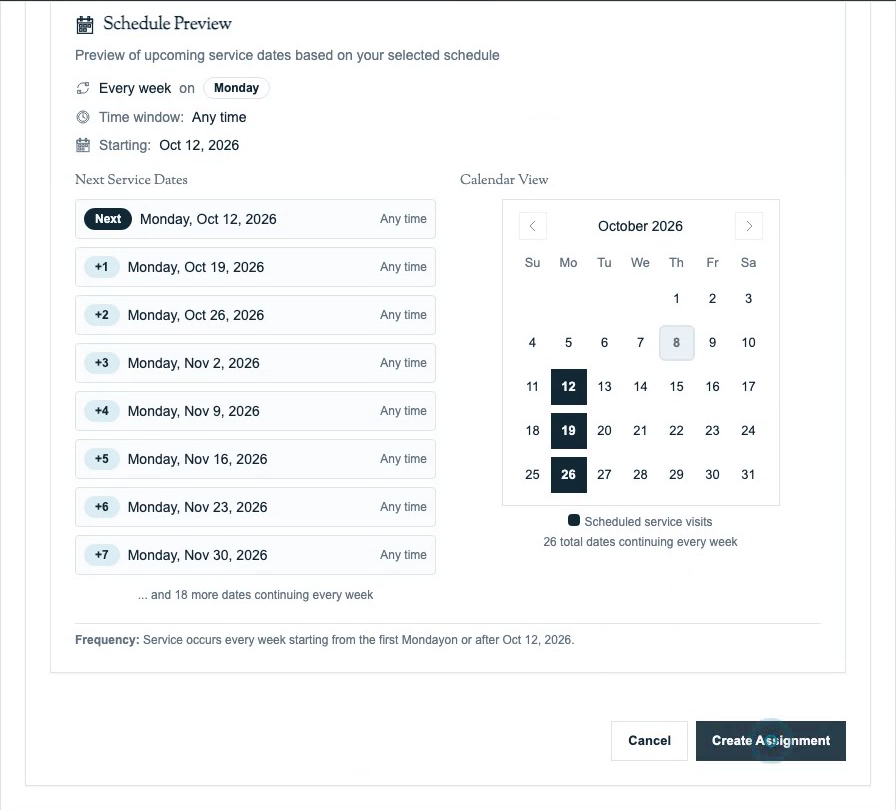
Start Date anchors the repeating weeks. The first eligible service date is the selected weekday on or after Start Date; later dates follow the chosen interval. For a start date in the past, Schedule Preview advances to upcoming dates. With Every 2 weeks, moving Start Date forward one week changes which alternating service weeks are selected.
Review Schedule Preview → Next Service Dates before saving. Check the first date, weekday, frequency, and arrival preference against the intended plan. See Recurring Schedules for choosing the start week and setting an end date.
Check the Dated Visits
Generation creates recurring stops within the account's configured future horizon. In Settings → Routes, Days Ahead controls that horizon; automatic generation starts with tomorrow in the organization's timezone. See Route Generation for the settings and permission-dependent behavior of Generate Now.
Schedule Preview calculates dates from the assignment form. It does not confirm that those dated visits already exist on Schedule.
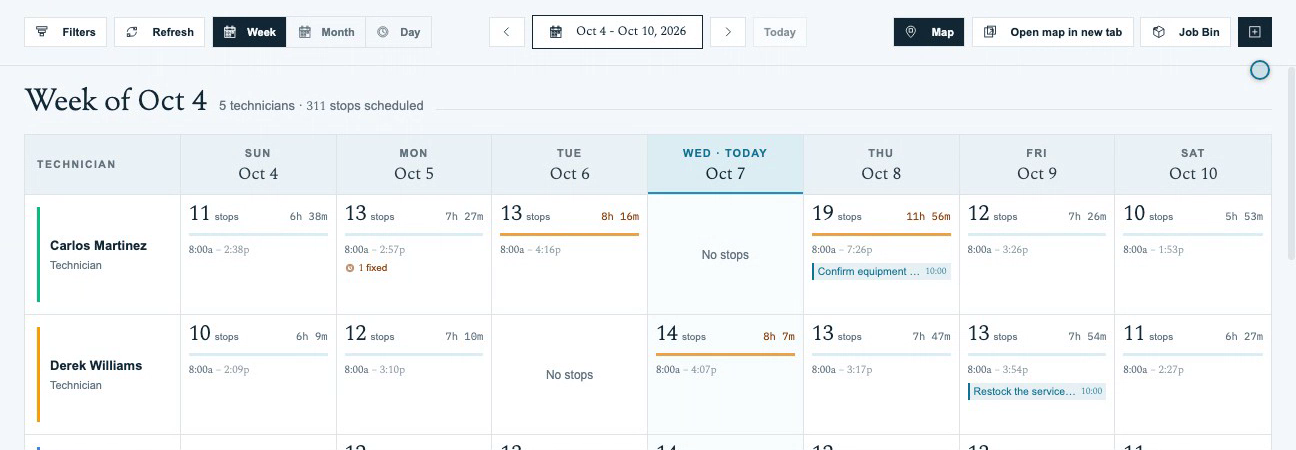
- Open Schedule and select the service week or date you need to check.
- In Week view, find the technician's row and the service date's column.
- Select the route cell to open that technician's visits for the date. Confirm the customer, property, status, order, and timing.
- If a visit is missing, review the assignment's weekday, frequency, Start Date, and End Date. Check whether the date is within the generation horizon and whether the visit was moved or skipped before changing the recurring plan.
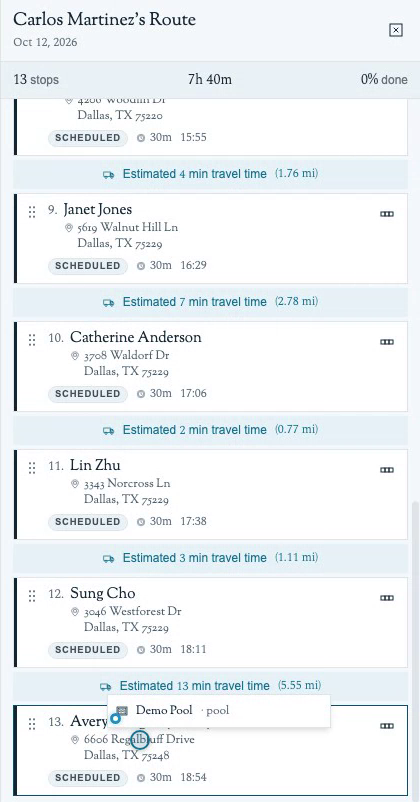
Technicians work the dated visits in the mobile app. Use Your Daily Route to find the day's stops and Running a Stop to record service and complete a visit.
Active vs. Inactive
An assignment remains active while its End Date is empty or has not passed. Generation only includes eligible dates on or after Start Date and on or before a specified End Date.
After End Date passes, the assignment becomes inactive and is hidden from the active list. Enable Show inactive routes to review it. To resume recurring service, open the assignment's More menu and choose Reactivate. In Edit Route Assignment, clear End Date or choose a future one, then select Update Assignment. Review the upcoming dated visits after the change.
Ending service and permanently deleting an assignment have different effects. Read Managing Routes before removing an assignment.
Related
Web (office):
- Creating a Route — add and verify an assignment
- Route Builder — arrange a recurring technician day and preview an optimized route
- Managing Routes — edit, move, end, or delete an assignment
- Route Generation — turn assignments into dated stops
Mobile (technician):
- Your Daily Route — find and work today's stops
- Running a Stop — record service and complete a visit
Scheduling & Routes
Build, organize, and run your pool service routes in Pool Runs — the office sets up the schedule on the web, technicians run it from the mobile app.
Creating a Route (Web)
Create a recurring route assignment, review its service dates, or build a technician's day in the Route Builder.