Skip Reasons & Holidays (Web)
Configure the skip reasons technicians choose from, route skip alerts to your office, and handle holiday and weather closures.
Skip Reasons & Holidays (Web)
When a tech can't service a stop, they skip it with a reason instead of completing it — creating a dated record for the customer's service history. This page covers configuring the reasons and handling holidays/weather on the office side. (Techs skip from the field — see Skipping a Stop.)
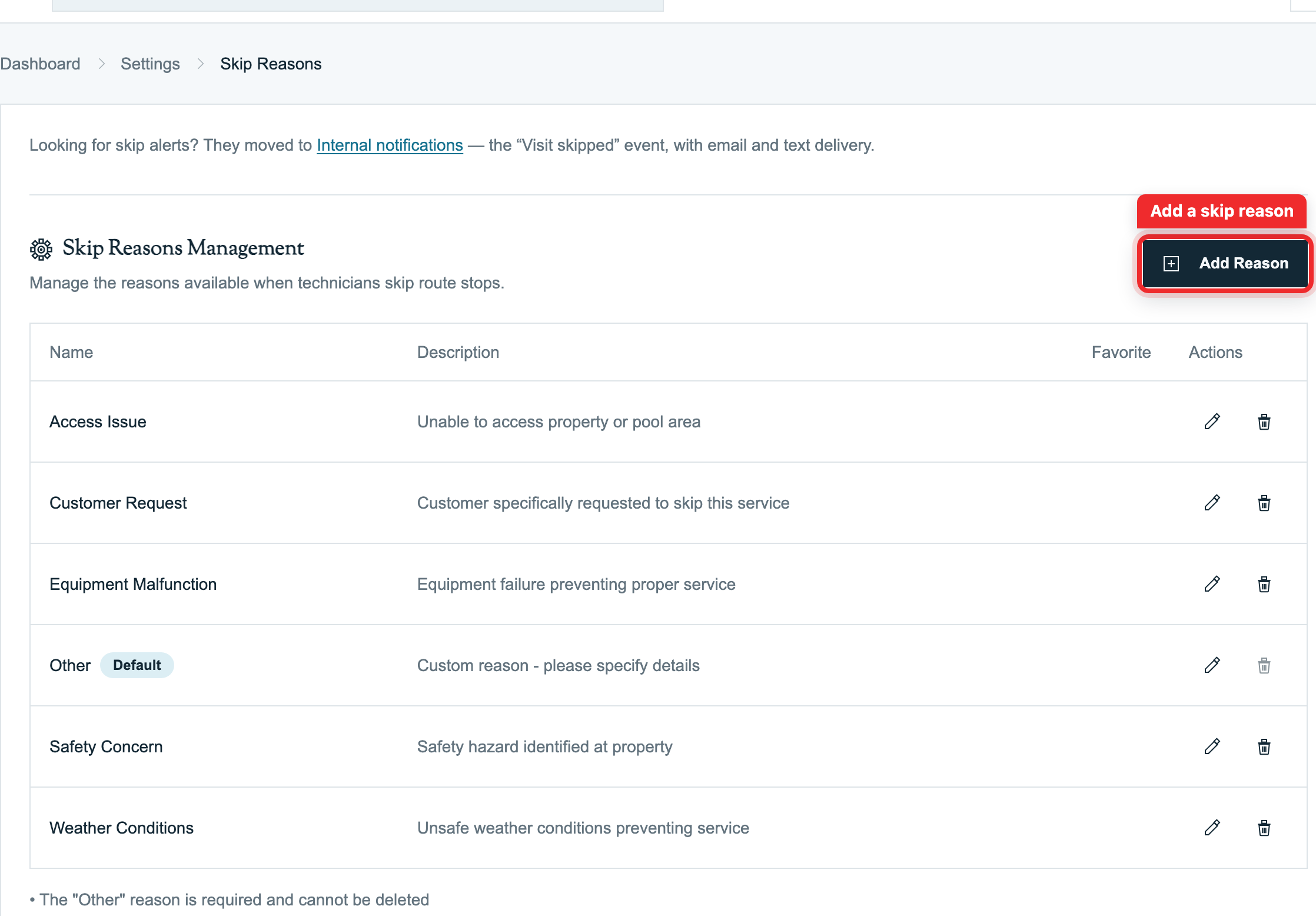
Configure Skip Reasons
Skip reasons live under Settings → Skip Reasons. Every account starts with a default set — Other (required, can't be deleted), Access Issue, Weather Conditions, Customer Request, Equipment Malfunction, Safety Concern.
- Add — click Add Reason, enter a name (and optional description that helps techs pick the right one).
- Favorites — star up to 10; favorites appear first in the tech's skip picker. On the web skip form, more than 10 active reasons makes the list searchable.
- Edit / delete — the pencil and trash icons. Deleting a reason keeps all historical skips that used it; it just stops appearing for new skips.
- Office alerts — follow Internal notifications above the reasons list and configure Visit skipped. Delivery depends on enabled channels and recipients. Coordinate customer communication separately.
Tip: Most companies settle on 5–8 reasons. Every extra one is another choice for the tech in the field.
Holidays
Pool Runs has no "holiday calendar" that auto-skips a day. Instead, wait until the holiday week has generated, then on the Schedule page either move those stops earlier in the week (what most residential customers prefer) or mark them skipped with a reason when service will not happen. You can also remove a dated visit, but Generate Now may add a removed recurring visit back.
| Action | Result | Use when |
|---|---|---|
| Remove Stop | Removed from the dated route; a permitted Generate Now run can restore it | You understand that removing one visit does not end its recurring assignment |
| Skip Stop with a reason | Retains a historical skip record; office alerts depend on notification settings | You want a documented "we observed the holiday" |
Automatic generation leaves skipped visits and previously removed visits on generated dates alone. A permitted Generate Now run can fill gaps and add removed recurring visits back; it leaves existing skipped stops unchanged. Review the button description and any removed-visit confirmation before generating. See Route Generation.
Weather
Plan ahead or handle it live: the night before a forecasted storm, move or skip the next day's stops on the Schedule; in the field, a tech taps Skip → Weather Conditions with a note. Office alerts follow the Visit skipped notification settings; verify enabled channels and recipients before relying on delivery.
Why reasons matter: a structured reason + timestamp ("Access Issue — gate code rejected, 11:47 AM, called customer no answer") keeps the service history understandable. A skipped visit is not a completed service visit; review your billing rate and the Invoice Generator before invoicing instead of assuming that a skip removes every possible charge.
Related
- Skipping a Stop (Mobile) — how techs skip in the field
- Route Generation — automatic generation and the removed-visit confirmation
- Managing Routes — moving stops on the Schedule
Route Generation (Web)
How Pool Runs turns recurring schedules into daily route stops — automatic generation, Days Ahead, permission-dependent Generate Now, removed-visit confirmation, and service-completion rules.
Your Daily Route (Mobile App)
Open and read your day's route in the Pool Runs technician app — the Route Dashboard, the stop list, statuses, drive-time estimates, and the list/map toggle.