Skipping a Stop (Mobile App)
Record a skipped pool visit from the Pool Runs technician app, choose a reason, add notes, and create a clear history for the office.
Skipping a Stop (Mobile App)
Not every stop gets serviced. A gate is locked, a dog is loose, lightning rolls in, or the customer asked you to skip this week. Skipping records that the visit did not happen, along with the reason and time, instead of leaving a silent gap in the route history.
Before You Skip
Use Skip only when no service will be recorded for this visit. If you still plan to return later today, leave the stop scheduled and coordinate a move with the office. If you performed the service, complete the stop and record the readings, checklist, and notes instead.
Before opening the skip form, confirm the customer, property address, scheduled time, and access notes. That quick check keeps a gate problem at one property from being recorded against the next stop.
How to Skip a Stop
- Open the stop from your route.
- Tap Skip at the bottom of the screen.
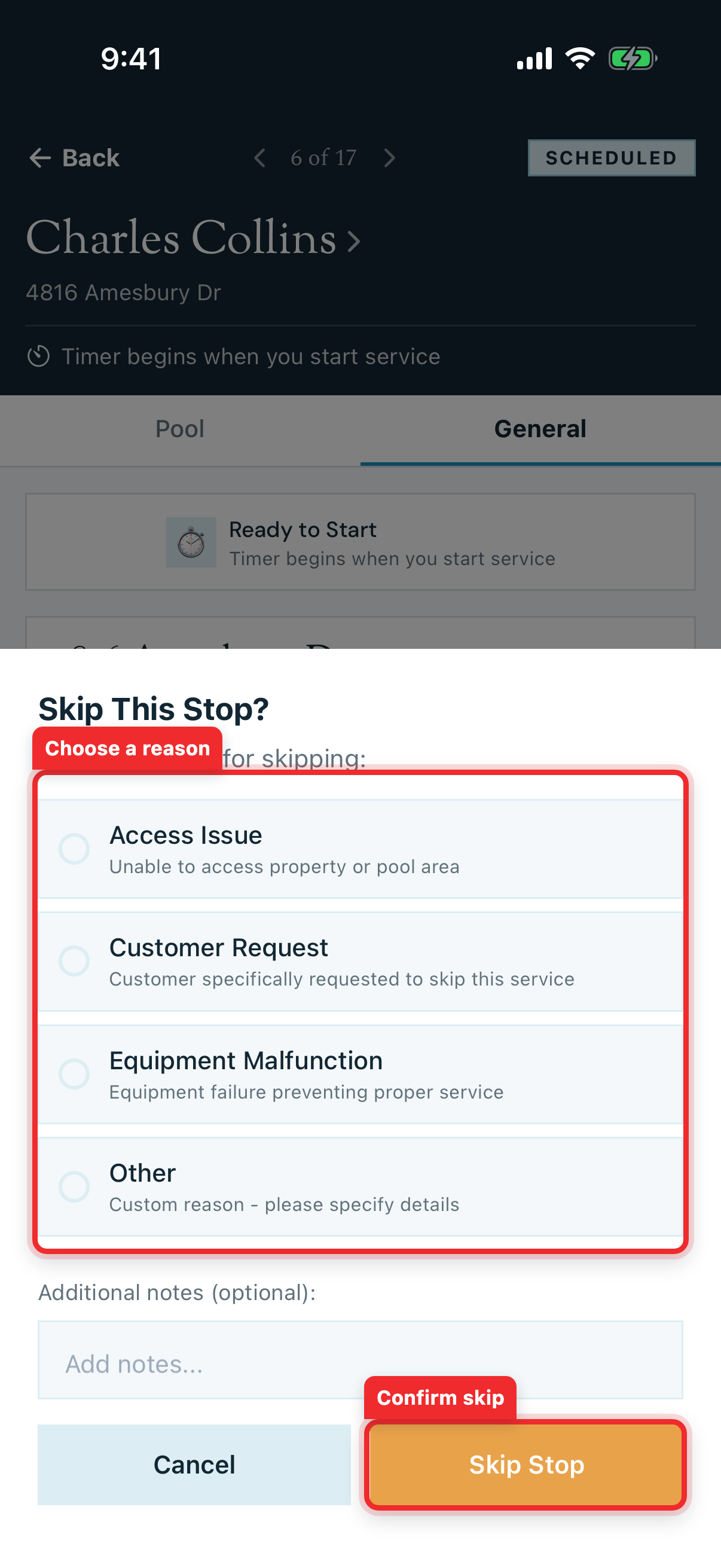
- In Skip This Stop?, choose the closest reason from your company's list. Common examples include:
- Access Issue when you cannot reach the property or pool area
- Customer Request when the customer asked to miss this visit
- Equipment Malfunction when equipment failure prevents proper service
- Other when none of the configured reasons fits
- Add Additional notes. Notes are optional for most reasons, but Other requires an explanation.
- Tap Skip Stop.
Pool Runs marks the stop Skipped, saves the reason and time, and opens the next stop when one is available. If your company configured skip-notification recipients, those office users receive an email with the customer, property, technician, reason, and skip time.
Tip: The reasons in the app are configurable. An authorized user can add or edit reasons, remove reasons that should no longer be offered, and mark the most common choices as favorites. Favorites appear first for technicians. Manage the list in the web app or from More → Skip Reasons in the mobile app. See Skip Reasons & Holidays.
Write a Note the Office Can Act On
A useful skip note answers three questions: what happened, when did you try, and what did you do next?
Gate code rejected at 11:47 AM. Called the customer and left a voicemail. Pool was not accessed.
Keep the note factual. Avoid guesses such as "customer forgot" or "probably not home." For a safety or weather issue, name the condition you observed. For an access issue, record the failed access method and any contact attempt. This gives the office enough detail to decide whether to call, reschedule, or send another technician.
Skip vs. Complete vs. Leave It
| Situation | What to do |
|---|---|
| You serviced the pool | Complete the stop with readings/checklist |
| You went but couldn't service (locked gate, storm, dog out) | Skip with the matching reason + a note |
| Customer asked to skip this week | Skip with Customer Request |
| You'll get to it later today | Leave it scheduled, or have the office move it. Do not skip it yet. |
Skipping is for "the visit did not happen, and here is why." If the office still intends to complete this same visit, move or recreate the work instead of treating the skip as the replacement visit.
Why the Reason Matters
A structured reason and timestamp are easier to report on than a vague "didn't go." The reason lets the office spot patterns, such as repeated access problems, while the note preserves the details of this specific attempt.
What Happens After You Confirm
- The route stop changes to Skipped and counts as a finished stop in route progress.
- Pool Runs stores the selected reason, your note, and the skip time in the stop history.
- The mobile app advances to the next stop when there is one.
- Configured skip-notification recipients receive an office alert. The alert is not a customer service-completion email.
- A skipped stop does not create a completed service visit or service report. If the customer still needs service, the office should move existing work where appropriate or create a replacement stop or work order.
Common Questions
Can I skip after starting the timer?
Yes. The Skip action remains available while a stop is In Progress. Use it only when the visit will not be completed, and explain in the note what prevented service.
What if no skip reasons appear?
You can still enter a note and confirm the skip. Tell an authorized user that the company's skip-reason list needs to be configured so future skips can be categorized consistently.
Does the customer automatically receive the skip alert?
No. The skip-notification email goes to the office recipients your company configured. Your team can then decide how and when to contact the customer.
Can I undo a skip from this screen?
The confirmation moves you away from the stop and records it as Skipped. Confirm the customer and property before tapping Skip Stop. If the wrong stop was skipped or the visit must be restored, contact the office so it can correct the schedule.
Related
- Running a Stop: the normal complete-with-service path
- Skip Reasons & Holidays: how the office configures reasons and handles holidays or weather
- Your Daily Route: your day's stops at a glance
Running a Stop (Mobile App)
Service a pool stop from the Pool Runs technician app — start the timer, log water chemistry, complete the checklist, add photos, and mark the stop complete.
Reordering Your Route (Mobile App)
Optimize a mobile route, move one stop, hand off several stops, or add an unscheduled work order without changing the recurring schedule.