Managing Routes (Web)
Edit a recurring assignment, move its technician or service day, change frequency, end service, and reactivate a retained plan.
Managing Routes (Web)
Download video · Captions (VTT) · Transcript (TXT)
A recurring assignment defines a property's repeating service plan. Change it when the customer's technician, weekday, cadence, or service preferences need a lasting update. Schedule shows the dated visits produced by that plan.
Find the Assignment
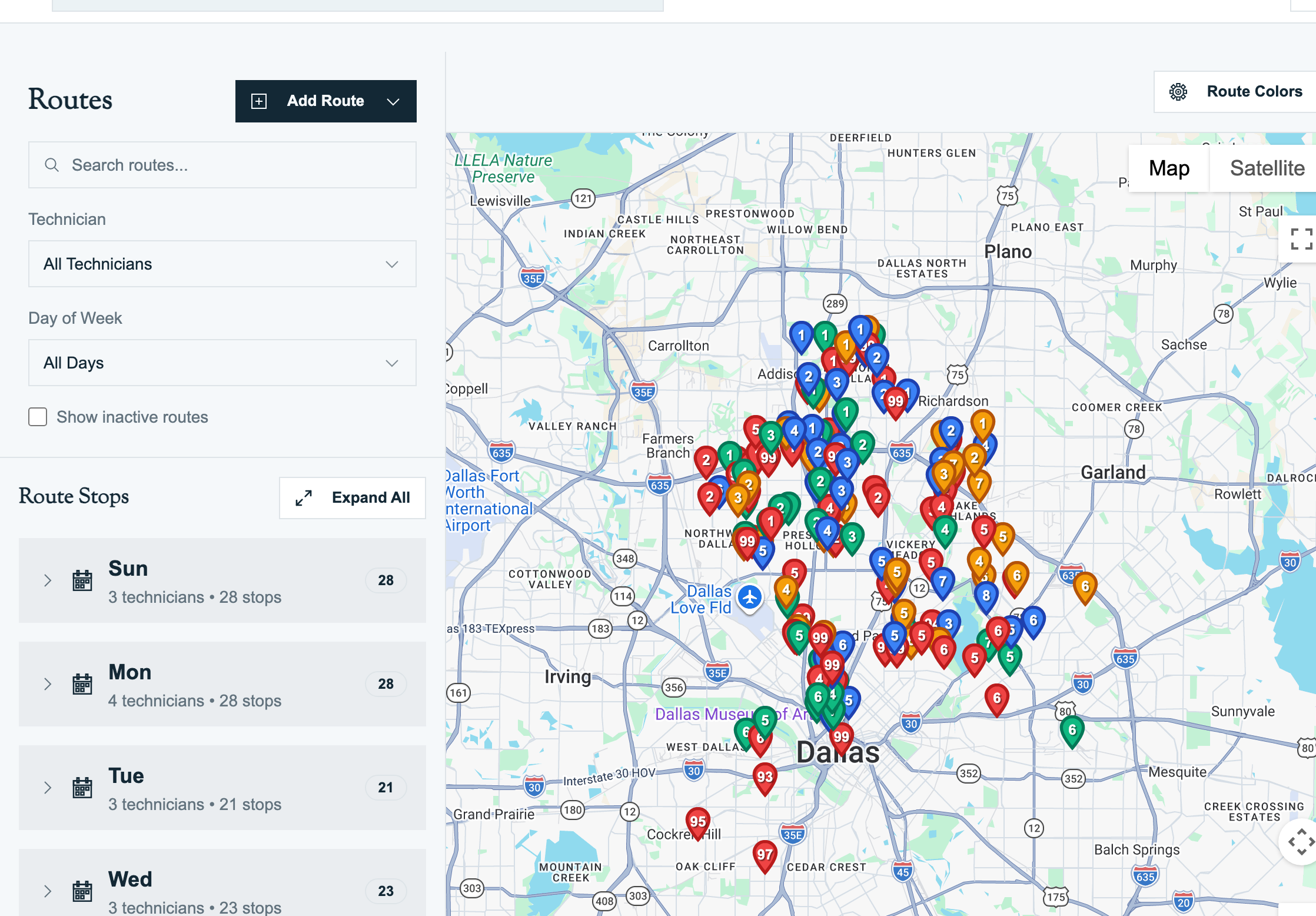
Open Route Management → Route Assignments. The page heading is Routes. Find the property and open its three-dot More menu. Check the customer and service address before changing anything; one customer can have several properties.
| View | Use it to |
|---|---|
| Route Assignments | Manage the recurring plan for each property. |
| Schedule | Review actual dated visits and arrange coverage for a specific day. |
| My Route | Follow a technician's daily progress, map, and remaining stops. |
Choose the Right Action
These actions apply to one property's assignment. Use its card menu rather than a whole technician/day group's menu.
| Assignment state | What needs to change | Menu action |
|---|---|---|
| Active | Arrival preference, default start time, or water features | Edit |
| Active | Recurring technician, service weekday, or position | Move |
| Active | Weekly, every two, three, or four weeks | Change Frequency |
| Active | A planned last service date | Change End Date |
| Active | End the repeating plan immediately | Delete, then End Route Immediately |
| Inactive | Resume a retained plan | Reactivate |
| Inactive | Remove the recurring template permanently | Delete Permanently |
Saving can already reconcile ordinary future scheduled stops. Some changes also show an additional update preview. Leave As-Is closes that preview without its additional operation; it does not undo the saved assignment or changes already applied to dated visits.
Edit Service Preferences
- Open the assignment's More → Edit menu.
- Review the property, technician, weekday, frequency, and water-feature scope. Keep values that are not part of this change.
- Set Preferred Time Window to the customer's arrival preference. A preset such as Morning fills Window Start and Window End; review those two boundaries together.
- Set Default Start Time only when the generated visit needs a scheduled starting time. This is separate from the arrival window. Leave it empty when a fixed starting time is unnecessary.
- Select Update Assignment.
- Review any additional stop-update preview, then confirm the saved assignment and its actual visits on Schedule.
An arrival preference helps with planning; it is not a guaranteed appointment. If the property has active bodies of water, select at least one under Choose Water Feature to Service. Select All Water Features covers all currently active features at that property.
Move the Recurring Technician or Day
Use Move for a lasting change to this property's recurring plan:
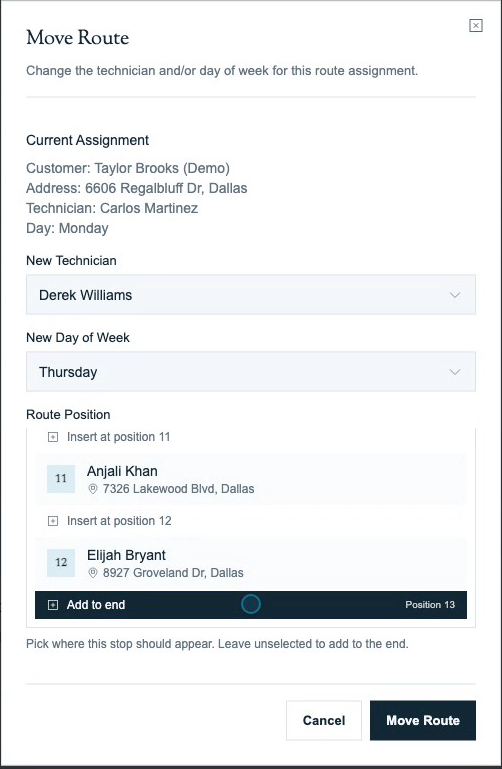
- Open More → Move.
- Check Current Assignment to confirm the starting customer, address, technician, and day.
- Select New Technician and New Day of Week. Both selections are required, even when one stays the same.
- Choose Route Position in the destination route. Add to end appends the property; an insertion slot puts it between existing assignments. Leaving the position unselected also adds it to the end.
- Select Move Route.
- Review any Update Existing Route Stops? preview, then find the assignment under its new technician and day.
- Open Schedule and confirm the ordinary visits and any separately moved exceptions.
Ordinary future scheduled visits can be reconciled as the assignment is saved. Manually moved exceptions retain their separate date or technician, and completed visits remain in the history. Do not assume that every replacement visit has been generated immediately; use Schedule to inspect the actual dated results.
Cover One Day Instead
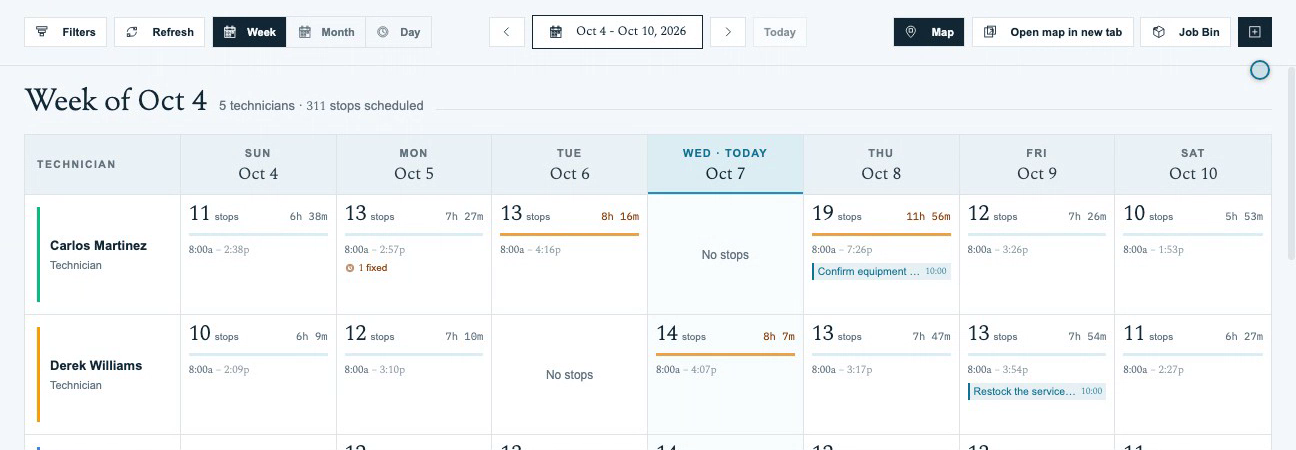
For a sick day, vacation, or other temporary cover, change the dated stop on Schedule rather than moving the recurring assignment. Confirm the date and destination technician so the lasting plan stays intact. For a permanent change, use the assignment's Move action described above.
Change Service Frequency
- Open More → Change Frequency.
- Review Current Assignment, including its current frequency.
- Select New Frequency: Weekly, Bi-weekly (Every 2 weeks), Tri-weekly (Every 3 weeks), or Monthly (Every 4 weeks). The four-week option repeats every four weeks rather than on a fixed day of each calendar month.
- Choose New Start Date for the revised cadence. This selection is required.
- Select Change Frequency.
- Review any additional stop-update preview and check the actual dates on Schedule.
The new start date anchors the revised repeating schedule. Saving a cadence or start-date change can already remove ordinary future scheduled visits that no longer match the rule.
Understand Additional Stop-Update Previews
The assignment and its dated visits are separate records. The assignment is already saved when an additional preview opens.
- Update Future Route Stops? can appear after an edit. Inspect the listed dates, proposed stop changes, locked times, and any work-order placement choices.
- Update Existing Route Stops? can appear after a technician, weekday, or frequency change. Review the changed route details, affected dated visits, and preserved manually moved stops. The update button displays the number of eligible stops, such as Update 3 Stops.
Choose the update button only when the displayed additional changes are appropriate. Leave As-Is dismisses the preview without applying that additional operation. It does not restore the old recurring plan, undo reconciliation already performed, or recreate ordinary visits removed by the save.
Manually moved stops shown as preserved keep their separate scheduling; review those visits directly on Schedule if they also need a change. A preview may be absent when there are no remaining applicable changes.
Set a Planned End Date
Use Change End Date when service should finish on a chosen date:
- Open More → Change End Date.
- Check Current Assignment, then select End Date. This is the last service date allowed by the plan; choose a date after its start date.
- Select Set End Date. If the assignment already has an end date, the button reads Update End Date.
- Confirm the saved end date and review Schedule.
A future end date keeps the assignment active until the planned finish. Ordinary scheduled stops after the cutoff are removed; manually moved exceptions and completed visits are preserved. Review any separate exceptions that also need to end.
If an active assignment has a planned end date and service should continue indefinitely, reopen Change End Date and choose Remove End Date.
End Service Immediately
On an active assignment, Delete opens the immediate-ending confirmation:
- Open More → Delete.
- Read the confirmation for the correct property. The repeating plan will end, and its template will remain as an inactive record.
- Select End Route Immediately when ready to end service, or Cancel to keep the assignment unchanged.
- Enable Show inactive routes to find the retained assignment.
- Review Schedule and the customer's recent stops.
Ending removes ordinary scheduled future visits. It preserves manually moved exceptions and completed service history. A separately moved visit may still be scheduled and needs its own review.
Reactivate a Retained Assignment
- Enable Show inactive routes and find the property.
- Open More → Reactivate. This opens the edit form.
- Review the retained technician, weekday, cadence, and service preferences.
- Clear End Date with the adjacent close/clear button so the plan has no end date.
- Select Update Assignment.
- Review any additional preview. Leave As-Is closes it without undoing the saved reactivation.
- Confirm that the assignment is active, then check the actual dated visits on Schedule before running the route.
Reactivation resumes the retained template. It does not retrieve a permanently deleted template or guarantee that every removed dated visit is restored immediately.
Inspect Permanent Deletion
An inactive assignment's menu offers Reactivate and Delete Permanently. Choosing Delete Permanently opens an irreversible-removal warning:
- Confirming Delete Permanently removes the recurring template, including its frequency, technician assignment, and sequence. This removal cannot be undone.
- Completed service history and historical work orders are preserved.
- Cancel keeps the inactive template available for later reactivation.
Permanent template deletion should not be used as a substitute for reviewing a separately moved scheduled visit.
Balance Capacity
Schedule and Route Assignments show stops by technician and day. Counts alone do not show the full workload: property size, service duration, drive time, and arrival windows all matter. Use dated-stop changes for temporary cover and assignment changes for lasting rebalancing.
Permissions
Available route actions depend on the user's role and permissions, configured under Settings. If an expected action is unavailable, ask an administrator to check the role's route access.
Related
- Creating a Route — add an assignment with the form or Route Builder
- Route Builder — arrange and optimize a recurring day
- Route Generation — understand how assignments become dated stops
- Routes Overview — distinguish assignments from visits
Route Builder (Web)
Build a recurring technician route, choose service defaults, reorder stops, and preview a shorter drive before applying it.
Recurring Schedules (Web)
Choose a service weekday and recurring frequency, set the start and end dates, save the assignment, and verify the dated visits on Schedule.