Reordering Your Route (Mobile App)
Optimize a mobile route, move one stop, hand off several stops, or add an unscheduled work order without changing the recurring schedule.
Reordering Your Route (Mobile App)
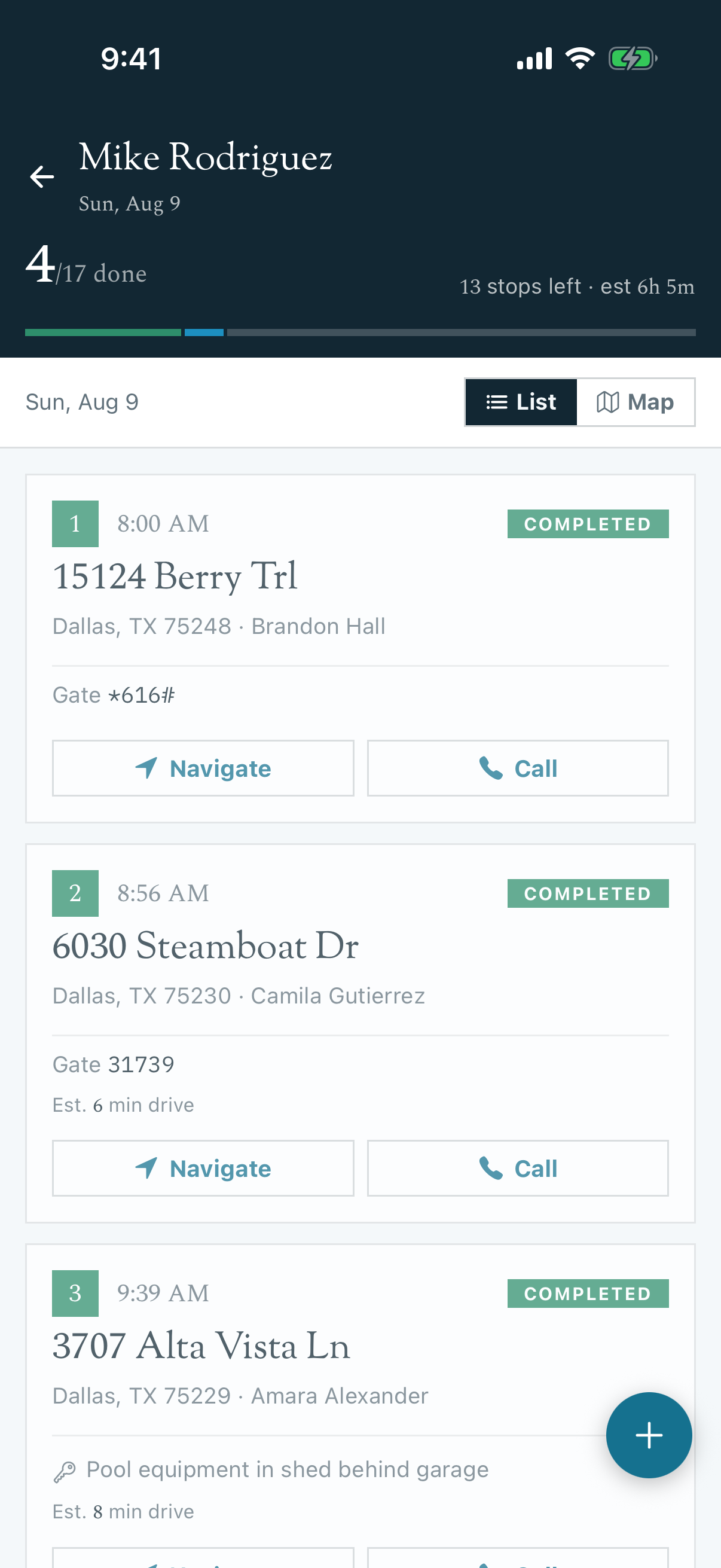
A route is generated in a planned order, but traffic, repairs, cancellations, and technician availability can change the best plan for today. The mobile route actions let you make a one-time adjustment from the field. They do not rewrite the customer's recurring route assignment.
Choose the Right Action
Open the route, then tap the blue plus button in the lower-right corner.
| If you need to... | Use... | What happens |
|---|---|---|
| Reduce drive time across the whole route | Optimize Route | Builds a proposed stop order around your chosen start and end locations |
| Change one visit's position, technician, or date | Move Stop | Creates a one-time override for that stop |
| Hand off several unfinished visits | Bulk Move Stops | Moves the selected stops to the end of another technician's route for the chosen date |
| Track a new repair, inspection, or extra visit | Add Work Order | Opens the mobile work-order wizard |
Connection required: These changes save immediately and are not available offline. If the phone has no connection, Pool Runs asks you to try again when you are back online.
Optimize the Whole Route
Use optimization when the customers are correct but the drive is inefficient.
- Tap the blue plus button, then Optimize Route.
- Choose Start From. You can use the company address, enter a custom address, or select one of today's stops.
- Choose End At. The end location can be different from the start.
- Tap Preview optimization.
- Compare the current and optimized mileage and travel time.
- Switch between Current and Optimized on the comparison map. Review the proposed order and any “was #” position changes.
- Tap Apply optimized route to save it, or Discard to return without changing the route.
The start and end locations are part of the math. A route that ends at the shop may have a different best order than one that ends near the technician's home.
Tip: Preview again after the office adds a stop, after a cancellation, or whenever the next stop is clearly across town. A preview is safe because it does not change the route until you apply it.
Move One Stop
Use Move Stop for a precise exception.
- Open the route actions and tap Move Stop.
- Select the stop.
- Under Assign To, choose the technician who should own the visit.
- Choose the target Date.
- Tap Continue.
- If the stop is staying with the same technician on the same date, tap the insertion slot where it should appear. The list shows the stops above and below the new position.
- Review the From and To details, then tap Confirm move.
- Wait for the sheet to close and verify the stop appears in the intended position or on the intended route.
Scheduled stops and work already in progress can be moved. Completed and skipped stops remain as visit history and cannot be selected.
Moving a Work-Order Stop
Changing the date of a work-order stop reschedules the work order, not just an isolated route card. If the same work order has scheduled stops assigned to other technicians, the confirmation explains the wider impact before you save. Read that warning carefully.
Bulk Move Several Stops
Bulk move is useful when one technician needs to hand off multiple unfinished visits.
- Open the route actions and tap Bulk Move Stops.
- Select the visits that should move. Use Select All Remaining only when the full unfinished route is being handed off.
- Tap Continue and choose the receiving technician and date.
- Review the source technician, destination technician, date, and complete stop list.
- Tap Confirm move.
Bulk-moved stops are added to the end of the receiving route. The receiving technician can then reorder a specific stop or optimize the route after the handoff.
Add an Unscheduled Job
Tap Add Work Order when there is genuinely new work to track, such as a repair, equipment inspection, or extra service visit. Complete the mobile work-order wizard to choose the customer, property, job details, schedule, and assignees.
Do not create another work order when the visit already exists. Use Move Stop to reschedule or reassign the existing stop so the office does not receive a duplicate job.
One-Time Changes vs. Recurring Assignments
Mobile route changes affect the day you are editing. They do not change the customer's normal service day or technician. For a permanent change, update the assignment from the office tools in Managing Routes.
Troubleshooting
Why is Continue disabled?
Select a stop first. On the destination screen, explicitly select a technician and confirm the date before continuing.
Why can I not select a completed stop?
Completed and skipped stops are retained as service history. They are intentionally unavailable for moving. Create a new work order if another visit is needed.
What if optimization says there is no improvement?
The current order may already be efficient for the chosen start and end locations. Change an endpoint only if it reflects the technician's real day, or discard the preview and keep the route as-is.
Does a bulk move preserve the same stop positions?
No. The selected stops are added to the end of the receiving route. Reorder or optimize that route after the move when sequence matters.
Can I make these changes offline?
No. Route actions require an active connection because they are not placed in an offline mutation queue.