Your Daily Route (Mobile App)
Open and read your day's route in the Pool Runs technician app — the Route Dashboard, the stop list, statuses, drive-time estimates, and the list/map toggle.
Your Daily Route (Mobile App)
The Route tab is the first thing a technician sees when they open Pool Runs in the morning. It shows the day's stops in order, who's done, what's left, and roughly how long the day will take. This page covers reading your route; servicing a stop is covered in Running a Stop.
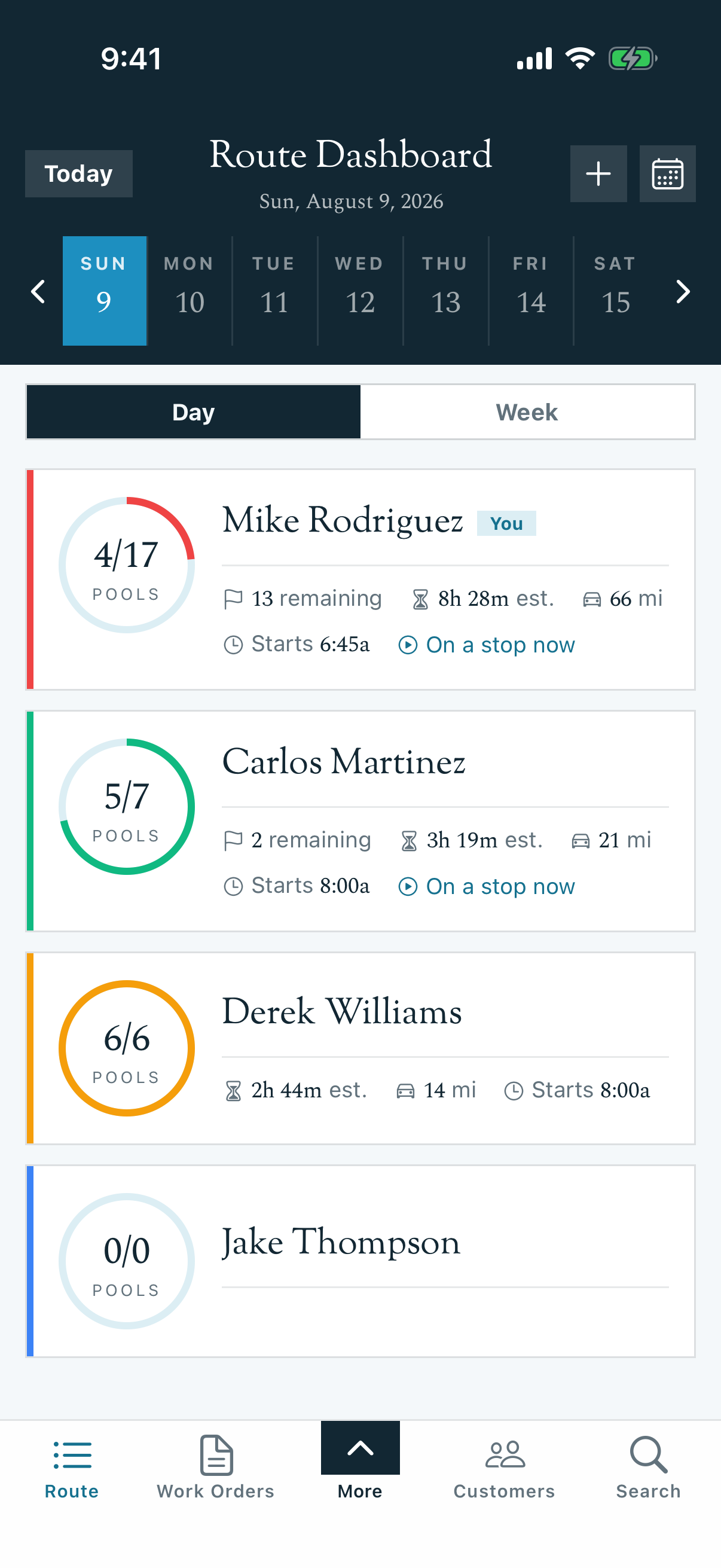
The Route Dashboard
Tap the Route tab in the bottom bar to land on the Route Dashboard. It opens on today in Day view.
- A technician who can only see their own work lands directly on their route.
- A lead tech or dispatcher with the view-other-routes permission sees every technician for the day, each as a card with a progress ring (e.g., 1/10 pools), stops remaining, an estimated time, and total drive miles.
Use the date strip (Sun–Sat) or the calendar button to jump to another day, and Today to snap back to the current date.
Day vs. Week
The Day / Week toggle switches between today's detail and a seven-day overview.
Week view rolls up the whole week — a running Week Total (e.g., 186 stops · 1 done) at the top, then each day with its technicians and a small progress bar per route. It's the fastest way to see what's coming without tapping into every day.
Opening a Route
Tap a technician's card to open that route for the selected date. The route screen lists every stop in sequence order — the order you'll drive them.
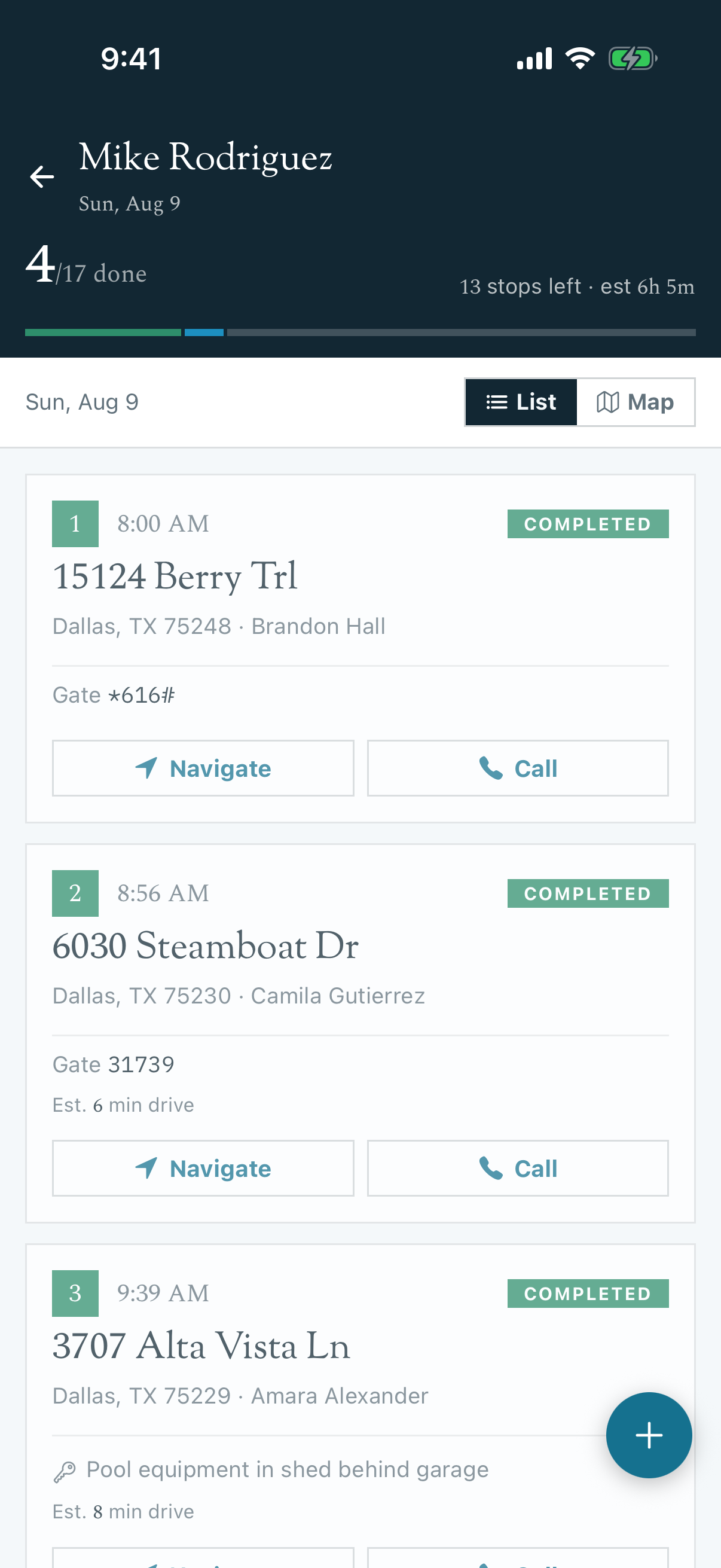
A progress bar across the top summarizes the day: how many stops are done and how many are still active/scheduled (e.g., 1 done · 1/10).
Reading a Stop Card
Each card is one scheduled visit. From top to bottom it shows:
| Element | What it tells you |
|---|---|
| Sequence number | Your order for the day — stop 1, 2, 3… |
| Scheduled time | The projected arrival time (e.g., 8:47 AM) |
| Status badge | Completed, In Progress, Scheduled, or Skipped |
| Address + customer | Where you're going and who owns the pool |
| Gate / access | Gate code shown inline when one is on file (e.g., Gate: 320651) |
| Work order tag | A colored tag (e.g., Plumbing Repair) marks a stop that's a work order, not routine service |
| Est. drive | Estimated drive time from the previous stop (e.g., Est. 17 min drive) |
Tap any card to open the stop and start working it.
List vs. Map
The List / Map toggle at the top right switches between the ordered stop list and a map of the day's stops as numbered pins in route order. List view is best for working down the day; map view is best for getting your bearings or spotting an out-of-the-way stop.
Note: Drive-time estimates are a planning approximation, not live navigation — tap Navigate on a stop for turn-by-turn directions. If a stop you expected is missing, the office may not have generated it yet, or it's on another tech's route.
Related
- Running a Stop — service a stop, log readings, and complete it
- Skipping a Stop — record a skip with a reason from the field
- Reordering Your Route — optimize and move stops
- Routes Overview — how routes and stops work end to end
Skip Reasons & Holidays (Web)
Configure the skip reasons technicians choose from, route skip alerts to your office, and handle holiday and weather closures.
Running a Stop (Mobile App)
Service a pool stop from the Pool Runs technician app — start the timer, log water chemistry, complete the checklist, add photos, and mark the stop complete.