Recurring Schedules (Web)
Choose a service weekday and recurring frequency, set the start and end dates, save the assignment, and verify the dated visits on Schedule.
Recurring Schedules (Web)
A recurring schedule connects a property and its water features to a technician, service weekday, and frequency. Choose the cadence agreed with the customer, review the service dates, and save the route assignment.
Download video · Captions (VTT) · Transcript (TXT)
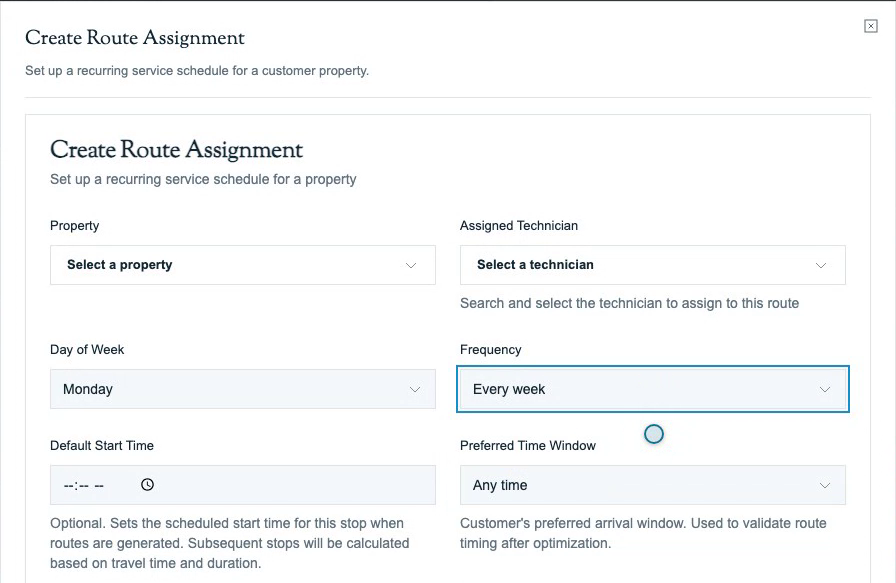
Choose the Service Frequency
| Frequency | Repeats |
|---|---|
| Every week | Every 7 days on the chosen weekday |
| Every 2 weeks | Every 14 days on the chosen weekday |
| Every 3 weeks | Every 21 days on the chosen weekday |
| Every 4 weeks | Every 28 days on the chosen weekday |
Every 4 weeks follows a 28-day rhythm. It does not mean the same date each calendar month.
Set the Start Date and First Service Week
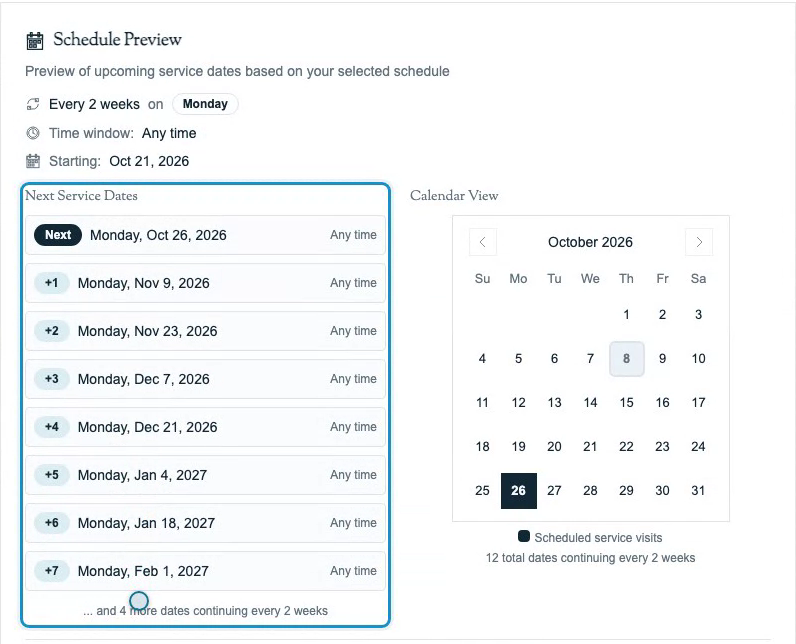
Start Date is the earliest date for the assignment. Schedule Preview advances to the selected Day of Week on or after that date, then lists repeats at the chosen interval. For a start date in the past, the preview advances to upcoming dates.
If service is on Monday and Start Date is on Wednesday, the first previewed visit is the following Monday. With Every 2 weeks, moving Start Date forward one week shifts which alternating Mondays receive service. Check the first listed dates against the intended service weeks before saving.

Create and Verify a Recurring Schedule
- Open Route Management → Route Assignments → Add Route → Add Single Route.
- Choose the Property and Assigned Technician. Under Choose Water Feature to Service, select the pools or spas included in the visit.
- Select Day of Week and Frequency.
- Set Start Date. Leave End Date empty for ongoing service, or choose the final permitted service date for a limited season.
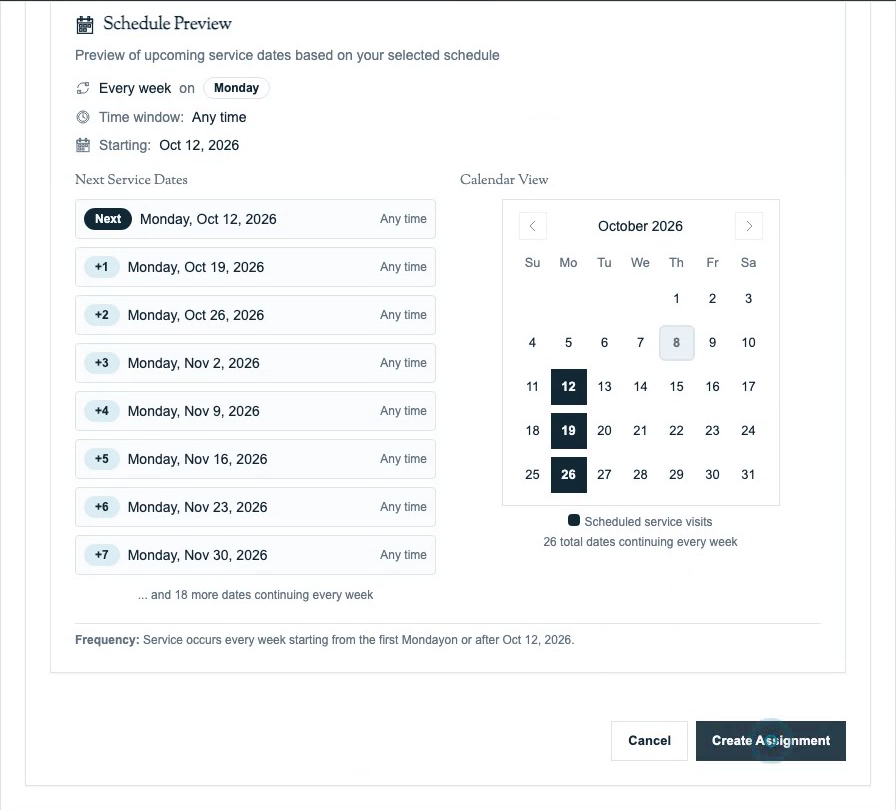
- Scroll to Schedule Preview → Next Service Dates. Confirm the first service date, weekday, interval, and arrival preference. Adjust Start Date if alternating weeks do not match the agreed plan.
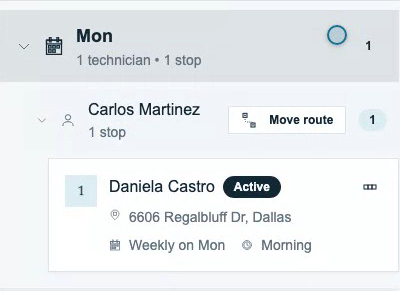
- Select Create Assignment. Confirm the saved property, technician, weekday, frequency, and water features in Route Assignments.
- Open Schedule within the account’s route-generation horizon. Find the technician’s route on the expected service date and verify the customer, property, and included water features.
Use Creating a Route for all assignment fields. To change an existing assignment’s frequency or start date, use Managing Routes.
Schedule Preview calculates dates from the form; it does not confirm that dated route stops exist. Actual stops depend on route generation, the account’s future horizon, and existing or moved visits. If a visit is missing, review the assignment’s weekday, frequency, Start Date, and End Date, then check Schedule and Route Generation.
Set an End Date for Seasonal Service
Leave End Date empty for ongoing service. For seasonal or short-term service, set the final permitted date. Once it passes, generation stops and the assignment becomes inactive while remaining available in history.
Review the retained inactive assignment when service resumes. Managing Routes explains clearing its end date and reactivating it.
Related
- Creating a Route — create and verify the assignment
- Managing Routes — change frequency or reactivate service
- Route Generation — configure generation and review missing dated visits
- Routes Overview — distinguish assignments from dated stops
Managing Routes (Web)
Edit a recurring assignment, move its technician or service day, change frequency, end service, and reactivate a retained plan.
Route Generation (Web)
How Pool Runs turns recurring schedules into daily route stops — automatic generation, Days Ahead, permission-dependent Generate Now, removed-visit confirmation, and service-completion rules.