Creating a Route (Web)
Create a recurring route assignment, review its service dates, or build a technician's day in the Route Builder.
Creating a Route (Web)
Download video · Captions (VTT) · Transcript (TXT)
A route assignment is the recurring rule: service this property, with this technician, on this weekday and cadence. Add one assignment with Add Single Route, or arrange several properties in the Route Builder.
Before you start: add the customer, a service property, and its bodies of water. The technician must already be on staff.
Add a Single Route
- Open Route Management → Route Assignments. Click Add Route → Add Single Route.
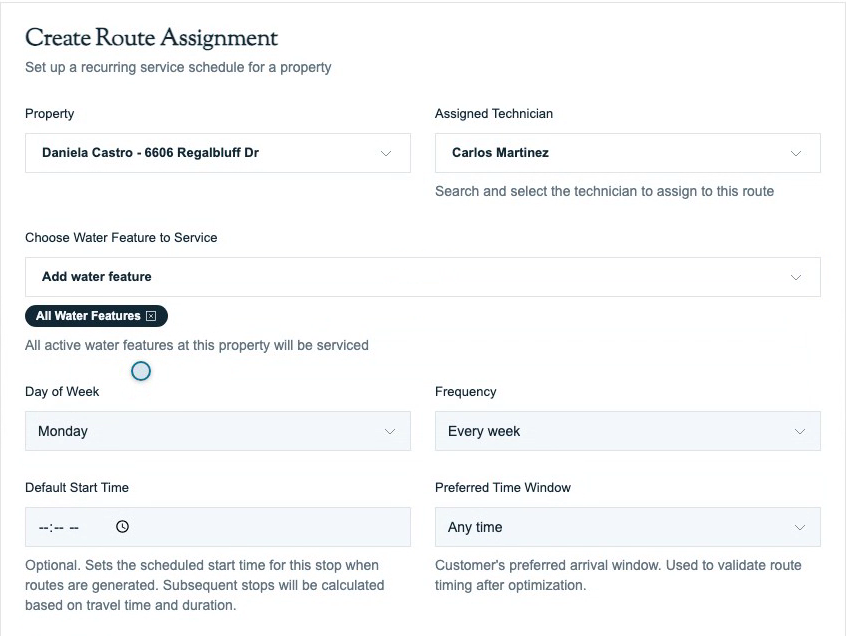
- Choose Property by customer name or service address, then choose Assigned Technician.
- Under Choose Water Feature to Service, select the pools or spas included in this visit. When the property has active bodies of water, select at least one. Select All Water Features includes every currently active feature at that property.
- Set Day of Week and Frequency. The options repeat every one, two, three, or four weeks.
- Review the optional timing and order fields: Default Start Time sets the generated stop's scheduled start; Preferred Time Window records the customer's arrival window; Route Position chooses where the stop belongs in the recurring day. Leave the position unselected to append it.
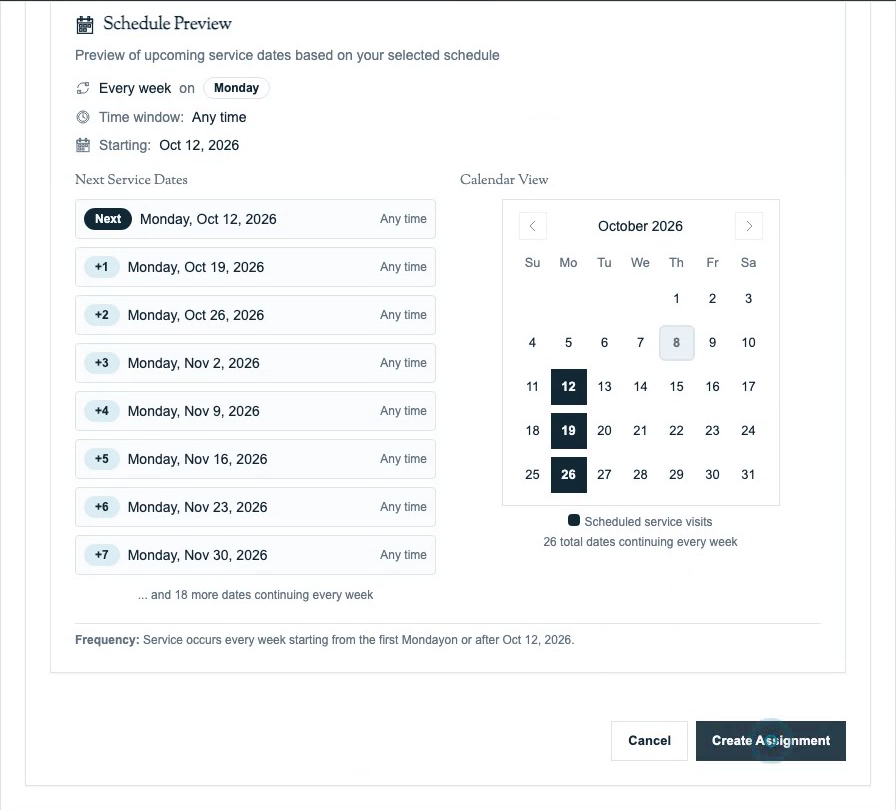
- Set Start Date. Leave End Date empty for ongoing service, or choose the last permitted service date for a limited season.
- Check Schedule Preview. Confirm the next dates, weekday, cadence, and arrival window, then click Create Assignment.
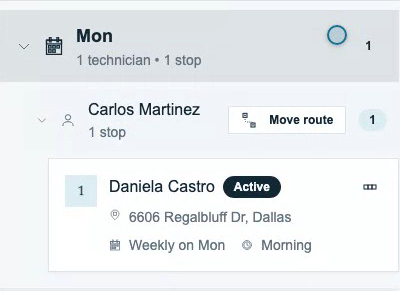
- Find the saved assignment in Routes and confirm its property, technician, weekday, and frequency.
A property can have only one active assignment on the same weekday. If an assignment already exists, open it and use Move or Edit instead of creating a duplicate. See Managing Routes.

Why won't the assignment save without water features?
When the property has active bodies of water, choose at least one under Choose Water Feature to Service, or select all. This identifies the pools and spas the recurring visit covers.
Build Multiple Routes
Open Add Route → Build Multiple Routes, or choose Route Management → Route Builder.
- Choose a Technician and Day of Week.
- Open Options and set the service frequency and preferred time before adding properties. These defaults apply to properties you add next; they do not rewrite existing assignments.
- Search in Add Property and select each location. It saves as a numbered stop with a matching map pin.
- Drag a stop's handle to change the recurring order. Pool Runs saves the sequence and automatically reconciles eligible future generated stops. Review customer time windows and date-specific changes after reordering.
- Use Optimize Route to preview a shorter drive before applying it.
See Route Builder for the complete builder and optimization instructions, and Route Generation for how assignments become dated visits.
Related
- Managing Routes — edit, move, end, or delete an assignment
- Route Builder — arrange and optimize a recurring day
- Route Generation — turn assignments into dated stops
- Routes Overview — understand assignments and visits