Route Builder (Web)
Build a recurring technician route, choose service defaults, reorder stops, and preview a shorter drive before applying it.
Route Builder (Web)
Reordering saves immediately: Dragging a stop in the recurring route saves the new order and reconciles eligible future visits before any additional preview. Leave As-Is dismisses that preview; it does not undo those saved changes.
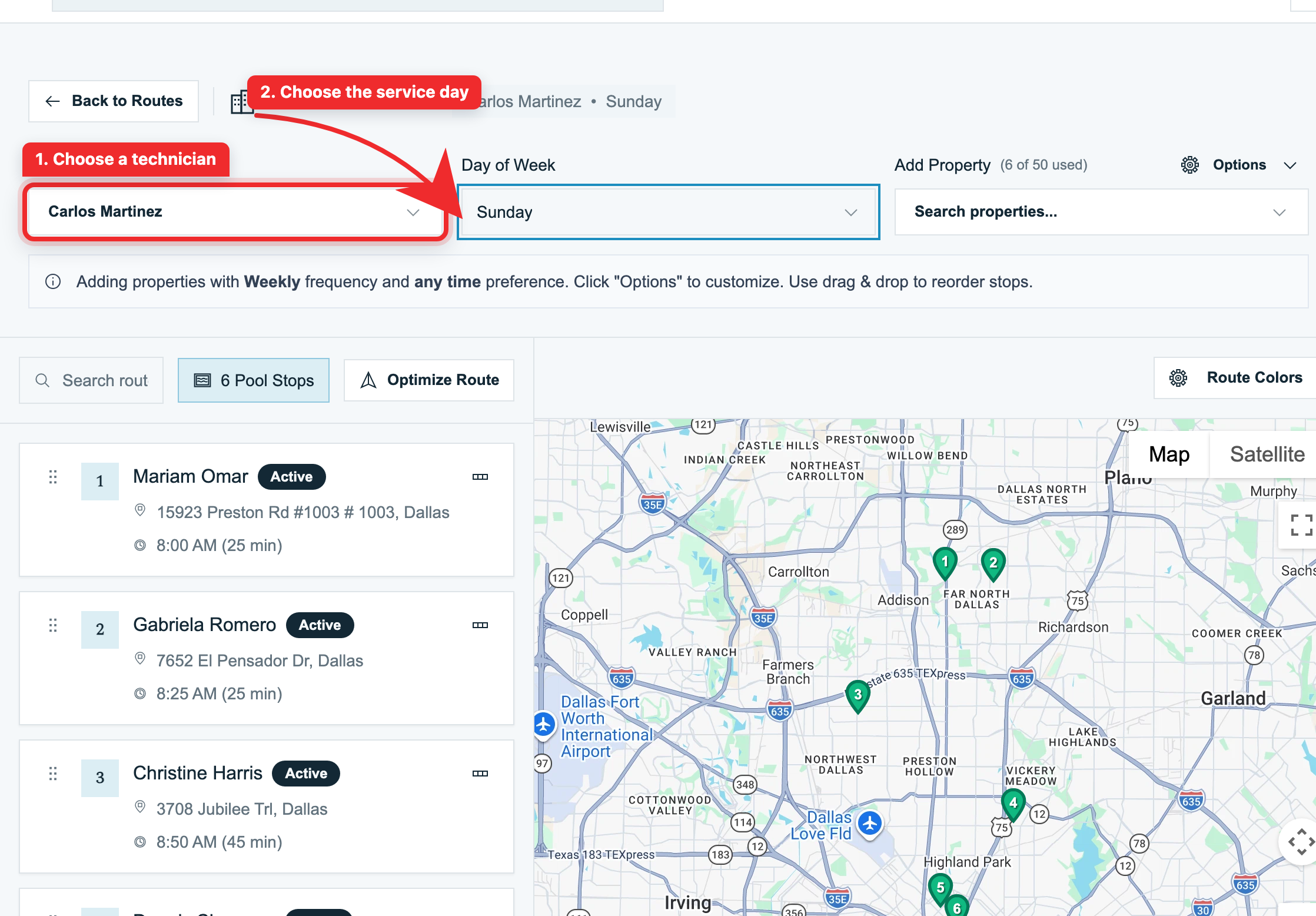
The Route Builder is a two-pane workspace for planning one technician's recurring service day. The stop list on the left controls the route order, while the numbered pins on the right show the same sequence on the map.
Open Route Management → Route Assignments, select Add Route, and choose Build Multiple Routes. You can also open Route Builder directly from the Route Management menu.
Before You Add Stops
Choose a Technician and Day of Week first. Pool Runs loads that technician's existing recurring route, if one exists. The stop list stays unavailable until both selections are made.
Open Options before adding properties when the new stops share the same schedule:
- Service Frequency controls how often the recurring visit should be generated, such as weekly or bi-weekly.
- Preferred Time gives the stop a planning window such as morning or afternoon.
These are defaults for properties you add next. Changing an option does not rewrite stops already on the route, so you can change the defaults between additions to build a mixed-frequency day.
Add and Find Properties
- Open Add Property.
- Search by customer name or service address. A specific address is the safest choice when one customer has several properties.
- Select the result. Pool Runs adds it at the next route position and places a matching numbered pin on the map.
- Repeat for the remaining properties.
Use Search route stops... to find a stop that is already on the selected route. This filters the current stop list; it does not search the full customer directory.
If the property is assigned to another technician on the same day, review the move prompt instead of creating a duplicate assignment.
Put Stops in Service Order
Drag the grip handle on a stop card to its new position. Pool Runs renumbers the list and map together and recalculates the estimated arrival sequence.
Reordering saves the recurring sequence and automatically reconciles eligible future generated stops. Completed and in-progress visits are preserved; date-specific manually arranged stops and time-locked commitments need special care.
If Update Future Route Stops? appears, inspect the listed dates, locked times, and work-order placement before applying the additional changes. Leave As-Is dismisses this additional preview. It does not undo the recurring reorder or automatic changes already saved.
Preview an Optimized Route
Use optimization after all stops have been added and their map locations are confirmed:
- Select Optimize Route.
- Choose Start From and End At. Company Address is useful for a round trip when your organization address is configured under Settings → Organization. A route property can also be used as an anchor.
- Select Preview optimization.
- Compare the current and optimized distance and drive time.
- Switch between Current route and Optimized route to inspect both orders on the map.
- Select Apply optimized route only when the proposed sequence works operationally.
The preview is a checkpoint, not a save. Opening the comparison does not change the route. The optimizer focuses on drive efficiency and does not understand every business constraint, so confirm locked appointment times, access windows, work orders, and technician preferences before applying it.
Stops without valid map coordinates cannot be optimized with the mapped stops and are placed after the optimized portion. Re-enter the property address using address autocomplete if a stop is missing its pin. Routes with many stops may also need to stay within the optimizer's 25-stop limit.
Practical Planning Tips
- Set shared frequency and time defaults before adding a batch, then change them only when the next group needs a different cadence.
- Search by the full street address when customer names are similar or an account has multiple properties.
- Use a required first or last property as the start or end anchor when the day has a fixed appointment.
- Treat estimated arrival times as planning guidance. Traffic, service duration, and unscheduled work can change the real day.
- Review the optimized map for unreasonable crossings or long gaps before applying it.
Troubleshooting
Why does Add Property show no results?
Confirm the correct technician and day are selected, then try the customer name or a shorter portion of the service address. If the property already belongs to that route, it will not be offered as a new stop.
Why did changing Options not update existing stops?
Options are defaults for the next property you add. Edit an existing assignment separately when its cadence or preferred time needs to change.
Why is a property missing from the optimization map?
Its address likely does not have valid coordinates. Edit the property and select the address from autocomplete, then reopen the Route Builder.
Does Preview optimization change the route?
No. The recurring order changes only after you select Apply optimized route. You can close the review and keep the current sequence.
Should I update future stops after every reorder?
Pool Runs already reconciles eligible future stops when the recurring sequence is saved. If an additional preview appears, inspect its proposed changes before applying them. Leave As-Is dismisses that preview; it does not restore the previous recurring order or reverse automatic changes.
Related
- Creating a Route - add stops with the form or Route Builder
- Managing Routes - edit, move, and reassign stops after creation
- Route Generation - understand how recurring assignments become daily stops
- Reordering Your Route (Mobile) - rearrange and optimize from the field