Running a Stop (Mobile App)
Service a pool stop from the Pool Runs technician app — start the timer, log water chemistry, complete the checklist, add photos, and mark the stop complete.
Running a Stop (Mobile App)
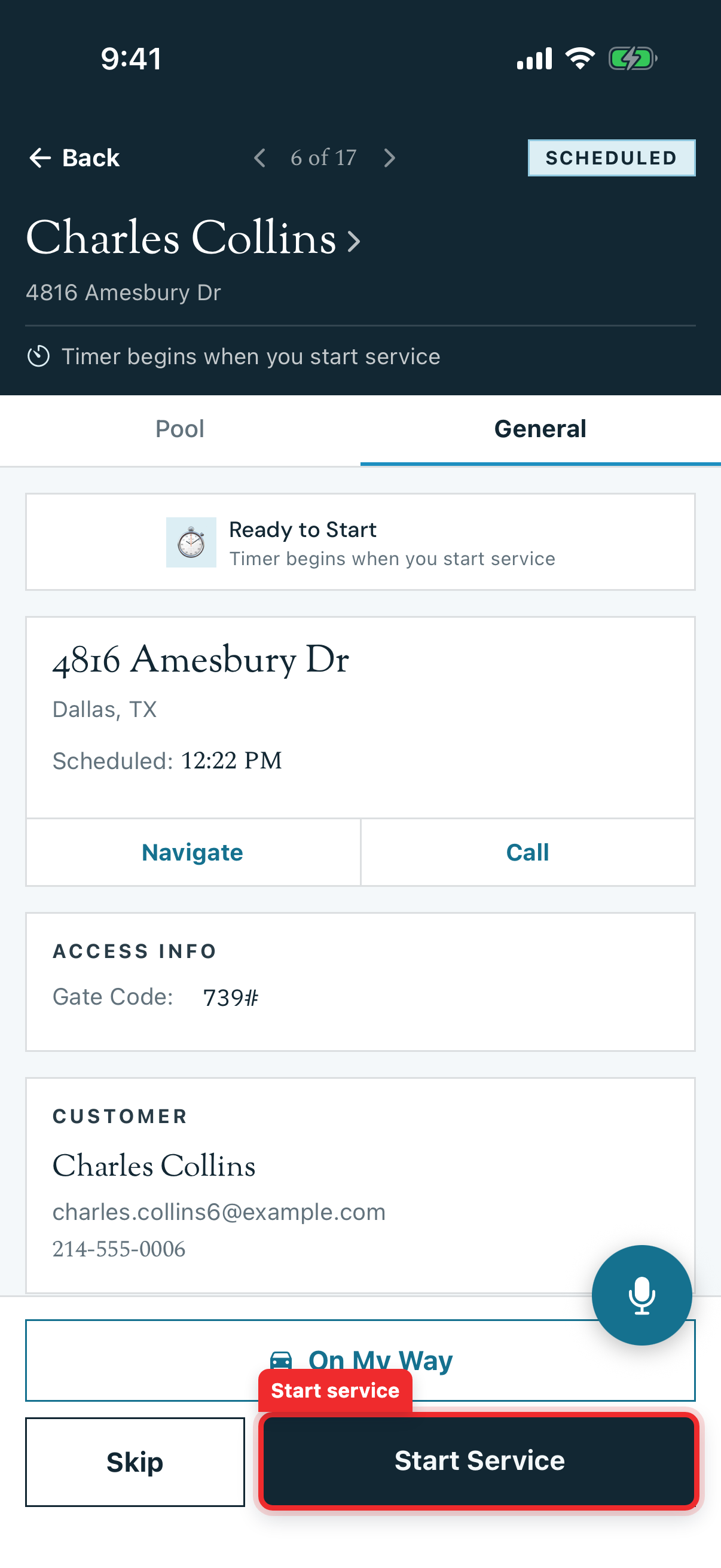
Tapping a stop on your route opens the stop screen — the workspace for a single visit. From here you start the timer, log water chemistry, work the checklist, attach photos, and complete the stop. This is where most of a technician's day actually happens.
The Stop Screen
The header shows the customer, the stop's position in your day (e.g., 2 of 10), and a status badge. Use the ‹ › arrows to move to the previous or next stop without going back to the list.
Two tabs organize everything:
- General — address, access info, customer contact, service documentation, photos, and the checklist.
- Pool (or the body of water's name) — water chemistry and readings for that pool/spa.
The General tab also gives you:
| Section | What it's for |
|---|---|
| Navigate | Opens turn-by-turn directions to the property in your maps app |
| Call | Dials the customer |
| Access Info | Gate codes and access notes (e.g., Equipment room code same as gate) |
| Customer | Name, email, and phone on file |
Step 1 — Start Service
Tap Start Service at the bottom of the screen. The status flips to In Progress and a timer begins — Pool Runs records your start time and tracks elapsed minutes on site.
Tip: If you forgot to tap Start when you arrived, use Edit Start Time to backdate it so your time-on-site is accurate.
Step 2 — Log Water Chemistry
Open the Pool tab to enter readings for the body of water. Each pool shows its volume and surface (e.g., 15,000 gal · Plaster) and the most recent readings from the last visit (e.g., FC 2.2 · pH 7.3 · TA 110) so you can see trends.
For each reading (free chlorine, pH, alkalinity, calcium hardness, cyanuric acid, salt, and so on) you can:
- Drag the slider or tap a preset chip (each chip is labeled, e.g., Ideal, Low – Add calcium) to enter a value fast
- Tap the calculator button for the LSI (Langelier Saturation Index) to check water balance
Readings you enter here become the customer's service record and feed chemical history.
Step 3 — Work the Checklist
On the General tab, the Checklist section lists the service tasks for this stop (for example: Skim surface and brush walls, Empty skimmer and pump baskets, Check filter pressure (PSI), Test and balance water chemistry, Add sanitizer as needed, Vacuum pool floor, Inspect equipment operation, Note any repairs needed). Tap each item to mark it done.
Items marked Required must be completed before you can finish the stop — the checklist header tracks your progress (e.g., 0 of 8) and warns how many required items remain (see Step 5).
Step 4 — Add Notes & Photos
Two documentation areas live under Service Documentation:
- Work Performed — Customer Visible: appears on the customer's service report.
- Internal Notes — Private: only technicians and office staff see it.
And two photo areas:
- Service photos — customer-facing proof of service (clean pool, equipment, etc.)
- Internal photos — private photos for the office (a leak, a part to order)
Photos are increasingly expected by customers and are your best protection if service is ever disputed.
Step 5 — Complete the Stop
Tap Complete Service. Pool Runs checks that every required checklist item is done. If any are outstanding, it blocks completion and lists exactly what's left:
Tap Go Back and Complete Items, finish them, then complete again. Once it goes through, the stop's status becomes Completed, your time-on-site is saved, and (depending on your company's settings) a service report can be emailed to the customer. A completed stop is what feeds billing.
Note: Only Work Performed and Service photos reach the customer's report — Internal Notes and Internal photos stay private to your team. Can't service the stop today? Skip it with a reason instead of completing (see Skipping a Stop).
Related
- Your Daily Route — open and read your day's route
- Skipping a Stop — record a skip with a reason
- Route Generation — how completion settings (required readings) are configured
Your Daily Route (Mobile App)
Open and read your day's route in the Pool Runs technician app — the Route Dashboard, the stop list, statuses, drive-time estimates, and the list/map toggle.
Skipping a Stop (Mobile App)
Record a skipped pool visit from the Pool Runs technician app, choose a reason, add notes, and create a clear history for the office.