Importing Customers from QuickBooks Online
Bring your existing customer book into Pool Runs through the QuickBooks Online integration — auto-matching, sub-customers as properties, and what does and doesn't come over.
Importing Customers from QuickBooks Online
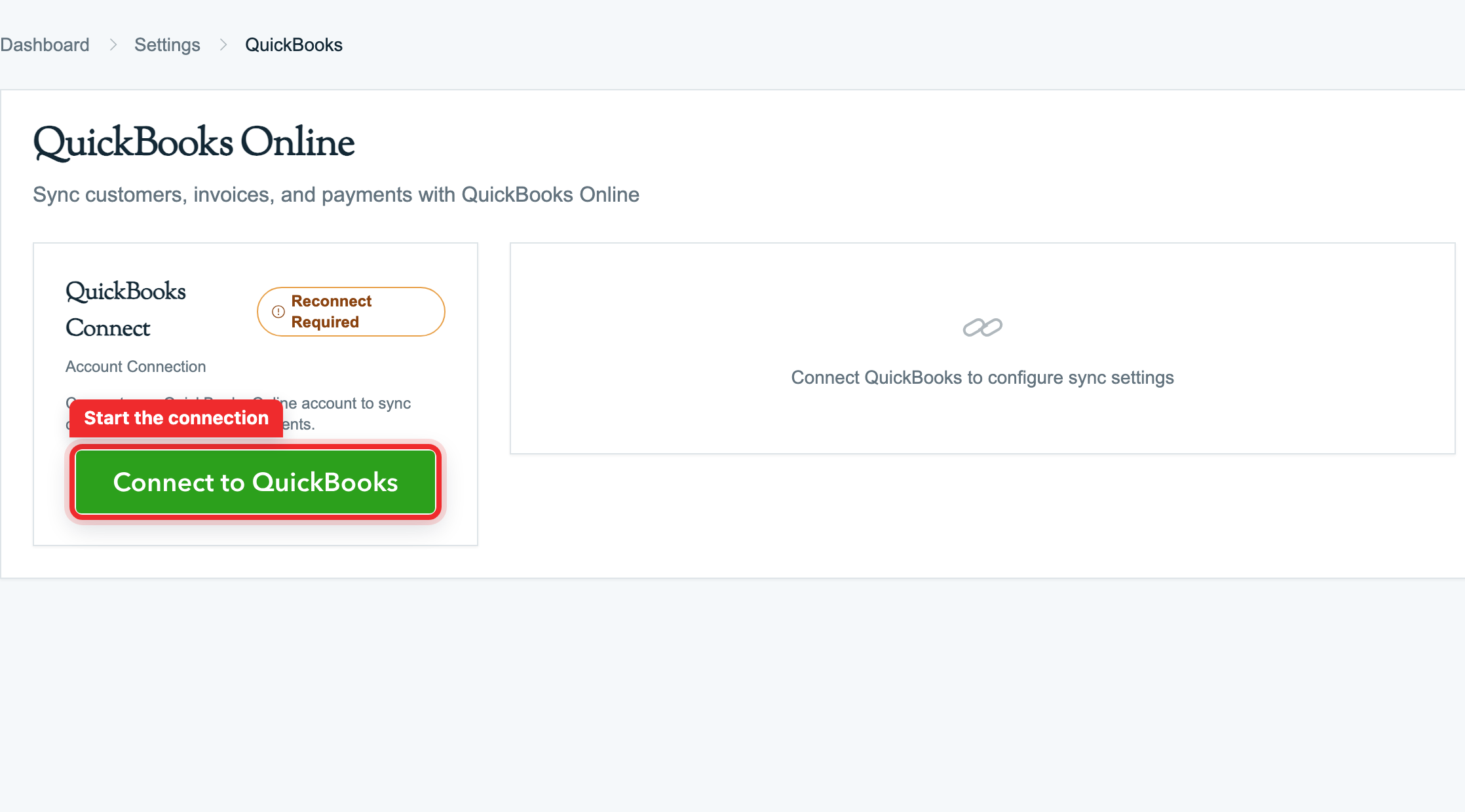
If you keep your books in QuickBooks Online (QBO), the cleanest way to bring your customers into Pool Runs is the QBO integration. Connect once, walk through the setup wizard's customer-matching step, and your QBO list lands in Pool Runs with a live link to each QBO record, so future edits stay in sync both ways. A typical 250-customer book imports in under five minutes.
The QuickBooks connect step uses Intuit's own hosted sign-in, so this guide picks up from an already-connected account. To connect for the first time, see Setting Up QuickBooks.
QBO Import vs. CSV Import
Both paths exist. Pick based on whether you do your billing in QuickBooks today.
| QBO import | CSV import | |
|---|---|---|
| Best for | You bill from QuickBooks today | You bill elsewhere (Skimmer, paper, etc.) |
| Setup | One-time sign-in to QuickBooks | None — just a .csv file |
| Ongoing | Two-way sync keeps QBO and Pool Runs aligned forever | One-time snapshot; no ongoing link |
| Sub-customers (Jobs) | Become properties under the parent | Not represented |
| Editing in QBO later | Flows back to Pool Runs in real time | No effect on Pool Runs |
| Undo | Re-run the setup wizard to revisit unmatched rows | Contact support to reverse |
Tip: Choose this path if you bill from QBO today, even after a trial CSV import. The wizard auto-matches your existing Pool Runs customers so you don't get duplicates.
For the spreadsheet path, see Importing Customers from CSV.
Prerequisites
- A QuickBooks Online subscription (Simple Start, Essentials, Plus, or Advanced).
- An Intuit user with Admin access to the QBO company file.
- A Pool Runs role with permission to manage settings (Admin or Office Manager).
- A sense of which side has the more accurate customer list, QBO or Pool Runs. The wizard lets you import, export, or skip per row, so it doesn't have to be all-or-nothing.
What Gets Imported
For each QBO customer you choose to import, Pool Runs creates a customer record with:
| Pool Runs field | Source QBO field |
|---|---|
| First name | Given name |
| Last name | Family name |
| Company name | Company name |
| Primary email | |
| Phone | Primary, mobile, and alternate phone |
| Notes | Customer notes |
| Billing address | Billing address (street, city, state, ZIP) |
| Service address | Billing address (creates an initial property if present) |
| Status | Always Active |
A two-way link is created behind the scenes, so later edits sync both ways within seconds. See What Syncs to QuickBooks for the full field map.
Sub-Customers Become Properties
QBO supports sub-customers (also called Jobs) under a parent, like "Bob Smith" with "Bob Smith - Vacation Home". Pool Runs imports each sub-customer as a property under the parent customer, matching the customer → property → body-of-water hierarchy.
When sub-customers aren't a clean fit: If your QBO uses sub-customers for billing purposes (e.g., one sub-customer per recurring contract on the same property), the property mapping will look wrong. Email support@poolruns.com before importing, or use the CSV path for those accounts instead.
Step-by-Step Guide
Step 1: Open the setup wizard
Once you're connected (see Setting Up QuickBooks), the setup wizard opens automatically. If you closed it, re-open it from Settings → QuickBooks Online → Re-run Setup.
Step 2: Skip past account mapping
After a Welcome screen, the wizard opens the Accounts step, where you map QBO accounts (revenue, accounts receivable, fees). For a customer-only import you can accept the defaults. These settings matter for invoices, not for customers. Click Next to land on the customer-matching step.
Step 3: Match customers
The customer-matching step decides which records come from QBO, which go up to QBO, and which are already linked. What you see here depends on whether Pool Runs already has customers.
Starting from scratch (the most common case)
Most businesses connect QuickBooks precisely to bring their customer list into Pool Runs, so they have no customers entered yet. When Pool Runs is empty there is nothing to auto-match: the step shows 0 matched and lists every QBO customer in a single QBO only group.
Click Import All to queue your entire customer book, then click Next. That is the whole step.
If you already have customers in Pool Runs
If you added customers before connecting (via CSV, a trial run, or manual entry), Pool Runs compares both lists so you don't create duplicates. It looks at email, company or display name, first and last name, and address. Email is the most reliable signal, and an exact email match is confirmed automatically.
Each row lands in one of four groups:
| Group | What it means | What you do |
|---|---|---|
| Auto-matched | High-confidence match (usually email) | Spot-check a few; the rest are safe to accept |
| QBO only | Exists in QBO, not in Pool Runs | Import to bring into Pool Runs, or Skip |
| Pool Runs only | Exists in Pool Runs, not in QBO | Export to create in QBO, or Skip |
| Possible match | Lower-confidence pairing | Confirm or override the suggested match |
You can bulk-select rows in any group and apply Import / Export / Skip in one click. The usual pattern: accept the auto-matched rows, bulk-import the QBO only group (your existing book), review Possible match row-by-row, and decide per row on the Pool Runs only group (trial accounts, prospects).
Step 4: Confirm and continue the wizard
Click Next to lock in your customer decisions. The wizard moves on to Product Matching. Step through the remaining steps (Products, Tax Rates, Settings, Review) accepting defaults if you only care about customers right now. Nothing commits until you click Start Sync on the final step.
Step 5: Review and Start Sync
The Review & Start Sync step shows a summary of everything you decided. Click Start Sync and watch the progress bar.
Customers and properties import while you watch. A 250-customer book typically finishes in 1 to 3 minutes; a 2,000-customer book in 10 to 15 minutes. You can leave the page. The sync continues in the background and shows up in the activity log when done.
After the Import
Imported customers appear in the Customer Directory as Active. Each one has:
- The QBO fields above, filled in on the profile.
- A QBO link icon on the profile (clicking it opens the matched customer in QBO).
- Properties from QBO sub-customers, or one property from the QBO billing address if there are no sub-customers.
- An empty service history. Bodies of water, route stops, work orders, and chemical readings do not import.
The QBO import is customer + property only. None of the following come over:
- Historical invoices, payments, or credits. They stay in QBO. Going forward, new Pool Runs invoices push to QBO. (See the heads-up in Setting Up QuickBooks.)
- Bodies of water. QBO has no concept of pools or spas, so each property starts with zero bodies of water (unlike the CSV import, which adds a default Pool). Add them per property after the import.
- Route history, work orders, chemical readings. Pool Runs-native data QBO never held.
- Statements, late fees, account balance. Current balances stay in QBO until you switch your billing to Pool Runs.
So after the import you'll still want to:
- Add bodies of water to imported properties (volume, equipment, surface, sanitization).
- Drop customers onto routes. The import does not auto-schedule them.
- Confirm billing (pricing, autopay, payment terms). Customer-level billing fields do not all come from QBO.
The clean migration pattern: leave history in QBO as a reference, start fresh in Pool Runs from the day you go live, and let new invoices flow to QBO from there.
Need something on this list brought over? If there's specific data you want to move (historical invoices, an unusual QBO setup), email support@poolruns.com before you start. The team can tell you whether a one-time migration is possible.
Tips
- Adding customers to QBO later? As long as Sync Customers stays on, new QBO customers land in Pool Runs automatically, no second wizard run needed. If sync was off, re-run the wizard and the matching step shows only new QBO records.
- Both lists are messy? In QuickBooks Online settings, set conflict resolution to QuickBooks wins before you match, so QBO data wins on email auto-matches. Switch it back to Pool Runs wins afterward so day-to-day edits aren't undone.
FAQ
Troubleshooting
- Problem: The wizard says "0 customers found in QBO" → Solution: Confirm you connected the correct QBO company file. Disconnect from Settings → QuickBooks Online and reconnect, picking the right company at the Intuit picker step.
- Problem: Auto-matching didn't pick up obvious matches (same name, same address) → Solution: Auto-match prioritizes email. If your QBO customers don't have emails, most rows land in the Possible match group — that is expected. Work through the column row-by-row.
- Problem: A QBO customer imported, but the service address is missing → Solution: The QBO record has no billing address. Pool Runs creates the initial property from the billing address. Add the property manually on the customer profile.
- Problem: After import, a customer shows in both Pool Runs and QBO but isn't linked (no QBO icon on the profile) → Solution: This means the row was Skipped during matching. Re-run the wizard from Settings → QuickBooks Online → Re-run Setup and the unmatched pair will surface again.
- Problem: Sub-customers imported as separate customers instead of properties → Solution: This happens when the QBO sub-customer's parent was Skipped during matching. Skip those stray sub-customers, fix the parent, then re-run the wizard.
Related Articles
- Importing Customers from CSV — The spreadsheet path
- Setting Up QuickBooks — How to connect and the full six-step wizard
- What Syncs to QuickBooks — Field-by-field map of ongoing sync after the import
- Properties — How the property hierarchy works (sub-customers become properties)
- Customer Profiles — Where imported customers land, plus customer statuses
Need help? Check our troubleshooting guide or contact support.