Customer Directory
Browse, search, and filter your full customer list in Pool Runs.
Customer Directory
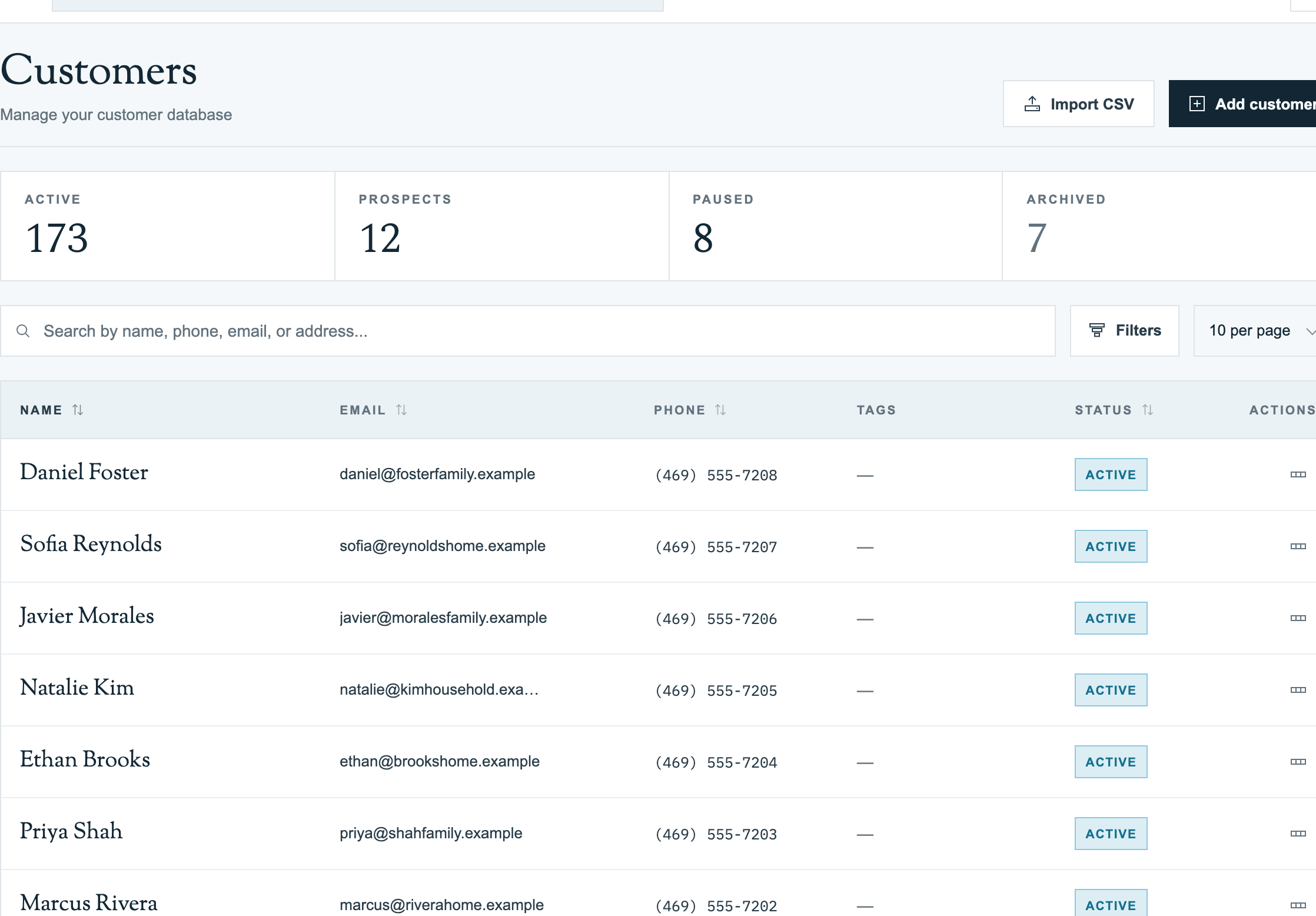
The master list of every customer your business serves. Office staff lives here — search by name, phone, or service address, filter by status or tags, and click any row to open the profile.
Opening the Directory
Click Customers in the left sidebar. The directory loads with the most recently added customers at the top.
Columns
| Column | What it shows |
|---|---|
| Name | First/last name (or company name, depending on display setting) plus the customer code if one is set |
| Primary email on file (hidden unless your role has the view-contact permission) | |
| Phone | Primary phone number (hidden unless your role has the view-contact permission) |
| Tags | Service-type and segmentation labels (weekly-service, commercial, VIP) |
| Status | ACTIVE, PROSPECT, PAUSED, or ARCHIVED |
| Actions | Three-dot menu with View Details; click the name to open the full profile |
The customer code is an optional, manual field. It's a free-text unique identifier you can set on the new-customer form, handy when you migrated from a system with its own codes. It is not auto-generated.
Searching
The search box matches on first name, last name, company name, email, customer code, phone number, billing address, and property address. Phone matching ignores formatting, so 2145550086 finds a number stored as 214-555-0086. A street, city, state, or ZIP can find the customer attached to that service location. Search is debounced, so type freely and results refresh after a brief pause.
Sorting
Click any sortable column header to sort; click again to reverse. Sortable columns: Name, Email, Phone, Status.
Filtering
Click Filters on the right side of the search bar to open the filter dropdown menu.
- Customer Status — Active, Prospect, Paused, or Archived
- Tags — Multi-select; matches any chosen label
- Property Rate Type — Per Stop, Per Month, Plus Chemicals, Monthly + Chemicals
- Auto-Pay Status — Enrolled or Not Enrolled
- Has Company / Has Email / Has Phone — Narrow to records with those fields populated
A count badge on the Filters button shows when any are active. Clear All Filters inside the dropdown resets them.
Tip: Filter by Status: Active + Tags: weekly-service when building a new weekly route — that gives you only the customers who should be on it.
Header Actions
In the top-right of the directory header:
- + Add Customer — opens the new customer form. See Add, Edit, or Delete a Customer (Web).
- Import CSV — opens the bulk import wizard. See Importing Customers.
Common Workflows
Finding a customer who just called in
Type their name, company, email, customer code, or phone number in Search, then click the matching row. If the caller only knows the pool address, search the street or ZIP instead.
Building a list of paused customers to call back
Open Filters → set Customer Status to Paused → optionally add tag seasonal → sort by Name.
Auditing customers without an email on file
Open Filters → toggle Has Email off → call the resulting list to collect addresses.
FAQ
Q: I don't see a customer I know exists. Where did they go?
A: Check active filters — a Status: Active filter hides Paused or Archived records. Click Filters → Clear All Filters, then search again.
Q: Can I export the directory to a spreadsheet? A: Not from the directory itself today. Open Reports → Customer reports to export a CSV. Contact support if you need a recurring or automated export.
Q: Why does one customer show their company name and another shows the person's name? A: Each record has a Display by company toggle — on for commercial accounts where the legal entity matters more than the individual.
Q: The directory feels slow with 800+ customers. Any tips?
A: Use search instead of paging, and set page size to 50 (the max). For groups you query often, tag them (e.g. route-tuesday) and filter by tag.
Related
- Add, Edit, or Delete a Customer (Web) — Create, edit, or archive a customer record
- Customer Profiles — The detail page that opens when you click a row
- Importing Customers — Bulk-load from CSV