Importing Customers from CSV
Bulk-load your existing customer book into Pool Runs from a spreadsheet.
Importing Customers from CSV
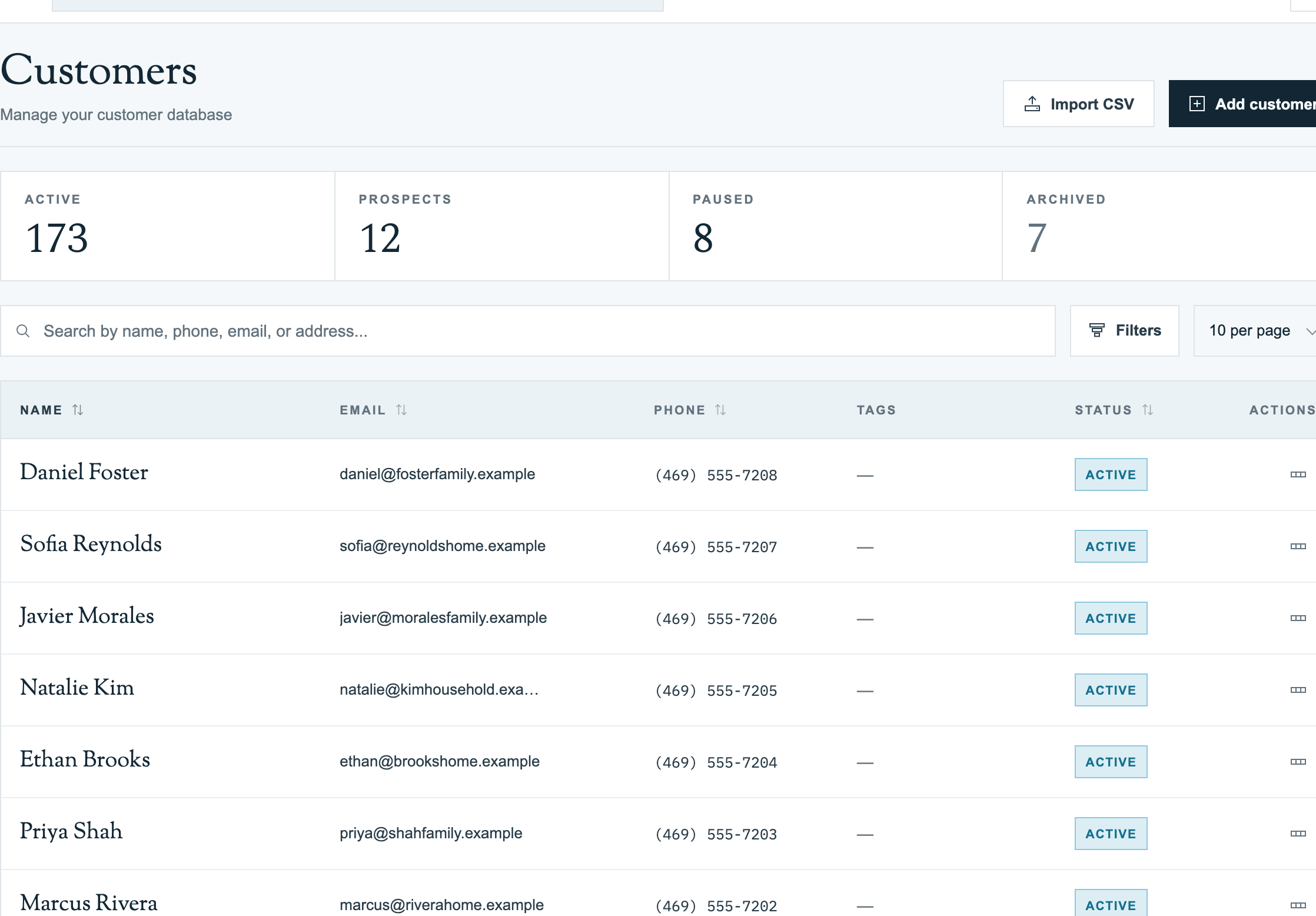
Pool Runs has a built-in CSV import wizard for moving your customer list from another system. Most imports finish in a minute or two. You can import up to 5,000 rows at a time.
From QuickBooks Online? Use the QuickBooks Online import instead — it's faster, preserves sub-customers as properties, and keeps both systems in sync. The CSV flow below is for businesses that have already left QBO or never connected it.
Prerequisites
- Your role allows customer creation
- A
.csvfile (UTF-8, comma-separated — convert from.xlsxfirst) - At minimum, First Name and Last Name columns
What You Can Import
| Field | Required | Notes |
|---|---|---|
| First Name | Yes | |
| Last Name | Yes | |
| No | Must be a valid email if provided | |
| Phone | No | Stored as entered |
| Company Name | No | For commercial accounts |
| Billing Street / City / State / ZIP | No | Where statements are mailed |
| Service Address / City / State / ZIP | No | Creates a service property (when the property option is on) |
| Gate Code | No | Stored on the property's gate code field |
| Monthly Rate | No | Sets a rate on the imported property |
Import Steps
1. Open the wizard
From the Customers directory, click Import CSV in the top-right header. The wizard opens with three steps: Upload → Map Columns → Preview.
2. Upload your CSV
Drag the file onto the upload area, or click to choose. The wizard parses the file and shows column headers plus a few sample rows.
Not sure how to format your file? Click Download Template for a ready-made CSV, or View supported fields to see every column you can map.
3. Map your columns
The wizard auto-detects common headers (e.g. "First Name" or "fname" → First Name). Where it can't, pick the matching Pool Runs field from each column's dropdown, or Skip to ignore. Required fields (First/Last Name) must be mapped before Preview Import unlocks.
4. Preview the result
The preview shows the first 10 rows as Pool Runs will create them, plus a count of valid rows and rows with errors. Rows with errors are flagged but not blocked. You can skip them or fix the CSV and re-upload.
5. Configure options
Two checkboxes control the import:
- Skip duplicate customers (by email address) is on by default. Any row whose email already exists in Pool Runs is skipped.
- Create service properties builds a service property from the mapped service-address fields.
6. Confirm and import
Click Import Customers. The results summary shows how many customers were created, how many were skipped (including a "Skipped ... matched existing customers by email" count), and any rows with errors.
What Happens After Import
Each imported customer has the fields you mapped, plus a service property if you turned on Create service properties and mapped service-address fields. Every new property starts with a default Pool body of water. There's no service history, no invoices, and no scheduled stops.
You'll still need to:
- Fill in body-of-water details on imported properties (volume, equipment, surface, sanitization).
- Drop customers onto routes. The import doesn't auto-schedule them.
- Configure billing (rate model, autopay, payment terms).
Preparing Your CSV
- From QuickBooks Desktop: Export the Customer Contact List report as CSV. Columns map cleanly.
- From Skimmer / Routely / similar: Most pool-service apps offer a customer export. Combine any split service-address columns (
Service Street 1+Service Street 2) before uploading. - From your own spreadsheet: Headers in row 1, no merged cells, no blank rows. Standard column names (
Phone, not📞 Phone Number (primary)) auto-detect best.
Cleanup tips:
- Trim whitespace (
=TRIM(A2)) - Standardize state to two letters (
Texas→TX) - Strip
$and commas from rates ($150.00→150) - Open phone columns as Text (not Number) in Excel, or use Google Sheets — otherwise leading zeros get stripped
FAQ
Q: Will running the same file twice create duplicates? A: No. The importer skips duplicates by default. Any row whose email already matches an existing customer is skipped, and the results screen shows a "Skipped ... matched existing customers by email" count. Rows without an email can't be matched, so give every row an email where you can.
Q: Can I undo an import? A: There's no one-click undo. If an import goes wrong, contact support and the team can help you reverse it.
Q: Can I import multiple bodies of water (pool + spa) per row? A: Not today. When the property option is on, the import creates one service property with a default Pool body of water. Add the spa or any extra bodies of water on the property record after the import.
Q: Does the import bring over service history, invoices, or payments? A: No. Customer records only, plus an optional service property. For most pool service businesses, the cleanest approach is to leave history in your old system as a reference and start fresh from your go-live date.
Troubleshooting
- "Required fields not yet mapped" won't clear. Both First Name and Last Name must be mapped (not Skip). If your CSV has a single "Full Name" column, split it in your spreadsheet first.
- Most rows show invalid email errors. The column may hold both name and email (
Joe Smith <joe@x.com>). Clean to email-only first. - Import skipped more rows than expected. Skip duplicate customers is on by default, so any row whose email already matches an existing customer is skipped. Check the skipped count on the results screen.
- Address shows up wrong after import. Edit the profile, click the billing address field, and pick the correct Google address suggestion so the map location updates.
Related
- Importing Customers from QuickBooks Online — Direct QBO import with two-way sync
- Customer Directory — Where imported customers appear
- Add, Edit, or Delete a Customer (Web) — One-at-a-time entry
- Customer Profiles — What lives on each imported record
Multi-Property Account Patterns
Operational patterns for customers with many properties, including HOAs, snowbirds, short-term rentals, and builder warranty accounts.
Importing Customers from QuickBooks Online
Bring your existing customer book into Pool Runs through the QuickBooks Online integration — auto-matching, sub-customers as properties, and what does and doesn't come over.