Bodies of Water (Mobile App)
Adding and editing bodies of water (pools, spas, fountains) from the Pool Runs technician mobile app.
Bodies of Water (Mobile App)
Adding and editing bodies of water from the Pool Runs technician mobile app — useful when a tech is onboarding a new pool on-site or needs to update volume or surface type from the field. For the same flow on the web admin, see Bodies of Water (Web).
Before you start: Your role must allow customer updates to add, edit, or delete a body of water. Your role must also allow checklist management to assign a dedicated customer checklist.
Add a Body of Water
Step 1 · Open the Customer's Property
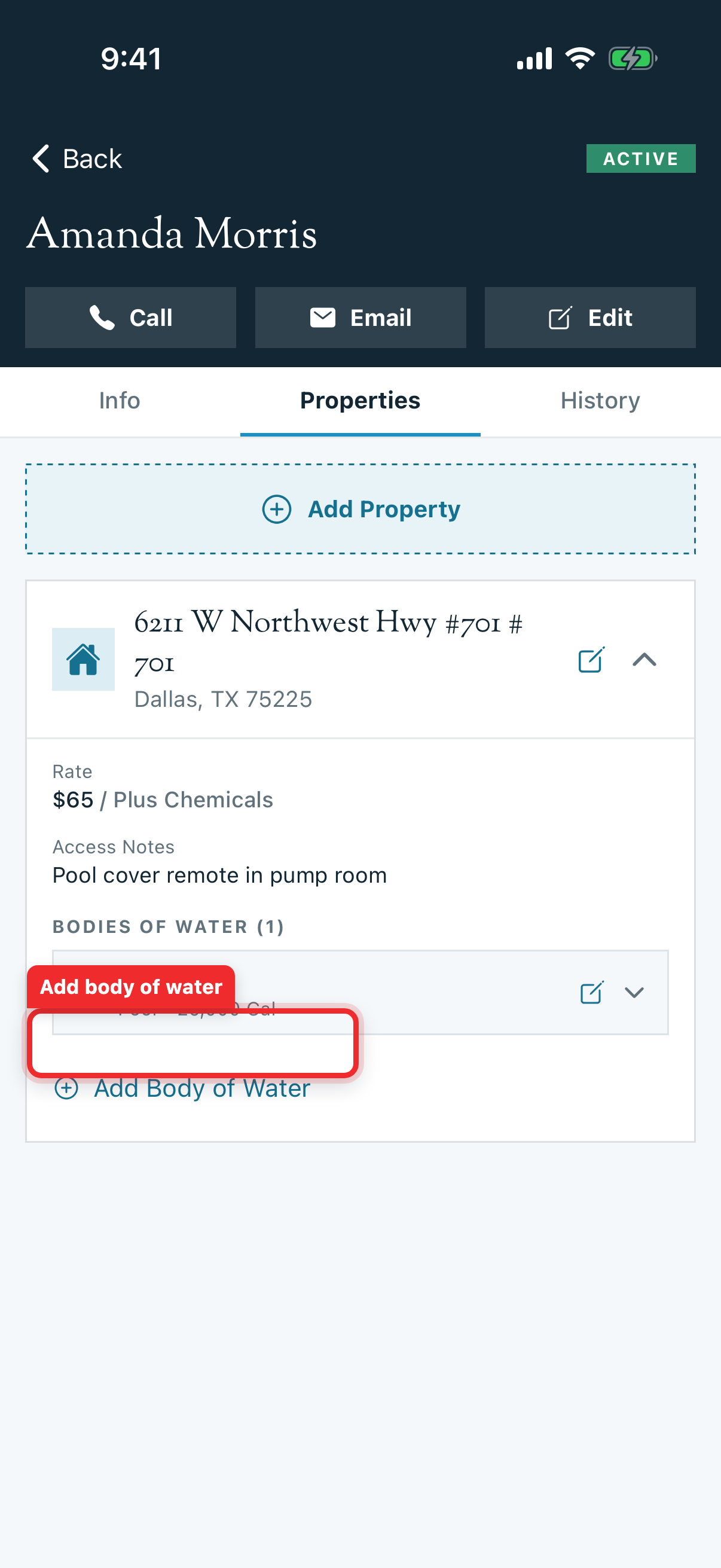
From the Customers tab in the bottom bar, open the customer, then tap the Properties tab. Tap the property card to expand it.
Step 2 · Tap "Add Body of Water"
The expanded property card has a plain-text + Add Body of Water button. Tap it.
Step 3 · Enter the Name
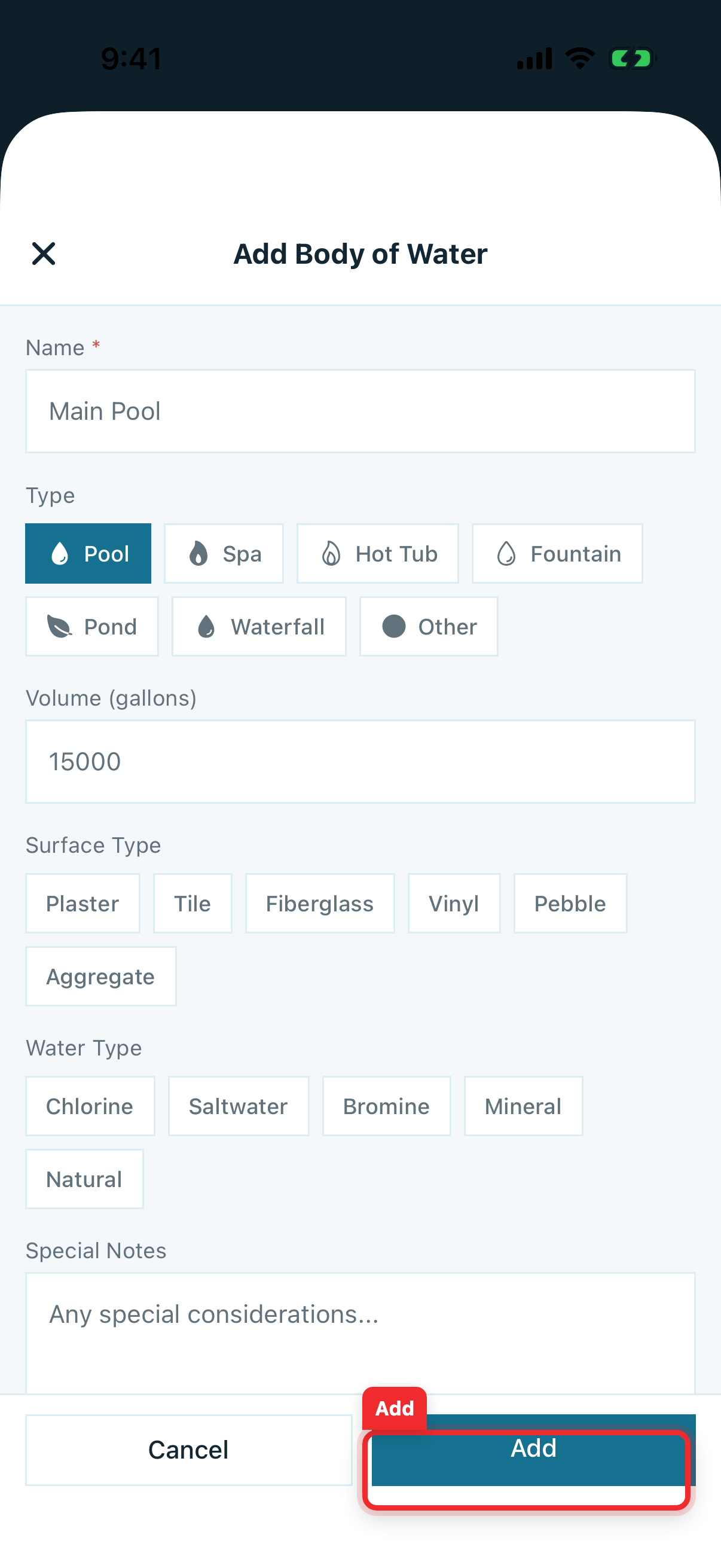
Name is the only required field. Pick something a tech can recognize at a glance — Main Pool, Backyard Spa, Lobby Fountain. Avoid Pool 1, Pool 2.
Step 4 · Pick the Type
The Type field is a set of icon pills that wrap onto multiple rows: Pool, Spa, Hot Tub, Fountain, Pond, Waterfall, Other. Tap one — the selected pill turns blue.
Step 5 · Volume (Gallons)
Enter the total capacity. Volume drives every chemical dose Pool Runs suggests — even a rough estimate is better than zero.
Tip: Even a rough volume estimate beats zero. See Bodies of Water (Web) for the estimation formula.
Step 6 · Surface Type
A second pill row: Plaster, Tile, Fiberglass, Vinyl, Pebble, Aggregate. Tap once to select, tap again to clear.
Step 7 · Water Type
The sanitization system: Chlorine, Saltwater, Bromine, Mineral, Natural. Same pill behavior — tap to select, tap again to clear.
Step 8 · Special Notes
Free-text field for anything tech-relevant — in-floor cleaner brand, autofill quirks, surface start-up phases, booster pump timer schedules. Surfaces on the route stop screen.
Step 9 · Save
Tap Add in the footer (Cancel on the left, Add on the right in blue). The new body of water appears under the property on the Properties tab.
Edit a Body of Water
From the customer's Properties tab, expand the property, then tap the body of water row. Tap the pencil icon to open the edit form. The same form opens, pre-filled with the body of water's current values. Make changes and tap Save in the footer.
Note: Changing the Volume here does not rewrite past dosage suggestions — old service logs keep the math they were calculated with. Only new readings going forward use the updated number.
Equipment on Mobile
Mobile fully supports equipment. Expand a body of water to see its Equipment list, then tap Add Equipment to record a pump, filter, heater, or salt cell. Tap any existing item to edit it.
The equipment form has these fields:
| Field | Notes |
|---|---|
| Type (required) | Pump, filter, heater, salt cell, etc. |
| Make | Manufacturer |
| Model | Model name or number |
| Serial | Serial number |
| Install Date | When it was installed |
| Notes | Anything tech-relevant |
Recording equipment per body of water lets you track replacement timing per pool and spa, not just per property.
Assign a Checklist on Mobile
Open More → Checklists, tap +, and choose the Customer checklist type. Select the body of water, name the checklist, then add and arrange its items. You can mark items required, require a photo, and control where that photo is stored.
Users without checklist-management access can still open and view checklists, but only authorized roles can create or change them.
Delete a Body of Water
From the customer's Properties tab, expand the property and tap the body of water. Tap the pencil icon, then tap the red trash icon in the top-right and confirm Delete. The active record is removed while existing service history is kept.
Troubleshooting
- Add Body of Water button is missing — Your role does not allow customer updates. Ask an admin.
- Form saves but the body of water doesn't appear in the property card — Pull-to-refresh the customer profile; if it still doesn't appear, sign out and back in to force a sync.
- The volume Pool Runs is using during a stop is wrong — Edit the body of water on mobile, save the corrected volume, then pull-to-refresh the route stop. If an offline device still shows the old value, reconnect and run Sync Now from More.
Related
- Bodies of Water (Web) — The same management flow in the web admin.
- Properties (Mobile App) — The parent property a body of water attaches to.
Bodies of Water (Web)
Adding and editing bodies of water (pools, spas, fountains) from the Pool Runs web admin — fields, equipment, and checklists.
Multi-Property Account Patterns
Operational patterns for customers with many properties, including HOAs, snowbirds, short-term rentals, and builder warranty accounts.