Properties (Mobile App)
Adding and editing properties (service locations) from the Pool Runs technician mobile app.
Properties (Mobile App)
Adding and editing properties from the Pool Runs technician mobile app — useful for techs creating a property on-site, updating a gate code between stops, or capturing access notes the first time they visit a new account. For the same flow on the web admin, see Properties (Web).
Before you start: Your role must allow customer updates to add, edit, or delete a property. Pricing fields are hidden from technician-only roles. Labor cost remains a web-admin field.
Add a Property
Step 1 · Open the Customer and Tap Add Property
From the Customers tab in the bottom bar, open the customer, then tap the Properties tab inside their profile. Tap the dashed Add Property button at the top of the tab. If the customer has no service locations yet, the rest of the tab shows a No properties yet empty state.
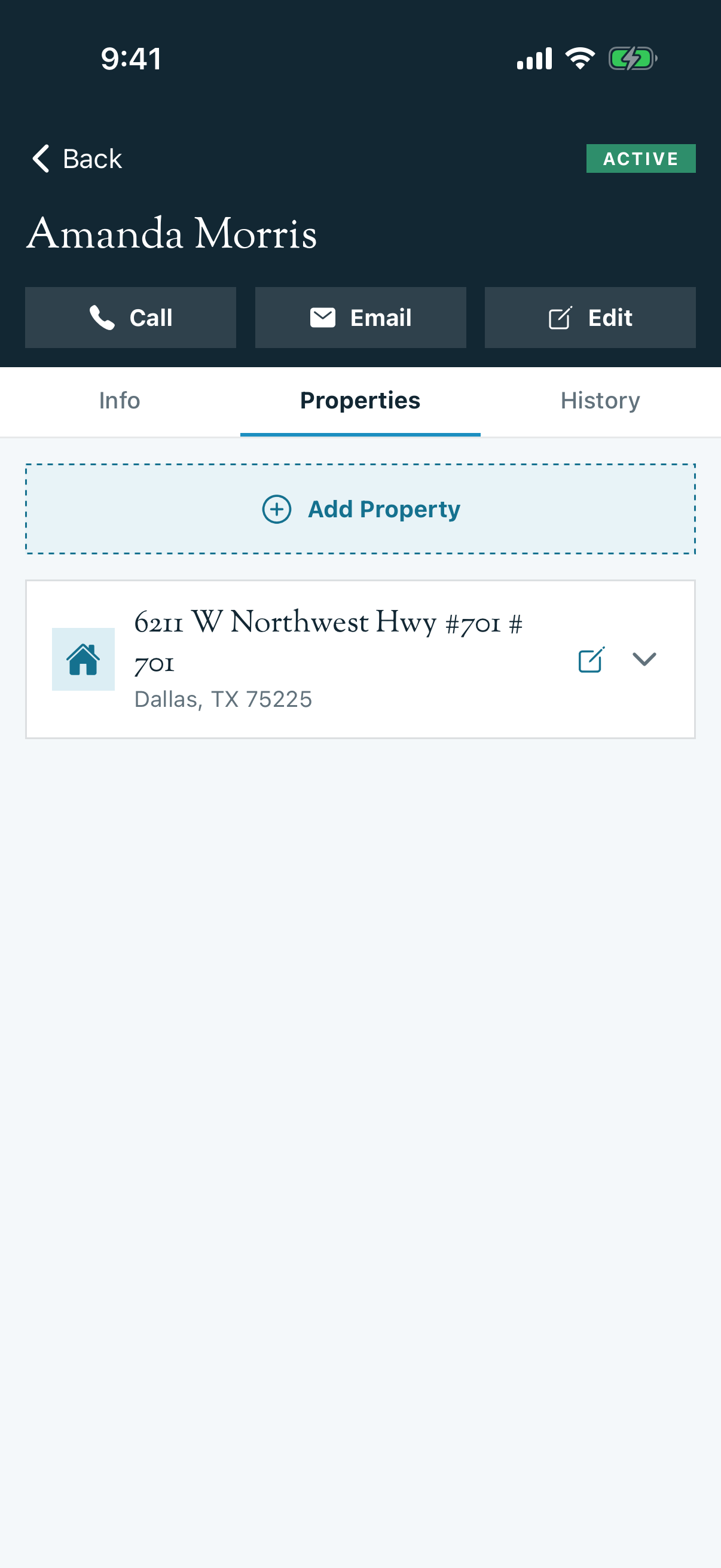
Step 2 · Search for the Address
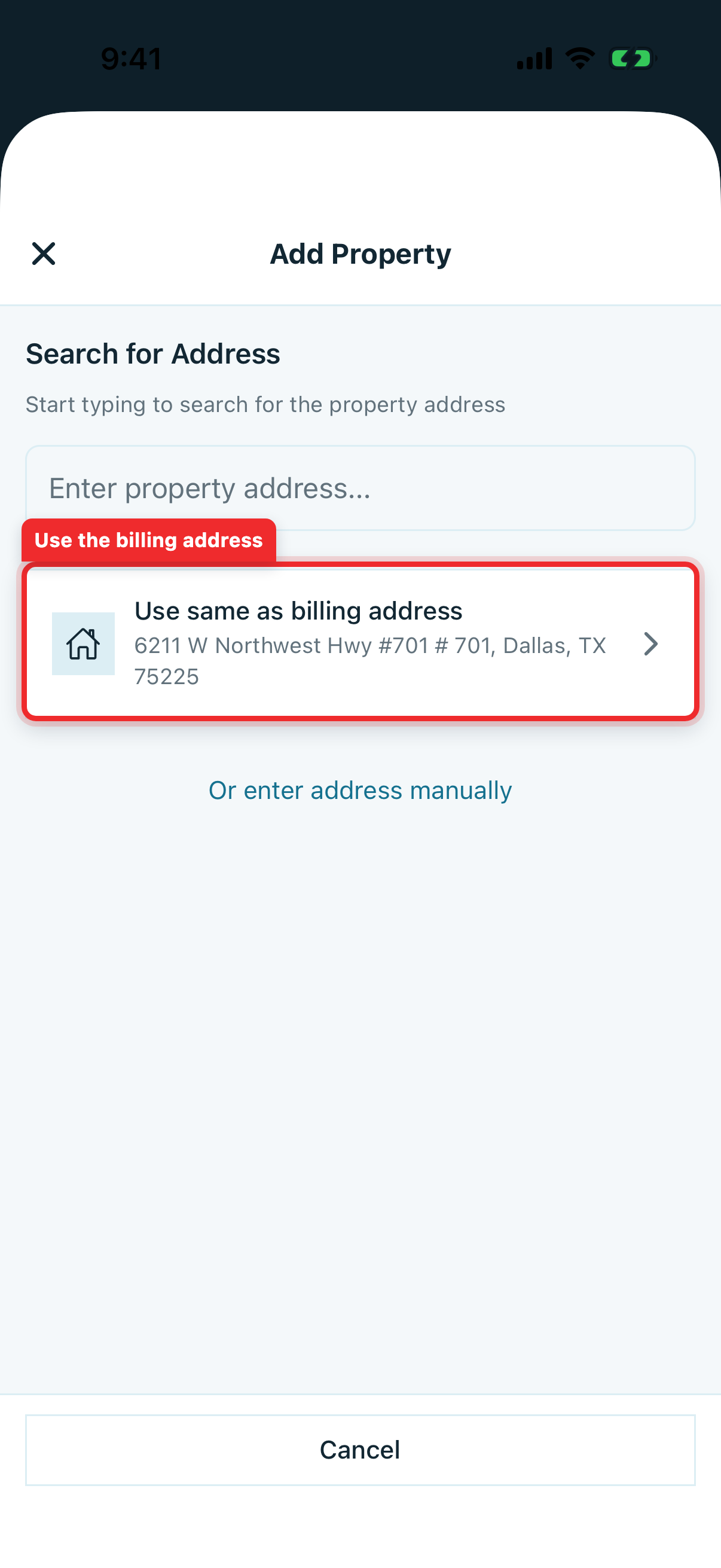
Mobile opens an address-first screen. Three options:
- Type into the search field to use Google Places autocomplete, then tap a suggestion.
- Tap Use same as billing address to prefill the customer's billing address in one tap.
- Tap Or enter address manually if the autocomplete cannot find the address.
Tip: Tapping a Places suggestion fills the street, city, state, and ZIP, and places the location accurately on the map. That map location helps route optimization, so picking a suggestion is preferred over typing the address manually.
Step 3 · Confirm the Address Fields
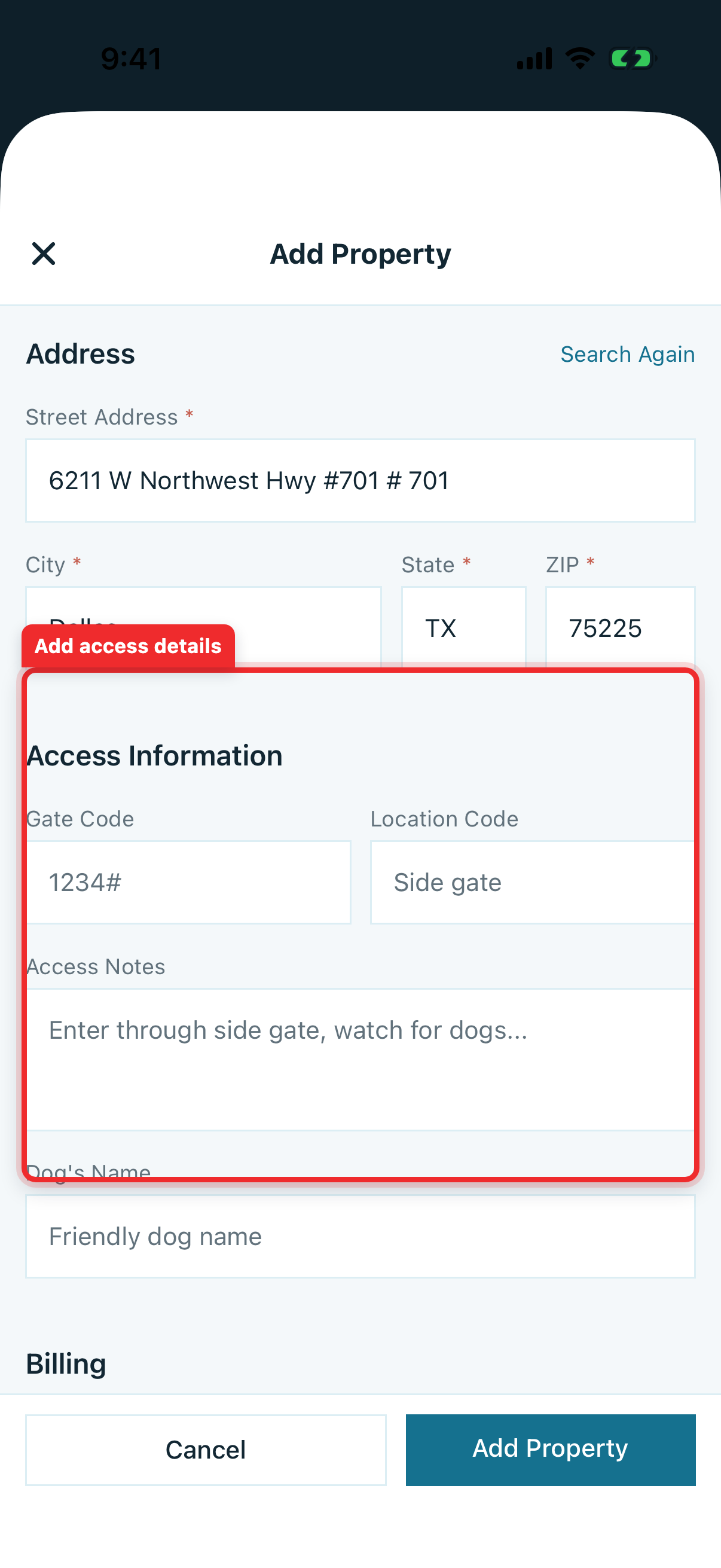
After picking from autocomplete (or tapping "Or enter address manually"), the form opens scrolled to the Address section with Street Address, City, State, and ZIP to fill in or verify. Verify everything looks right. Tap Search Again in the top-right of the Address section to redo the lookup.
Step 4 · Access Information
Two short fields:
- Gate Code — what the tech needs to open the gate or lockbox.
- Location Code — your internal identifier ("Side gate", "Pool A", "Building 4"). Surfaces on route stops.
Step 5 · Access Notes & Dog's Name
The Access Notes field is the key free-text field for the tech, shown before and during the stop. Dog's Name is a safety signal on the route stop. For access-note examples, see Properties (Web).
Step 6 · Billing (Admin Only)
If your role can view financial information, the form includes a Billing section with:
- Rate ($) — what you charge the customer for this location.
- Rate Type — selectable pills: Per Stop, Per Month, Plus Chemicals, Monthly + Chemicals.
Tip: Rate Type is a pill selector — tap a pill to choose how the rate is applied. To set labor cost, use the web admin.
Step 7 · Additional Notes
A second free-text field for property info that isn't strictly access-related — sun exposure, water source, HOA quirks. Office-facing rather than tech-facing.
Step 8 · Save
Tap Add Property in the footer. Pool Runs creates the property and returns you to the customer's Properties tab with the new location listed. To create the first body of water on this property, tap into the new property and use Add Body of Water — water features are not created during the property add flow on mobile.
Edit a Property
From the customer's Properties tab, tap the pencil icon on the right side of any property row. The same form opens, pre-filled with the property's current values.
The edit form has two differences from Add:
- The address-search intro screen is skipped — you land directly on the form.
- The footer button reads Save Changes instead of Add Property.
Tap Save Changes when done.
Deleting a Property
From the customer's Properties tab, tap the property's pencil icon. On the edit screen, tap the red trash icon in the top-right, then confirm Delete. Pool Runs removes the property from the active customer record while preserving existing service history.
Troubleshooting
- "Add Property" button is missing on the Properties tab — Your role does not allow customer updates. Ask an admin to update your role.
- Billing section is hidden — Financial visibility is intentionally restricted on technician-only roles. Switch to a role with financial access, or have an admin add the rate in the web admin.
- Address autocomplete shows no results — Confirm the device has network connectivity. If suggestions still do not appear, tap Or enter address manually and type the address fields directly; Pool Runs will locate the address on the map when you save.
Related
- Properties (Web) — The same flow on the web admin, plus labor-cost details.
- Add, Edit, Archive, or Reactivate a Customer (Mobile App) — Managing the customer this property attaches to.
- Bodies of Water — Adding the first pool or spa to a new property.
- Multi-Property Account Patterns — HOA, snowbird, and rental workflows.