Setting Up QuickBooks
Connect Pool Runs to QuickBooks Online, walk through the six-step setup wizard, and learn how to disconnect or reconnect later.
Setting Up QuickBooks
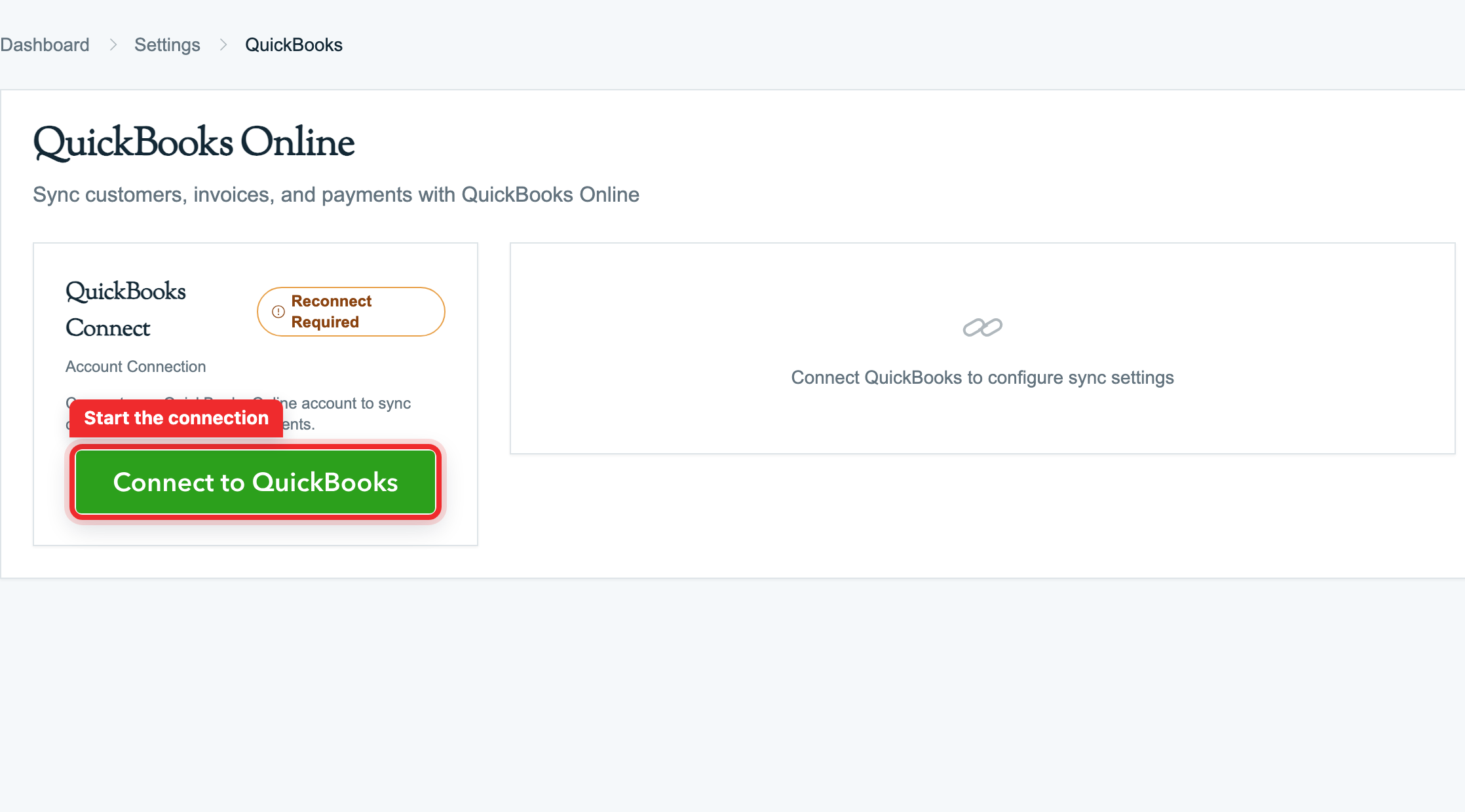
Connecting QuickBooks Online (QBO) is a one-time setup. You sign in to Intuit, pick which QBO company file to connect, authorize Pool Runs, then walk through a six-step wizard that decides which records to import, export, or skip. The whole thing takes about 5–10 minutes for typical books.
Prerequisites
- A QuickBooks Online subscription — Simple Start, Essentials, Plus, or Advanced. Sandbox accounts also work for testing.
- An Intuit user with Admin access to the QBO company file.
- Pool Runs Admin role (or any role with permission to manage settings).
- A modern browser with popups allowed for Intuit's sign-in page.
Tip: If your bookkeeper holds the QBO admin login and you do not, ask them to start the connection on their machine. Once authorized, any Pool Runs admin can manage the integration — the connection is tied to your Pool Runs company, not the person who set it up.
Connecting Pool Runs to QuickBooks
Step 1: Open the QuickBooks settings page
In Pool Runs, navigate to Settings → QuickBooks Online. If you have never connected, the page shows a "Connect to QuickBooks" panel with a green Intuit-branded button.
Step 2: Click "Connect to QuickBooks"
You will be sent to Intuit's sign-in page — Pool Runs never sees your Intuit password.
Step 3: Sign in to Intuit and pick the company
If you have multiple QBO company files, Intuit asks which one to connect. Pick carefully — Pool Runs can connect to only one QBO company at a time, and changing it later requires disconnecting and re-running the setup wizard.
Step 4: Authorize the requested permissions
Intuit shows what Pool Runs is asking for. Click Connect to authorize. Pool Runs is requesting permission to:
- Read and write customers, invoices, payments, items, deposits, refunds, and your chart of accounts
- See the name and email of the user starting the connection (just for the activity log)
Pool Runs is not requesting permission to move money or trigger charges through QBO Payments.
Step 5: Land back in Pool Runs
After consenting, Intuit sends you back to Pool Runs. The integration is now connected. The setup wizard opens automatically. Do not close the page — until the wizard completes, sync is not active.
Tip: If you accidentally close the wizard before finishing, you can return to Settings → QuickBooks Online and click Continue Setup to resume from where you left off.
The Six-Step Setup Wizard
The wizard decides:
- Which QBO accounts and items to use as defaults
- How to reconcile your existing customer lists (import from QBO? export to QBO? skip?)
- How to reconcile your existing product/service lists
- Whether to import QBO tax rates
- Which entity types should keep syncing going forward
- Then runs the first big push of data with a real-time progress bar
Plan for 5–10 minutes for typical books. Books with thousands of customers/items may run for 15–20 minutes in the background.
Before You Start the Wizard
Have these ready:
- The income account for new Pool Runs items in QBO (e.g.,
Income:Pool Service Revenue). - The QBO Items to use as defaults for route charges, fees, and deposits.
- (Optional) The bank account Stripe deposits land in and the expense account for Stripe processing fees.
- A clean idea of which side has the more accurate customer list — QBO or Pool Runs.
Tip: If you imported customers from a CSV into Pool Runs but never tidied them in QBO, your QBO list is probably the cleaner one and you should plan to import from QBO. If you have been running in Pool Runs for months without QBO, plan to export from Pool Runs.
Step 1: Default Accounts & Service Items
Default Accounts. Pick the QBO income account Pool Runs should assign when it creates a brand-new Item in QBO. This is a fallback only.
Default Service Items. Pick the QBO Items used for invoice lines that do not have a specific product mapping.
| Setting | What it covers | Required? | Example |
|---|---|---|---|
| Route Service Item | Recurring route stop charges | Yes | "Monthly Pool Cleaning" → Income:Pool maintenance |
| Fee / Surcharge Item | Late fees, trip charges, surcharges | No | "Service Fee" → Income:Service Fees |
| Deposit Item | Upfront deposits | No | "Customer Deposit" → Customer Deposits (liability) |
Two additional items — "Miscellaneous Service" and "Pool Runs - Stripe Refund" — are auto-created in QBO.
Stripe Payouts (Optional). If you collect payments via Stripe, map your deposit bank account and a fee expense account here. With both set, every Stripe payout creates a QBO Deposit with the net amount and a separate fee line.
Step 2: Customer Matching
Pool Runs compares both customer lists side-by-side. Auto-matching uses a fuzzy score across email (highest signal — exact email match auto-confirms), display/company name, first + last name, and phone number.
| Bucket | What it means | What you do |
|---|---|---|
| Auto-matched | High-confidence match by email or exact name | Review — usually no action needed |
| QBO only | Exists in QBO, not in Pool Runs | Import to bring into Pool Runs, or Skip |
| Pool Runs only | Exists in Pool Runs, not in QBO | Export to create in QBO, or Skip |
| Possible match | Lower-confidence pairing | Confirm or override |
You can bulk-select rows and apply Import/Export/Skip to the lot.
Sub-Customers Become Properties
QBO supports "sub-customers" (Jobs) under a parent — for example, "Bob Smith" with sub-customers "Bob Smith - Backyard Pool" and "Bob Smith - Vacation Home". Pool Runs imports each sub-customer as a property under the parent customer.
This matches Pool Runs' property hierarchy.
Tip: If your QBO uses sub-customers for billing purposes (e.g., one sub-customer per recurring contract), the property model may not be a perfect fit. Reach out to support before importing.
Step 3: Product Matching
Same wizard layout as customer matching, but for parts, chemicals, and work order types ↔ QBO Items.
Auto-matching is by exact or near-exact name. Each unmatched row offers options: QBO only (import as part/chemical/service in Pool Runs), Pool Runs only (export to QBO with the default income account), or Skip.
Units Matter
Chemicals are sold in different units (lb, gal, oz, tab, kg). QBO Items have no built-in unit field. Pool Runs preserves the unit on its side, so if your QBO "Liquid Chlorine" Item is priced per gallon and your Pool Runs chemical is configured per gallon, lines push correctly.
Mismatched units are the most common cause of "the dollar amounts in QBO are off by 10x" complaints. Check unit consistency during this step.
Step 4: Tax Rates
Pool Runs shows a side-by-side comparison of your tax zones versus your QBO tax codes.
- Import QBO tax rates — create matching tax zones in Pool Runs from your QBO tax codes. After import, you assign ZIP codes to each new zone in Settings → Tax Zones.
- Skip — keep your existing Pool Runs tax setup. Pool Runs sends the calculated tax amount to QBO and overrides QBO's auto-calculation.
See Tax Zones & Tax Management for how Pool Runs handles tax zones, exemptions, and per-line taxability.
Step 5: Sync Settings
Toggle which entity types should sync going forward, and pick a conflict-resolution policy.
| Toggle | Default | Notes |
|---|---|---|
| Sync Customers | On | Both directions once enabled |
| Sync Invoices | On | Pool Runs to QBO; status updates flow back |
| Sync Payments | On | Both directions |
| Sync Products | On | New parts/chemicals/services flow to QBO; QBO updates flow back |
| Sync Taxes | Off | On if you imported tax rates in step 4 |
Conflict resolution — if the same record changes in both systems between syncs:
- Pool Runs wins (recommended) — Most companies pick this because edits typically happen in Pool Runs first.
- QuickBooks wins — the QBO version overwrites Pool Runs.
You can flip this any time after setup.
Step 6: Review & Start
A summary screen shows everything you configured. Click Start Initial Sync to kick off the first push. A real-time progress bar shows status by entity type.
While the sync runs you'll see a "Saving Configuration" status, then a Sync Complete screen with the total entity count once the push finishes.
Heads up: Customers and items push synchronously while you watch. Historical invoices do not push retroactively — only invoices generated going forward sync to QBO. If you need to backfill old Pool Runs invoices, contact support; this is a manual operation.
After the Wizard
- The QuickBooks settings page shows Connected with sync enabled.
- A health summary appears: synced count, pending count, error count.
- Changes you make in Pool Runs start flowing to QBO in seconds.
- Changes made in QBO are picked up in real time, with a 15-minute safety check.
If anything errored during the initial push, the activity log on the settings page lists each failure with a description and a Retry button. See QuickBooks Overview: Sync Errors.
Re-Running the Wizard
You can re-run the wizard any time from Settings → QuickBooks Online → Re-run Setup. Existing links between Pool Runs and QBO records are preserved — you are only reviewing new unmatched records. This is the right tool to use after migrating a batch of customers, cleaning up duplicates in QBO, or adding a large product catalog import.
Disconnecting QuickBooks
Disconnecting QBO is safe and reversible. It stops the sync immediately but does not delete any records in either system. If you reconnect later, your existing mappings can be reused.
What Disconnect Does
Clicking Disconnect in Settings → QuickBooks Online:
- Tells Intuit to revoke Pool Runs' access. Pool Runs can no longer talk to QBO for your company.
- Marks your Pool Runs company as disconnected from QBO.
- Stops all sync — nothing flows between systems anymore.
- Removes Pool Runs from QBO's connected apps list (over the next few minutes).
What Disconnect Does NOT Do
- It does not delete Pool Runs records or QBO records.
- It does not break the existing customer/item/invoice links — Pool Runs remembers which records are linked, so reconnect picks back up where you left off.
- It does not void invoices that have already been pushed to QBO.
- It does not remove the QBO Items that were auto-created.
When to Disconnect
| Scenario | Better alternative |
|---|---|
| Connected the wrong QBO company | Disconnect, reconnect, and pick the right one |
| Moving to a different QBO company file | Disconnect and reconnect to the new file |
| Stopping QBO use entirely (rare) | Disconnect to halt sync. Pool Runs continues to work standalone. |
| Sync errors are pervasive | Try Re-run Setup first — it keeps your existing links. Disconnect only as a last resort. |
| Temporarily pausing sync | Use the Sync Enabled toggle instead |
Tip: If you just want to pause syncing for a few days, use the Sync Enabled toggle. Disconnecting is a heavier action because it tears down the secure connection — reconnecting means signing in to Intuit again.
How to Disconnect
- Go to Settings → QuickBooks Online.
- Click Disconnect at the bottom of the page.
- Confirm in the dialog. (Pool Runs warns you about any in-flight syncs.)
- The page refreshes to show the Connect to QuickBooks state.
Reconnecting After a Disconnect
If you reconnect to the same QBO company you previously disconnected from:
- Your existing customer/item links are reused.
- The wizard's matching steps show records as already matched — you only need to review new records.
- Sync resumes seamlessly for known records.
If you reconnect to a different QBO company, old links remain on file but are not reused; the wizard runs as if it were a fresh setup.
Heads up: While disconnected, changes made on either side pile up. When you reconnect, the next sync catches everything up. For a busy company, this can take a few minutes.
What Happens After Disconnect
Pool Runs continues to function normally as a standalone product (routes, work orders, invoices, Stripe payments). The only change is that new invoices and payments do not push to QBO — you (or your bookkeeper) would need to enter them manually.
QBO continues to function normally too. All historical invoices, payments, customers, and items remain.
Note: Stripe payouts no longer create QBO Deposits after disconnect.
What Pool Runs Stores About the Connection
For transparency, Pool Runs holds onto:
- The identifier for your QBO company so we know which company file to talk to.
- The secure connection credentials Intuit gave us, encrypted at rest.
- The connected QBO company name for display.
- The date and time you connected.
We never store your Intuit password. After disconnect, the credentials are wiped from your account; the QBO company identifier and the link list are kept for reconnect convenience.
Connection Troubleshooting
"Permission denied" or "Forbidden" after clicking Connect
Your Intuit user is not an admin on the QBO company you selected. Ask the QBO master admin to either grant you admin access or run the connection themselves.
Stuck on Intuit's loading screen
A browser extension (privacy blocker, ad blocker) is likely blocking appcenter.intuit.com. Disable extensions for that domain and retry, or try an incognito window.
"We couldn't connect to QuickBooks" error in Pool Runs
The handoff between Intuit and Pool Runs got interrupted. Common causes: browser blocked the popup, the Pool Runs tab was closed before being sent back, or a network proxy / corporate VPN blocked Intuit.
Connection went stale after a long break
If Pool Runs has not talked to QBO for roughly 100 days, the secure connection expires and you will see an error. Click Reconnect in Settings → QuickBooks Online — you sign in to Intuit again, no data is lost, and your existing links keep working.
FAQ
Q: Can I connect multiple QBO companies to one Pool Runs org? A: No. The relationship is 1:1. If you operate multiple legal entities, contact support — multi-org setups can be configured at the account level.
Q: Does connecting move any data immediately? A: No. Connecting only authorizes Pool Runs to talk to QBO. The actual data movement happens in the setup wizard, and only after you confirm on the final step.
Q: Will my QBO users see Pool Runs in their connected apps list? A: Yes. Inside QBO, go to Apps → My Apps to see Pool Runs listed.
Q: Will Pool Runs do anything I haven't authorized — like move money or access payroll? A: No. Pool Runs only has permission to read and write the records described above. It cannot trigger charges through QBO Payments, change your banking info, or access payroll.
Q: I am an Intuit ProAdvisor — can I connect on behalf of a client? A: Yes, as long as you have admin access to the client's QBO company. The connection belongs to the Pool Runs company, not your ProAdvisor login.
Q: Will the wizard create duplicate customers in QBO if I make a mistake? A: No. The wizard pre-checks for QBO duplicates by display name. If a Pool Runs customer would conflict with an existing QBO customer that was not auto-matched, the wizard flags it.
Q: Can I leave the wizard half-finished and come back later? A: Yes. Your wizard state is saved per-step. From Settings → QuickBooks Online, click Continue Setup to resume.
Q: What if I pick the wrong default Route Service Item? A: You can change all defaults from Settings → QuickBooks Online → Defaults at any time. Existing invoices in QBO are not modified, but new invoices use the updated defaults.
Q: Why did some customers fail to import from QBO? A: Common reasons: missing required fields, duplicate display names already in Pool Runs, or QBO records flagged inactive/archived. The activity log shows the specific reason for each.
Q: What happens to my existing Pool Runs invoices? Do they push to QBO? A: No, not by default. Only invoices generated after the wizard completes push to QBO. Contact support if you need a manual backfill.
Q: How long does the initial sync run for a 1,000-customer company? A: Typically 5–10 minutes for the live portion. Once started, it continues in the background even if you close the page.
Q: Will disconnecting cancel pending sync operations? A: Pending operations are abandoned but not retried after disconnect. On reconnect, the next sync notices the unsynced state and retries automatically.
Q: I disconnected by accident — can I undo it? A: Yes — just click Connect to QuickBooks again. If you reconnect to the same QBO company, your existing links are preserved and sync resumes.
Q: Do I need to disconnect before I cancel my QBO subscription? A: It is a good idea but not strictly required.
Q: Will my Pool Runs invoices still be in QBO if I disconnect? A: Yes. Disconnect does not delete any data in QBO.
Q: Will Stripe payouts still create QBO Deposits after disconnect? A: No. The Stripe payout sync requires the connection.
Related Articles
- QuickBooks Overview — What the integration does and sync error handling
- What Syncs to QuickBooks — Customer, item, invoice, and payment sync details
QuickBooks Overview
What the QuickBooks Online integration does, what syncs in each direction, and how QBO Items, income accounts, and invoices fit together.
What Syncs to QuickBooks
How Pool Runs customers, items, invoices, payments, and refunds map to QuickBooks Online — what fields move, what triggers a sync, and how conflicts resolve.