What Syncs to QuickBooks
How Pool Runs customers, items, invoices, payments, and refunds map to QuickBooks Online — what fields move, what triggers a sync, and how conflicts resolve.
What Syncs to QuickBooks
Sync runs both ways: a change in Pool Runs reaches QBO within seconds, and a change in QBO reaches Pool Runs in real time (with a check every 15 minutes as a safety net). This page covers what triggers each sync, what fields flow, and how the four core record types — customers, items, invoices, payments — map between the two systems.
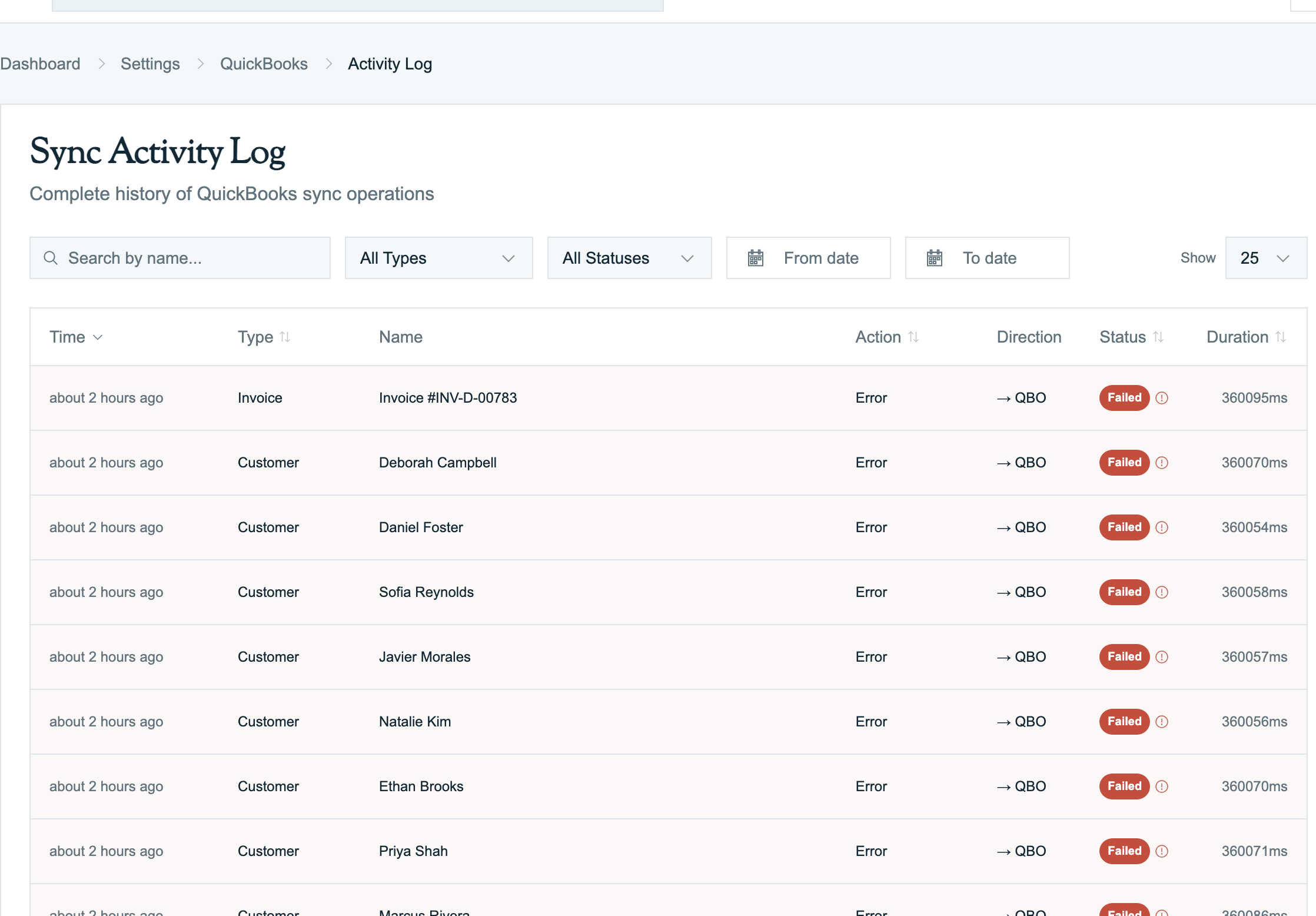
For setup, see Setting Up QuickBooks. For errors, see QuickBooks Overview: Sync Errors.
Customer Sync
What Triggers a Sync
| Event in Pool Runs | What happens in QBO |
|---|---|
| New customer created | New customer is created in QBO and linked to the Pool Runs record |
| Customer name / company / email / phone edited | The matching QBO customer is updated |
| Billing address edited | Billing address on the QBO customer is updated |
| Customer archived | QBO customer is set to inactive |
| Customer un-archived | QBO customer is set to active |
| Event in QBO | What happens in Pool Runs |
|---|---|
| New customer created | A matching customer is created in Pool Runs (status: Active) |
| Customer name / email / phone edited | Pool Runs customer is updated |
| Customer billing address changed | Pool Runs billing address is updated |
| Customer set inactive | Pool Runs customer status is set to Archived |
| Sub-customer (Job) added under a parent | A new property is created under the parent customer in Pool Runs |
What Fields Move
| Pool Runs field | QBO field | Notes |
|---|---|---|
| First name | Given name | Required in Pool Runs |
| Last name | Family name | Required in Pool Runs |
| Company name | Company name | Used for HOAs and commercial accounts |
| "Display by Company" toggle | Display name choice | If on, the QBO display name uses the company name. If off, "FirstName LastName". |
| Primary email | First email on file, lowercased | |
| Primary phone | Mobile or main phone | First entry in the phone list |
| Billing street | Billing address line 1 | Address comes from the autocomplete picker in Pool Runs |
| Billing city | Billing city | |
| Billing state | Billing state | 2-letter state code |
| Billing ZIP | Billing ZIP | |
| Payment terms | Sales term | Matches "Net 30" etc. by name |
| Tax exempt toggle | Taxable flag (flipped) | If exempt in Pool Runs, customer is non-taxable in QBO |
| Notes | Notes | Free-text. QBO limits notes to 4,000 characters. |
| Sub-customer reference | Parent + Job flag + bill-with-parent | See Sub-Customers as Properties below |
| Active customer | Active in QBO | |
| Archived customer | Inactive in QBO | QBO does not actually delete — just marks inactive |
Fields like customer code, tags, credit limit, and auto-apply credits stay in Pool Runs only — QBO has no equivalent.
Tip: QBO requires every customer to have a unique display name. If you have two real customers with the same name (e.g., two "John Smith" customers), Pool Runs adds the customer code or city in parentheses to make them unique.
Sub-Customers as Properties
QBO supports sub-customers (also called Jobs) — child customer records under a parent. Pool Runs handles the same idea differently: one customer with many properties.
When syncing:
- A QBO sub-customer becomes a property under the parent customer in Pool Runs.
- The sub-customer's billing address becomes the service address on the new property.
- Properties created in Pool Runs do not push back to QBO as sub-customers — QBO sees one customer per Pool Runs customer regardless of how many properties they have.
Heads up: If your QBO uses sub-customers for billing purposes (e.g., separate AR per sub-customer), the property mapping will not match how you bill. Reach out to support — we can discuss whether to model those as separate parent customers in Pool Runs instead.
Finding the Right Customer at Invoice Time
When Pool Runs syncs an invoice to QBO, it needs to match the Pool Runs customer to a QBO customer. That link gets created in one of three ways:
- During the setup wizard — every matched, imported, or exported customer gets a link.
- The first time a Pool Runs-only customer is invoiced — Pool Runs creates the QBO customer on the fly.
- When a brand-new customer is created in QBO — Pool Runs picks it up and creates a matching customer here.
If on-the-fly customer creation fails (e.g., duplicate display name), the invoice sync errors and retries.
Customer Conflict Resolution
If the same customer is edited in both systems between syncs, the conflict-resolution rule from the setup wizard decides:
- Pool Runs wins — the Pool Runs version overwrites QBO. Most companies pick this.
- QuickBooks wins — the QBO version overwrites Pool Runs.
Tip: If your bookkeeper makes a steady stream of edits in QBO and your office makes a steady stream in Pool Runs, "Pool Runs wins" is the safer choice — you lose less when QBO-side edits get overwritten (notes, phone) than when Pool Runs-side edits get overwritten (which can affect routing or billing).
Item & Product Sync
In QuickBooks Online, everything you can put on an invoice line is an "Item". Pool Runs has three things that need to land as QBO Items: parts, chemicals, and work order types (services).
Pool Runs Concept → QBO Item Type
| Pool Runs concept | QBO Item type | Why |
|---|---|---|
| Part (e.g., "Filter cartridge") | Non-Inventory (or Inventory if you track stock in QBO) | Tangible good sold without QBO inventory tracking |
| Chemical (e.g., "Liquid chlorine, gallon") | Non-Inventory | Pool Runs tracks chemical use; QBO sees the dollar amount |
| Work order type (e.g., "Filter clean") | Service | A labor/service line, not a tangible good |
| Fee type (e.g., "Trip fee", "Late fee") | Service | Auto-created the first time it's used on an invoice |
What Fields Move
| Pool Runs field | QBO Item field | Notes |
|---|---|---|
| Part/chemical/service name | Name | Must be unique in QBO |
| Description | Description | |
| Default unit price | Unit price | |
| SKU | SKU | Parts only |
| Default income account | Income account | Used when Pool Runs creates a brand-new item in QBO. If the item already exists in QBO with its own income account, that one wins. |
| Active flag | Active | Deactivating on one side deactivates on the other |
| Unit (Pool Runs only) | (in description, not a separate field) | See Units Matter below |
How Pool Runs Picks an Item for Each Invoice Line
When an invoice syncs to QBO, every line is matched to a QBO item in this order:
- Specific product link — if the line item is a part, chemical, or work order type that has been linked to a QBO item, that one is used.
- Default service item — if there's no specific link but the line is a route, fee, or deposit, the corresponding default item is used.
- Auto-created fallback — "Miscellaneous Service" or "Pool Runs - Stripe Refund" for free-form lines.
UNMAPPED— if none of the above match. This is a visible flag in QBO that something is misconfigured.
The Three Default Service Items
These are real QBO Items configured during the setup wizard. They cover invoice lines that are not linked to a specific synced product.
| Default | What it covers | Required? |
|---|---|---|
| Route Service Item | Recurring route stop charges (the bulk of most pool service invoices) | Yes |
| Fee / Surcharge Item | Late fees, trip charges, manual surcharges | No, but recommended |
| Deposit Item | Upfront customer deposits | No, only if you take deposits |
The income account assigned to each of these QBO Items is where revenue posts.
Heads up: Without a Route Service Item set, every recurring route invoice line goes to QBO as
UNMAPPEDand the dollar amount is ignored.
Units Matter
QBO Items don't have a separate unit field. Quantity on an invoice is just a number; the unit lives in the item's name and description. This causes the most common item-sync confusion:
- A Pool Runs chemical "Liquid Chlorine" priced at $8 per gallon
- A QBO Item "Liquid Chlorine" priced at $0.063 per ounce (because someone built it that way years ago)
- An invoice with quantity 2 (meaning 2 gallons in Pool Runs) syncs to QBO as quantity 2 (interpreted as 2 ounces) — total amount is wrong
To avoid this, align units between Pool Runs and QBO during the product matching step:
- Set the QBO Item's price-per-unit to match the Pool Runs unit (e.g., per gallon, not per ounce).
- Include the unit in the Item name or description (e.g., "Liquid Chlorine - per gallon").
- For commonly-confused chemicals, document your unit convention internally.
Income Account Assignment
Scenario 1: QBO Item already exists with the right income account. Pool Runs matches your service to that QBO Item via the existing mapping. Going forward, every invoice line posts to the right account automatically. No change needed.
Scenario 2: New Pool Runs item exported to QBO. When it first appears on an invoice, Pool Runs creates it in QBO using the Default Income Account from the wizard. To re-categorize, edit the Item in QBO after creation — that change syncs back.
Scenario 3: Re-categorizing an existing Item. Edit the item in QBO — change its income account. Pool Runs sees the change but does not re-post historical invoices.
Heads up: Pool Runs never overrides the income account on an invoice line. The income account on the QBO item always wins. If revenue is landing in the wrong P&L account, the fix is on the QBO item.
Inactive Items
Items can be deactivated on either side. Deactivated in Pool Runs → QBO Item set to Active: false. Deactivated in QBO → Pool Runs marks the part/chemical/service inactive. QBO does not allow truly deleting an Item with historical transactions.
Invoice Sync
Invoices are where the integration earns its keep. Pool Runs is the system of record for invoices — create them in Pool Runs, and they appear in QBO automatically with the right line items, customer, tax, and service address.
What Triggers an Invoice Sync
| Event in Pool Runs | What happens in QBO |
|---|---|
| Invoice leaves draft status (sent, finalized, generated by route closeout) | A new invoice is created in QBO with all line items, tax, and service address |
| Existing synced invoice edited | The QBO invoice is updated to match |
| Invoice voided in Pool Runs | QBO invoice is voided |
| Invoice cancelled before sync | No QBO action (it never reached QBO) |
| Event in QBO | What happens in Pool Runs |
|---|---|
| Synced invoice voided in QBO | Pool Runs invoice status is set to Voided |
| Synced invoice deleted in QBO | Pool Runs invoice status is set to Cancelled |
| Synced invoice updated in QBO | Pool Runs invoice is updated (subject to conflict resolution) |
| New invoice created directly in QBO | Nothing. Pool Runs does not import invoices that originate in QBO. |
Heads up: Always create invoices in Pool Runs. Invoices created directly in QBO are not pulled into Pool Runs — this preserves Pool Runs as the system of record for service work.
Drafts Don't Sync
A Pool Runs invoice in Draft status is not synced to QBO. Sync triggers the moment the invoice leaves draft, typically when the route closeout is finalized, an admin clicks Send on a manually-created invoice, or a scheduled invoice run completes.
What Lands in QBO
| QBO invoice field | Comes from |
|---|---|
| Customer | The matching QBO customer (created on the fly if missing) |
| Invoice number | Pool Runs invoice number (e.g., INV-2026-1042) |
| Invoice date | Pool Runs invoice date |
| Due date | Pool Runs due date (calculated from payment terms) |
| Bill email | Customer's primary email |
| Bill-to address | Customer's billing address |
| Ship-to address | The service property address (not the billing address) |
| Line items | One line per Pool Runs line item |
| Tax total | Pool Runs' calculated tax |
| Internal note | Internal notes from Pool Runs (not visible to customer) |
| Customer memo | Public memo from Pool Runs (visible on the QBO invoice PDF) |
Edits and Re-Sync
If you edit a synced invoice in Pool Runs, Pool Runs notices the change and updates QBO. If someone has edited the QBO invoice in the meantime, Pool Runs grabs the latest copy from QBO and retries automatically.
If the customer has paid the invoice (in part or full), QBO restricts which fields can change. Edits to the customer, total, or tax on a paid invoice will fail; you usually need to void and reissue in that case.
Void Semantics
Voided in Pool Runs. The Pool Runs invoice status changes to Voided. Pool Runs voids the matching QBO invoice. The QBO invoice is preserved (for audit) with line amounts zeroed out and marked void. Any payments are unapplied and become available credit on the customer.
Voided or Deleted in QBO. If a bookkeeper voids in QBO directly, Pool Runs updates within 15 minutes. If a bookkeeper deletes the invoice (rare), the Pool Runs invoice is set to Cancelled and the link is dropped.
Heads up: Voiding is one-way. You cannot un-void a QBO invoice — you would need to create a new one.
Service Address on QBO Invoices
Pool Runs invoices are tied to a property (the actual service location). The customer's billing address goes to the bill-to block on the QBO invoice; the property's service address goes to the ship-to block. Snowbird customers and HOAs see both on the document.
Tax on the Invoice
Pool Runs calculates the total tax (using its own org-level tax zones / default rate) and sends it to QBO, overriding QBO's auto-calculation. See Tax Zones & Tax Management.
Payment Sync
Payments are bidirectional. The pattern depends on who is collecting the money:
- Stripe (most common Pool Runs setup) — payment is collected via Stripe; Pool Runs pushes a QBO Payment record to clear the QBO invoice.
- QBO Payments (Intuit Merchant Services) — QBO collects the payment; Pool Runs pulls it back to clear the Pool Runs invoice.
- Offline (cash, check, ACH outside of Stripe) — payment is recorded manually on either side and syncs to the other.
Stripe payouts can additionally land in QBO as Deposits, with processing fees broken out for clean bank reconciliation.
What Triggers a Payment Sync
| Event in Pool Runs | What happens in QBO |
|---|---|
| Customer pays via Stripe (link on invoice) | Pool Runs records the payment, then creates a matching QBO payment applied to the QBO invoice |
| Admin records an offline payment in Pool Runs | A QBO payment is created |
| Admin issues a Stripe refund from Pool Runs | A QBO Refund Receipt is created |
| Admin voids a payment in Pool Runs | The QBO payment is deleted |
| Event in QBO | What happens in Pool Runs |
|---|---|
| Customer pays a QBO invoice via QBO Payments | Pool Runs creates a matching payment record; invoice status updates to Partial or Paid |
| Admin records a payment manually in QBO | Same as above — payment imports to Pool Runs |
| Payment is deleted in QBO | Pool Runs payment is cancelled; invoice status recalculates |
Stripe Payments (Most Common Setup)
- Pool Runs creates an invoice (sent to QBO automatically).
- The customer clicks the Pay Now link on the invoice email or customer portal.
- Stripe processes the payment and notifies Pool Runs.
- Pool Runs records the payment, marks the invoice paid, and queues the sync to QBO.
- Pool Runs creates a matching payment in QBO and applies it to the invoice.
By default, the QBO Payment is recorded against Undeposited Funds. Once the Stripe payout settles to your bank (typically T+2 business days), the payout sync creates a QBO Deposit that pulls funds out of Undeposited Funds and into your bank account.
Tip: Using Undeposited Funds + Stripe payout deposits is the recommended pattern for Stripe customers. It mirrors how your bank statement actually moves money.
QBO Payments (Intuit Merchant Services)
If your company collects payments through QuickBooks Payments instead of Stripe, sync runs in the opposite direction for payments. QBO collects, Pool Runs pulls.
Important: Don't Double-Record. If you collect payment through QBO, let it sync into Pool Runs. Do not also record the payment in Pool Runs — you will end up with two payment records and an over-paid invoice. The same rule in reverse: payments collected through Stripe are recorded in Pool Runs first.
Offline Payments (Cash, Check, ACH)
For cash, check, or other manual payment methods, recording in Pool Runs syncs to QBO as a Payment against the invoice. Recording in QBO pulls back into Pool Runs within 15 minutes.
Refunds
Stripe Refund. Issued from Pool Runs (or directly from Stripe). After Stripe confirms the refund succeeded, Pool Runs records it and queues a QBO Refund Receipt using the auto-managed "Pool Runs - Stripe Refund" item, when payment sync is enabled and configured. The QBO receipt records the refund for accounting; it does not issue another Stripe refund.
QBO Payment Refund. A new QBO Refund Receipt is queued for review when payment sync is enabled. It is not automatically applied to a Pool Runs invoice, because the receipt does not reliably identify the original Pool Runs payment. Contact support to reconcile it with the correct payment. Do not issue a second refund in Pool Runs to make the records match.
Offline Refund. Returning money by check, cash, or another offline method is separate from recording it in your books. Keep the refund reference and contact support if the matching Pool Runs records need reconciliation. The Stripe refund flow cannot return money from an offline payment.
Heads up: Issue a refund once, through the provider or method that collected the payment. Then reconcile the accounting records. A missing record in another system is not a reason to return the money again.
Stripe Payouts as QBO Deposits
Optional but highly recommended. When enabled, every Stripe payout to your bank account creates a QBO Deposit that pulls the gross amount out of Undeposited Funds, adds a separate negative line for Stripe processing fees, and settles the net amount into your deposit bank account.
Result: your QBO bank account reconciliation matches your bank statement automatically.
To configure: in Settings → QuickBooks Online → Stripe Payouts, set the Deposit bank account (where Stripe deposits actually land) and the Fee expense account (often Bank Fees & Service Charges or a dedicated Stripe Processing Fees).
Tip: If you do not enable payout sync, your QBO bank account will show many small per-payment entries that will not match your bank statement. Enable payout sync.
Mixed Setups (Stripe + QBO Payments)
Some companies use Stripe for everyday recurring service customers and QBO Payments for one-off equipment installs. Both work at the same time — Stripe payments push from Pool Runs to QBO; QBO Payments pull from QBO to Pool Runs.
FAQ
Q: How fast do customer changes sync? A: Pool Runs to QBO is typically under 5 seconds. QBO to Pool Runs is real-time, with a 15-minute safety check.
Q: Will my QBO sub-customers all import as Pool Runs customers? A: No. QBO sub-customers (Jobs) import as properties under their parent customer, not as separate customers.
Q: Can I prevent a specific customer from syncing? A: Yes — in the customer matching step of the setup wizard, mark them Skip.
Q: What happens if I delete a customer in QBO? A: QBO does not actually delete customers — it just marks them inactive. Pool Runs sees this and archives the matching customer.
Q: Can a single Pool Runs chemical map to multiple QBO items? A: No — one Pool Runs item links to one QBO item.
Q: I renamed an item in QBO. Does Pool Runs follow? A: Yes. The link between the two is by ID, not name, so renames are safe.
Q: How do I tell if an item is linked to QBO? A: On the part/chemical/work order type detail page in Pool Runs, look for the QuickBooks badge.
Q: My QBO uses class tracking. Does Pool Runs support classes? A: Pool Runs does not currently assign a QuickBooks class to individual invoice lines. If you need class-based revenue tracking, set the class on the QuickBooks item itself.
Q: How fast do invoices reach QBO? A: Typically 5–15 seconds after the invoice leaves draft status. During heavy load, it may stretch to 1–2 minutes.
Q: Will my historical invoices push to QBO when I first connect? A: No. Only invoices created after the setup wizard completes will sync. Contact support if you need a manual backfill.
Q: A Pool Runs invoice has 50 line items and I'm worried about QBO limits. A: QBO supports up to 750 lines per invoice.
Q: What if QBO is down when I try to send an invoice? A: The Pool Runs invoice still finalizes locally. The QBO sync queues up and retries automatically over the next 24 hours.
Q: Quotes and estimates — do those sync? A: No. Only finalized invoices push to QBO.
Q: I voided an invoice in QBO but Pool Runs still shows it as paid. A: Wait up to 15 minutes for the safety check, or trigger an immediate sync from the QuickBooks settings page.
Q: My invoices are syncing but the dollar amounts are slightly off (penny rounding). A: This is almost always a tax calculation difference. Verify the customer is configured tax-exempt or taxable identically in both systems and that the QBO Item taxability matches the Pool Runs line taxability.
Q: How fast do payments reach QBO? A: Stripe payments typically push within 5–15 seconds. QBO Payments come back to Pool Runs in real time, with a 15-minute safety check.
Q: Why is the QBO Payment posted to "Undeposited Funds" instead of my bank account? A: This is the standard QBO pattern when payments are batched (Stripe payouts). The Stripe payout sync moves funds from Undeposited Funds to your bank.
Q: My customer paid in QBO and the Pool Runs invoice still shows unpaid. A: Wait up to 15 minutes for the safety check. Common causes: the QBO payment was applied to a different customer, or the Pool Runs invoice was already voided.
Q: Can I split one payment across multiple invoices? A: Yes. Both systems support this and the breakdown carries across the sync.
Q: I refunded a payment in QBO — why doesn't it show in Pool Runs? A: New QBO Refund Receipts require review to link them to the correct Pool Runs payment. Pool Runs does not automatically change the invoice's payment records from that receipt. Keep the QBO refund reference and contact support for reconciliation. Do not also issue the refund in Pool Runs: its Stripe refund flow sends money back to the customer, rather than simply recording a refund made elsewhere.
Q: My processing fees in QBO don't match what Stripe shows. A: Stripe payouts include their own fee breakdown which Pool Runs uses as-is. The most common cause of discrepancy is partial payout sync (e.g., enabled mid-week so older payouts were not processed). Contact support to backfill.
Q: Can I disable payment sync but keep invoices syncing? A: Yes. In Settings → QuickBooks Online → Sync Settings, toggle Sync Payments off.
Q: A bookkeeper issued a credit memo in QBO. A: QBO Credit Memos are not currently synced to Pool Runs. The credit reduces the customer's balance in QBO but Pool Runs will not know about it. Contact support — this is on the roadmap.
Related Articles
- QuickBooks Overview — Sync direction summary, item resolution, and error handling
- Setting Up QuickBooks — Initial connection and the six-step wizard
- Customer Profiles — What lives on the Pool Runs customer page
- Multi-Property Account Patterns — How properties model what QBO calls sub-customers
- Invoices Overview — How invoices are generated in Pool Runs before they push to QBO
- Settings → Payment Settings — Stripe configuration on the Pool Runs side
Setting Up QuickBooks
Connect Pool Runs to QuickBooks Online, walk through the six-step setup wizard, and learn how to disconnect or reconnect later.
Choose Your Billing Setup
Pool Runs supports two billing setups — with QuickBooks Online for full accounting sync, or Stripe-only with Pool Runs as the system of record. Pick the one that matches how you keep books.