Customer Profiles
Understand the customer detail page in Pool Runs, including contact info, billing, recent stops, properties, and communications.
Customer Profiles
The customer profile is the single source of truth for everything you know about an account. From here you can see who they are, where their pools live, what they have been billed, what your techs logged on the last visit, and every email Pool Runs has sent them. Office staff lives on this page.
Opening a Profile
From the Customers directory, click any customer's name. The URL becomes /admin/dashboard/customers/{id}. Bookmark it if you reference a particular customer often.
The Basic Info Card
The main card at the top holds the customer's identity and contact details. At the top you see the display name, a status pill, and a single Edit button. That is the only control in the header; there are no trash, archive, or reactivate icons.
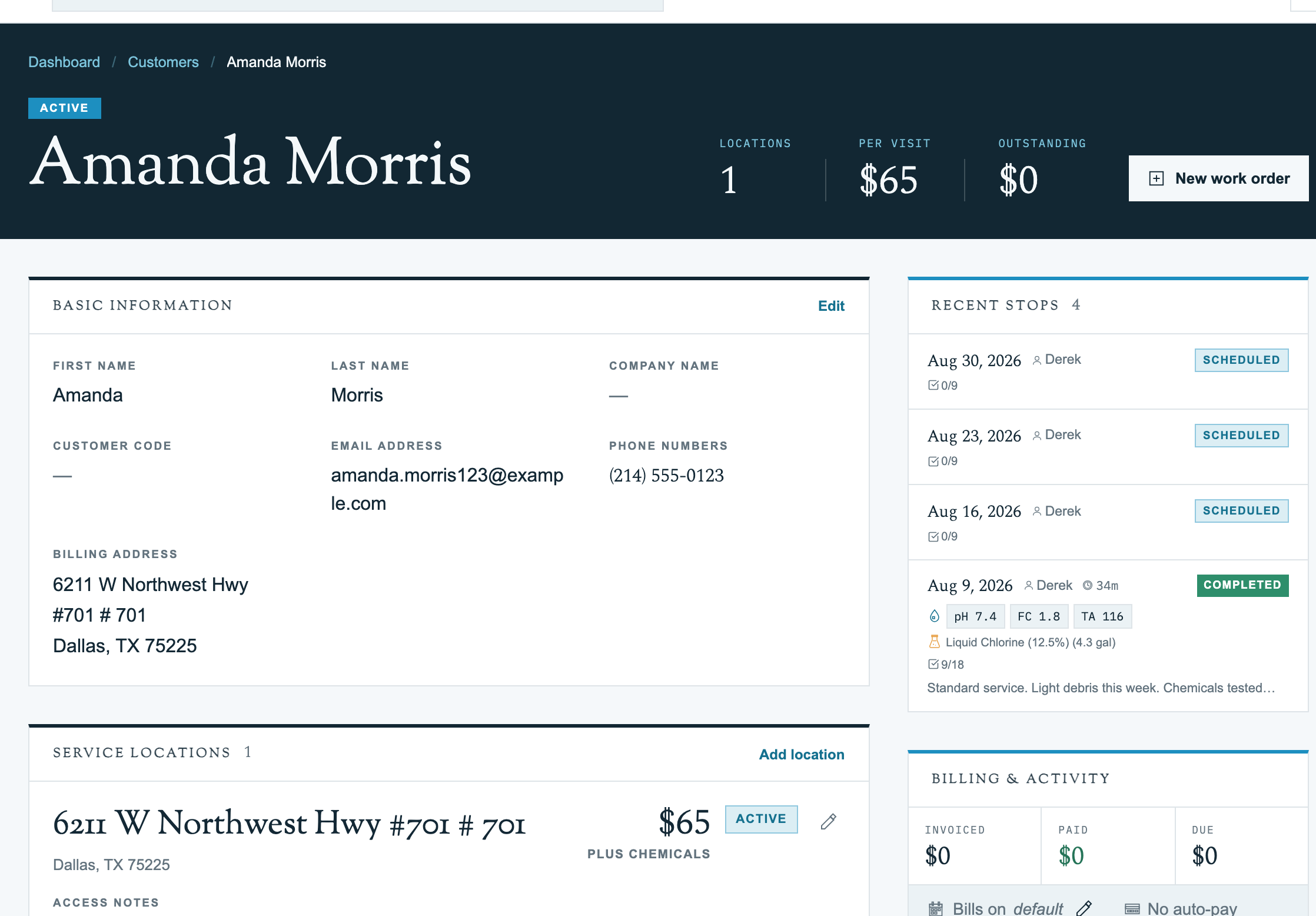
Everything in this card is edited in one place. Click Edit and the whole card becomes a form:
- Basic Info: First name, last name, customer code, company name, and the Display by company name toggle.
- Status: The Customer Status dropdown (Active, Prospect, Paused, Archived). Changing status here is how you archive or reactivate a customer. See Customer Statuses & Lifecycle.
- Contact Information: Email and one or more phone numbers. Click Add Phone for a secondary number, and give each number a Label naming whose phone it is (spouse, property manager). Labeled numbers display as "(214) 555-0134 · George (husband)" on the profile.
- Billing Address: Where statements are mailed and what the customer portal references. Start typing to use Google Places autocomplete.
Click Save to apply. There is no separate edit page and no page-level edit button; this one Edit covers the whole card. Tags and Notes are separate cards, each with their own Edit (below).
Service Locations (Properties)
A customer can own multiple service properties, for example a primary home, a vacation home, and a rental. Each property has its own address, body-of-water configuration, equipment list, and pricing. From the profile you can view the list, add a property, or click into one to manage its pools, spas, and equipment.
Note: Properties and bodies of water have their own guides. See Properties and Bodies of Water.
Recent Stops
A timeline of recent route stops for this customer, showing who serviced them, the chemistry readings logged, and the chemicals used. Handy when a customer calls with a question about a recent visit. Recent Stops aggregates across all of the customer's properties.
Billing & Activity
The billing card gives you the money side of the account at a glance: Invoiced and Paid totals up top, a Billing Day preference you can edit (the "Bills on" line), and the customer's Auto-Pay status (card brand and last four digits, or "No auto-pay").
Below that are three tabs:
- Invoices: Recent invoices with status, amount, and issued date. Statuses include Draft, Sent, Partial, Paid, Void, and Refunded. Click a row to open the invoice.
- Routes: Route stops tied to this customer's billing.
- Work: Work orders for the account.
Tags
Tags are a separate card with its own Edit button. They drive filtering in the directory, the route builder, and reporting.
Tags are uniform badges; they are not color-coded. In view mode there is no X or Add Tag control. Click Edit first, then add a tag by typing in the input or picking a suggested chip, and remove one with the X on its badge.
Notes
Notes is its own card with its own Edit button. The field is labeled General Notes and is free text for office and tech context (gate codes, dog warnings, scheduling preferences).
Tip: Notes are visible to techs in the field via the mobile app. Use them for what your tech needs on arrival, like the gate code or a warning about the dog in the side yard.
Route Assignments
A sidebar card that shows how this customer's properties are scheduled: each property with its service frequency and day of week. It is the quickest way to confirm which properties are on a route and when. See Multi-Property Account Patterns for how to use it when a property goes dormant.
QuickBooks Invoices
If the account is synced to QuickBooks, a sidebar card lists the customer's QuickBooks invoices so you can cross-check what has flowed through to your accounting system. See Importing from QuickBooks.
Recent Emails
Every email Pool Runs sent on behalf of this customer: invoice notifications, portal invites, statements. Helpful for "did the customer actually get the bill?" questions.
SMS Notifications
When the SMS feature is enabled for your business, an SMS Notifications card appears on the profile. This is controlled by a feature flag for your account, not a per-customer opt-in.
Customer Statuses
The status pill on the header reflects where the customer sits in their lifecycle:
| Status | Meaning |
|---|---|
| Active | Currently servicing them |
| Prospect | Quoted, not yet servicing |
| Paused | Temporary stop (vacation, seasonal, payment hold) |
| Archived | No longer a customer |
For the full picture, including what happens to routes and billing on each transition and how to reactivate an archived customer, see Customer Statuses & Lifecycle.
Permissions on the Profile
Different roles see different cards:
| Role | Can see | Can edit |
|---|---|---|
| Admin | Everything | Everything |
| Office Manager | Everything | Most fields, billing depends on settings |
| Technician | Contact info, notes, recent stops | Notes only (configurable) |
Cards may also be hidden if a customer has nothing in them yet. For example, Recent Emails only appears once at least one email has been sent.
Common Workflows
Customer calls about a missing invoice
- Open their profile.
- Check the Billing & Activity card's Invoices tab and confirm an invoice exists for the right month.
- Check Recent Emails to confirm the invoice email was sent and to which address.
- If the email is correct but they did not receive it, resend from the invoice itself.
Tech reports an aggressive dog at a property
- Open the customer's profile.
- Click Edit on the Notes card.
- Add
WARNING: dog Rocky in side yard, owner needs to crate before service. - Save. The tech sees this on their next visit in the mobile app.
FAQ
Q: I changed a customer's name. Will old invoices update too? A: No. Invoices are generated as point-in-time documents and keep the name they had when issued. New invoices going forward use the updated name. This protects you from rewriting history on closed or paid invoices.
Q: How do I see how much a customer owes me right now? A: The Billing & Activity card shows Invoiced and Paid totals at the top, plus recent invoices with their statuses on the Invoices tab. Click into any invoice to see the full balance, including credits and partial payments.
Q: Can I attach files (signed contracts, photos of equipment) to a customer profile? A: File attachments at the customer level are not available today. Service photos taken by techs are attached to individual route stops, and you can attach images to work orders. For contracts, many businesses paste a link to a Google Drive or Dropbox folder into the General Notes field.
Q: A customer manages two HOAs. Should I create one record or two?
A: Two records, one per HOA. Each HOA is a distinct billing entity with its own properties, invoices, and accounting trail. You can put the manager's name and contact info on both, and tag them with the manager's name (for example mgr-jdoe) so you can filter for all of their accounts in the directory.
Q: If I pause a customer, do their existing scheduled stops stay or get removed? A: Future stops are skipped while paused, not deleted. When you flip back to Active, the schedule resumes. Only the auto-generation of new stops is suspended during the pause. See Customer Statuses & Lifecycle for the details.
Related Articles
- Customer Directory: Find a profile to open
- Customer Statuses & Lifecycle: Active, Prospect, Paused, Archived
- Add, Edit, or Delete a Customer (Web): Create, edit, or archive a record
- Importing Customers: Bulk-create profiles from CSV
- Properties: Manage service locations on a customer
- Bodies of Water: Pools, spas, and equipment
Need help? Check our troubleshooting guide or contact support.