Add, Edit, Archive, or Reactivate a Customer (Mobile App)
Create, edit, archive, or reactivate a customer from the Pool Runs mobile app.
Add, Edit, Archive, or Reactivate a Customer (Mobile App)
Create and manage the full customer lifecycle from the mobile app, including archiving a former customer and reactivating them later.
Before you start: Your role must allow customer management to add, edit, archive, or reactivate customers. If an action is missing, ask an admin to check your role.
Add a Customer
Open the Customers tab in the bottom bar and tap the + button in the top-right of the screen.
The new-customer flow is a four-step wizard. Tap Next after each step; Back lets you revise an earlier one without losing the rest.
Step 1 · Basic Info
Enter First Name and Last Name (required). Add a Company Name for commercial accounts, and pick a Status — Active for currently servicing, Prospect for quoted-but-not-yet-routed, Paused for vacation holds.
Step 2 · Contact
Add an Email and one or more Phone Numbers. Tap Add Phone Number for a second line.
In Billing Address, type the street name and tap an address suggestion. It fills in the city, state, and zip code for you.
Step 3 · Details
Optional details that help later when sorting and reporting:
- Customer Code — your own internal identifier (often used when migrating from a paper book)
- Notes — anything a tech should know across all visits
- Tags — short labels for sorting. Type a custom tag, or tap one of the Quick add chips: VIP, Commercial, Residential, Weekly, Bi-weekly, Monthly, New Customer
Step 4 · Review
Verify what you've entered. Tap Back to fix anything, or Create Customer to save. The new customer profile opens — you can immediately add properties and bodies of water from there.
Edit a Customer
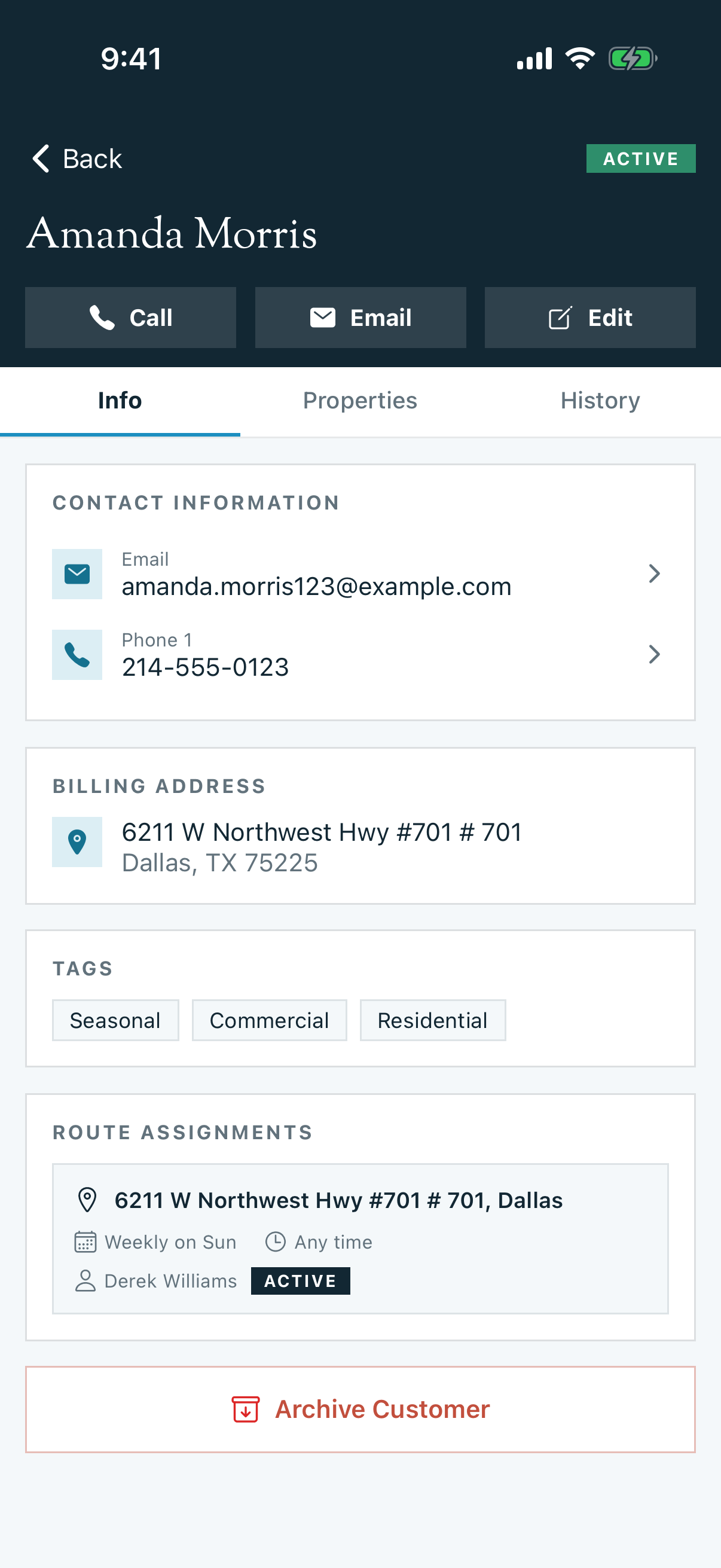
Tap Customers, then the customer's name, then Edit in the action row at the top of the profile. The same four-step wizard opens, pre-filled with the customer's current values. Change any field and tap Save Changes on the Review step.
Archive a Customer
Open the customer and scroll to the bottom of the Info tab. Tap Archive Customer, review the confirmation, then tap Archive.
Archiving ends active route assignments, cancels recurring subscriptions and autopay, and deactivates the customer's service locations. Existing history and open invoices are preserved, and the confirmation tells you if money is still outstanding.
Reactivate a Customer
Open the archived customer and tap Reactivate Customer at the bottom of the Info tab. Reactivation sets the customer back to Active, but it does not automatically restore old routes, subscriptions, autopay, or service locations. Re-enable only the services the returning customer needs.
Related
- Add, Edit, or Delete a Customer (Web) — the same customer lifecycle in the web admin
- Importing Customers from CSV — bulk creation, web-only
- Importing Customers from QuickBooks Online — bulk creation, web-only