Bodies of Water (Web)
Adding and editing bodies of water (pools, spas, fountains) from the Pool Runs web admin — fields, equipment, and checklists.
Bodies of Water (Web)
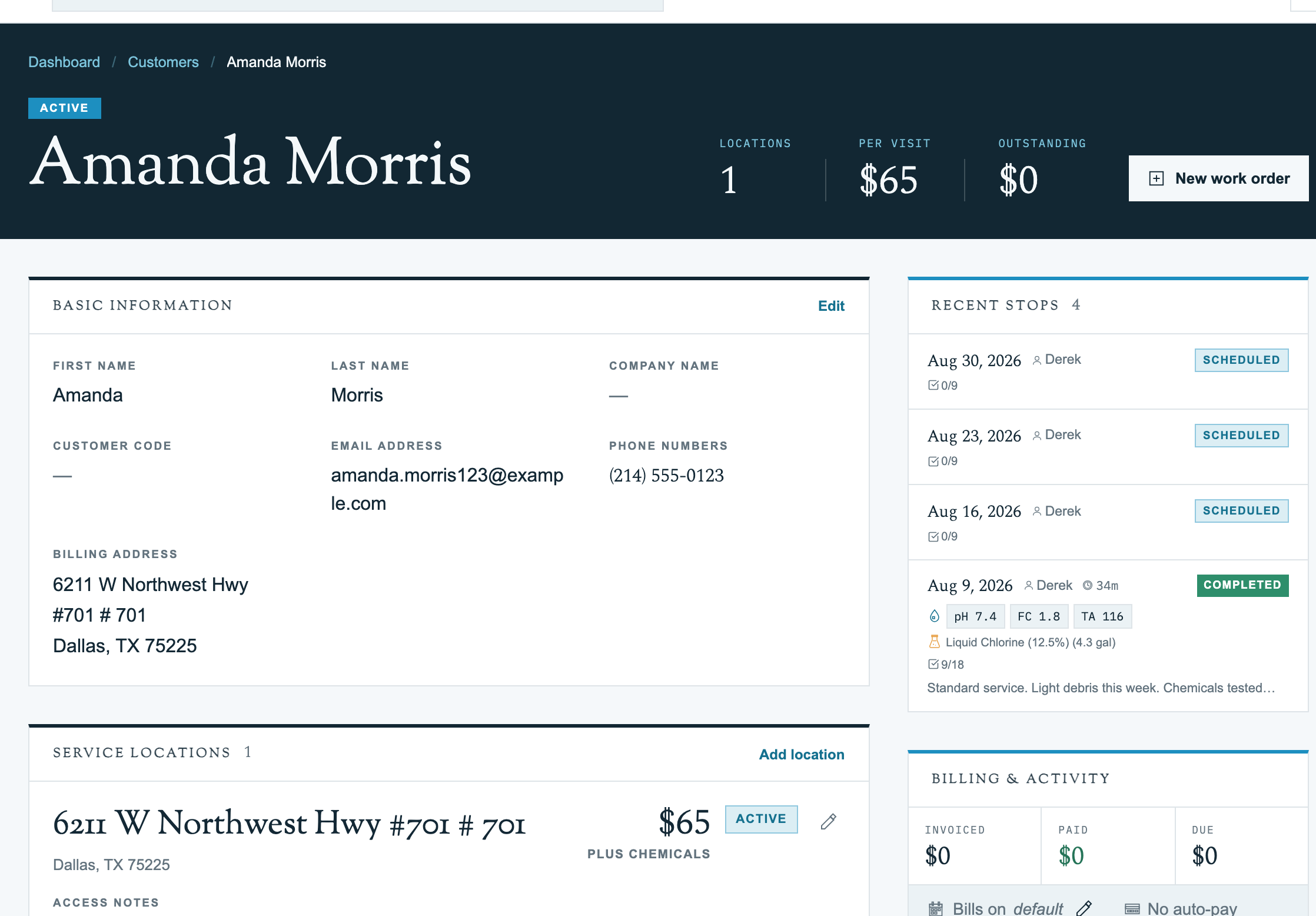
A body of water is the actual pool, spa, hot tub, fountain, pond, or waterfall your technicians service. Chemical readings, dosages, equipment, and checklists all attach to a body of water — not to the customer or property. For the same flow on the technician mobile app, see Bodies of Water (Mobile App).
A property can have zero, one, or many bodies of water. A pool/spa combo at one address is two bodies of water — each gets its own chemistry, volume, and checklist.
Why volume matters: enter the pool or spa's volume as accurately as you can, using the units shown in your account. Chemical amounts depend on both water volume and the specific product's concentration. Follow the product label for dosing and handling instructions; a volume entry alone does not determine a safe dose.
Adding a Body of Water
Prerequisites
- A customer with at least one property. See Properties (Web).
- The pool's basic facts: type, approximate volume, surface, sanitization system.
Step 1: Open the Customer Profile
Navigate to Customers in the left sidebar, then click the customer who owns the property.
Step 2: Find the Property and Click "Add Water Feature"
Scroll to the Service Locations card and click Add Water Feature (bottom-right of the property card).
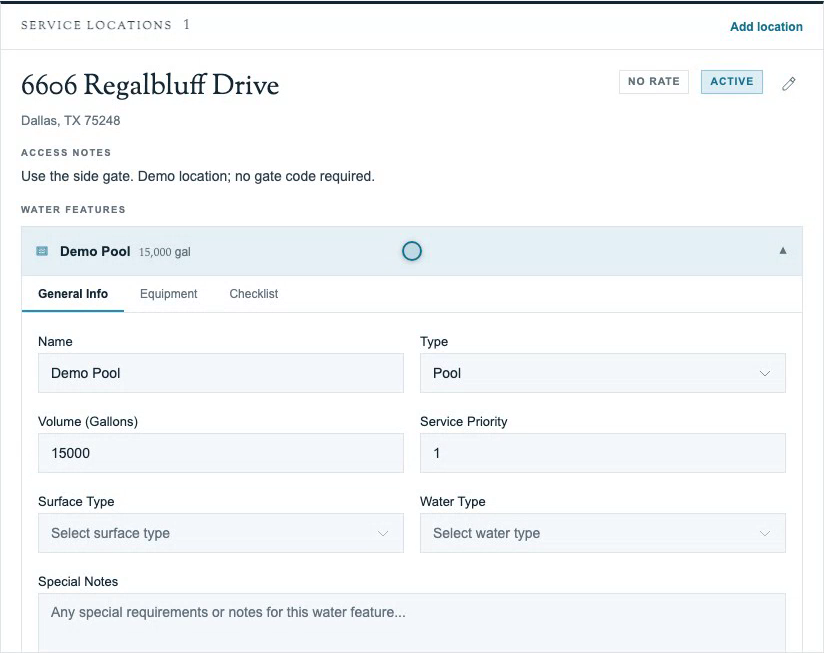
Step 3: Fill in the Form
Name is the only required field. Everything else is optional but strongly recommended — volume in particular drives every chemical dose Pool Runs suggests.
| Field | What to enter | Example |
|---|---|---|
| Name (required) | What techs see in the field | Main Pool, Backyard Spa |
| Type | Pool / Spa / Hot Tub / Fountain / Pond / Waterfall / Other | Pool |
| Volume (gallons) | Total capacity; drives dosing math | 22000 |
| Surface Type | Plaster / Tile / Fiberglass / Vinyl / Pebble / Aggregate | Plaster |
| Water Type | Chlorine / Saltwater / Bromine / Mineral / Natural | Saltwater |
| Special Notes | Anything tech-relevant | In-floor cleaner, Polaris booster on backwash side |
How to estimate volume: Length × Width × Average Depth × 7.5 = gallons. Round to the nearest 500.
Step 4: Save
Click Add Water Feature at the bottom of the form. The new body of water appears as a collapsible card under the property.
Editing a Body of Water
Bodies of water live nested inside the customer profile, under the property. Open the customer, scroll to Service Locations, expand the property, then click the body of water row.
The detail panel has three tabs:
| Tab | What it controls |
|---|---|
| General Info | Name, type, volume, surface, water type, priority, special notes |
| Equipment | Pumps, filters, heaters, salt cells attached to this water |
| Checklist | The service steps a tech performs at this body of water |
General Info
The day-to-day edit surface. Click Save Changes at the bottom when done. Three edits to know about:
- Volume. Updating it does not rewrite past dosage suggestions — old service logs keep the math they were generated with. New readings from this moment forward use the updated number. Update whenever you remodel, refill, resurface, or get a real measurement.
- Water Type. If a customer converts chlorine to salt, update Water Type to
Saltwater, then add the salt cell as equipment in the Equipment tab. Pool Runs does not auto-add it. - Surface Type. New plaster kicks off a 30-day start-up phase with high pH and calcium fluctuation — log that in Special Notes so techs dose conservatively.
Equipment
Attach pumps, filters, heaters, salt cells, and other gear that belong to this specific body of water. Each equipment record has Type, Make, Model, Serial number, Install date, and Notes.
Recording equipment per body of water is what lets you say "the spa salt cell is due for replacement" instead of "something at this property is due." For shared equipment (e.g. one pump for pool + spa), attach it to the priority-1 water and note the share in the equipment Notes field.
Checklist
The Checklist is where a body of water gets its service steps, and here is the part that matters: the checklist belongs to this body of water, not to the property and not to the customer. A pool and an attached spa at the same address each carry their own separate checklist. So the pool can have a skim, brush, basket, and vacuum list while the spa gets a filter rinse and a drain-and-fill reminder, and neither one shows the other's steps. When a tech works the stop, each body of water surfaces only its own checklist.
The tab shows the checklist assigned to this body of water, or a Create Checklist button if none is assigned yet. There is no inline builder here. You build and manage checklist templates in Settings → Checklists, and they attach per body of water from there. See Checklists for management.
Pool & Spa Combos
A pool plus an attached spa is the most common multi-water setup — they share plumbing but need separate chemistry. Add the pool and the spa as two separate bodies of water on the same property so each carries its own volume, sanitization, checklist, and chemical history. For shared equipment like a single pump or heater, attach it to the higher-priority body of water and note the share in the equipment Notes field.
Troubleshooting
- Add Water Feature button is disabled — Your role may not allow property creation. Ask an admin.
- Save Changes does nothing — Your role may not allow property updates. Ask an admin.
- Tech only sees the pool, not the spa, on a route stop — Verify both are assigned to the same route.
FAQ
Related Articles
- Bodies of Water (Mobile App) — same flow on the technician mobile app
- Properties (Web) — the parent address record
- Checklists — service checklists at the body-of-water level
- Customer Profiles — where bodies of water live in the record
Need help? Check our troubleshooting guide or contact support.