Customer Statuses & Lifecycle
How Active, Prospect, Paused, and Archived statuses keep your routes, billing, and reports clean as customers come and go.
Customer Statuses & Lifecycle
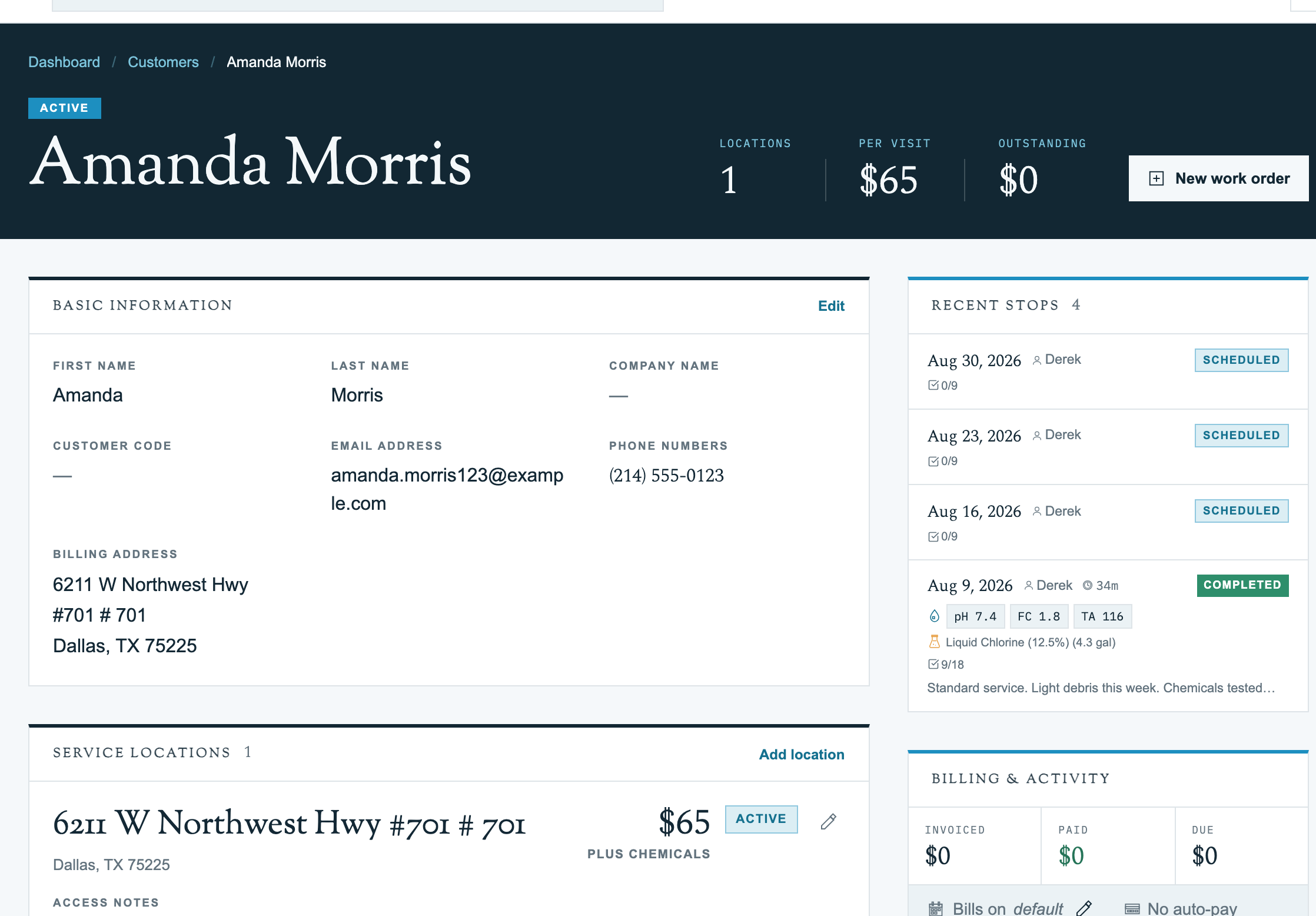
Customers move through stages, from a quoted prospect, to an active weekly account, to a winter pause, and eventually to an archived ex-customer. Pool Runs uses statuses to keep your routes, billing runs, and reports clean as customers come and go.
The Four Statuses
| Status | Color | Use it when |
|---|---|---|
| Active | Green | Currently servicing them |
| Prospect | Blue | Quoted, not yet servicing |
| Paused | Yellow | Temporary stop (vacation, seasonal, payment hold) |
| Archived | Gray | No longer a customer |
Active
Currently receiving service. Appears on routes, included in recurring billing runs, receives automated communications, and shows up on dashboards as part of your active book of business.
Prospect
A potential customer you are working on closing. Excluded from routes and recurring billing, but can still receive estimates and one-time invoices. Helps you track your sales pipeline.
Tip: Use Prospect for the entire quote-to-close process. The moment they sign on and you start servicing them, flip to Active.
Paused
A temporary hold. Excluded from routes (skipped, not deleted) and from automated billing runs. Keeps all history: properties, equipment, invoices, photos. Can be flipped back to Active in one click.
Common pause reasons: seasonal customer (closes the pool October to April), vacation hold, payment hold (past due, paused until settled), equipment failure (pool unusable until repaired).
Tip: Prefer Paused over Archived when there is any chance the customer will return. Paused is a one-click resume.
Archived
A customer you are no longer servicing. Hidden from routes, billing runs, and most reports. Keeps history so you can audit past invoices and service records. Can be reactivated at any time. Common reasons: cancelled service permanently, sold the property, did not renew after a price change.
Lifecycle Flow
Prospect ──► Active ──► Paused ──► Active ──► Archived
                          │              │
                          └──► Archived ◄┘
Most flips happen between Active and Paused as customers go on vacation or hit a seasonal break. The transition to Archived should be deliberate. Once archived, they no longer count toward your active customer metrics.
Changing Status
On the Web
Status lives on the customer's edit form, alongside their name and contact details.
- Open the customer's profile.
- Click Edit on the Basic Info card.
- Under Status, open the Customer Status dropdown and pick Active, Prospect, Paused, or Archived.
- Click Save.
There is no separate archive button on the redesigned web profile. Archiving means choosing Archived from the same dropdown. Saving runs the full archive workflow and reports anything it wound down or any open invoices still owed.
On Mobile
Open the customer and scroll to the bottom of the Info tab. Tap Archive Customer and confirm. For an archived record, the action changes to Reactivate Customer. Your role must allow customer archiving to use either action.
What Happens on Each Transition
| From → To | Effect |
|---|---|
| Prospect → Active | Customer becomes available for routes and billing. No automatic enrollment; you still add them to a route. |
| Active → Paused | Future scheduled stops on routes are skipped. Recurring billing is suspended. No notifications go out. |
| Paused → Active | Customer is eligible for routes again. You may need to re-add them if their slot was reassigned. |
| Active → Archived | Route assignments end, future generated stops are removed, subscriptions and recurring work orders are canceled, autopay is canceled, service locations are deactivated, and open invoices are preserved. |
| Archived → Active / Prospect / Paused | History is preserved and the customer returns to the chosen status, but routes, subscriptions, autopay, and service locations are not automatically restored. |
Warning: Archiving hides the customer from active work but preserves invoices, work orders, and service history for accounting and compliance. There is no way to permanently delete a customer in the app; contact support if a record must be removed for legal reasons.
Reactivating an Archived Customer
Reactivating uses the same edit form as any other status change.
- Filter the directory by Archived to find the customer, then open the profile.
- Click Edit on the Basic Info card.
- Set Customer Status back to Active (if you are starting service again) or Prospect (if you are quoting them fresh), then Save.
All history is intact when a customer comes back. Re-enable the appropriate service locations, route assignments, subscriptions, and autopay separately.
On mobile, open the archived profile and tap Reactivate Customer. Mobile reactivates to Active; use the web edit form if you want the returning record to start as Prospect or Paused.
Related Articles
- Customer Profiles: Where status lives on the profile
- Add, Edit, or Delete a Customer (Web): Create or archive a record
- Customer Directory: Filter by status to find customers