Creating Work Orders (Mobile)
Create a work order from the field with the 5-step New Work Order wizard.
Creating Work Orders (Mobile)
Techs who spot extra work on site (a torn skimmer net, a leaking pump) can open a work order on the spot instead of calling the office.
Before you start: who can do this
Two settings control field creation, both managed by the office:
| Setting | What it does |
|---|---|
| The role's create work orders permission | Without it, the + button doesn't appear at all |
| Each type's Technician Can Create switch | Types with the switch off don't show in the wizard's type list |
If a tech doesn't see the + button or a type they expect, check these first. See Work Order Types for the per-type switch.
Step 1: Customer and property
On the Work Orders tab, tap the + button in the top-right. (The Route Dashboard has the same + button.) The New Work Order wizard opens on the Customer step.
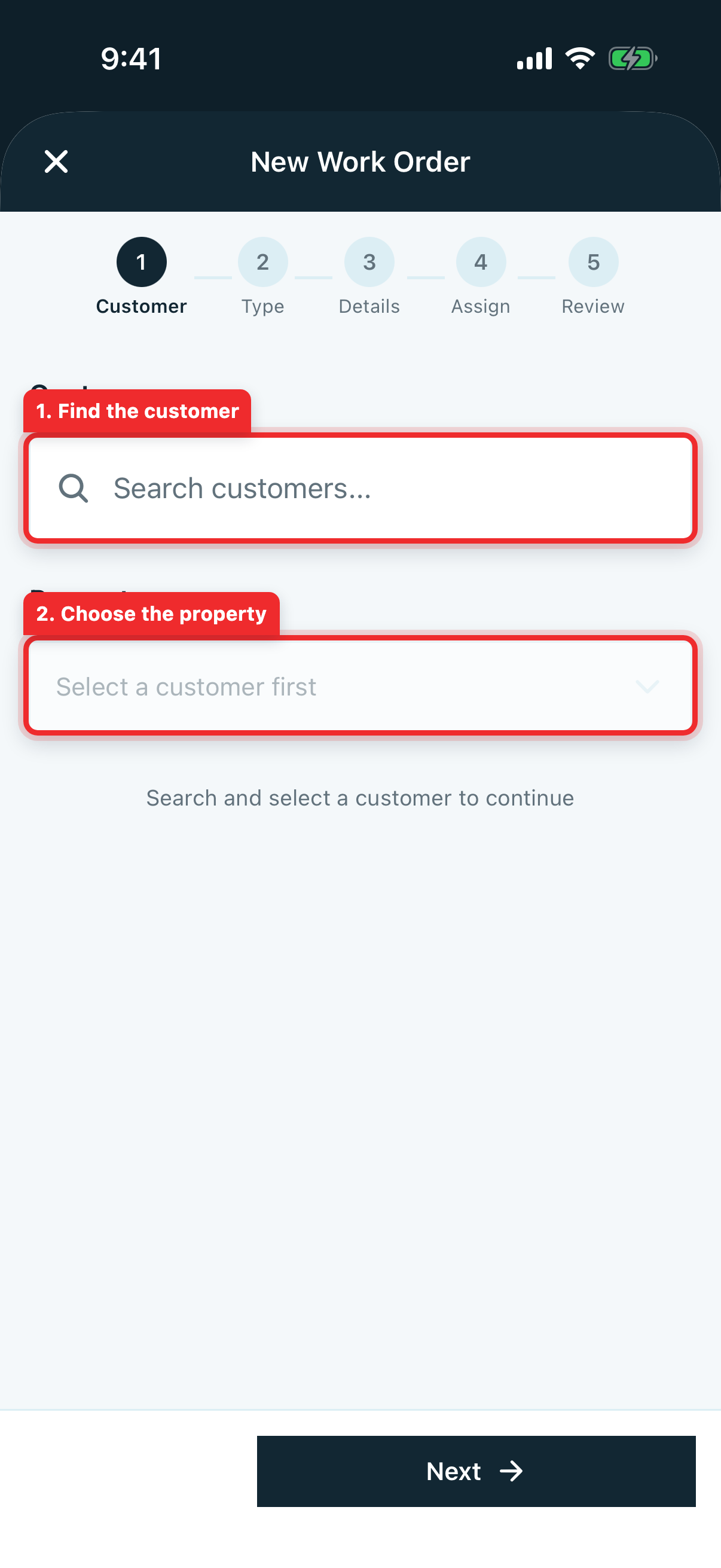
- Search for the customer by name and tap them.
- Tap Select a property and pick which of their properties the work is at.
- Tap Next.
The property matters: the work order becomes a stop on a route, so it needs an address to drive to.
Step 2: Work order type
Pick the work order type. Types are templates the office sets up for common jobs, and picking one does real work for you: it brings the type's checklist, parts list, default price, and time estimate along. The Custom Work Order card at the top starts from scratch, for jobs that fit no template.
Note: This list only shows types whose Technician Can Create switch is on, so it can be shorter than the list the office sees on the web.
Step 3: Details
Describe the work and set the schedule.
-
Description (required): say what you found and what needs to happen. Some types pre-fill this. Write it for the person who reads it next, whether that's the office pricing the job or another tech doing the work.
-
Scheduled date: tap the date field and pick a date on the wheel, then tap Done.
-
Time Commitment appears once a date is set: Appointment (fixed time the customer expects), Preferred (flexible within a window), or Anytime (the default, lets the office fit the job wherever the route makes sense).
Advanced Options hides the fields most field-created jobs don't need to touch: the estimated duration, the price, and internal notes the customer never sees.
Step 4: Assign technicians
Tap Select technicians and pick one or more techs. Everyone assigned sees the job in their app and gets notified the moment it's created. Techs often assign themselves so the follow-up stays on their own board.
Step 5: Review and create
The last step is the whole job on one screen: customer, property, type, description, schedule, time commitment, assignee, price, and duration. The price and duration came from the type, so double-check them here if the job is bigger than the template assumes. Tap Create Work Order.
A Success message confirms the job is in, and it appears instantly on the web dashboard for the office to see.
FAQ
Q: Should techs create the follow-up job, or flag it for the office? A: Either works. A quick note on the stop tells the office to triage it; creating the work order directly saves the office the data entry. Many companies let senior techs create and have the office review the In the future bucket daily.
Q: Can a tech set a price in the wizard? A: The type's default price fills in automatically, and it can be adjusted under Advanced Options on the Details step. For work that needs approval first, authorized staff can also create, send, sign, and approve a quote from More → Quotes in the mobile app.
Q: The app asked "Are you sure?" about my date. A: The wizard double-checks dates more than a year out, since a slip of the date wheel can silently schedule a job for the wrong year. Confirm if you meant it, or cancel and re-pick.
Q: Can I back out of the wizard without creating anything? A: Yes. The X in the top-left discards the work order after a confirmation. Nothing is saved until you tap Create Work Order on the Review step.
Q: My tech can create work orders but a type is missing from their list. A: That type's Technician Can Create switch is off. The office can flip it under the type's settings. See Work Order Types.
Related
Running a Work Order (Mobile)
Start service, work the checklist, log parts used, and complete a work order stop from the field.
Billing
The full billing lifecycle in Pool Runs — quotes, work orders, invoices, payments, and (optionally) the QuickBooks Online integration. Pick the setup that matches how you keep books.