Pool Runs + QuickBooks
How billing works end-to-end when QuickBooks Online is your accounting system. Invoices, payments, refunds, and Stripe payouts all sync automatically — Pool Runs runs the operation, QBO keeps the books.
Pool Runs + QuickBooks
This is the full billing lifecycle for businesses that keep their books in QuickBooks Online. Pool Runs is the system of record for service work — routes, work orders, chemical readings, invoices. QBO is the system of record for accounting — chart of accounts, P&L, balance sheet, tax. The integration keeps both sides current automatically.
If you're not sure which setup applies to you, see Choose Your Billing Setup.
How the Two Systems Divide Up the Work
| Pool Runs handles | QuickBooks handles |
|---|---|
| Quotes, work orders, routes | Chart of accounts |
| Invoice creation and sending | Income categorization (via QBO Items) |
| Stripe-side payment processing | P&L, balance sheet, cash flow reports |
| Manual payment entry | Sales tax tracking and remittance |
| Customer profiles & properties | Year-end accountant reports |
| Refunds, voids, adjustments | Bank reconciliation |
| Stripe payouts (visible) | Stripe payouts as Bank Deposits |
You operate in Pool Runs every day. You (or your bookkeeper) open QBO weekly or monthly to reconcile and review.
The End-to-End Flow
Quote  →  Work Order  →  Invoice (PR)  →  syncs to QBO
                              ↓
                        Customer pays
                              ↓
                  Stripe charge OR Manual entry
                              ↓
                     Payment recorded (PR)  →  syncs to QBO
                              ↓
                  Stripe payout (~2 days)  →  QBO Bank Deposit
                              ↓
                Reconcile bank statement in QBO
Steps that happen automatically are filled in by the integration. You don't trigger them.
Setup Sequence
Connect Stripe and QuickBooks before you start invoicing — both have setup steps that get harder to clean up after the fact.
- Connect Stripe — Settings → Payment Settings. Verify your business with Stripe so charges can be processed. See Stripe Overview: Connecting Stripe.
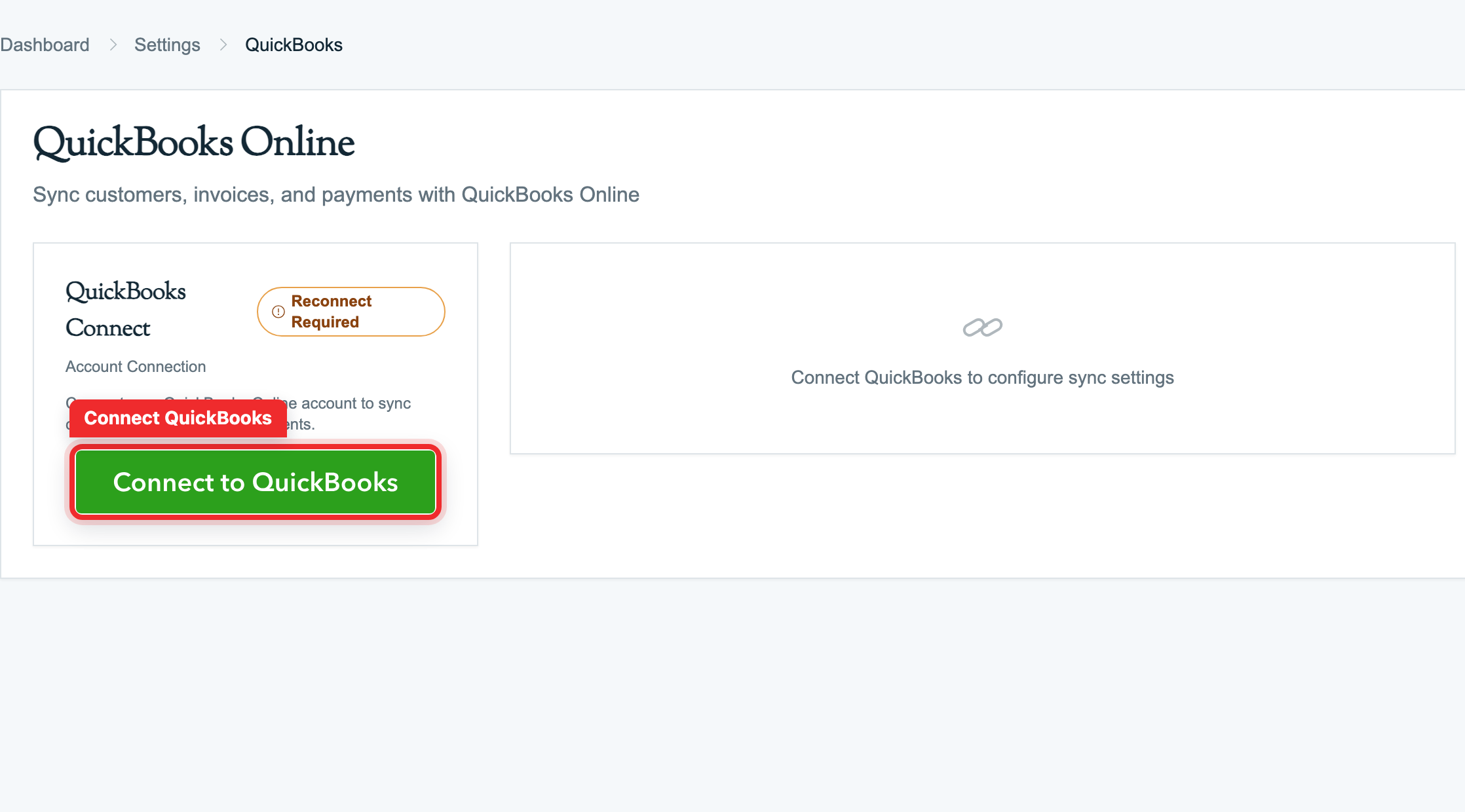
- Connect QuickBooks — Settings → Integrations → QuickBooks Online. Authorize Pool Runs against your QBO company. Run the six-step setup wizard. See Setting Up QuickBooks.
- Verify your QBO Items — make sure each Pool Runs part, chemical, and work order type maps to the right QBO Item with the right income account. This is the most important step for clean P&L breakdown later.
- Import or match your customer list — the wizard handles this. Sub-customers in QBO become properties in Pool Runs.
- Set the default Route Service Item, Fee Item, and Deposit Item — these are catch-alls for invoice lines without a specific product mapping.
Once setup is done, billing runs on autopilot for the most part.
Lifecycle Step 1: Quote → Invoice
A customer requests a repair quote. You draft it in Pool Runs and send it. They approve and e-sign. You click Generate Invoice.
- In Pool Runs: a new invoice is created in
draftstatus, line items pulled from the quote, deposit applied if there was one. - In QBO: nothing yet. Quotes don't sync — only finalized invoices do.
When you finalize the invoice (move it from draft to generated or sent), Pool Runs queues the sync to QBO. Within seconds, the invoice appears in QBO with:
- Customer (matched to the QBO customer record)
- Property as the ship-to address
- Each line mapped to its QBO Item
- Tax computed by Pool Runs and applied as the QBO tax code
- Due date and terms
See Quotes → Invoices and QuickBooks Overview: How Items, Accounts, and Invoices Connect.
Lifecycle Step 2: Work Order → Invoice
A technician completes a repair work order. The office clicks Create Invoice from the work order detail page.
- Line items pre-populate from the work order (parts, chemicals, services, fees).
- Each line is mapped to its QBO Item based on the part / chemical / work order type matching set up in the wizard.
- You review, finalize, and send.
Within seconds, the invoice is in QBO. Same flow as quote-to-invoice from QBO's perspective.
Lifecycle Step 3: Routes → Bulk Invoice
Monthly. The Invoice Generator sweeps every completed route stop, chemical add-on, and installed part for the date range and produces a batch of invoices — one per customer (or per property, if you have multi-property customers configured that way).
- Each generated invoice syncs to QBO as it's finalized.
- Per-stop billing, per-month flat-rate billing, and chemical add-ons all work.
- Pool Runs prevents double-billing — once a route stop is on an invoice, it won't show up in the Generator again.
See Invoice Generator.
Lifecycle Step 4: Customer Pays Online via Stripe
Most residential customers pay through the Stripe payment link in their invoice email.
- Customer clicks Pay Now on the email or public payment page.
- They enter card or bank details. Apple Pay / Google Pay show up automatically on supported devices.
- Stripe processes the charge.
- Stripe notifies Pool Runs (typically within seconds).
- Pool Runs records the payment as
succeeded, updates the invoice topaid(orpartial), and stamps the paid date. - Within a few seconds, the payment syncs to QBO as a Payment against the matching invoice.
- The customer gets a Stripe-hosted receipt email.
About 2 business days later, Stripe sends the funds to your bank as a payout. If you've enabled payout sync (recommended), Pool Runs creates a Bank Deposit in QBO with:
- The full payout amount in the deposit account you configured
- A negative line for Stripe processing fees in the fee expense account you configured
- A reference to the Stripe payout ID
This is what makes month-end bank reconciliation in QBO actually painless.
See Stripe Overview and What Syncs to QuickBooks: Payment Sync.
Lifecycle Step 5: Customer Pays by Check, Cash, Zelle, Venmo
Commercial customers and a chunk of residential customers pay outside Stripe. Office staff records these manually.
- The check arrives. (Or the cash. Or the Zelle hits your business bank account.)
- Open the invoice → Record Payment.
- Method: Check / Cash / ACH / Other (with reference for Zelle/Venmo/CashApp). Reference: check number or transaction ID.
- Save → invoice flips to
paid(orpartial). - Within seconds, the payment syncs to QBO as a Payment against the invoice.
The bank deposit for these manual payments does not flow through Stripe — you (or your bookkeeper) record the bank deposit in QBO directly when the funds clear.
Lifecycle Step 6: Refunds
Customer disputes a charge or you agree to a partial credit.
- Open the invoice → find the payment row → Refund.
- Enter the refund amount and reason.
- Pool Runs:
- For Stripe payments: requests the refund from Stripe.
- For manual payments: records a negative payment.
- Pool Runs creates a Refund Receipt in QBO that reduces the original invoice's revenue.
- Stripe processing fees are not refunded by Stripe and remain as expenses in QBO.
See Handling Payment Issues: Refunds.
Lifecycle Step 7: Voids and Adjustments
| Operation | What happens in Pool Runs | What happens in QBO |
|---|---|---|
| Void invoice before any payment | Status flips to void. | Voided in QBO too (preserves the invoice number for audit). |
| Cancel invoice before sending | Status flips to cancelled. | If it had already synced, marked void in QBO. |
| Discount added to invoice | New adjustment line on the invoice. | Pushes as a DiscountLineDetail line. |
| Fee added to invoice | New line item. | Pushes as a regular line mapped to the Fee/Surcharge Item. |
| Credit applied to a future invoice | Credit balance recorded against customer. | Credit Memo or Applied Credit, depending on your setup. |
See Invoice Adjustments.
Where Sales Tax Lives
Tax is calculated on the Pool Runs side using tax zones (typically ZIP-based). When the invoice syncs:
- The pre-tax amounts and tax total push to QBO.
- QBO applies its tax code (you map Pool Runs tax zones → QBO tax codes during the wizard).
- QBO's sales tax module handles remittance — Pool Runs does not file taxes.
For multi-jurisdiction sales tax, QBO's sales tax features do the heavy lifting. Pool Runs just provides the taxable basis.
See Tax Zones and QuickBooks Overview: How Items, Accounts, and Invoices Connect.
Month-End Reconciliation Checklist
This is the routine for a bookkeeper closing the month with the QBO sync running:
- Settings → QuickBooks Online → Sync Health — confirm zero errors. Fix anything in error before closing.
- In QBO, run a Bank Reconciliation for your operating account. Stripe payouts + manual deposits should match your bank statement.
- Review the Stripe Fees expense account — should match your Stripe Dashboard's monthly fee total within a few cents.
- Run a P&L by Item / Service — this is where the QBO Item → income account mapping pays off. Filter Clean, Acid Wash, Maintenance, Equipment Install all show as separate lines.
- Run an A/R Aging Report in QBO — Pool Runs doesn't have one, but QBO does. Use this for collections follow-up.
- Check for UNMAPPED items — if any invoices have UNMAPPED lines in QBO, your P&L is wrong. See QuickBooks Overview: UNMAPPED Items.
Reports You'll Run Where
| Report | Where to run it |
|---|---|
| Open invoices / unpaid balance | Pool Runs Invoices filtered by status, or QBO A/R Aging |
| Revenue by service type | QBO P&L by Item |
| Revenue by customer | QBO Customer P&L |
| Stripe processing fees by month | QBO P&L (Stripe Fees account) |
| Refunds and voids history | Pool Runs invoice list filtered + QBO Refund Receipts |
| Sales tax owed by jurisdiction | QBO Sales Tax Liability |
| Per-customer payment history | Pool Runs Customer Profile |
| Per-property service history | Pool Runs Property detail page |
Pool Runs is for "who, where, when" questions. QBO is for "how much money where" questions.
Common Issues in This Setup
- Sync errors — usually a duplicate name, an unmapped item, or a missing income account. See Sync Errors & Reconciliation.
- Double-recorded payments — operator manually records a Stripe payment that already auto-recorded. Always check the invoice's Payments tab first.
- Stripe payout doesn't match QBO Bank Deposit — Stripe's fee account isn't configured. Settings → Integrations → QuickBooks → Payment sync.
- Bookkeeper creates an invoice directly in QBO — Pool Runs won't know about it. Always create invoices in Pool Runs.
- Customer pays in QBO directly — does flow back to Pool Runs (QBO → Pool Runs payment sync), but reconciliation is cleaner if all invoicing originates in Pool Runs.
FAQ
Q: Do I have to use Stripe to use QBO sync? No. The QBO sync works fine without Stripe — you'd just record every payment manually. But almost every Pool Runs customer connects Stripe within their first week because the collections difference is huge.
Q: What if I prefer QuickBooks Payments over Stripe? You can. Payments collected through QuickBooks Payments flow back to Pool Runs via the QBO → Pool Runs payment sync. The Pool Runs Stripe integration and QuickBooks Payments are not mutually exclusive — pick whichever you prefer per invoice (most operators pick one and stick with it).
Q: Will old QBO invoices come into Pool Runs? No — the integration is one-way for new invoices (Pool Runs → QBO). Historical invoices stay in QBO; only edits to existing synced invoices flow back. Always create new invoices in Pool Runs.
Q: What if my bookkeeper changes the invoice amount in QBO? With "Pool Runs wins" conflict resolution (the default), Pool Runs overwrites the QBO change on the next sync. With "QuickBooks wins," QBO's change pulls back into Pool Runs. Pick the policy that matches your workflow during setup.
Q: Do quotes sync to QBO? No — only finalized invoices. Quotes are sales/proposal artifacts, not GL transactions, and stay in Pool Runs.
Q: Can I run this setup without payout sync (Stripe payouts → QBO Bank Deposits)? Yes — payout sync is optional. If you don't enable it, you'll record bank deposits manually in QBO when reviewing your bank statement. Most operators turn it on because it cuts ~30 minutes off month-end reconciliation.
Related Documentation
- QuickBooks Overview — What syncs and how.
- Setting Up QuickBooks — The six-step wizard.
- What Syncs to QuickBooks — Per-data-type sync detail.
- Stripe Overview — How online payments work.
- Choose Your Billing Setup — If you decided you don't need QBO, switch to Pool Runs + Stripe.
Pool Runs + Stripe
How billing works end-to-end when Pool Runs is your accounting system of record. Stripe collects online payments, you record manual payments, and you export to your accountant at month-end or year-end.
Settings
Configure Pool Runs for your business — payment, tax, business information, skip reasons, integrations, and team permissions.