Invoice Generator
Select completed work or a billing month, review service lines and adjustments, preview the PDF, and create invoice records with the appropriate billing action.
Invoice Generator
The Invoice Generator prepares invoices for several customers or properties in one run. Standard mode loads billable service and work-order items. Bulk Billing mode applies line items you define to selected customers, with optional service history.
Review the customer selection, billing period, included lines, and PDF before creating invoices. Saving a draft creates an invoice record; opening a PDF preview does not.
When to Use the Generator
| Situation | Starting point |
|---|---|
| Routine billing for completed service | Standard → Date Range |
| Billing monthly-rate properties for a calendar month | Standard → Monthly Billing → In Arrears |
| Billing a coming service month from recurring assignments | Standard → Monthly Billing → In Advance |
| Completed, uninvoiced repairs | Include Work Orders in a Standard date-range run |
| Applying the same custom charge to several customers | Bulk Billing |
| An invoice from an approved quote | Use the quote's invoice workflow; see Quotes |
| A one-customer invoice entered by hand | See Creating Invoices Manually |
Standard: The Two Main Tabs
The Standard workflow has two main tabs:
Select & Configure → Review & GenerateThe second tab contains item review, adjustments, customizations, PDF previews, and invoice-creation actions. Back returns to selection. Check the loaded items again after changing the selection or period; use Continue to Review to load the current criteria.
Select & Configure
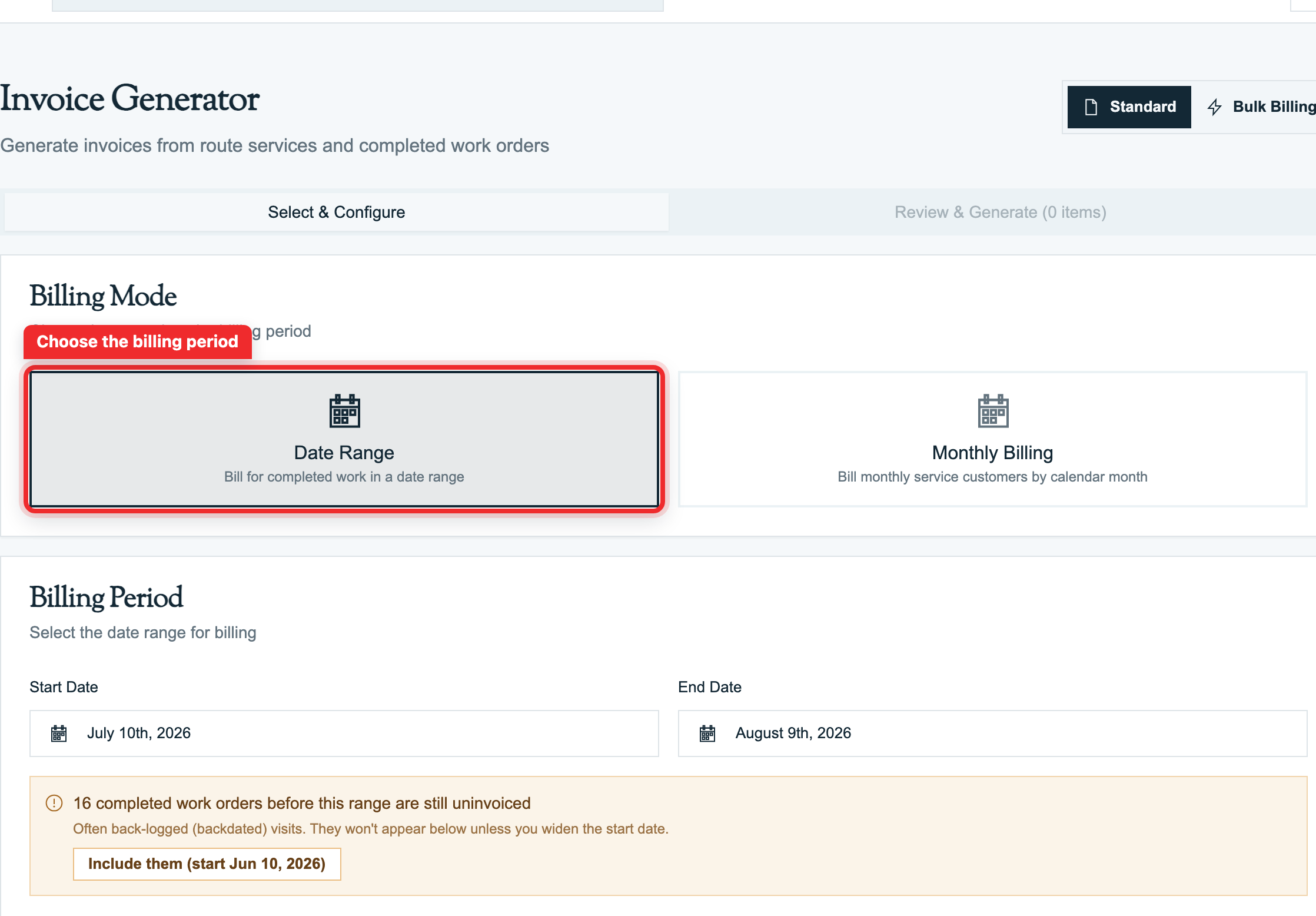
Date Range
Choose Date Range to load completed work within a start and end date.
| Setting | How to use it |
|---|---|
| Start Date / End Date | Choose the billing window. The defaults run from 30 days before the office's current date through today; review the actual dates each run. |
| Customers | Search and select the intended customers. An empty selection means all customers, not none. |
| Include Route Services | Includes matching completed route stops and related service items. |
| Include Work Orders | Includes eligible completed, uninvoiced work orders. |
| Combine Per Customer | On: one invoice for the customer's selected properties. Off: separate invoices per property. |
Click Continue to Review. The current Date Range screen requires Include Route Services to be on for this button to be enabled. There is no separate property-selection control on this screen; inspect the property groups after loading the selected customers.
The service query filters visits by their scheduled date. The review line can display the actual completion date in the office's timezone, so a rescheduled or late-completed visit may show a different service date. Inspect both the period and the loaded lines.
A notice can identify completed, uninvoiced work orders before the selected start date. Widen the period only when those jobs belong in this run. Selecting a period does not change the completion status of the work.
Monthly Billing
Choose Monthly Billing, then select Month, Year, and Billing Timing:
- In Arrears reviews the chosen month after the work. Monthly-rate properties can appear even when they have no completed visits.
- In Advance calculates the service charge from recurring assignments for the chosen month. It can include per-visit rate types as well as monthly rates. This is billing the plan, not confirming completed service.
- In advance mode, Include last month's consumables can bring the previous month's eligible consumables into the same invoice. Leave it off when those items should be billed separately.
Click Load Customers. Review the unbilled properties and the existing-invoice information, then select customers explicitly; the monthly list starts with no customers selected. Use Reload Customers after changing the month or timing. Review Combine Per Customer, then click Continue to Review.
Check the month being charged separately from any prior-month consumables. Changing from advance to arrears or back can overlap billing periods; review existing invoices before changing a customer's timing. See Recurring & Auto Invoicing for the related monthly and automatic workflows.
Review & Generate
Check the Actual Lines
Expand the customer, then the property. Review the Description, Date, Qty, Price, and Total for each item.
The first checkbox is Skip: checked excludes the line from this run; unchecked includes it. The Tax checkbox is a different control. Confirm the line identity before skipping a disputed visit, duplicate service item, or work order that belongs in another invoicing workflow.
Informational service or dosage lines document work without adding to the billable subtotal. Their Included badge does not mean there is an additional charge. The summary above the review shows the amount before tax; inspect tax and the final total in the PDF preview.
Rate Types
These distinctions describe routine service and chemical dosage lines. Review parts and installed-item lines separately; a chemicals-included rate does not make every supplied item free.
| Property rate type | Routine service | Chemical dosage lines |
|---|---|---|
| Per Stop | Service charge for each eligible completed visit | Informational, not an extra dosage charge |
| Per Month | Monthly service charge; visit details are informational | Informational |
| Per Stop + Chemicals | Service charge for each eligible completed visit | Charged separately |
| Per Month + Chemicals | Monthly service charge; visit details are informational | Charged separately |
Service-log parts are billable lines. Installed-item charges use their recorded or applicable item price. Check quantities and prices, especially zero-price items. Skipping an informational visit does not automatically prorate the flat monthly service charge; review the actual monthly charge and any intended adjustment.
Prefer Monthly Billing for calendar-month charges. Do not assume an arbitrary multi-month Date Range creates a separate monthly service charge for every month: review the actual period and charge lines.
Adjustments and Customizations
Review the adjustments and invoice settings in the second main tab:
- Bulk fees and discounts apply across the run, with customer exclusions where configured. Check the label, amount or percentage, and taxable setting.
- Default Customer Message supplies the run's customer-facing message. Default Internal Notes are for the office.
- Payment Terms can use automatic resolution or a chosen override. Automatic resolution considers the customer's terms, applicable billed work-order types, and organization default. Check the due date in the PDF.
- Expand the customer customization controls for messages, internal notes, payment-term overrides, and customer adjustments. Separate per-property invoices can also use property overrides. For a combined customer invoice, inspect the actual combined PDF rather than assuming each property's message becomes a separate section.
A per-property customization takes precedence over the customer customization for that property's separate invoice. Some customer and property adjustments can combine, so verify the resulting amount rather than assuming one replaces the other.
Preview the PDF
With Combine Per Customer on, expand the customer and choose Preview Combined PDF. With grouping off, use Preview PDF for the relevant property. Check:
- The customer and property scope.
- Included service lines and dates.
- Quantities, prices, and adjustments.
- Payment terms, customer message, tax, and final total.
The preview invoice number is PREVIEW. Close returns to review; Open in New Tab and Download PDF provide other ways to inspect the same preview. Opening or downloading this preview does not create an invoice.
Choose the Creation Action
These actions create records. They are separate from PDF preview.
| Action | Result |
|---|---|
| Save as Draft | Creates draft invoices and allocates invoice numbers. Review and finalize them from Invoices. It does not send the invoices or run the finalized-invoice QBO sync. |
| Generate | Creates finalized invoice records for later sending. Finalized generation can also attempt QuickBooks sync when applicable. |
| Generate & Send | Creates invoices and attempts to send them through the configured workflow. Confirm delivery separately. |
| Generate & Sync to QuickBooks | Offered for QBO Payments configuration in place of the regular Generate/Send controls. Review the resulting sync and invoice status. |
Review any zero-price confirmation before continuing. QBO sync failures can affect the resulting status, including returning a QBO Payments invoice to draft. Provider-specific processing fees may affect the persisted amount; inspect the final invoice and sync result.
The results show created invoices and any reported failures. Use View Invoices or Review Drafts to inspect the saved records. Creating an invoice or seeing a sent status is not proof that an email reached the customer's inbox.
Quick Steps: Standard Monthly Billing in Arrears
- Open Billing → Invoice Generator and keep Standard selected.
- Choose Monthly Billing, the intended Month and Year, and In Arrears.
- Click Load Customers. Review existing invoices and the unbilled properties, then select the intended customers.
- Set Combine Per Customer as needed. Click Continue to Review.
- Expand the customers and properties. Review prices and dates; check Skip only for lines you intend to exclude. Review the monthly charge separately from informational visits.
- Check messages, payment terms, and any adjustments. Open each relevant PDF preview and review its total.
- Choose the appropriate creation action only when ready. Review the saved records, reported errors, sync status, and delivery before rerunning the period.
Bulk Billing Mode
Bulk Billing uses custom line items instead of deriving the charge from completed service. Examples include an agreed annual maintenance charge or a seasonal setup fee applied to selected customers.
Bulk Billing has three tabs of its own:
1. Select Customers → 2. Line Items & History → 3. Review & Generate- In Select Customers, review the recipients and their properties. Active customers are initially selected when the bulk customer list loads, so remove any customer who should not receive the charge. Continue to Line Items & History.
- Add the Bulk Line Items. Enter each line's name, optional description, quantity, unit price, and taxable setting. Use the line's Exclude customers control when a recipient should not receive that particular line.
- Optionally enable Include Service History, choose its date range, and click Load Service History. Review the loaded customer/property history. These reference details do not replace the custom charge lines with standard service billing.
- Click Review Invoices. At least one line item and one selected customer are required.
- In Review & Generate, inspect the Invoice Preview by Customer, customizations, message, notes, payment terms, adjustments, and PDF previews.
The selected creation action creates invoice records. Do not use Bulk Billing as a way to bypass a disputed or already-created invoice; verify the charge and recipient first.
Duplicate-Billing Checks and Corrections
The Standard loader checks existing invoice links for route services, dosages, parts, and installed items. Work-order stops are excluded from route-service billing because the work order is handled separately. Monthly billing also tracks billed property/month combinations and can reject a concurrent duplicate monthly run.
These checks help, but they do not replace reviewing existing invoices, imported/manual charges, repeated source entries, or a partially completed batch. Bulk custom lines are your responsibility to review.
Voiding is a separate financial correction. Where allowed, the void workflow unlinks route stops and work orders, removes associated monthly-billing records and invoice lines, and resets installed-item invoicing flags so work can become eligible again. Those cleanup steps can fail; inspect the result before rebilling. Voiding requires permission, can be blocked by payments or QuickBooks ownership/review restrictions, and can initiate QuickBooks sync. See Invoice Adjustments. Do not assume changing only an invoice's status released every billing link.
FAQ and Troubleshooting
Why is a customer missing?
For Date Range, check the customer selection, period, completion status, include switches, and existing invoice links. For Monthly Billing, load the chosen month and timing, review existing invoices, and select the intended customers. Monthly-rate properties can appear without completed visits.
Why is a completed work order missing?
Check Include Work Orders, customer selection, completion date, and whether the work order is already invoiced. A notice may identify uninvoiced work before the selected start date. Work-order route stops are not separate routine-service charges.
Why are visits or chemical dosage lines informational?
The property's rate type may include them in the service charge. Review the separate monthly charge or per-visit service line, plus any billable parts and installed items. Do not switch rate types merely to make an informational line chargeable without reviewing the customer's service arrangement.
Why is Continue to Review disabled or empty?
In Date Range, confirm Include Route Services is on. In Monthly Billing, load customers and select at least one. An enabled button can still load no matching billable items; review dates, selection, and existing billing.
A line appears twice.
Compare the source and service date. A dosage and installed-item entry can describe similar material. Check Skip for the line that should be excluded, then correct the underlying service entry when appropriate. Do not remove a valid charge solely because its description resembles another line.
A part has a zero price.
Review its recorded price and the property's service pricing. The generator may ask for confirmation before creating invoices with zero-price items. Confirm that the amount is intentional.
Only part of a run succeeded.
Some invoices can be created while others fail. Inspect the result and existing saved records first. Reload the criteria to see what remains eligible; do not blindly submit the same run again, particularly custom Bulk Billing lines.
Generation succeeded, but the email did not arrive.
Review the saved invoice, intended customer email, and sending workflow. The generation route can retain an invoice even when its send attempt fails. Correct the delivery issue and use the appropriate invoice sending action instead of creating another invoice.
Invoice numbers have gaps or a number error appears.
Number allocation occurs before all later generation steps finish, and drafts also receive numbers. Do not assume contiguous numbering. Review the reported error and existing invoices before retrying; contact support if allocation continues to fail.
My message or payment terms are different from the default.
Check the run defaults and customer/property overrides, then inspect the relevant PDF. Separate property invoices can use property overrides; combined invoices need their own combined preview. Automatic payment terms may resolve from the customer or billed work-order type rather than the organization default.
Related Articles
- Invoices Overview — Invoice status and line-item model
- Recurring & Auto Invoicing — Monthly and automatic invoicing
- Creating Invoices Manually — One-at-a-time alternative
- Invoice Adjustments — Corrections and voiding
- Tax Zones & Tax Management — Tax settings and line treatment
- Quotes — Quote-based invoicing
- Work Orders — Work-order workflows
- QuickBooks Integration — Sync and accounting integration
Need help? Check Troubleshooting or contact support.
Creating Invoices Manually
Step-by-step walkthrough of the Pool Runs invoice form — customer, property, line items, taxes, terms, due dates, and saving as draft or sending immediately.
Recurring & Auto Invoicing
How to set up monthly billing for residential customers, configure autopay enrollment, and use auto-invoicing runs to bill on a schedule in Pool Runs.