Invoice Adjustments — Discounts, Credits, Voids & Refunds
How to add discounts and fees to an invoice, void or cancel an invoice, issue refunds, and apply customer credits in Pool Runs.
Invoice Adjustments — Discounts, Credits, Voids & Refunds
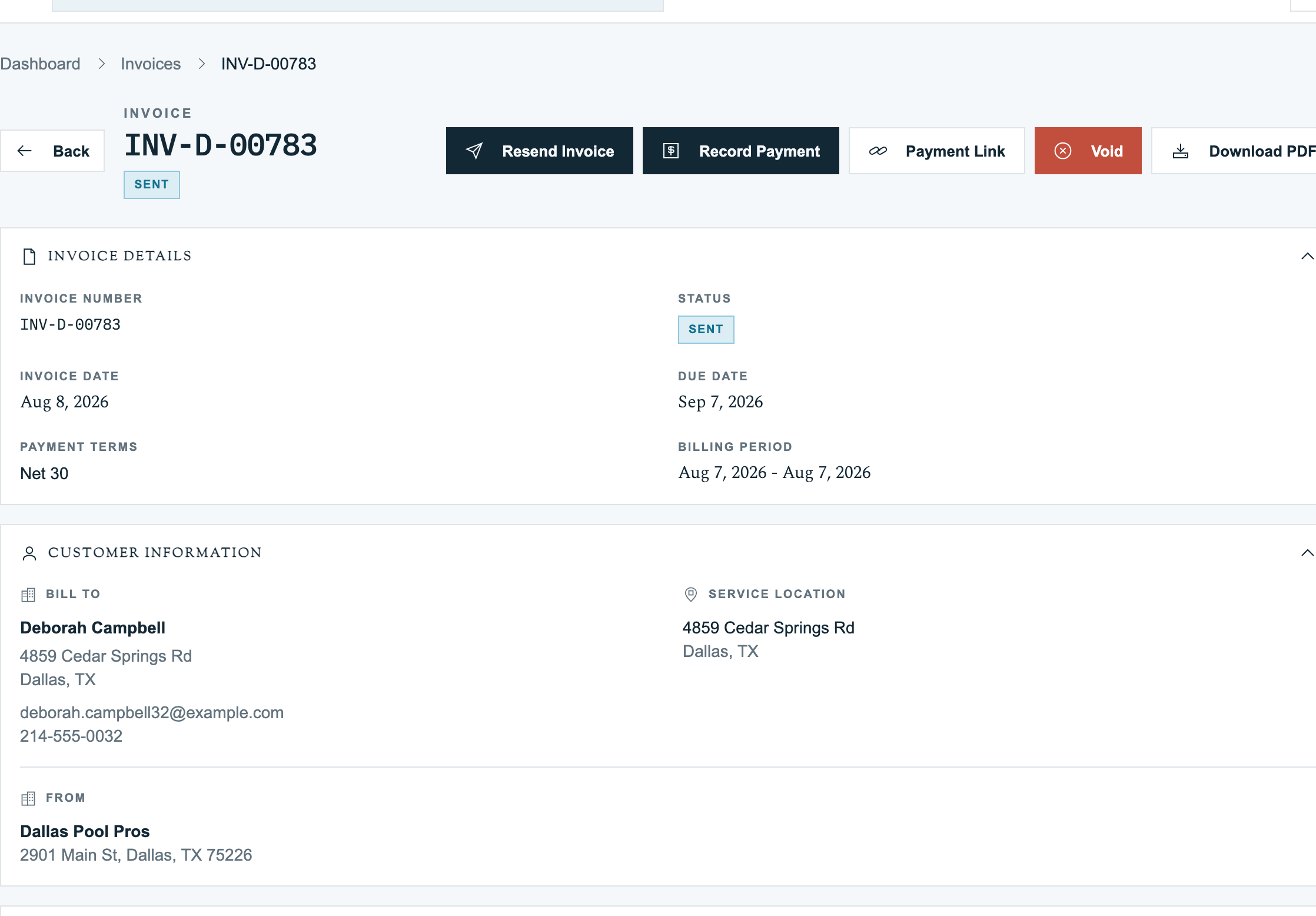
When an invoice needs to be modified after it's been sent — a discount the customer asked for, a fee they're disputing, a payment they want refunded, an entire invoice that needs to disappear — Pool Runs gives you a separate set of tools so the original invoice's audit trail stays clean. This page covers every adjustment, every retraction, and the rules for when each is appropriate.
Adjustments vs. Editing Line Items
| Action | When to use | Affects original invoice? |
|---|---|---|
| Edit line items | Invoice is still draft | Yes — overwrites |
| Add adjustment | Invoice is generated, sent, or beyond — and you want to add a fee or discount | Adds a separate row, original line items stay |
| Void | Invoice is wrong and needs to disappear from the customer's record | Yes — invoice marked void, history kept |
| Cancel | Invoice was never sent or paid and shouldn't exist | Yes — invoice cancelled |
| Refund | A payment needs to be returned | No — refunds the payment, invoice may move to refunded |
| Apply credit | Customer has a stored credit balance | Records as a payment |
The general rule: don't edit line items on a sent invoice. Add an adjustment, void & recreate, or refund. Editing line items on a generated or sent invoice is locked precisely to prevent the audit trail from being silently rewritten.
Adjustments (Fees & Discounts)
An adjustment is an additional row applied to an invoice. Two kinds, two modes:
| Kind | Mode | Example |
|---|---|---|
| Fee | Flat | $25 late fee |
| Fee | Percent | 3% fuel surcharge of subtotal |
| Discount | Flat | $10 loyalty discount |
| Discount | Percent | 10% off services |
How Adjustments Are Calculated
Every adjustment has an Applies To setting:
| Applies to | Calculation base |
|---|---|
subtotal | Sum of all line items (default) |
labor | Sum of labor source-type lines |
parts | Sum of part source-type lines |
chemicals | Sum of chemical source-type lines |
services | Sum of service and route source-type lines |
Pool Runs calculates each adjustment in order, adds fees or subtracts discounts from the running total, then applies tax based on each line item's Taxable setting.
| Adjustment | Taxable | Tax behavior |
|---|---|---|
| Most fees (admin charges) | false | Don't add to taxable base |
| Service-related fees (delivery, setup) | true | Do add to taxable base |
| Most discounts | depends | Discounts are typically applied pre-tax (reducing taxable amount) |
When in doubt, consult your local tax regulations — sales tax rules around fees and discounts vary by state.
Adding an Adjustment
- Open the invoice (must be
generatedor beyond). - Click Add Adjustment.
- Pick Kind (Fee or Discount).
- Pick Mode (Flat or Percent).
- Enter the Value (dollars for flat, 0–100 for percent).
- Type a Label ("Late fee", "10% loyalty discount", etc.).
- Optionally choose Applies To (default: subtotal).
- Optionally toggle Is Taxable if it's a fee that should add to the taxable base.
- Click Save.
The invoice total recalculates immediately. The customer's view of the invoice (PDF, payment page) reflects the new total on next view.
Removing an Adjustment
Click the trash icon on the adjustment. The total recalculates. Removing an adjustment does not leave it in the invoice history, so use Void & Recreate when you need a complete record of the change.
Voiding an Invoice
A void retracts an invoice that was sent but should no longer stand. Pool Runs preserves the invoice and its history for your records, but excludes it from A/R and the customer's outstanding balance.
When to Void
- Invoice was sent with wrong line items, and the customer hasn't paid yet
- Invoice has been paid but needs to be retracted (refund the payment first, then void)
- Invoice was created in error (wrong customer, wrong dates) and you need a record of the mistake
- An auto-generated batch had a systemic error and you want to "undo" the batch
Void Mechanics
- Open the invoice. Click Void Invoice.
- Confirm the void reason so it appears in the invoice history.
- The invoice's status moves to Void.
- Linked items (route stops, work orders) are released — they appear in the next Invoice Generator run as billable.
- The invoice number is not released (it remains in the sequence for accounting integrity).
- The customer's payment link is invalidated.
Void vs. Delete
There is no "delete" for sent invoices. Once an invoice has an invoice number, it exists forever — voided invoices are still queryable, still appear in audit logs, still count in the sequence. Delete only applies to drafts, which never had an invoice number.
Cancelling an Invoice
Cancel is for invoices that never had any payments and shouldn't exist at all. It's a softer action than void — typically used for generated invoices that were never sent, or draft invoices you want to drop.
| Action | When | Effect |
|---|---|---|
| Cancel | No payments, never sent (or sent but no view/payment) | Status cancelled, hidden from A/R, items released |
| Void | Has been sent / viewed / paid (with refund first) | Status void, kept in history |
If a cancel-worthy invoice has even one succeeded payment on it, you must refund the payment first — at which point you may as well void instead.
Refunds
A refund returns money to the customer for a previously-recorded payment. Refunds happen at the payment level, not the invoice level (since one invoice can have many payments).
Refund Mechanics
For Stripe payments:
- Open the invoice's payment history.
- Click Refund on the specific payment row.
- Choose Full or Partial.
- For partial, enter the amount.
- Confirm.
- Stripe processes the refund (typically 5–10 business days to land in customer's account).
- The payment status moves to Refunded or Partially Refunded.
- The refunded amount appears in the payment history.
- If the entire invoice total is refunded, the invoice status moves to Refunded.
For manual payments (cash, check):
- Open the payment row.
- Click Mark as Refunded.
- Enter the refund amount and method (you presumably handed cash back or wrote a check).
- The payment status updates.
Partial vs. Full Refund
| Type | When |
|---|---|
| Full | Customer wants the entire invoice refunded |
| Partial | Customer disputes a single line; refund just that amount |
Partial refunds are common. For example, if a customer disputes a $30 chemical line on a $237.50 invoice, refund $30 and leave the rest paid. The invoice remains Paid, and the payment shows Partially Refunded.
Stripe Refund Timing
Stripe refunds typically appear in the customer's account in 5–10 business days. The Pool Runs system shows the refund as refunded immediately upon initiating, even though the customer's bank may not show it for a week. The Stripe-hosted receipt URL is updated.
Customer Credits
A credit is a customer balance held in Pool Runs that can be applied to future invoices. Credits arise from:
- Customer overpayments (paying $250 on a $237.50 invoice = $12.50 credit)
- Manual credit memos (you issue a $50 goodwill credit after a complaint)
- Returns or write-offs
Auto-Apply
If Automatically Apply Credits is enabled under Settings → Invoicing, Pool Runs applies stored credit to the next invoice. The credited amount appears in the payment history.
Manual Apply
If auto-apply is off, when recording a payment you can choose Applied Credit as the method. Enter the amount. Pool Runs deducts from the customer's stored credit balance.
Tracking Credit Balance
A customer's stored credit balance is visible on their profile. Each application is logged for audit. There's no expiration on credits unless set at the org level.
Concepts
Adjustments are not line items
This is an important distinction:
| Line Item | Adjustment | |
|---|---|---|
| How it appears | A product or service charge | A separate fee or discount |
| Created from | Manual entry, route, work order, dosage, part | Manual entry only |
| Tax | Uses the line item's Taxable setting | Uses the adjustment's Taxable setting |
| Source | Can come from service, work orders, parts, or manual entry | Added manually |
For how adjustments map to QuickBooks specifically, see Pool Runs + QuickBooks.
Why void preserves the invoice number
Accounting integrity requires sequential invoice numbering. If voids released their numbers, your sequence would have gaps that auditors and bookkeepers could flag. Pool Runs follows standard accounting practice: voided invoices keep their number and remain in your history.
Why we recommend "void & recreate" over "edit"
Sent invoices are locked from edits to maintain a single source of truth. If you need substantive changes, the cleanest path is:
- Void the original (note the reason)
- Recreate with corrections (a new invoice number)
- Send the new one to the customer with a note explaining
The customer gets a clear record: "Invoice 0123 was voided, replaced by 0124." Both stay in the system.
FAQ
Q: Can I edit an adjustment after it's saved? A: You can change the value, label, or scope. The recalculation runs immediately. The invoice's audit history records the change.
Q: I voided an invoice but the customer's email still shows the old payment link. Will it still work? A: No. Voiding the invoice disables its payment link. If the customer clicks it, they'll see that the invoice was voided along with your contact information.
Q: I refunded a Stripe payment but the customer says they never got the money back. A: Stripe refunds take 5–10 business days. Tell the customer to check 7+ days after the refund date. If after 10 business days they still don't see it, check the Stripe dashboard's refund status — may have failed (rare; usually due to a closed card account).
Q: A discount adjustment is making the total go negative. What happens? A: Pool Runs allows the adjustment to bring the total to $0 but doesn't go below $0 in normal flows. If you need a credit-only invoice (the customer is owed money rather than owes), use a credit memo workflow instead.
Q: The customer wants their invoice voided and a new one issued, but they already paid. What's the order? A: (1) Refund the payment. (2) Void the original invoice. (3) Create the new invoice with corrections. (4) Send. (5) Customer pays the new one. Optionally, instead of refund + new invoice, you could apply the original payment as a credit against the new invoice — fewer Stripe transactions, same outcome.
Q: Can I void multiple invoices at once (a whole batch)? A: Not directly today. For now, void each invoice individually.
Q: What's the difference between voiding an invoice and refunding all its payments? A: They're complementary, not interchangeable. Refunding returns the money. Voiding retracts the invoice (the document). For a paid invoice you want to fully retract, you do both: refund first, then void.
Troubleshooting
Void button is disabled. The invoice may already be voided, or the user lacks the void-invoice permission. Check user role under Members in the sidebar.
Adjustment isn't reflected in the customer's payment page total. The customer may still be viewing an older version. Resend the invoice so the email and payment page show the latest details the next time they open it.
Refund shows in Stripe but not in Pool Runs. Stripe's notification to Pool Runs got delayed. Wait a few minutes; if it persists, manually mark the payment as refunded with the matching Stripe refund ID.
Customer credit balance is wrong. The credit ledger may have a stale entry. Check the customer profile's credit history (every credit and application is logged). If you find a discrepancy, an admin can manually adjust the balance with a notes-required action.
Discount adjustment uses wrong base. Double-check what the discount is set to apply to. A 10% discount on the subtotal vs. on labor only gives very different numbers. The default is the subtotal, which is what most users want.
Voided invoice still showing on the Invoices list. The Invoices list may take a few seconds to refresh. Reload the page if the old status is still visible.
Related Articles
- Invoices Overview — Status lifecycle and the void/cancel/refund distinctions
- Recording Payments — How payments work, which is the precondition for refunds
- Creating Invoices Manually — How to recreate after a void
- Collections — Manual payments, late fees, write-offs
- Tax Zones & Tax Management — How adjustments interact with tax
- Pool Runs + QuickBooks — How voids, adjustments, and refunds flow to QBO
- Pool Runs + Stripe — Same operations when Pool Runs is the books
Need help? Check our troubleshooting guide or contact support.
Recurring & Auto Invoicing
How to set up monthly billing for residential customers, configure autopay enrollment, and use auto-invoicing runs to bill on a schedule in Pool Runs.
Recording Payments
How payments work in Pool Runs — manual entry (cash, check, ACH), online Stripe payments, partial payments, and the payment status lifecycle.