Stripe Overview
How Stripe powers payments in Pool Runs — what Stripe handles, what Pool Runs handles, what you handle, and how the two systems stay in sync.
Stripe Overview
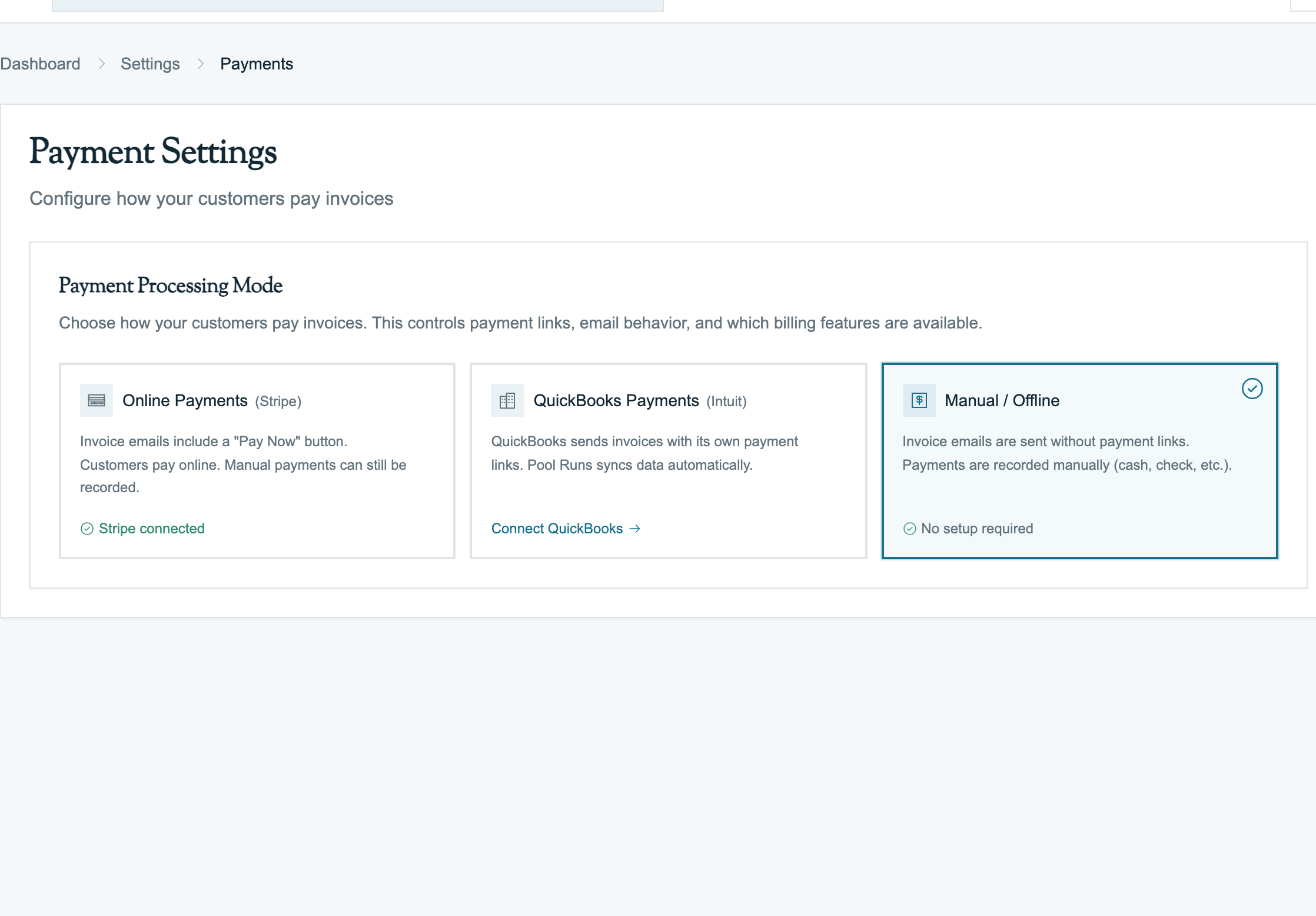
Pool Runs uses Stripe to process online payments. Each pool service business has its own Stripe account; charges go directly to that account, and the money lands in your bank — not Pool Runs'. This page is the operational map of how that works.
What Stripe Does for Pool Runs
| Capability | Where it shows up |
|---|---|
| Online card payments | Customer payment page |
| Bank transfers (ACH) | Same page, alternate tab |
| Apple Pay / Google Pay | Same page (auto-shown when the customer's phone supports them) |
| Saved cards | Autopay enrollment, repeat customers |
| Automatic charges (autopay) | Daily autopay run |
| Refunds | Invoice detail → Refund action |
| Payouts to your bank | About 2 business days from each charge, automated |
| Receipt emails | Sent by Stripe directly |
| Disputes / chargebacks | Stripe Dashboard (not in Pool Runs) |
What Pool Runs does not do via Stripe:
- Subscription billing (Pool Runs has its own monthly billing for routes)
- Sales tax (Pool Runs computes sales tax with its own tax zones)
- In-app dispute management (you must use Stripe Dashboard)
Your Stripe Account vs. Pool Runs
Each pool service business gets its own Stripe account. A few things that flow from that:
- Money goes directly to your bank — Pool Runs never touches the funds.
- You pay Stripe's processing fees (2.9% + $0.30 for cards, 0.8% capped at $5 for ACH), not Pool Runs.
- You're responsible for chargebacks — Stripe handles the mechanics, but the loss falls on you (just like with any other merchant account).
- You get full Stripe Dashboard access — log in any time at dashboard.stripe.com to view charges, issue refunds, manage disputes, download statements. Pool Runs is a convenience layer on top, not a wall.
- Saved cards are tied to your Stripe account. Mrs. Smith's card on file at Pool Co A is invisible to Pool Co B (different Stripe accounts, different saved cards).
How Pool Runs Stays in Sync with Stripe
When something happens on Stripe's side — a charge succeeds, a refund posts, a payout lands — Stripe sends Pool Runs a notification, and Pool Runs updates the invoice. Specifically:
| What happens at Stripe | What Pool Runs does |
|---|---|
| Card charge succeeds | Records the payment, updates invoice to paid or partial, stamps paid date. If the customer chose to save the card for autopay, also creates the autopay enrollment. |
| Card charge fails | Records the failure on the invoice. If autopay, increments the failure count and disables autopay after the configured number of failed attempts. |
| ACH charge is in transit (3–5 day waiting period) | Marks invoice as partial (treated as not-yet-paid) so you don't release service against funds that haven't cleared. |
| Charge succeeds | Stamps the receipt link on the payment row. |
| Refund issued | Records a negative payment. If nothing's left to refund, flips invoice to refunded. |
| Your business info on Stripe changes | Refreshes Stripe connection status (verified, restricted, etc.) on Settings → Payments. |
| Stripe sends a payout to your bank | Records the payout (amount, fees, net, arrival date). |
What Pool Runs does not track in-app today (you'd manage these in Stripe Dashboard):
- Disputes / chargebacks — managed in Stripe Dashboard. If you lose a dispute, manually click Refund on the original payment in Pool Runs to keep the books in sync.
- Failed payouts (if Stripe couldn't deposit to your bank) — visible in Stripe Dashboard, not flagged in Pool Runs
- Fraud warnings from Stripe's risk system
- Saved-card removal by the customer
These all show up in Stripe Dashboard and trigger emails from Stripe directly.
How Money Moves End-to-End
For a single $237.50 invoice paid by credit card:
- Day 0: Customer clicks Pay Now, enters card info, charge succeeds. Pool Runs records payment, marks invoice paid.
- About 2 business days later: Stripe initiates a payout. ($237.50 minus $7.19 in fees = $230.31.) Pool Runs records the payout. QuickBooks gets a Bank Deposit if synced.
- Same day, evening: Money lands in your bank checking account.
For ACH, add 3–5 business days at the start (Day 0 becomes Day 3–5).
What You Control vs. What Stripe Controls
| Capability | Who handles it |
|---|---|
| Setting up your Stripe account | Stripe (hosted setup flow you walk through) |
| Verifying your business | Stripe |
| Sending money to your bank | Stripe (automatic) |
| Responding to disputes | You, in Stripe Dashboard |
| Issuing refunds | Either — issue from Pool Runs or from Stripe Dashboard |
| Receipt emails | Stripe (auto-branded with your business name) |
| Statement descriptor (the name customers see on their card statement) | Configurable in Stripe Dashboard |
| 1099-K tax forms | Stripe issues to you directly |
| Collecting fees | Stripe deducts at time of payout |
Which Payment Methods Show Up
Which payment methods appear on the customer payment page is controlled by your Stripe payment method settings — managed in Stripe Dashboard or via the embedded Stripe configuration component in Settings → Payments.
Pool Runs shows card first, then bank. Apple Pay, Google Pay, and Stripe Link appear automatically when the customer's device supports them.
FAQ
Q: Can I use a Stripe account I already have for another business? Yes. The setup flow accepts existing Stripe accounts — sign in to Stripe and pick the right account, or create a new one for the pool service business under the same login.
Q: Are my customers' cards stored on Pool Runs servers? No. Card numbers never touch Pool Runs servers. Stripe stores the card securely so you don't have to. Pool Runs only knows the last 4 digits, brand, and expiration. This is full PCI compliance via Stripe.
Q: Can a customer use the same saved card across multiple pool service businesses on Pool Runs? No. Saved cards live on each business's own Stripe account. Mrs. Smith using Pool Co A and Pool Co B will need to enter her card twice — once for each business. This is intentional (per-business consent).
Q: What happens if my Stripe account is restricted or disabled? Settings → Payments will flag it. The customer payment page shows an error if you try to take a payment. You'll need to resolve the issue in Stripe Dashboard (usually missing documentation) and re-run setup. Existing payments and payouts are unaffected.
Q: Can I disconnect Stripe and reconnect later? Yes. Settings → Payments → Disconnect Stripe ends the connection. You can reconnect at any time. Disconnecting does not affect historical payments or payouts in Pool Runs (those records remain), but you won't be able to take new online payments until reconnected. Autopay charges will fail until you reconnect.
Q: Where do I configure the statement descriptor (the name customers see on their card statement)? Stripe Dashboard → Settings → Public details. By default it's your business name; you can shorten it if needed.
Troubleshooting
| Symptom | Likely cause | Fix |
|---|---|---|
| "Stripe account is not enabled for charges. Status: pending" | Setup not complete | Settings → Payments → resume setup |
| Payment updates from Stripe not arriving | Stripe connection is not delivering events | Check Stripe's event-delivery log, then contact support if failures continue |
Payment succeeded but Pool Runs invoice still shows sent | Notification was delivered but failed processing | Check Stripe Dashboard for the event delivery status |
| Customer's payment method shows on wrong account | Customer was migrated between organizations and the saved card got stale | Re-enroll in autopay (creates a fresh saved card) |
Connecting Stripe
Connecting Stripe is a one-time setup that takes 5–15 minutes (longer if you need to gather business documents). After it's done, your customers can pay invoices online via card, ACH, Apple Pay, and Google Pay.
Before You Start
- An admin user in Pool Runs (typically the owner or office manager)
- A US-based business
- A business bank account (checking) for payouts
- Your business EIN (or SSN if sole proprietor) for tax verification
- A government-issued photo ID for the business owner
You can start setup without all the docs in hand — Stripe lets you save and resume.
Quick Steps
- Settings → Payments (admin only).
- Click Connect Stripe.
- The Stripe-hosted setup opens in a new window.
- Sign in to an existing Stripe account, or create a new one.
- Provide business details: legal name, EIN, industry, business URL, support email.
- Provide owner details: name, DOB, address, last 4 of SSN.
- Provide bank details: routing + account number for payouts.
- Upload verification docs if Stripe requests them.
- Stripe redirects you back to Settings → Payments. Status now shows Connected with a green checkmark.
After this, the customer payment page is live, autopay can be enabled, and you can issue refunds from inside Pool Runs.
What Stripe Asks For
Business Information. Legal business name, business type (LLC, corporation, sole proprietor, partnership, nonprofit), industry (pool service falls under "Other services" or "Cleaning services"), EIN (or SSN for sole proprietorships), business address, business phone, and business URL (Stripe accepts a Facebook page or Yelp profile if you don't have a website).
Owner / Representative Information. For each owner with 25%+ ownership: full legal name, DOB, home address, last 4 of SSN (full SSN may be required), government photo ID.
Bank Account. US checking account, routing number (ABA), account number. Stripe verifies by login or tiny test deposits.
Verification Documents. Stripe sometimes requests articles of incorporation, business license, or recent utility bill / bank statement (proof of address). These come up when Stripe's automated verification can't confirm your business identity from public records.
Account Statuses
| Status | What it means | Can take payments? |
|---|---|---|
| Not connected | No account linked | No |
| Pending | Setup in progress, more info required | No |
| Enabled | Charges and payouts both enabled | Yes |
| Restricted | Stripe needs more info from you | Yes (for now), but resolve before deadline |
| Disabled | Stripe has restricted the account | No |
If your account is restricted, Stripe shows you a list of what it needs (additional ID verification, updated business address, owner SSN, document re-upload). Click Update Stripe details to resume setup. You typically have 30–60 days to resolve before payouts get held.
Re-running Setup
If you need to update bank info, change ownership, or resolve a verification hold:
- Settings → Payments.
- Click Update Stripe details (or Manage Stripe).
- You're walked through whatever needs updating.
Stripe Dashboard is also fully accessible — you can do most of this directly at dashboard.stripe.com.
Disconnecting Stripe
You can disconnect at any time: Settings → Payments → Disconnect Stripe, then confirm in the dialog.
What happens: the connection is severed, the customer payment page shows an error for new payments, autopay charges fail until you reconnect, but existing payments and historical records remain in Pool Runs. Your Stripe account itself is unchanged.
Setup FAQ
Q: How long does setup take? A: 5–15 minutes if you have your documents ready. Up to a few business days if Stripe requests additional verification.
Q: Do I have to give Stripe my SSN? A: For sole proprietors, yes — full SSN. For LLCs and corporations, only the principal owner's last 4 of SSN is required.
Q: Can I use a personal bank account for payouts? A: Stripe technically allows it for sole proprietors, but a business bank account is strongly recommended.
Q: What if I already have a Stripe account from another business? A: You can use it. During setup, sign in and select an existing account.
Q: Will Stripe charge me anything to set up? A: No setup fee, no monthly fee, no minimum. You only pay per-transaction fees (2.9% + $0.30 for cards, 0.8% capped at $5 for ACH).
Setup Troubleshooting
| Symptom | Cause | Fix |
|---|---|---|
| "Insufficient permissions" error when clicking Connect | Your role doesn't have admin access | Ask the org owner to grant the permission |
| Stripe redirect URL doesn't return me to Pool Runs | Pop-up blocker, or you closed the tab mid-flow | Click Connect Stripe again |
| Account stuck on "pending" for hours | Stripe's automated verification is reviewing | Check Stripe Dashboard for flagged items |
| Bank verification failed | Routing or account number typo | Stripe Dashboard → Settings → External accounts → re-add bank |
| "Account is restricted" on payment attempt | Stripe needs additional info | Settings → Payments → Update Stripe details |
Customer Payment Portal
The customer payment page is what your customers see when they click Pay Now on the invoice email. Each invoice gets its own unique payment link, good for 90 days from when you sent the invoice. The link includes a long random code so it's effectively unguessable.
If the link is missing the code or has expired, the page returns an error and the customer cannot pay. To get a fresh link, just resend the invoice. (See Invoices Overview: Sending Invoices for the email/link mechanics.)
What the Customer Sees
- Invoice summary (number, date, amount due)
- Service details (line items, quantities, prices)
- Tax breakdown (with the totals)
- Adjustments (fees / discounts)
- A Pay widget powered by Stripe Elements (card, ACH, Apple Pay, Google Pay — depending on what the org has enabled)
- Download PDF button
The first time a customer opens the link, the invoice status moves from sent → viewed.
What's Available
| Feature | What it does |
|---|---|
| Card payment | Visa, Mastercard, Amex, Discover, debit |
| ACH (bank transfer) | US bank account; lower fee, slower clearing |
| Apple Pay / Google Pay | Auto-shown on supported devices |
| Stripe Link | Customer's saved payment methods at Stripe |
| Save card for autopay | One-click enroll if your org has autopay enabled |
| Partial payment | If down-payment minimum allows |
Tip: The customer never needs a Pool Runs account or login. The secure payment link opens only that invoice, Stripe handles the card form, and Pool Runs records the payment automatically.
For customers who want a unified view of all their invoices, the invitation-based customer portal shows their full history, payment methods, and autopay status.
Related Documentation
- Payments Overview — How payments work end-to-end.
- Accepting Online Payments — Cards and ACH details.
- Fees & Payouts — Processing fees and payout timing.
- Handling Payment Issues — Failed payments and refunds.
Accepting Online Payments
How card and ACH payments work in Pool Runs — supported brands, what the customer sees, the security check, saving cards or bank accounts for autopay, and when to push customers toward ACH instead of cards.
Fees & Payouts
How to check your actual Stripe fees, review customer charges, track payout timing, and reconcile bank deposits.