Pool Runs + Stripe
How billing works end-to-end when Pool Runs is your accounting system of record. Stripe collects online payments, you record manual payments, and you export to your accountant at month-end or year-end.
Pool Runs + Stripe
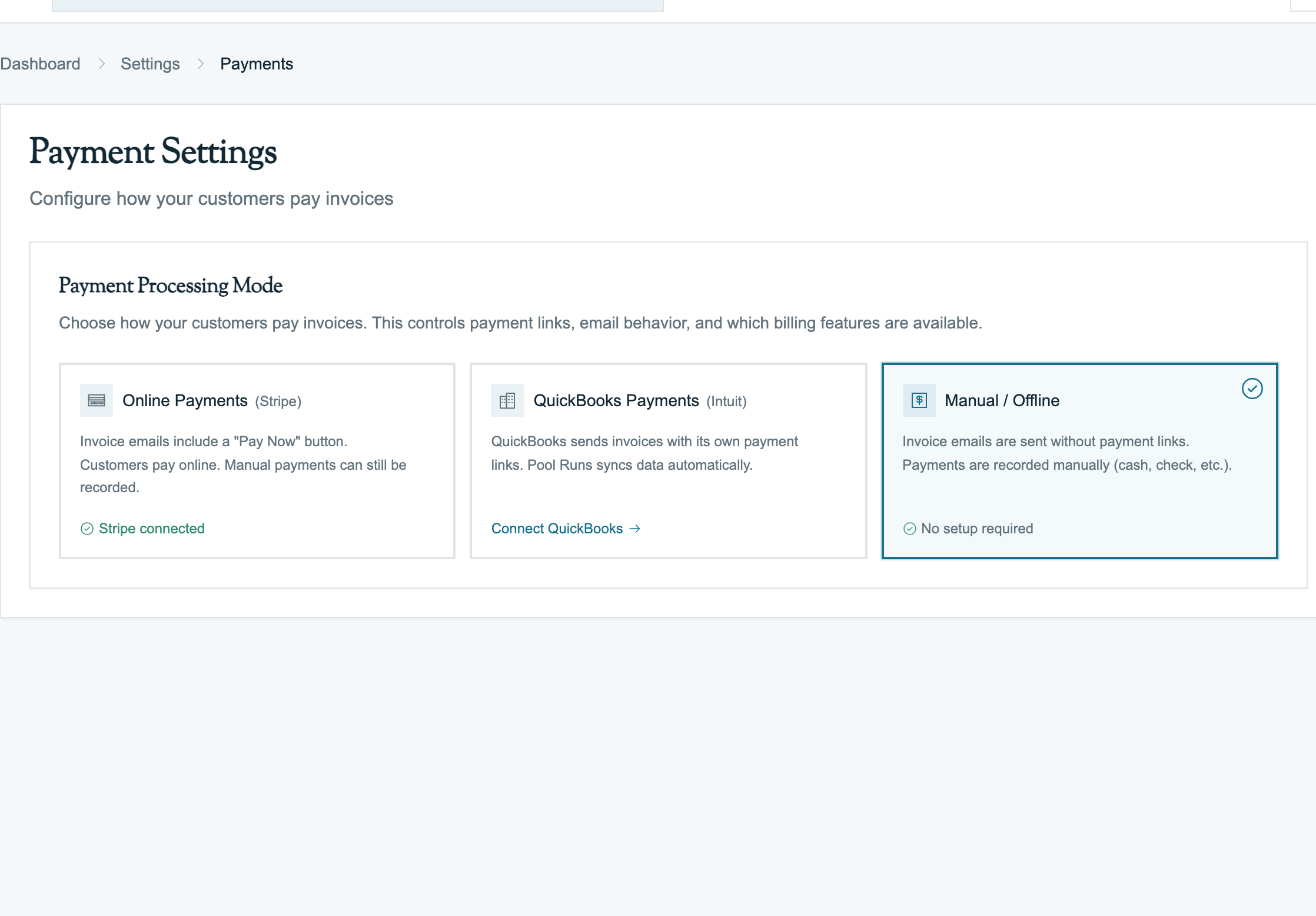
This is the full billing lifecycle for businesses that run Pool Runs as their billing system of record, with Stripe handling online payments. Invoices, payments, refunds, and customer balances all live in Pool Runs. Customers pay online via Stripe (recommended) or you record their payments manually. At month-end or year-end, you export the data your accountant needs.
If you're not sure which setup applies to you, see Choose Your Billing Setup.
What This Setup Looks Like
You can absolutely run a successful pool service business on Pool Runs + Stripe alone. What you give up vs. adding QuickBooks:
- No automatic chart of accounts — Pool Runs doesn't have a chart of accounts. Income categorization happens via line-item descriptions and parts/services, not GL accounts.
- No P&L or balance sheet inside Pool Runs — those are accounting reports. Your accountant will produce them externally from your Pool Runs exports + bank statements.
- No automatic Bank Deposit / payout reconciliation — Stripe payouts are visible in Stripe Dashboard, and you reconcile against your bank manually.
- No sales tax remittance module — Pool Runs computes tax per invoice, but filing is on you (or your accountant).
What you don't give up:
- Online payments via Stripe with automatic recording.
- Manual payment entry (cash, check, Zelle, Venmo, ACH, wire) with full reference tracking.
- Refunds and voids.
- Per-customer balance and payment history.
- Tax computation per invoice (using tax zones).
- Invoice exports to CSV for your accountant.
The End-to-End Flow
Quote  →  Work Order  →  Invoice (Pool Runs)
                              ↓
                        Customer pays
                              ↓
                  Stripe charge OR Manual entry
                              ↓
                     Payment recorded in Pool Runs
                              ↓
        Stripe payout (~2 days) lands in your bank
                              ↓
   Reconcile bank statement using Stripe Dashboard +
        Pool Runs payment list + your bank
                              ↓
        Month-end: export invoices/payments to CSV
              for your accountant or external tool
Everything visible in Pool Runs. Nothing syncing anywhere else automatically.
Setup Sequence
- Connect Stripe (highly recommended) — Settings → Payment Settings. Verify your business with Stripe so charges can be processed. Without Stripe, you'll record every payment manually and lose the ability to send a "Pay Now" link. See Stripe Overview: Connecting Stripe.
- Configure tax zones — Settings → Tax Zones. Pool Runs computes sales tax per invoice using ZIP-based zones. Set these up before you send your first invoice. See Tax Zones.
- Set your invoice defaults — Settings → Business Info. Logo, business name, payment terms (Net 15, Net 30), default invoice notes. These appear on every invoice you send.
- Add your service catalog — parts, chemicals, work order types. These become your invoice line item options. The descriptions are what your customer sees, and what you'll filter by at month-end.
That's it. No chart-of-accounts mapping, no Items wizard.
Lifecycle Step 1: Quote → Invoice
A customer requests a repair quote. You draft it in Pool Runs and send it. They approve and e-sign. You click Generate Invoice.
- A new invoice is created in
draftstatus, line items pulled from the quote, deposit applied if there was one. - You finalize and send. The customer gets an email with a Stripe payment link (if Stripe is connected).
Nothing leaves Pool Runs. The invoice lives here. See Quotes → Invoices.
Lifecycle Step 2: Work Order → Invoice
A technician completes a repair work order. The office clicks Create Invoice from the work order detail page. Line items pre-populate. You review, finalize, and send.
Lifecycle Step 3: Routes → Bulk Invoice
Monthly. The Invoice Generator sweeps every completed route stop, chemical add-on, and installed part for the date range and produces a batch of invoices.
- Per-stop billing, per-month flat-rate, and chemical add-ons all work.
- Pool Runs prevents double-billing — once a stop is on an invoice, it won't show up again.
See Invoice Generator.
Lifecycle Step 4: Customer Pays Online via Stripe
- Customer clicks Pay Now on the invoice email.
- They enter card or bank details. Apple Pay / Google Pay show automatically on supported devices.
- Stripe processes the charge.
- Stripe notifies Pool Runs (typically within seconds).
- Pool Runs records the payment as
succeeded, updates the invoice topaid(orpartial), and stamps the paid date. - The customer gets a Stripe-hosted receipt email.
About 2 business days later, Stripe sends the funds to your bank account as a payout. The payout is visible in:
- Stripe Dashboard — full per-charge breakdown including fees, net, and arrival date.
- Pool Runs — the payout is recorded so you can match it to invoices.
- Your bank — as a deposit from Stripe.
You reconcile by matching Stripe Dashboard payouts to your bank deposits each week or month.
See Stripe Overview and Fees & Payouts.
Lifecycle Step 5: Customer Pays by Check, Cash, Zelle, Venmo
Commercial customers and many residential customers pay outside Stripe.
- The check arrives. (Or the cash. Or the Zelle hits your business bank account.)
- Open the invoice → Record Payment.
- Method: Check / Cash / ACH / Other (with reference for Zelle/Venmo/CashApp). Reference: check number or transaction ID.
- Save → invoice flips to
paid(orpartial).
The deposit shows up on your bank statement when the funds clear (immediately for cash deposited, 1–2 days for check deposits, instantly for Zelle). Match it to the recorded payment in Pool Runs and tick it off your bank statement.
Lifecycle Step 6: Refunds
- Open the invoice → find the payment row → Refund.
- Enter the refund amount and reason.
- For Stripe payments, Pool Runs sends the refund request to Stripe. The customer's card or bank is credited 5–10 business days later. Stripe processing fees are not refunded by Stripe.
- For manual payments, Pool Runs records a negative payment. You actually return the money outside Pool Runs (write a check, send a Zelle, hand back cash).
- The invoice is marked
refunded(full) orpartial(partial refund).
Track refunds in your accountant's records using the Pool Runs refund export at month-end.
See Handling Payment Issues: Refunds.
Lifecycle Step 7: Voids and Adjustments
| Operation | What happens |
|---|---|
| Void invoice before any payment | Status flips to void. Invoice number preserved for audit. |
| Cancel invoice before sending | Status flips to cancelled. |
| Discount added to invoice | New adjustment line on the invoice. Reduces the total due. |
| Fee added to invoice | New line item. Increases the total due. |
| Credit for a future invoice | Credit balance recorded against the customer; apply via "Applied Credit" payment method on a future invoice. |
See Invoice Adjustments.
Sales Tax (Without QBO)
Pool Runs computes sales tax per invoice using tax zones (typically ZIP-based). This is identical to how it works with QBO connected — tax always lives on the Pool Runs side.
Without QBO, you handle remittance one of two ways:
- Self-file: Use Pool Runs' invoice export to total taxable sales by jurisdiction at month-end, then file with your state department of revenue manually.
- Through your accountant: Send them the export. They produce the sales tax filing as part of their monthly bookkeeping.
Pool Runs does not file sales tax for you. If you operate in many jurisdictions and tax filing is a real burden, consider connecting QBO (which has a sales tax module) or using a service like Avalara or TaxJar.
See Tax Zones.
Month-End Reconciliation Checklist
This is the routine for a small business closing the month without QBO:
- Pool Runs → Invoices, filter by status
partialoroverdue— these are your A/R. Follow up where appropriate. See Collections. - Stripe Dashboard → Payouts — confirm every payout for the month landed in your bank. Total should match your bank's "deposits from Stripe" total.
- Match manual payments to bank deposits — for each check/cash/Zelle payment recorded in Pool Runs, find the matching bank deposit. Tick them off.
- Export invoices for the month to CSV — for your accountant or external bookkeeping tool. (Pool Runs Invoices list → date filter → export.)
- Export payments for the month to CSV — same place, payment list view. Include refunds.
- Tally sales tax by jurisdiction — use Pool Runs tax zone breakdown on the invoice export. File and remit.
If your accountant uses QuickBooks Desktop, Wave, Xero, or similar, they bring the CSV in on their side.
Reports You'll Run
| Report | Where to find it |
|---|---|
| Open invoices / unpaid balance | Pool Runs Invoices filtered by sent/partial/overdue |
| Revenue this month | Pool Runs Invoices date-filtered, sum the totals (or export and sum in a spreadsheet) |
| Per-customer payment history | Pool Runs Customer Profile |
| Per-property service history | Pool Runs Property detail page |
| Stripe processing fees | Stripe Dashboard → Reports |
| Refunds and voids | Pool Runs Invoices filtered by refunded / void |
| Sales tax owed by jurisdiction | Export invoices → group by tax zone in spreadsheet |
Pool Runs is for "who, where, when, how much" questions. Your bank statements + Stripe Dashboard + spreadsheet are for the accounting view.
When to Consider Adding QuickBooks
Most operators stay on this setup early. The signs that QBO would pay off:
- You're filing sales tax in 3+ jurisdictions and the manual rollup is taking hours each month.
- Your accountant is charging you extra for the spreadsheet-massaging step.
- You want to break out revenue by service category (Filter Clean vs Acid Wash vs Maintenance) and the per-line-item descriptions aren't enough.
- You want automatic Stripe payout reconciliation with fees broken out.
- You're growing past ~50 customers and the bookkeeping is becoming load-bearing.
When you decide to add QBO, the integration runs forward from connect-day. Old Pool Runs invoices stay in Pool Runs; new ones sync to QBO automatically. See Setting Up QuickBooks.
What about Wave, Xero, FreshBooks?
Pool Runs only has a built-in integration with QuickBooks Online. For Wave, Xero, FreshBooks, or Excel-based bookkeeping, the workflow is:
- Run Pool Runs as documented on this page.
- At month-end, export invoices and payments from Pool Runs to CSV.
- Import the CSV into your accounting tool (or hand it to your accountant).
This works fine for small operations. It's manual but predictable.
Common Issues in This Setup
- Customer disputes a charge after they paid online — Stripe sends you a notification by email. Manage the dispute in Stripe Dashboard. If you lose, click Refund on the original payment in Pool Runs to keep the books straight.
- Stripe payout amount doesn't match what's on your bank statement — typically a timing difference (the payout was issued Friday, your bank posted it Monday) or pending refunds. Check Stripe Dashboard for the per-payout breakdown.
- Month-end takes 2 hours — that's normal for ~30–50 customers without QBO. If it's growing, that's the signal to consider connecting QBO.
- Customer paid by Zelle but I forgot to record it — open the invoice, click Record Payment, use the actual receipt date (not today's date). The aging will be correct.
FAQ
Q: Do I need any accounting tool at all? For very small operations (a handful of customers, no employees, no sales tax filing), Pool Runs + your bank statements is genuinely enough. As you grow, you'll want at least a spreadsheet, and eventually QBO or another tool.
Q: Does my accountant care that I'm not on QBO? Some prefer QBO because the books arrive pre-categorized. Others are fine working from CSV exports. Ask them. If they'd charge less for QBO data than for CSV data, that's a useful number to know.
Q: Can I issue 1099s from Pool Runs? No — Pool Runs is for billing customers, not tracking vendor payments. 1099s come from your accounting tool.
Q: How do I track expenses? You don't, in Pool Runs. Pool Runs is the revenue and A/R side. Track expenses in your bank app, a spreadsheet, or your accounting tool.
Q: How do I do payroll? Outside Pool Runs. Use Gusto, ADP, QuickBooks Payroll, or your accountant's payroll service.
Q: Will I lose data if I add QBO later? No. The QBO integration runs forward from connect-day. All your historical Pool Runs invoices and payments stay where they are. If you want them in QBO too, support can do a manual backfill.
Q: Can I use Pool Runs without Stripe AND without QBO? Technically yes — you'd record every payment manually and have no online "Pay Now" link. This works for a handful of customers but is operationally painful at scale. Most small operators connect at least Stripe within their first week.
Related Documentation
- Choose Your Billing Setup — If you decided to add QBO, switch to Pool Runs + QuickBooks.
- Stripe Overview — How online payments work.
- Manual Payment Recording — Logging cash, check, Zelle, Venmo.
- Tax Zones — How Pool Runs computes sales tax.
- Collections — Past-due account workflow.
Choose Your Billing Setup
Pool Runs supports two billing setups — with QuickBooks Online for full accounting sync, or Stripe-only with Pool Runs as the system of record. Pick the one that matches how you keep books.
Pool Runs + QuickBooks
How billing works end-to-end when QuickBooks Online is your accounting system. Invoices, payments, refunds, and Stripe payouts all sync automatically — Pool Runs runs the operation, QBO keeps the books.