QuickBooks Overview
What the QuickBooks Online integration does, what syncs in each direction, and how QBO Items, income accounts, and invoices fit together.
QuickBooks Overview
This page explains what the QBO integration actually does — what data flows where, in which direction, and how QBO's underlying model (Items → income accounts → invoices) shapes how revenue lands on your P&L. If you are about to set up the integration, read this first so the choices in the setup wizard make sense.
What the Integration Does
Pool Runs is the system of record for service work — routes, work orders, chemical readings, and invoices originate here. QBO is the system of record for accounting — the chart of accounts, P&L, balance sheet, and tax filings live there. The integration keeps both sides current so you do not have to rekey anything.
In practice that means:
- Office staff create invoices in Pool Runs — they appear in QBO automatically.
- Customers pay through Stripe (or QBO Payments) — payments and invoice statuses sync in both directions.
- Bookkeepers categorize income through the QBO Item list (income accounts attach to Items, not Pool Runs).
- Stripe payouts (optional) land in QBO as Deposits with processing fees broken out for clean bank reconciliation.
Sync Direction Summary
| Data | Pool Runs → QBO | QBO → Pool Runs | Notes |
|---|---|---|---|
| Customers | Yes | Yes | Bidirectional. Sub-customers in QBO become properties in Pool Runs. |
| Invoices | Yes | Updates only | Pool Runs is the source of truth. New invoices created directly in QBO do not import into Pool Runs. |
| Payments | Yes | Yes | If you collect via QBO Payments, payments flow back to Pool Runs. |
| Refunds | Yes | Yes | Stripe refunds create QBO Refund Receipts. |
| Parts & Chemicals | Yes | Updates only | New QBO items must be imported via the setup wizard or added manually to Pool Runs. |
| Work Order Types | Yes | Updates only | Each type maps to one QBO Item. |
| Fee Types (late fees, surcharges) | Yes | — | Created automatically as QBO Items the first time they are used. |
| Stripe Payouts | Yes | — | Optional. Requires a deposit bank account and fee expense account. |
| Tax Rates | — | One-time import | QBO tax codes import as Pool Runs tax zones; tax is then calculated on the Pool Runs side using its own zones. |
Heads up: The integration is intentionally one direction for new invoices — Pool Runs → QBO. If a bookkeeper creates an invoice directly in QBO, Pool Runs will not know about it. Always create invoices in Pool Runs.
How Items, Accounts, and Invoices Connect in QBO
This is the single most important concept in the integration. Here is the chain QBO enforces:
Every line on an invoice points to a QBO Item (your product or service). That Item has an income account attached. Revenue from that line lands in that income account on your P&L.
Every revenue line needs an Item
QBO does not let you post revenue straight to an income account on a sales invoice. Every dollar that lands on a QBO invoice flows through an Item. If a line has no Item attached, QBO ignores the dollar amount. (Direct-to-account lines exist for bills and expenses, but not for invoices.)
The income account lives on the Item, not the invoice
When you create a QBO Item like "Monthly Pool Cleaning", you assign it an income account (e.g., Income:Pool maintenance). Every invoice line that references that Item posts revenue to that account automatically. Pool Runs does not (and cannot) override this on a per-invoice basis — QBO controls it.
This means an organization with granular sub-accounts like:
Income:Pool maintenanceIncome:Filter CleanIncome:Acid/Chlorine WashIncome:Equipment InstallationIncome:Pool repairs
…gets accurate P&L breakdown automatically as long as each QBO Item points to the correct account. Pool Runs just needs to reference the right Item on each invoice line.
How Pool Runs picks an Item for each line
When syncing an invoice to QBO, every line is resolved to a QBO Item using this priority:
| Line item type | QBO Item used | Configured at |
|---|---|---|
| Part or chemical with a synced mapping | The mapped QBO Item | Setup wizard product matching |
| Work order with a synced work order type | The mapped QBO Item for that type | Setup wizard product matching |
| Route / service charge (no specific product) | Route Service Item default | Setup wizard step 1 |
| Fee or surcharge | Fee / Surcharge Item default | Setup wizard step 1 |
| Deposit | Deposit Item default | Setup wizard step 1 |
| Manual / freeform line | "Miscellaneous Service" (auto-created) | Automatic |
| Stripe refund | "Pool Runs - Stripe Refund" (auto-created) | Automatic |
If Pool Runs cannot find an Item to use, the line is sent to QBO marked as UNMAPPED — a visible flag in QBO telling you something needs to be set up. See UNMAPPED Items on an Invoice below for the fix.
What the Default Income Account is for
The "Default Income Account" you pick in the setup wizard is only used when Pool Runs creates a brand-new QBO Item — for example, the first time a Pool Runs part syncs that does not exist in QBO. It is not applied per-invoice. If your QBO Items already exist with the right income accounts (the common case for established companies), this default rarely fires.
What the Default Service Items are for
The Default Service Items (Route, Fee, Deposit) are real QBO Items that act as catch-all references for invoice lines without a specific product mapping. Since every QBO invoice line needs an Item, these defaults prevent lines from going to UNMAPPED.
The revenue from those lines posts to whatever income account is set on the QBO Item you picked. Choose them carefully — they will be on the majority of your invoices.
How Sync Runs Day-to-Day
Once setup is complete, sync is automatic. There is nothing you need to do manually.
- Pool Runs to QuickBooks happens within seconds of saving the record.
- QuickBooks to Pool Runs is real-time when QBO notifies us, with a check every 15 minutes as a safety net.
- If a sync fails, Pool Runs retries on its own — first within a minute, then a few times over the next 24 hours. Most issues resolve themselves; the ones that need a human are flagged in the activity log.
You can monitor sync health any time on Settings → QuickBooks Online, which shows per-record counts (synced / pending / error) and a recent activity log.
Conflict Resolution
If the same record changes in both systems between syncs, the conflict resolution policy chosen in the setup wizard breaks the tie:
- Pool Runs wins (recommended) — the Pool Runs version overwrites QBO.
- QuickBooks wins — the QBO version overwrites Pool Runs.
You can change the policy any time in Settings → QuickBooks Online. Most companies pick "Pool Runs wins" because customer/property edits typically happen in Pool Runs first.
What Stays Local to Pool Runs (Does Not Sync)
- Routes, route stops, and chemical readings — these are operational data, not accounting.
- Estimates / Quotes — only finalized invoices push to QBO. Quotes stay in Pool Runs.
- Draft invoices — sync triggers when an invoice leaves draft status.
- Service properties — addresses live on Pool Runs properties; they appear on QBO invoices as the ship-to address but are not separate QBO records.
- Member accounts and roles — Pool Runs users do not map to QBO users.
What's Next
- New to the integration? Start with Setting Up QuickBooks for the connection flow and the six-step setup wizard.
- Already connected and trying to figure out why something is not syncing? Jump to Sync Errors & Reconciliation below.
FAQ
Q: What QBO subscription tier do I need? A: Any paid QuickBooks Online tier works — Simple Start, Essentials, Plus, or Advanced. Sandbox accounts also work for testing. See Setting Up QuickBooks.
Q: Does Pool Runs sync to QuickBooks Desktop? A: No. The integration is QuickBooks Online only. QuickBooks Desktop does not offer the kind of live connection Pool Runs needs. If you are on Desktop and want to use Pool Runs' billing without manual export, you will need to migrate to QBO first.
Q: Can I disconnect QBO and reconnect later without losing data? A: Yes. Disconnecting is safe and reversible — it stops the sync but does not delete records on either side. Pool Runs remembers which Pool Runs records were already linked to which QBO records, so reconnecting to the same QBO company picks back up where you left off. See Setting Up QuickBooks: Disconnecting for the full list of what disconnect does and does not do.
Q: What happens to invoices created in Pool Runs before I connected QBO? A: They stay where they are. The integration syncs going forward by default — new invoices created after setup push to QBO automatically. Historical invoices can be backfilled from the setup wizard's "export from Pool Runs" option, but most companies leave history in place and only sync new activity from connect-day forward. See Setting Up QuickBooks for the import-vs-export decision.
Q: How long does the initial sync take? A: Plan for 5–10 minutes for typical books. Books with thousands of customers or items may run for 15–20 minutes in the background after you click Start — you can navigate away once it begins, and the wizard will email when it finishes. After that, new records flow to QBO within seconds. See Setting Up QuickBooks.
Sync Errors & Reconciliation
Sync is automatic, but real-world data is messy. This section covers the QBO errors you will see in the activity log, what each one means, and how to fix it. Most errors clear themselves — Pool Runs retries automatically (first within a minute, then a few times over the next 24 hours). The errors below are the ones that need a human to fix.
Where to See Errors
Two places:
- Settings → QuickBooks Online → Sync Health — counts of synced, pending, and error records per type. Click an error count to see the failed records.
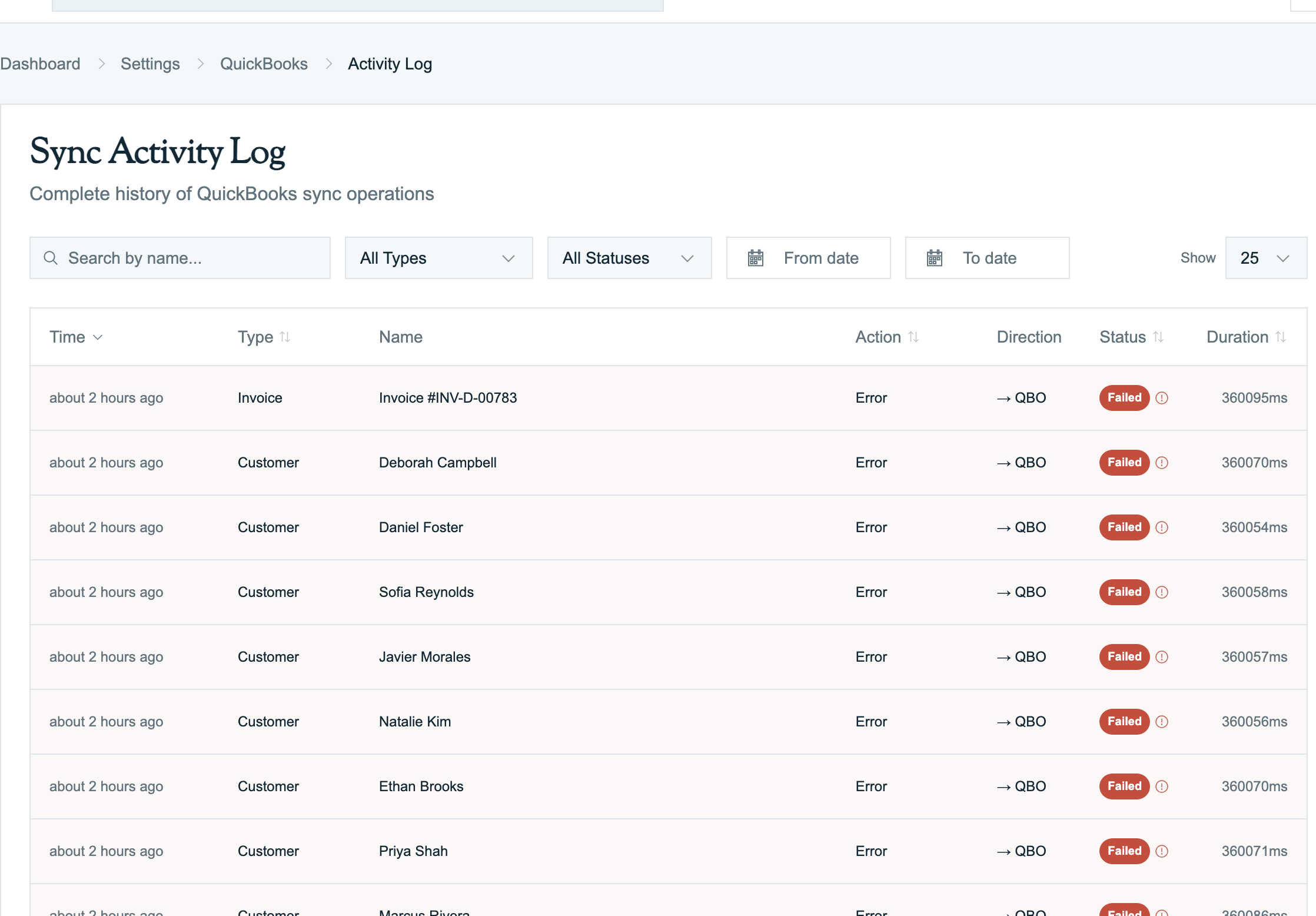
- Settings → QuickBooks Online → Activity Log — a list of every sync attempt with status and error details.
Each error row has a Retry button. Most errors need you to fix the underlying data first.
How Retries Work
If a sync fails, Pool Runs tries again on its own. The first retry is within a minute, then a few more times over the next 24 hours. After about 10 attempts, Pool Runs gives up and marks the record as needing review. Clicking Retry starts the process over.
Duplicate Name Exists Error
QBO message: "Another customer/vendor/employee is already using this name."
What it means: Pool Runs tried to create a customer (or item) in QBO with a name that's already taken. QBO requires every customer, vendor, and employee to have a unique display name.
Most common scenario: Two real customers with the same name — e.g., two "John Smith" households.
Fix:
- Open the failing customer in Pool Runs.
- Either toggle "Display by Company" if they have a company name, or edit the customer code or add a city to the display name — e.g., "John Smith (Plano)" vs "John Smith (Frisco)".
- Save. Pool Runs auto-retries the sync.
For items: rename the part/chemical/service in Pool Runs to a unique name, then sync.
UNMAPPED Items on an Invoice
What it means: A line on a QBO invoice shows the item as UNMAPPED because Pool Runs couldn't figure out which QBO item to use. QBO ignores the dollar amount — the invoice total is wrong on QBO's side.
Most common cause: The Default Route Service Item is unset, or a part on the invoice has not been linked to a QBO item yet.
Fix:
- Go to Settings → QuickBooks Online. The page shows a banner if any default service item is unset — click into the Defaults section and pick one.
- For unlinked parts and chemicals, re-run the setup wizard (product matching step) to link them.
- From the activity log, click Retry on the affected invoice.
Missing Income Account
QBO message: "Account not found" or "Income account is required."
What it means: Pool Runs is creating a new QBO item and the Default Income Account from the setup wizard is unset (or points to an account that has been deleted or deactivated in QBO).
Fix:
- Go to Settings → QuickBooks Online → Defaults.
- Pick a valid income account from the dropdown (e.g.,
Income:Pool Service Revenue). - From the activity log, click Retry on the failed item creation.
When QuickBooks Records Get Out of Date
Sometimes shown as "Object Version Mismatch."
What it means: Someone edited the record in QBO between the last time Pool Runs read it and the moment Pool Runs tried to update it.
Fix: Pool Runs handles this on its own — it grabs the latest copy from QBO and retries. If it keeps failing, someone is probably editing that record in QBO right now. Wait for them to finish and click Retry.
QBO Is Too Busy ("Throttled")
What it means: QBO limits how many requests any one app can make in a minute. If you have other apps connected (Avalara, A2X, Method, etc.) doing a lot at the same time, Pool Runs can get squeezed.
Fix: Pool Runs automatically slows down and tries again. You do not need to do anything. If you see this for hours, check Apps → My Apps in QBO for other connected apps consuming your QuickBooks bandwidth.
Tip: When importing thousands of customers, run the setup wizard during off-hours.
Connection Went Stale
What it means: If Pool Runs has not talked to QBO for roughly 100 days, the secure connection expires.
Fix: Click Reconnect in Settings → QuickBooks Online. You will sign in to Intuit again. Existing customer/item links are preserved — no data loss.
Validation Errors (a field QBO doesn't accept)
Examples: "Email Address Invalid", "Postal Code Invalid".
What it means: Pool Runs sent data that QBO rejected. Most often: a malformed email, invalid state code, oddly-formatted ZIP code, or a name field that is too long for QBO.
Fix: Open the activity log entry — the error message names the field. Open the matching record in Pool Runs and fix that field. Click Retry.
Common ones:
- Postal Code Invalid — QBO requires US ZIPs as
12345or12345-6789. - Email Invalid — QBO is stricter than Pool Runs about email format. Fix typos like trailing spaces or commas.
- Phone Too Long — QBO caps phone numbers at 20 characters including any formatting.
Customer Has Open Transactions
QBO message: "Customer cannot be made inactive while they have open transactions."
What it means: You archived a customer in Pool Runs, but the matching QBO customer still has unpaid invoices or unallocated payments.
Fix: Either close out the open transactions in QBO (apply credits, void unpaid invoices, etc.), or un-archive the customer in Pool Runs.
Reconnection Needed After Revoke
If your bookkeeper revoked Pool Runs from inside QBO (Apps → My Apps), you'll see a banner asking you to reconnect.
Fix: Click Reconnect in Settings → QuickBooks Online and sign in to Intuit again. Existing links between Pool Runs and QBO records are preserved.
Tax Code Not Found
What it means: Pool Runs sent a tax code (like "TAX" or "NON") that doesn't exist in your QBO tax codes. Most often happens for non-US QBO companies.
Fix: Go to Settings → QuickBooks Online → Tax Source and pick the correct taxable / non-taxable codes for your QBO setup.
Reconciling Stuck Records
When a record has been in error status for too long and you want a clean re-sync:
- Settings → QuickBooks Online → Sync Health
- Click the type (Customers, Invoices, etc.) showing the error count.
- Select the stuck record(s).
- Click Reset Mapping to clear the error and try again with current data.
To re-push all of a single type, use Settings → QuickBooks Online → Resync with the type selected.
Heads up: Reset Mapping does not delete data — it only clears the sync state so the next attempt starts fresh.
Sync Health Dashboard
| Status | What it means |
|---|---|
| Synced | Last sync succeeded; both sides match |
| Pending to QBO | Edited in Pool Runs, waiting to push to QBO |
| Pending from QBO | Updated in QBO, waiting for Pool Runs to pick it up |
| Conflict | Both sides changed since last sync — conflict resolution rule will pick a winner |
| Error | Sync failed and Pool Runs has stopped retrying on its own; needs review |
A healthy company sees mostly synced records, with occasional pending rows that resolve on their own.
When to Contact Support
- A record has been stuck in error for more than a day with no clear cause.
- Connection errors that persist after a reconnect.
- Counts in the sync health dashboard are wildly off from what you expect.
- A tangle of duplicates that you cannot clean up via the wizard.
- You need to backfill historical Pool Runs invoices into QBO (manual operation).
Include your company name, the type of record, and at least one example error from the activity log when filing a support ticket.
Sync Error FAQ
Q: Why does the same error keep happening even after I retry? A: Retrying without fixing the underlying data will just hit the same error. Read the error message in the activity log carefully.
Q: Can I bulk-retry all errors? A: Yes — from the Sync Health dashboard, click an entity type's error count and use Retry All.
Q: What's the difference between an error and a conflict? A: An error is a failed sync (e.g., QBO rejected the request). A conflict is a successful detection that both sides changed since last sync — conflict resolution policy decides the winner without surfacing as an error.
Q: My activity log is empty but I know something is failing. A: Look at Settings → QuickBooks Online → Sync Health. The Sync Health counts are the most reliable view.
Q: Will fixing one error trigger a flood of retries on dependent records? A: Sometimes. For example, fixing a customer link unblocks any invoices that were stuck waiting for that customer. Pool Runs paces these so they do not overwhelm QBO.
Related Articles
- Setting Up QuickBooks — Connection flow and the six-step setup wizard
- What Syncs to QuickBooks — Customer, item, invoice, and payment sync details
- Settings → Payment Settings
QuickBooks Online Integration
Connect Pool Runs to QuickBooks Online so customers, invoices, payments, products, and refunds stay in sync without double-entry.
Setting Up QuickBooks
Connect Pool Runs to QuickBooks Online, walk through the six-step setup wizard, and learn how to disconnect or reconnect later.