Converting a Quote
Turn an approved quote into a deposit invoice, a final invoice, or a work order in Pool Runs — one click, no re-keying.
Converting a Quote
Once a customer approves a quote, it's locked in — but the work hasn't happened yet. The next step is converting that approval into the documents that drive your operations and your cash flow: a deposit invoice to collect a down payment, a work order to schedule and dispatch the job, and a final invoice to bill the balance when work is done. Pool Runs lets you do all three from the quote detail page without re-typing a single line item.
When You Can Convert
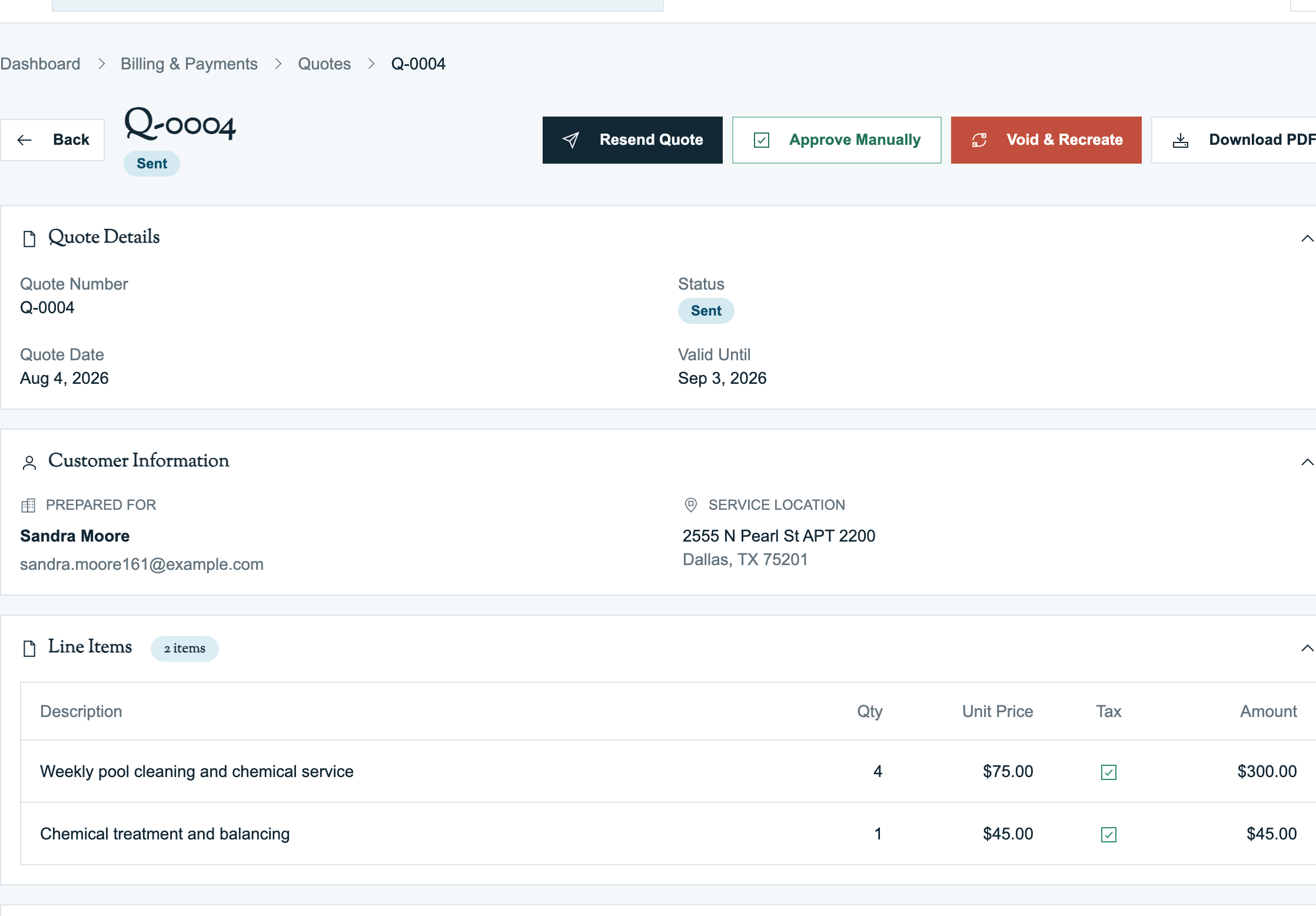
The conversion buttons appear in the action bar of the quote detail page only when the quote status is Approved.
- Drafts: edit them, don't convert.
- Sent: customer hasn't approved yet — wait or use Approve Manually.
- Rejected / Expired / Void: cannot be converted.
Three Conversion Actions
| Action | When you use it |
|---|---|
| Generate Invoice → Deposit | Quote has a down payment; you want to collect it before starting work |
| Generate Invoice → Final | Bill the remaining balance (or full amount if no deposit was paid) |
| Create Work Order | Schedule the actual job — assign a technician, set a date, dispatch |
You can do these in any order, though most shops follow this sequence:
Approved Quote → Deposit Invoice (collect deposit) → Work Order (do work) → Final Invoice (collect balance)Converting to a Deposit Invoice
If your quote had a down payment configured (flat or percent), the Generate Invoice modal offers "Deposit Invoice" as the first option.
Click Generate Invoice → Deposit and the system:
- Creates an invoice for the deposit amount only
- For a 50% / $1,200 quote: $600 deposit invoice
- For a flat $500 deposit on a $2,000 quote: $500 deposit invoice
- Links the deposit invoice to the quote
- Sets the customer, property, and tax fields from the quote
- Generates a deposit-specific line item ("Deposit on Quote QUO-2026-04-00001")
- Adds the invoice creation to the quote's Activity Log
- Routes you to the new invoice detail page
You then send the deposit invoice to the customer through the normal invoice send flow. Once they pay, the system records the payment and credits it against the eventual final invoice.
Industry tip: Don't start a parts order until the deposit is paid. The deposit is your insurance that the customer is committed. If they ghost after approval but before paying the deposit, you've only spent quote-prep time, not parts inventory.
Validation rules — deposit invoice
| Rule | Error you'll see |
|---|---|
Quote must be Approved | "Only approved quotes can generate deposit invoices" |
| Quote must have a down payment | "Quote does not require a down payment" |
| Only one deposit invoice per quote | "Deposit invoice already exists for this quote" |
If a deposit invoice already exists, the modal shows it instead of letting you create a duplicate. Click through to view, send, or void that invoice.
Converting to a Final Invoice
The Final Invoice option in the modal generates an invoice for the full quote amount, automatically crediting any deposit that's already been paid.
Two scenarios:
Final invoice with deposit credit
If a deposit invoice exists and is paid:
- The final invoice is for the full quote total (e.g., $1,200)
- A negative line item credits the paid deposit (e.g.,
–$600 Deposit Credit (Inv #INV-...)) - Net amount due = full total minus deposit (e.g., $600)
Final invoice without a deposit
If the quote had no down payment, or a deposit was never paid:
- The final invoice is for the full quote total
- No credit line items
- Net amount due = full total
In both cases, the final invoice carries forward all the original quote line items, the same tax treatment, and any discounts that were on the quote.
Validation rules — final invoice
| Rule | Error you'll see |
|---|---|
Quote must be Approved | "Only approved quotes can generate final invoices" |
| Only one final invoice per quote | "Final invoice already exists for this quote" |
After creation, you're taken to the new invoice detail page. The toast also tells you whether the deposit was credited.
Converting to a Work Order
Click Create Work Order and the system creates a work order with:
- Customer and property from the quote
- Quote line items pre-populated as the work-order scope
- Status:
Scheduled(or whatever your default new-WO status is — check Settings → Work Orders) - A link back to the source quote
You're then taken to the work order detail page where you can:
- Assign a technician
- Set a service date / time window
- Add internal notes
- Dispatch via the route or schedule
Note on inventory: Creating a work order from a quote does not automatically reserve inventory. If you need to set aside the salt cell or pump motor, do so manually in your inventory system. Auto-reservation from quote → WO is on the roadmap.
The "Property Required" Dialog
Work orders must have a property. If your quote was created without a property, clicking Create Work Order opens a dialog:
You can:
- Select an existing property from the dropdown (any property already attached to this customer)
- Add a new property with Google Places autocomplete (street, city, state, zip)
- The selected/created property is attached to the quote AND becomes the work order's service location
Once the property is assigned, the work order is created and you're taken to its detail page.
Tip: Always attach the property when creating the quote (Step 1 of the builder). Doing it at work-order conversion time works, but it's an extra dialog you can skip by adding it up front.
Multiple Conversions From One Quote
A single approved quote can generate:
- One deposit invoice (if quote had a down payment)
- One final invoice
- One or more work orders (rare but possible — e.g., if the job is split across two visits)
The quote detail page's accordion shows all linked invoices and work orders.
Voiding a Conversion
You cannot directly void or unlink an invoice or work order from the quote detail page. To unwind a conversion:
- Voided invoices must be voided from the invoice detail page. Doing so does NOT change the quote status — the quote stays
Approved. - Cancelled work orders are cancelled from the work order detail page. Same — quote remains
Approved.
If the entire deal collapses (customer changed their mind), use Void & Recreate on the quote — but that doesn't void the downstream invoices/WOs automatically. Clean those up separately.
What Happens to the Quote After Conversion
Conversion does not change the quote's status. An Approved quote stays Approved even after you've generated invoices and work orders. This is intentional — the quote is the source of truth for what was authorized; the conversions are downstream artifacts.
The quote detail page does add visual indicators:
- The Invoices section shows linked invoices with their status and amount
- The Activity Log records each invoice created from the quote
FAQ
Q: Can I edit the line items on the invoice after converting? A: Only while the invoice is Draft and your role can edit invoices. Once it is generated or sent, its line items are locked, even if it has not been paid. The original approved quote stays unchanged. If you change the draft invoice's scope or price, get the customer's approval and document the reason. See Invoices Overview for editing rules.
Q: I converted to an invoice, but I shouldn't have. How do I undo? A: Open the invoice and void it (this is an invoice action, not a quote action). The quote stays approved and you can convert again from a clean slate. The voided invoice stays in the records.
Q: My customer wants to pay 100% upfront — can I generate a single invoice for the whole amount? A: Yes. If the quote had no down payment, the Final Invoice option produces a single invoice for the full amount. If the quote did have a down payment but the customer wants to skip the deposit step, void the deposit invoice (or never generate it) and just use the final invoice.
Q: Can I create a work order without first generating an invoice? A: Yes. The two flows are independent. You can create the work order, do the job, then generate the final invoice afterwards. Many shops actually prefer this for small jobs (do the work, then bill).
Q: What if the work expands during the job — can I add line items to the invoice? A: You can add line items only while the invoice is Draft. For extra work beyond the approved scope, write a new quote for the additional work and get the customer's approval before continuing. If the original invoice has already been generated or sent, use a separate invoice for the newly approved work rather than trying to edit its locked line items.
Q: Does the final invoice's tax recalculate if my org tax rate changed since the quote? A: The final invoice carries forward the tax that was on the quote — pricing the customer agreed to. Tax rate changes only affect new quotes/invoices going forward.
Troubleshooting
- "Cannot create work order — property required" but the customer has properties. Open the dialog, pick from the existing properties dropdown. The dialog only appears because the quote itself doesn't have a property attached — the customer's other properties aren't auto-linked. Pick the right one and the WO is created.
- Deposit invoice generated for the wrong amount. Check the quote's down payment type and value. If it was set as a percentage, compare that percentage with the quote total. If the quote total is wrong, use Void & Recreate.
- The "Generate Invoice" button doesn't appear on an approved quote. Ask an admin to confirm your role can create invoices. The same applies to creating a work order.
- Both invoices show as deposit / both show as final. This should not happen. If you see it, contact support so the invoice links can be corrected.
Related Articles
- Sending a Quote — What unlocks conversion
- Creating a Quote — Editing and Void & Recreate when the conversion was wrong
- Invoices Overview — Working with the converted invoice
- Work Orders — Scheduling the converted work