Skip Reasons
Add, edit, favorite, and remove the reasons technicians choose when skipping a route stop in Pool Runs.
Skip Reasons
Download video · Captions (VTT) · Transcript (TXT)
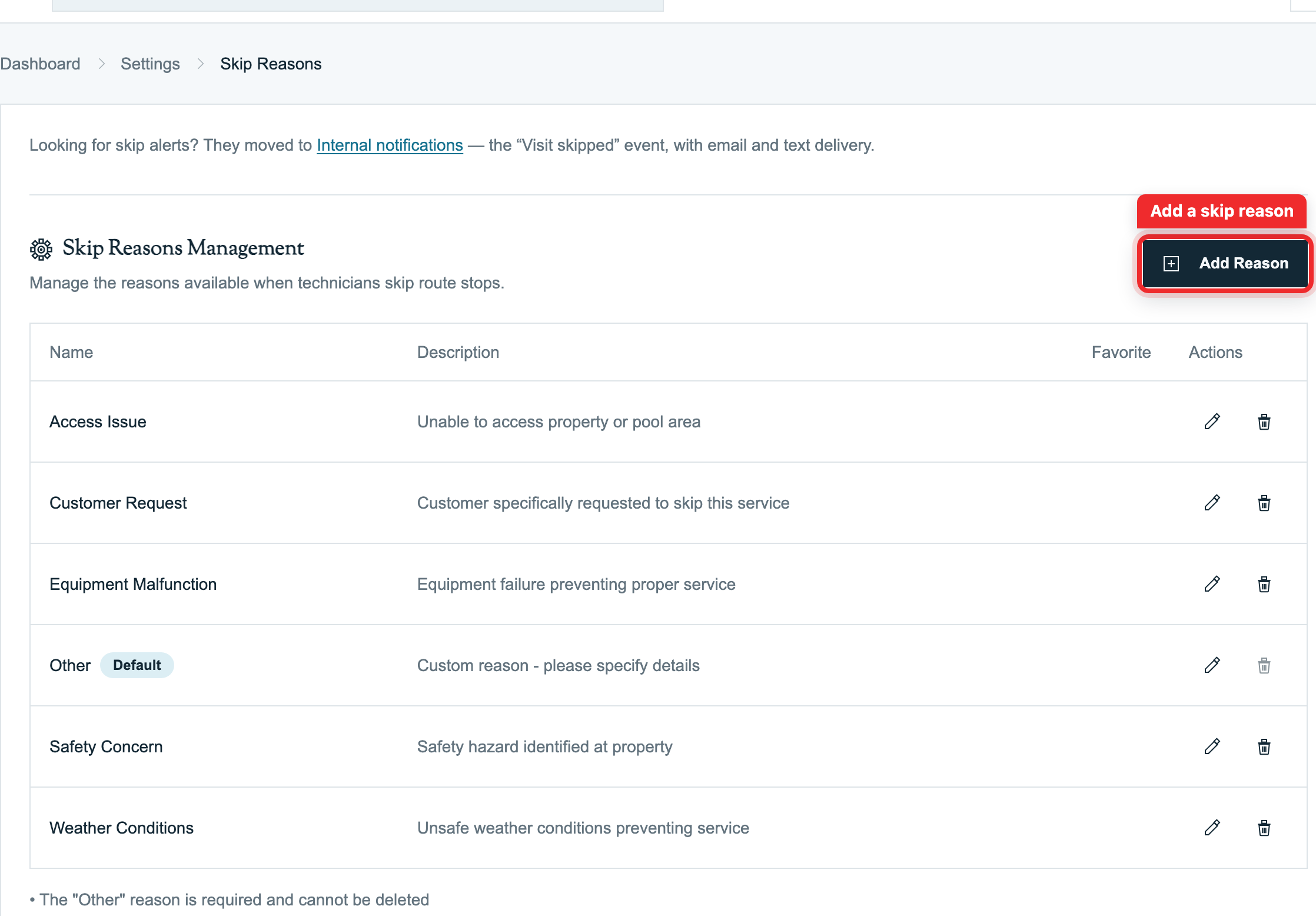
Use Settings → Skip Reasons to manage the organization-wide list technicians choose from when a visit cannot be serviced. Give each reason a clear name and optional description so the office can recognize recurring access, weather, customer-request, equipment, or safety problems.
You need permission to manage general settings. The table shows Name, Description, Favorite, and Actions. Favorites appear first; names sort alphabetically within the favorite and remaining groups.
Add a Reason
- Click Add Reason to open Create Skip Reason.
- Enter Name *, such as "Gate locked". The name is required and can contain up to 100 characters.
- Add an optional Description, up to 500 characters, explaining when technicians should use the reason.
- Select Add to Favorites for a common choice. You can have up to 10 favorites; the form shows how many are used.
- Click Create Reason to save, or Cancel to close without creating a reason.
If the name is already used, choose a distinct name or edit the existing reason. Keep the list short enough for technicians to choose consistently.
Edit and Favorite Reasons
Click the pencil icon in a reason's Actions column to open Edit Skip Reason. Change its name, description, or Add to Favorites, then click Update Reason. Cancel discards the form changes.
If all 10 favorite slots are used, unmark an existing favorite before adding another. The default Other reason's name is protected. You can edit its description and favorite status, but cannot remove it. Technicians use Other when the configured choices do not fit and provide an explanation when skipping.
Remove a Reason
Click the trash icon for a reason you no longer want offered. The Remove Skip Reason confirmation explains that the option will be permanently removed while historical skip records remain. Review the name before clicking Remove Reason, or choose Cancel to keep it.
Removal does not erase past skipped visits. The default Other reason cannot be removed.
Office Skip Alerts
Follow the Internal notifications link above the reasons list to configure the Visit skipped event. Delivery depends on the event's enabled channels and recipients. These are office alerts; coordinate any customer communication separately.
Where Reasons Are Used
The organization-wide reasons appear when a technician skips a stop, with favorites first. On the web skip form, a Search reasons... field appears when more than 10 active reasons exist. See Skipping a Stop (Mobile) for the technician workflow.
Skip Reasons manages names, descriptions, and favorites. Holiday scheduling and the decision to skip or move a visit belong to the schedule workflow; see Managing Routes and Route Generation before using Generate Now to restore removed recurring visits.
Related
Tax Zones & Tax Management
How sales tax is configured and calculated on invoices and quotes in Pool Runs — flat-rate orgs, tax zones with ZIP-based resolution, line-item taxability, customer tax exemption, and per-line overrides.
Checklists
Per-body-of-water service checklists in Pool Runs — what techs do at each stop and how to customize the steps.