Invoices Overview
How invoices work in Pool Runs — the status lifecycle, the four ways an invoice is created, line items vs. adjustments, and how double-billing is prevented.
Invoices Overview
An invoice in Pool Runs is the financial record that ties together what was done (route stops, chemicals, work orders, parts), what it costs (line items, taxes, adjustments), and the money that came in against it (payments, refunds). Once you understand how those three layers fit together, the rest of the invoicing guides feel less like nine separate features and more like one coherent system. This page is the conceptual primer.
The Mental Model
Pool Runs separates an invoice into three layers:
Layer 1: The invoice header
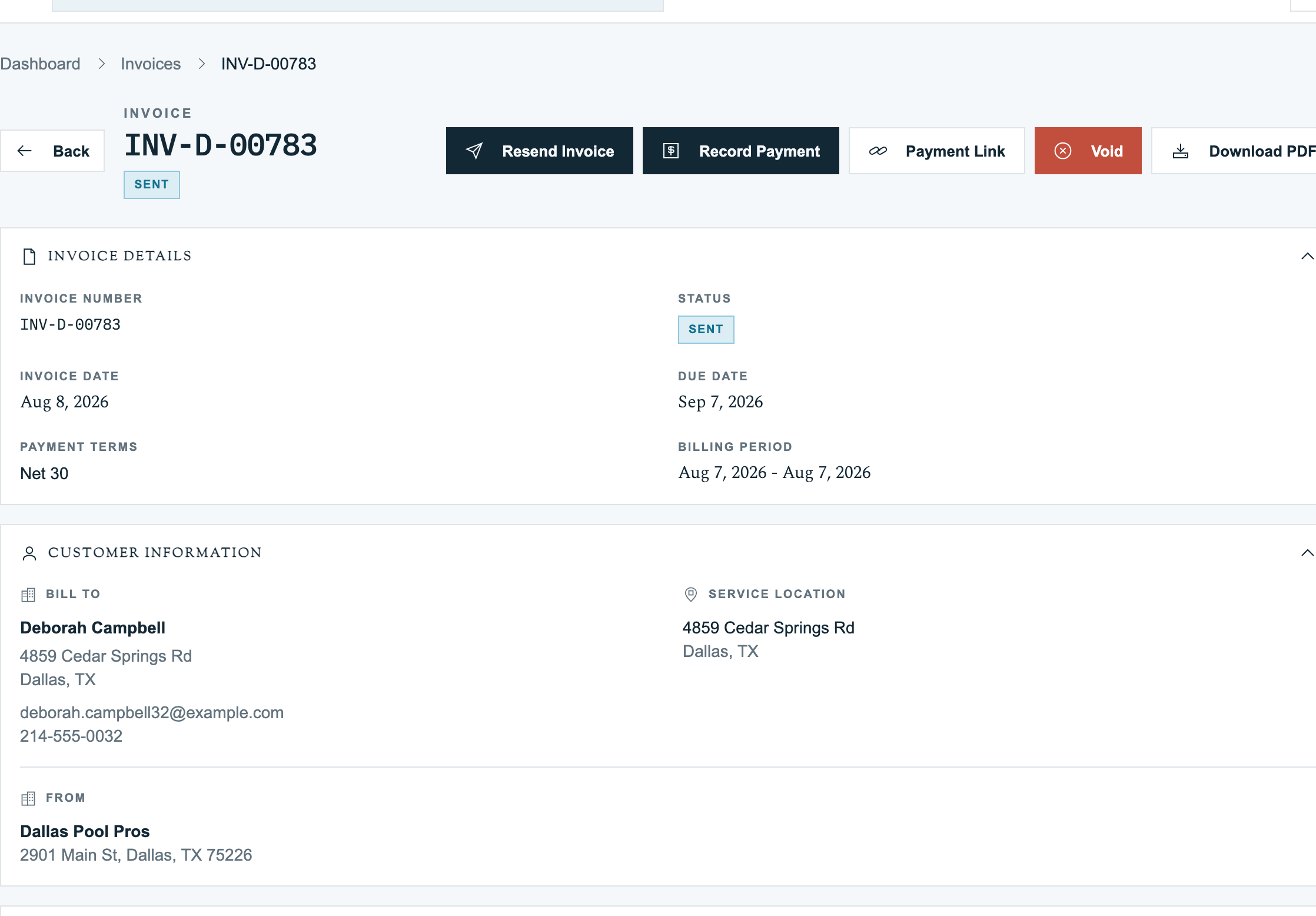
The header is the invoice's identity — who owes what, on what terms, by when:
| Field | What it represents |
|---|---|
| Invoice number | Unique number allocated automatically (e.g., INV-2026-04-00123); gaps can occur |
| Customer + Property | Who is being billed and (optionally) for which service address |
| Status | Draft → Generated → Sent → Paid (with Partial, Overdue, Void in between as needed) |
| Terms | Upon receipt, Net 15, Net 30, Net 60, Net 90 |
| Issued date / Due date | When the invoice was finalized and when payment is due |
| Billing period start / end | The service window the invoice covers (e.g., March 1–31 for monthly billing) |
| Subtotal / Tax / Total | Calculated from line items + adjustments |
| Down payment | For deposit invoices that came from quotes |
Layer 2: Line items
A line item is one row on the invoice — a service, a part, a chemical, a work order, or a fee. Each line item has a description, quantity, unit price, total, and a source label that tells Pool Runs where it came from:
| Source | Created from | Example |
|---|---|---|
| Route | A completed route stop | "Weekly Service — Smith Property — Mar 12, 2026" |
| Work order | A completed work order | "Filter Clean & Inspection — WO-1042" |
| Dosage | A chemical applied during service | "Liquid Chlorine — 32 oz @ $0.18/oz" |
| Installed item | A part installed (from the shopping list) | "Pool Light Bulb — qty 1 @ $45" |
| Manual | Typed by hand on the invoice form | "Trip charge for emergency call-out" |
| Service / Part / Chemical / Labor / Fee | Picked from your catalog | Product picker selection |
| Deposit / Discount | Special-purpose | Down payment from quote, line-item discount |
Every line item is linked back to its source so Pool Runs can prevent double-billing — see Double-billing safeguards below.
Layer 3: Adjustments and payments
Adjustments sit alongside line items but apply to the whole invoice, such as fees, discounts, a percentage off, or a flat dollar amount. You choose whether each adjustment applies to the subtotal, labor, parts, chemicals, or services.
Payments are recorded separately. Multiple payments can be applied to one invoice (partial payment scenarios). Each payment has its own status lifecycle (pending → succeeded or failed → optionally refunded).
| Layer | Created when | Example |
|---|---|---|
| Header | Invoice is created | "Invoice INV-2026-04-00123 to Smith Family, total $237.50, due Apr 30" |
| Line items | Items added (manual or auto-pulled) | "Weekly service Mar 5/12/19/26 — $135 + chemicals $42.50" |
| Adjustments | Added during creation or after | "$10 loyalty discount" |
| Payments | Customer pays or staff records | "$237.50 paid by Visa through Stripe on Apr 12" |
Invoice Status Lifecycle
                  ┌─── cancelled (no payments)
                  │
draft → generated ─┼─→ sent → viewed → partial → paid
                  │                ↓
                  │              overdue ─→ paid (late)
                  │                ↓
                  └─→ void (anytime)
                                   ↓
refunded (after paid)| Transition | Triggered by | What happens |
|---|---|---|
| Draft → Generated | Invoice form Save & Generate | Existing invoice number retained, issue date set, line items locked from edits |
| Generated → Sent | Send button | Email dispatched and the secure payment link becomes available |
| Sent → Viewed | Customer opens the email link | The customer view appears in the invoice history |
| Sent → Partial | A partial payment is recorded | Balance updates to show the amount still due |
| Sent → Paid | The full balance is paid | Paid date is recorded and the balance reaches zero |
| Any unpaid status → Overdue | Due date passes | Status badge changes to red |
| Any unpaid status → Cancelled | Cancel Invoice action | Invoice is excluded from A/R and its items can be billed again |
| Any status → Void | Void Invoice action | Invoice is preserved for history and its items can be billed again |
| Paid → Refunded | Full refund issued | Refund is recorded and the customer balance updates |
The invoice history shows every status change, who made it, and when.
Tax Handling
Pool Runs supports two tax modes per organization:
- Flat rate — One percentage applies to every taxable line item. This is simplest for single-jurisdiction operators.
- Tax zones — The property's ZIP code is matched to a zone with one or more state, county, city, or district rates. The invoice shows each rate's contribution.
A line item's Taxable setting controls whether tax is charged. Customers marked Tax Exempt pay zero tax. See Tax Zones & Tax Management.
The Four Ways an Invoice Is Created
Pool Runs gives you four entry points so you never retype work that's already been logged:
1. From a quote
Approved quotes generate invoices via Generate Invoice on the quote detail page. Two modes:
- Single invoice — Full quote total in one invoice.
- Two-invoice deposit + final — Deposit invoice first; final invoice (with deposit credit) after the deposit clears.
This is the recommended path for any quoted work because it preserves the quoted price, discount adjustments, and down-payment terms.
2. From a work order
Completed work orders have a Create Invoice button. All work-order items become invoice line items. A work order can only be invoiced this way once; afterward, the button is disabled.
3. Invoice Generator (bulk)
The Invoice Generator pulls everything billable for a date range, including completed route stops, chemical dosages, installed parts, and uninvoiced work orders, then groups it by customer or property. One run can produce dozens or hundreds of invoices. See Invoice Generator.
4. Manual / ad-hoc
The + New Invoice button opens an empty form. Type the customer, add line items by hand or via the product picker, set terms, save. Best for charges that don't originate from any other Pool Runs object — late fees, refund-of-credit invoices, special-arrangement billings.
Double-Billing Safeguards
The Invoice Generator and other auto-paths have multiple checks to prevent the same work from being invoiced twice:
| Item type | How double-billing is prevented |
|---|---|
| Route stops | Only stops that have not already been added to an invoice are included. |
| Work orders | Only work orders that have not already been invoiced are included. |
| Work-order route stops | Stops attached to a work order are skipped from route-based billing entirely (the work order itself bills them). |
| Chemical dosages | Only dosages without a matching invoice line item for that chemical and date are included. |
| Installed parts | Already-invoiced parts are excluded. |
| Monthly properties | Pool Runs remembers which property and month combinations were billed and skips duplicates. |
| Quote → final invoice | Generating a final invoice from a quote auto-marks the associated work orders as invoiced. |
You can still manually create duplicate invoices — Pool Runs does not block staff from typing the same line item twice on a manual form. The safeguards apply to automated paths.
Anatomy of an Invoice Number
Pool Runs allocates invoice numbers from the organization’s configured sequence and format in Settings → Invoicing. Draft invoices receive numbers, and a failed generation can consume a number before the invoice is saved, so gaps can occur:
{PREFIX}-{YYYY}-{MM}-{NNNNN}

Defaults:
  PREFIX  = INV
  YYYY    = 4-digit year
  MM      = 2-digit month
  NNNNN   = 5-digit zero-padded sequence (continuous, not reset by month)

Example: INV-2026-04-00123
Pool Runs tracks the last invoice number used for your organization to keep every number unique. Once a number is assigned, it cannot be changed, and voiding an invoice does not release it.
You can change the prefix, suffix, and format at any time in settings — the change applies to invoices created after that point.
FAQ
Q: What's the difference between cancelling and voiding? A: Cancel is for invoices that were never paid and should not have existed. The invoice number remains in sequence, the invoice is excluded from A/R, and its items can be billed again. Void is for sent invoices that must be retracted but kept in history, such as for an audit trail or QuickBooks correction. If a payment exists, you typically refund first, then void.
Q: Can I edit an invoice after it's been sent? A: The full Edit form is available only while an invoice is Draft. Generating or sending the invoice locks its line items, even if it has not been paid. For a pricing correction after that point, use the appropriate adjustment or void workflow. Review any existing payments before voiding an invoice.
Q: Can one invoice cover multiple properties? A: Yes. Use the Invoice Generator's Combine per customer option. The PDF lists each property's items in its own group with the property address as the section header.
Q: What's a billing period and when do I set one? A: The billing period describes the service window the invoice covers, such as March 1–31, 2026. The Invoice Generator and Monthly Billing fill this automatically; it is optional on manual invoices.
Q: Why can the line price and line total differ? A: The line total includes quantity, discounts, percentage adjustments, and rounding without changing the original unit price.
Q: How does the down-payment field work on a regular invoice? A: Invoices created from quotes with a deposit carry that requirement forward. You can also set a minimum first payment manually for projects where you want to collect a deposit before the remaining balance.
Q: What does an "informational" line item mean? A: For monthly-rate (chemicals included) properties, the route stops and chemical dosages are listed on the invoice for transparency but not charged separately — the customer is paying the flat monthly rate. Those rows are marked informational so they appear with $0 totals or struck-through pricing on the PDF. The customer sees what they got; the math doesn't double-count.
Troubleshooting
Why does an invoice show "Overdue" when it was paid? Overdue is recalculated nightly from the due date and the sum of payments. If the payment was recorded just before midnight but the recalculation already ran, the badge will catch up the next night. Click into the invoice to force a refresh.
The total on the PDF doesn't match the line items. Check for active adjustments (fees or discounts), tax breakdown, and rounding (Pool Runs rounds to 2 decimals at the line and again at the total — fractional cents can shift). Review the line items, adjustments, and tax breakdown on the invoice detail page. The full Edit form is available only for draft invoices.
An invoice was sent twice via email. The Send button can be clicked multiple times — each click re-sends the email and updates the timestamp. The customer sees two emails; both link to the same invoice and same payment page. The safest pattern is to click Send once and use Resend (which keeps the same secure link) thereafter.
Sending Invoices
After reviewing an invoice, the next step is getting it in front of the customer. Eligible draft invoices can be sent directly; they do not need to be generated first. Available delivery actions depend on your permissions, payment configuration, and any QuickBooks ownership or review restrictions.
Quick Steps
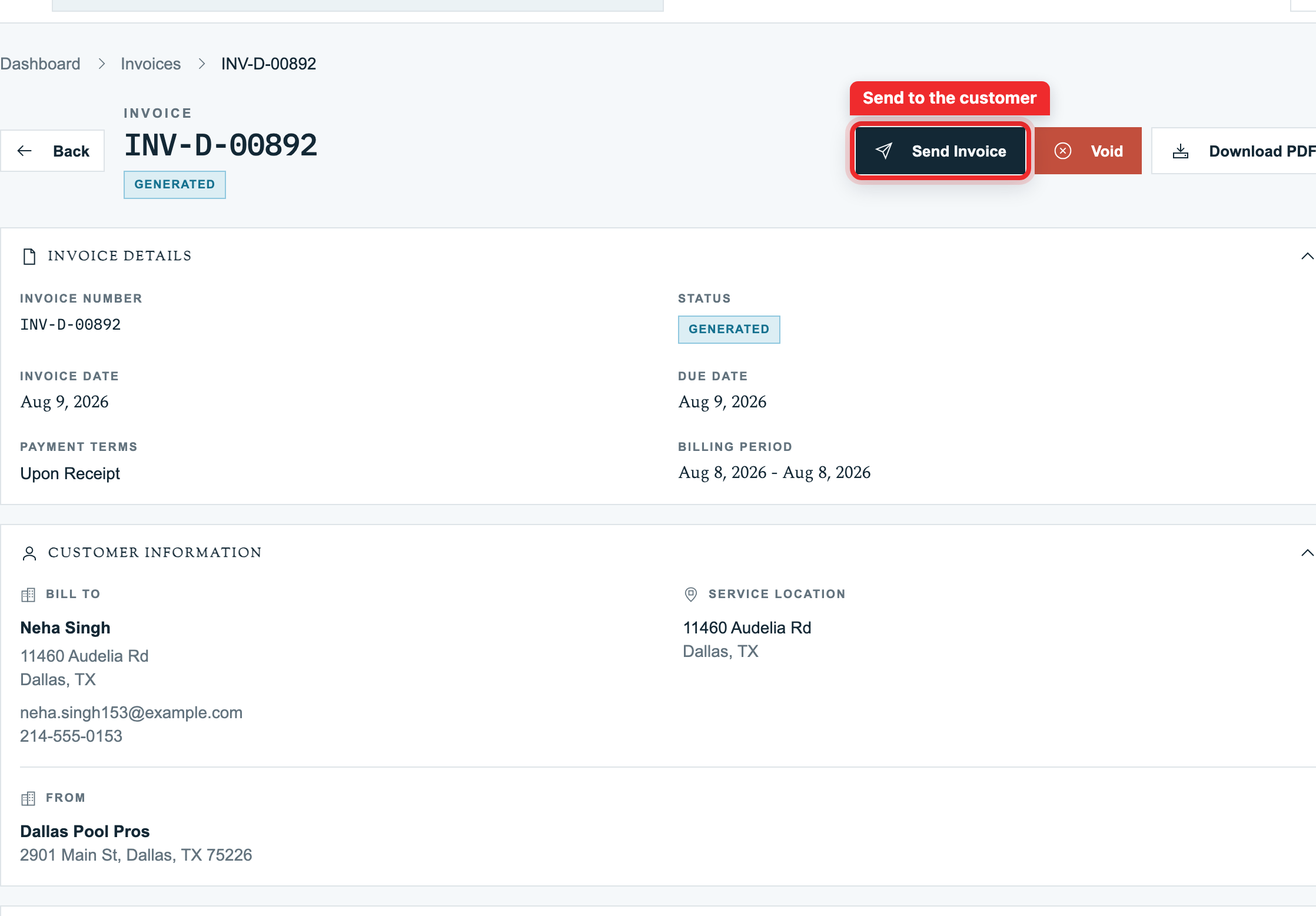
- On the invoice detail page, review the line items, total, dates, and customer's email before sending. Make any line-item changes while the invoice is still Draft.
- When Send Invoice is available, click it to send the invoice email. This action sends directly; it does not open a recipient-confirmation dialog.
- A successfully sent draft moves to Sent, locking its line items. Check the success notification and the invoice's updated state.
To send it again, use Resend Invoice. Check the customer's email before clicking, since this also sends directly.
The Three Delivery Channels
| Channel | How it's delivered | Customer access |
|---|---|---|
| Pool Runs sends from your business email address or the Pool Runs default | Email contains the secure payment link | |
| Secure Payment Link | Copy the link and share it by text or another channel | Anyone with the link can view and pay that invoice |
| Customer Portal | The customer logs into their Pool Runs portal and sees all their invoices | Portal login |
Email is the default. The public link is useful for SMS, in-person handoffs, or paste-into-CRM workflows. The portal is for customers who want a single dashboard for history, autopay enrollment, and document downloads.
What the Customer Sees
The invoice email contains a short message, the invoice number, issued and due dates, a summary of line items, a Pay Now call-to-action button, and an optional PDF attachment.
When the customer clicks Pay Now, they're taken to the public payment page — no login required.
The payment page shows invoice details, line items, tax breakdown, adjustments, a Pay widget powered by Stripe Elements (card, ACH, Link, Apple Pay, Google Pay), and a Download PDF button.
The first time a customer opens the link, the invoice status moves from sent → viewed.
Secure Payment Link
Each sent invoice has a secure link that opens only that invoice. The link expires after 90 days. If it expires before payment, the customer sees a message asking them to contact you. Click Resend to refresh the link, or direct the customer to their portal.
Email Customization
Before Sending. Check the invoice details and the customer’s email before selecting Send Invoice. The invoice detail action sends directly; it does not open a recipient or message editor.
Org-Wide Defaults (in Settings → Invoicing): default invoice message, default invoice footer, email "from" address (requires DNS verification), email "from" name, and an attach-PDF toggle.
Customer Email. The invoice detail send action uses the email on the customer profile. Verify that address before sending.
Sent vs. Viewed
| Status | Trigger |
|---|---|
sent | Email is dispatched. We don't know if it was opened. |
viewed | Customer opens the public payment link. |
viewed is a stronger signal than sent. If you've sent an invoice and it's been a week with no view, that may indicate the email landed in spam or the customer's email is wrong.
Email Deliverability
Most invoice emails land in the inbox. Common reasons for the spam folder include strict corporate email filters, an unverified sending address, or the customer marking a previous invoice as spam. When email fails, copy the invoice link and text it to the customer.
Customer Portal
For customers with portal access, all their invoices appear in My Invoices. They can view any past or current invoice, pay any unpaid invoice, download PDFs, enroll in or manage autopay, and see payment history. Portal access is invitation-based, and the customer receives a secure sign-up email when you enable it on their profile.
Sending FAQ
Q: Can I send an invoice without an email — like by mail or in person? A: Yes. Generate the invoice (retains its number and locks line items, but doesn't email) and Download PDF. Print it, mail it, hand it over.
Q: The customer says they didn't receive the email. What do I do? A: Three things to try, in order: (1) ask them to check spam; (2) click Resend; (3) copy the public payment link from the invoice's URL and text it to them.
Q: Can I CC the bookkeeper on every invoice? A: The invoice detail action sends to the customer's main Email and has no per-send CC field. If the bookkeeper should be the recipient, confirm that choice with the customer before changing their main email. That changes the customer's contact address for other messages too.
Q: Can I schedule an invoice to send later? A: For monthly billing, yes — see Recurring & Auto Invoicing. For one-off scheduling, no.
Q: Does the customer need a Pool Runs account to pay? A: No. The public payment link is anonymous — Stripe handles the card form, and we record the payment back against the invoice.
Sending Troubleshooting
- The send fails with "Invalid recipient." Either the customer has no email on file or the email format is invalid. Check the customer's main Email field on the customer profile; the invoice detail send action uses that address.
- The email arrived but the Pay Now button shows "Link expired." The 90-day secure link expired. Click Resend to issue a fresh link.
- The customer paid through Stripe but the invoice still shows Sent, not Paid. Refresh the invoice and check the payment's status in Stripe. A processing payment is not final, and a completed payment may take a few minutes to appear in Pool Runs. If it succeeded in Stripe but remains missing in Pool Runs, contact support with the invoice number and payment date so they can check the integration sync. Avoid recording the payment a second time unless support confirms that you should. See Recording Payments.
- Send Invoice is unavailable on a draft invoice. Draft status alone does not prevent sending. Check your invoice permissions and payment configuration. QuickBooks-owned invoices and invoices awaiting integration review have additional restrictions; contact support if the required action is unclear.
- The PDF attachment isn't showing on the email. Check Settings → Invoicing → "Attach PDF to invoice email."
Related Articles
- Creating Invoices Manually — Full invoice form walkthrough
- Invoice Generator — Bulk billing for routes, work orders, chemicals
- Recording Payments — Manual entry, online Stripe, partial pay
- Invoice Adjustments — Discounts, credits, voids, refunds
- Tax Zones & Tax Management — Zones, exemptions, line-item taxability
- Collections — Manual payment recording, late fees, and write-offs
- Quotes — Where deposit + final invoices originate
- Work Orders — Completed work orders become invoice line items
Need help? Check our troubleshooting guide or contact support.
Invoices
Bill customers for routes, repairs, monthly service, and ad-hoc work in Pool Runs — from manual invoices to bulk generation, payment tracking, and aging.
Creating Invoices Manually
Step-by-step walkthrough of the Pool Runs invoice form — customer, property, line items, taxes, terms, due dates, and saving as draft or sending immediately.