Creating Invoices Manually
Step-by-step walkthrough of the Pool Runs invoice form — customer, property, line items, taxes, terms, due dates, and saving as draft or sending immediately.
Creating Invoices Manually
Most invoices in Pool Runs come from automated paths — the Invoice Generator, completed work orders, or approved quotes. But there's always a need for a manual invoice: a one-line trip charge, a custom-priced repair, an annual rebate, a credit-off bill. The manual invoice form is the most flexible entry point, and this guide walks through every field.
When to Create an Invoice Manually
| Situation | Better path | Use manual when |
|---|---|---|
| Approved quote → bill the customer | From the quote (Generate Invoice) | Never — always go through the quote |
| Completed work order → bill the customer | From the work order (Create Invoice) | Only if the WO was missed by Create Invoice |
| Routine monthly billing | Monthly Billing | Never — let the automatic monthly billing handle it |
| Mixed bulk billing for a date range | Invoice Generator | Only for one-off corrections |
| Trip charge, rebill, special arrangement | — | Manual |
| Re-invoicing after a void | — | Manual (or copy/recreate from voided) |
If your situation isn't on this list, manual is fine. Just be aware: any line items you type by hand are marked as manual entries and aren't linked back to a route stop or work order, so Pool Runs can't auto-prevent later double-billing on those items.
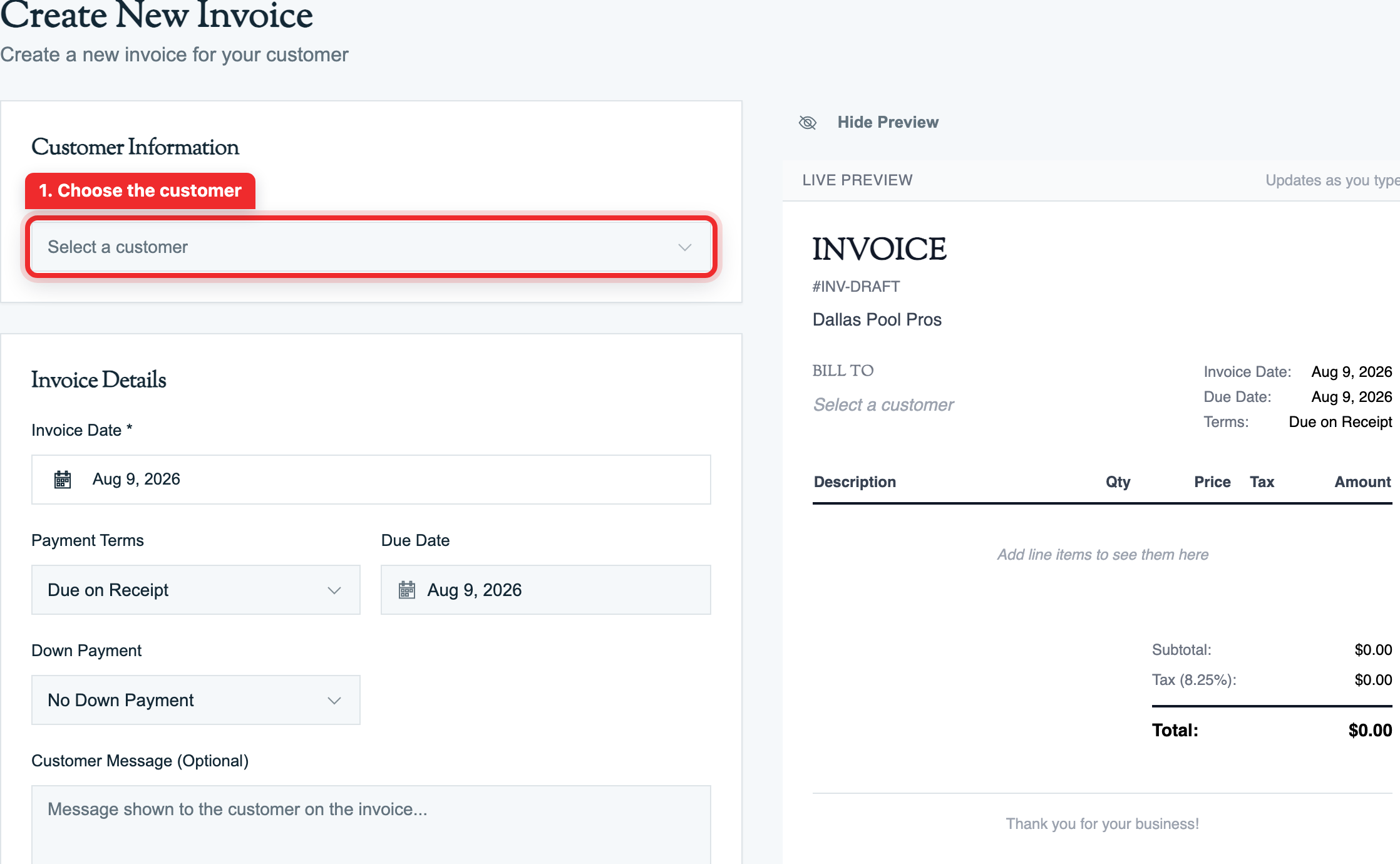
Quick Steps (Standard Manual Invoice)
- From the sidebar, go to Billing → Invoices.
- Click + New Invoice in the top-right.
- Search and select the Customer.
- Optionally select a Property (required if the customer has multiple service addresses you want to itemize separately).
- Confirm or change the Issued Date (defaults to today).
- Pick Payment Terms (defaults to org default — Net 30 unless changed).
- The Due Date auto-fills based on terms. Override if needed.
- Click + Add Line Item for each charge:
- Type a description, quantity, unit price, and toggle Taxable if applicable.
- Or click the product picker to pull from the catalog.
- Optionally add an Adjustment (fee or discount).
- Optionally add a Customer Message and Internal Notes.
- Click Save as Draft to keep editing, or Save & Send to email immediately.
That's it. Below is the long-form reference for each field.
The Form, Field by Field
Customer & Property
| Field | Required | Notes |
|---|---|---|
| Customer | Yes | Search by name, company, email, or phone. Active and paused customers appear; archived do not. |
| Property | No | Required only if the customer has more than one and you want this invoice scoped to one. Leave blank to bill multiple properties on the same invoice. |
If the customer is marked Tax Exempt, a banner appears at the top of the form indicating tax will not be applied regardless of line-item settings. See Tax Zones & Tax Management.
Dates & Terms
| Field | Required | Notes |
|---|---|---|
| Issued Date | Yes | Defaults to today. Change to a past date when invoicing for prior-period work. |
| Payment Terms | Yes | Pull-down: Upon Receipt / Net 15 / Net 30 / Net 60 / Net 90 / Custom. Org default is used unless you override. |
| Due Date | Yes | Auto-calculated from issued date + terms. Editable. |
| Billing Period Start/End | No | Optional service window — useful for "March 2026 service" framing. |
Line Items
The line-items grid is where the dollars accumulate. Each line has:
| Column | What goes here |
|---|---|
| Description | Free text or auto-filled from product picker |
| Service Date | Optional ISO date — useful for dated work-order lines |
| Quantity | Decimal (e.g., 1.5 hours of labor, 3 chlorine tabs) |
| Unit Price | Decimal in dollars |
| Total | Calculated automatically from quantity and unit price |
| Taxable | Toggle. Defaults from product or org config. |
Adding a line item:
- + Add Line Item — Free-form. Type description and price.
- Product Picker (search box at the top of the line item list) — Pulls from your catalog of:
- Parts (e.g., filter cartridge, pump seal)
- Chemicals (e.g., chlorine, muriatic acid)
- Services (work order types — e.g., filter clean, acid wash)
- Fees (late fee, trip charge, service-call fee)
When you select a catalog product, its description, unit price, and Taxable setting fill automatically. This is recommended over free-form entry because it keeps QuickBooks product and income-account mapping consistent. See QuickBooks Integration for why this matters.
Drag handle: Reorder lines by dragging the handle on the left. Order is reflected on the customer-facing PDF.
Adjustments (Fees & Discounts)
Adjustments are applied after line items but before tax (in most cases — see Invoice Adjustments for details). Common uses:
| Adjustment | Kind | Mode | Example |
|---|---|---|---|
| Late fee | Fee | Flat | $25 flat |
| Fuel surcharge | Fee | Percent | 3% of subtotal |
| Loyalty discount | Discount | Flat | $10 off |
| New-customer discount | Discount | Percent | 10% off |
The Applies To dropdown lets you scope a percentage adjustment to a specific category (subtotal, labor, parts, chemicals, services). Most users leave it on subtotal.
Taxes
The Tax field is read-only on the form — it's calculated from line-item taxability and the resolved tax rate (flat or zone-based, see Tax Zones & Tax Management).
The form's totals sidebar shows:
Subtotal:    $135.00
Fees:         $5.00
Discount:    -$10.00
Taxable:    $125.00      ← items flagged taxable
Tax (8.25%): $10.31
─────────────────────
Total:      $140.31
If the customer is tax-exempt, the Tax line shows $0.00 and a small "Tax Exempt" badge appears.
Down Payment (Optional)
For invoices that need a minimum first payment before the rest can be paid:
- Mode: None / Percentage / Fixed
- Value: 20 (means 20% if percentage) or 250 (means $250 if fixed)
- Amount: Auto-calculated dollar amount
The customer's payment link will require at least the down-payment amount on the first attempt. Subsequent payments can be any amount up to the remaining balance.
This is most often set automatically when an invoice is created from a quote with a deposit. For manual invoices, leave it on None unless you specifically need a deposit-style requirement.
Customer Message & Internal Notes
| Field | Visibility | Purpose |
|---|---|---|
| Customer Message | On the PDF and the email | "Thanks for your business — payment due by April 30." |
| Terms & Conditions | On the PDF | Free-form legal/policy text |
| Internal Notes | Office only — not on the PDF | "Customer disputed last month; this is the corrected one." |
| Footer | On the PDF, bottom | Org-default footer (set in Settings) — overridable per invoice |
The org-default invoice message and footer are set in Settings → Invoicing.
Save as Draft vs. Save & Send
| Action | Status after | What happens |
|---|---|---|
| Save as Draft | Draft | No invoice number. Editable. Customer cannot see it. |
| Save (no send) | Generated | Invoice number assigned. Line items locked. Editable header. |
| Save & Send | Sent | Email dispatched and the secure payment link becomes available. |
You can promote a draft → generated → sent at any time. You cannot reverse those transitions — but you can void a generated or sent invoice and start over.
What Happens After You Save
| Action | What Pool Runs does |
|---|---|
| Save as Draft | The invoice and its line items are saved without an invoice number. |
| Save (Generate) | A permanent invoice number and issue date are assigned. |
| Save & Send | The invoice is finalized, and the customer email and secure payment link are prepared. |
The invoice now appears in the Invoices list and on the customer's profile.
Common Patterns
Pattern 1: One-line trip charge
Customer called for a "real quick chem check," tech drove out, dumped some chlorine, left. No work order, no quote. Bill them $50.
- + New Invoice
- Customer: select
- Property: select
- Line item:
"Trip charge for chemical balance check", qty 1, price $50, taxable: yes (or no — your call) - Terms: Upon Receipt
- Save & Send
Pattern 2: Re-invoicing a credit
You issued a $30 credit memo last month. This month they bought a $40 chemical. Net them out.
- Invoice line 1: "Chlorine tabs (5lb)" — $40
- Adjustment: Discount, Flat, $30, label "Account Credit Applied"
- Total: $10
(Or use the customer's stored credit if you've enabled the auto-apply-credits feature in Settings.)
Pattern 3: Annual one-time inspection
Spring opening + inspection, no recurring service.
- Customer: existing or create new
- Line item via product picker: "Spring Open & Inspection" service ($350)
- Add chemical line items used during the open
- Save & Send
FAQ
Q: I added a line item without a service date — does it matter? A: Only for display on the PDF; some templates show a date for each line. For accounting, the invoice's issue date is what matters. Service dates are most useful when one invoice includes multiple visits.
Q: Can I copy an existing invoice as a template? A: There is no formal Copy invoice action. Use the Invoice Generator for repeatable bulk items, or build a reusable quote and convert it after approval.
Q: I made a typo in the invoice number prefix — can I change it after sending? A: The prefix is set for your organization under Settings → Invoicing. Changing it affects future invoices only. Already-issued invoice numbers cannot be changed; void and recreate an invoice if needed.
Q: What does the Generate action (without sending) actually do?
A: It assigns a permanent invoice number, locks the line items, and moves the invoice to generated status. It does not email the customer. Use this when you want a finalized invoice number (e.g., to share internally or paste into a payment system manually) without sending.
Q: Can I PDF-download an invoice without sending it? A: Yes. From the invoice detail page, click Download PDF. The PDF reflects the current state including any adjustments and payments.
Q: Why is the Send button disabled?
A: Three possible reasons: (1) the customer has no email on file; (2) the invoice is draft and needs to be generated first (some configurations require this); (3) Stripe is not connected and the payment link can't be generated (check Settings → Integrations).
Troubleshooting
The total is wrong by a few cents. Pool Runs rounds each line and the final total. With percentage adjustments and tax across multiple zones, fractions of a cent can accumulate. The PDF and invoice total always match, but a hand calculation can differ by $0.01–0.03 in rare cases. Open the invoice to confirm the final line-item totals.
Line item won't save — "Description is required" but I typed one. The description field validates after blur. Click outside the description input first, then click Save.
Customer dropdown shows no results even though I have customers. Check the search filter — by default the dropdown excludes archived customers. Toggle "Include archived" if you're billing a former customer for a final amount.
Tax shows 0% but I'm not tax exempt. Either: (a) the default tax rate is 0% — set a rate in Settings; (b) all line items have Taxable turned off; or (c) the property's ZIP does not match a configured tax zone. See Tax Zones & Tax Management.
Save & Send greys out after one click — I want to resend. After the first send, the button changes to Resend. The invoice keeps its current status, and Resend uses the same secure payment link.
Related Articles
- Invoices Overview — Lifecycle, line items vs. adjustments, status flow
- Invoice Generator — Bulk version of this same flow
- Invoices Overview: Sending Invoices — What happens after Save & Send
- Recording Payments — Marking the invoice paid
- Invoice Adjustments — Discounts and fees in depth
- Tax Zones & Tax Management — How tax is calculated
- Quotes — Quote-driven invoices
- Work Orders — Work-order-driven invoices
Need help? Check our troubleshooting guide or contact support.
Invoices Overview
How invoices work in Pool Runs — the status lifecycle, the four ways an invoice is created, line items vs. adjustments, and how double-billing is prevented.
Invoice Generator
Select completed work or a billing month, review service lines and adjustments, preview the PDF, and create invoice records with the appropriate billing action.