Work Order to Invoice
Review completed work, create a draft invoice, link an existing bill, or close the job without charging the customer.
Work Order to Invoice
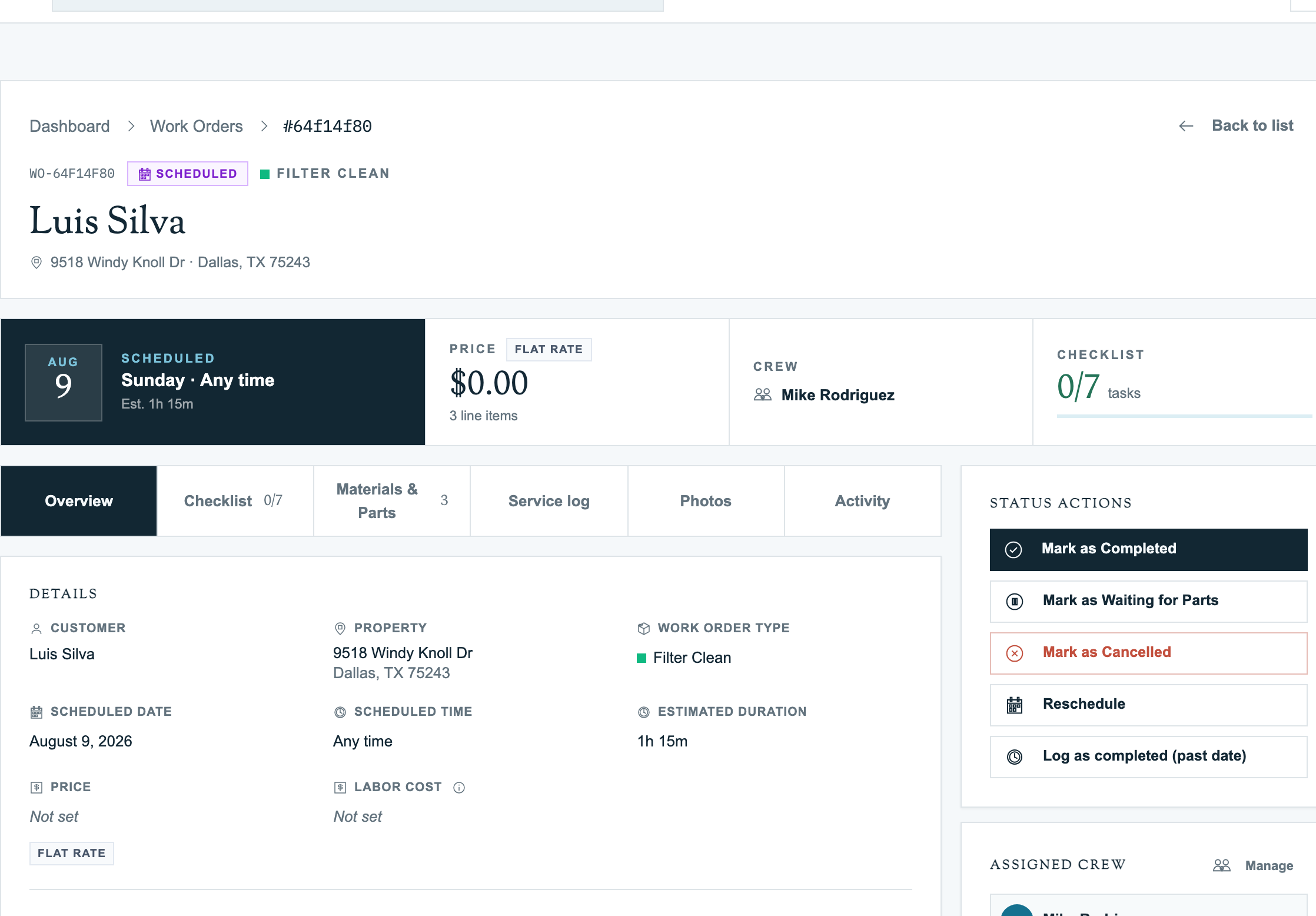
Completing a work order does not send a bill. It hands the job back to the office, where it waits in Ready to review until someone makes a billing decision.
The three ways to finish the office review
| Decision | Use it when | Result |
|---|---|---|
| Generate invoice | This job should create a new customer bill | Pool Runs creates a draft invoice, marks the work order Invoiced, and opens the draft for review. |
| Link to existing invoice | The job was prepaid or was already added to another invoice | The work order is linked without creating a duplicate bill. |
| Close · no invoice needed | This was warranty work, a callback, a diagnostic visit, or goodwill service | The work order becomes Closed and keeps its history without creating a charge. |
Review the job before billing it
-
Open Work Orders.
-
Start with the Ready to review metric. It shows the number of completed, unbilled work orders and their potential billing.
-
Use the work-order search to find the customer, description, or work-order ID you need.
-
Check the Flat rate or Itemized chip on the card before choosing Invoice.
-
Open the job and review Materials & Parts. For an itemized job, confirm that every customer-billable row is marked Used and that internal or unused rows are off.
How the billing mode changes the invoice
| Billing mode | What reaches the draft invoice |
|---|---|
| Flat rate | One line at the work-order price. Parts and materials on the job remain internal tracking and do not add extra customer charges. |
| Itemized | One line for each active item marked Used. Unused rows stay on the work order but do not reach the invoice. |
| Quote-backed | Every active line from the approved quote is billed, even if the technician did not change its Used switch. The approved quote is the customer's billing commitment. |
The amount shown on a Ready to review card follows these rules. On an itemized job, the detail page also shows how many rows are billing, such as 2 of 3 billing.
Create and review the draft invoice
-
From the completed work order, click Generate invoice.
-
Read the confirmation, then click Generate Invoice.
-
Pool Runs opens the new invoice with a Draft status. Nothing has been sent to the customer yet.
-
Check the line items, quantities, tax, due date, service location, and total.
-
Use Edit while the invoice is a draft if you need to add a line, change a description, or correct an amount.
-
Finalize or send the invoice only after the draft matches the work performed.
The work order remains linked to the invoice, so the office can move between the service record and its billing record without matching them by hand.
Close a completed job without billing it
Open the completed work order and choose Close · no invoice needed under Status actions.
This action applies immediately. It creates no invoice and changes the work order to Closed. The customer, property, notes, materials, checklist, and activity history stay attached. If the office chose this by mistake, an admin can use Mark as Completed to return the job to Ready to review.
Link a job that was already billed
Use Link to existing invoice when a deposit, prepayment, or another office workflow already created the customer bill. The picker is limited to invoices for the same customer. Invoices for the work order's property rise to the top and carry a same property badge.
Linking is safer than generating a second invoice because it preserves the work-order-to-invoice relationship without duplicating the charge.
Correct a draft created by mistake
Open the draft invoice and choose Delete, then confirm Delete Invoice. Pool Runs deletes the draft, clears the invoice link, and automatically returns the work order to Completed, where it appears in Ready to review again.
Only draft invoices can be deleted. Once an invoice has moved beyond Draft, use the invoice's Void workflow for the billing correction instead of trying to delete it.
FAQ
Q: Does completing a work order automatically create or send an invoice? A: No. Completion moves the job to Ready to review. Generating the invoice and sending it are separate office actions.
Q: Why does an itemized total say only some rows are billing? A: Only active rows marked Used are included for a normal itemized work order. Open Materials & Parts to check which switches are on. Quote-backed jobs are different because every active approved quote line bills.
Q: Why did a used part not appear on a flat-rate invoice? A: That is expected. A flat-rate type bills one line at the work-order price. Its parts remain internal cost and usage tracking.
Q: Why did the invoice come out at zero dollars? A: The work order had no usable flat-rate price and no billable itemized rows. Correct the work order before generating, or edit the draft before it is finalized or sent.
Q: Can I undo an invoice I generated by mistake? A: Yes, while it is still a draft. Delete the draft invoice and Pool Runs returns the linked work order to Completed automatically.
Q: Can I undo Close · no invoice needed? A: An admin can open the Closed work order and choose Mark as Completed. It returns to Ready to review for another billing decision.
Q: What if the customer already paid or the charge is on another invoice? A: Use Link to existing invoice. Do not generate a duplicate draft.