Running a Work Order (Mobile)
Start service, work the checklist, log parts used, and complete a work order stop from the field.
Running a Work Order (Mobile)
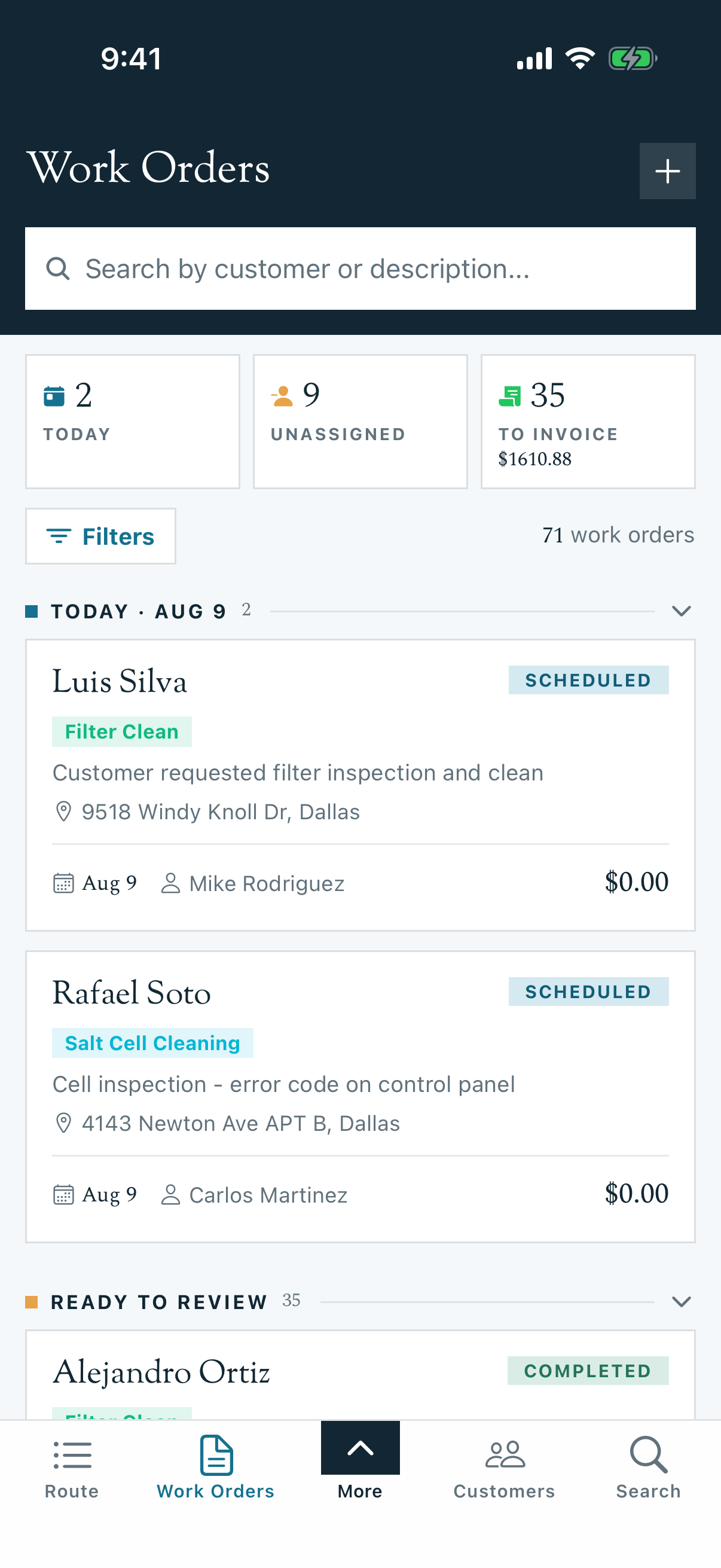
A scheduled work order appears on the assigned tech's route as a stop. The stop screen is where the job actually gets done.
Open the stop
From the Route tab, tap the stop, or open the work order and tap its Route Visit. The General tab has the address with Navigate and Call, gate and access notes, and the customer's contact info.
Start service
Tap Start Service. The timer starts, the stop flips to In Progress, and the bottom button becomes the green Complete Service.
Work the job on the Work Order tab
Switch to the Work Order tab for everything specific to this job:
-
Checklist: tick tasks as you go. Items marked Required must be done before the job can complete. Each tick is timestamped.
-
Items Needed: the parts the office planned for the job. Tap Used on each part you actually installed, or Add to Shopping List if something is missing.
-
Parts Used: tap Record Part Used to log anything used beyond the plan. This is what feeds an itemized invoice.
-
Work Order Notes: notes back to the office, editable any time.
The Pool tab holds chemical readings.
Documenting the visit
The Service Documentation section on the General tab is where the visit's paper trail lives, and it has two audiences. Know which is which before typing:
| Field | Who sees it |
|---|---|
| Work Performed | The customer, word for word, on their service report |
| Service Photos | The customer, attached to the service report |
| Internal Notes (marked Private) | Technicians and office staff only |
| Internal Photos (marked Private) | Technicians and office staff only |
Put the professional summary in Work Performed ("Replaced shaft seal and diffuser o-rings, primed and tested"). Put the blunt version in Internal Notes ("Impeller was full of dog hair again, recommend talking to the customer about the cover"). Liability shots of pre-existing damage belong in Internal Photos.
Complete the service
Tap Complete Service. What happens next depends on whether the job is actually done:
- Something required is missing? An Incomplete Required Items sheet lists exactly what's left, and the tech can check items off right from the sheet. The one exception: tasks that require a photo must be completed from the checklist itself.
- Everything done? The sheet flips to Ready to Complete, and Complete Stop finishes the job.
- Completion email. If the job's type sends service emails, a Service Completed screen offers to email the customer a branded summary, with a live preview of exactly what they'll see, including the Work Performed write-up and the completed checklist. Choose Send Email, or Send Later, which leaves a Send button on the stop's status card for whenever.
- On to the next stop. The app can also text the next customer that the tech is on the way, with a live arrival estimate, or skip the notification.
Once complete, the stop's status card shows the actual service duration, and on the office side the work order moves to Completed and lands in Ready to review for billing.
Tip: Wrong pool, locked gate, dog in the yard? Use Skip with a reason instead of completing. The office sees the skip and can reschedule.
FAQ
Q: The Complete Service button will not finish the job. A: Something required is missing. Scroll the checklist for unticked Required tasks, and check whether the job type requires a photo or chemical readings.
Q: Do parts I mark as Used change the customer's bill? A: On itemized jobs, yes, used items become invoice lines. On flat-rate jobs the customer sees one line and the parts stay internal.
Q: Can I complete a job that happened yesterday? A: In the field, no. The office can use Log as completed (past date) on the web detail page.
Q: Why can't my tech see the job's price? A: Prices on work orders are gated by the financials permission on the tech's role. Techs without it see everything else about the job, just not the money.
Q: Which work orders does a tech see in the app? A: Depends on their role: most technician roles see only work orders assigned to them, while office and admin roles see the whole board. If a job is missing, check the assignment first, then the role.
Q: Will the customer see my internal notes or photos? A: No. Anything marked Private (Internal Notes, Internal Photos) stays between techs and the office. Only Work Performed and Service Photos reach the customer's service report.