Managing Work Orders (Web)
Triage the work order dashboard, filter and search, change statuses, assign technicians, and reschedule or cancel jobs.
Managing Work Orders (Web)
Use Work Orders to review jobs, assign a crew, and choose the next action for each work order. Use Schedule → Job Bin to book open work that still needs a date or technician.
The metrics row
Review the four summary cards before opening the list:
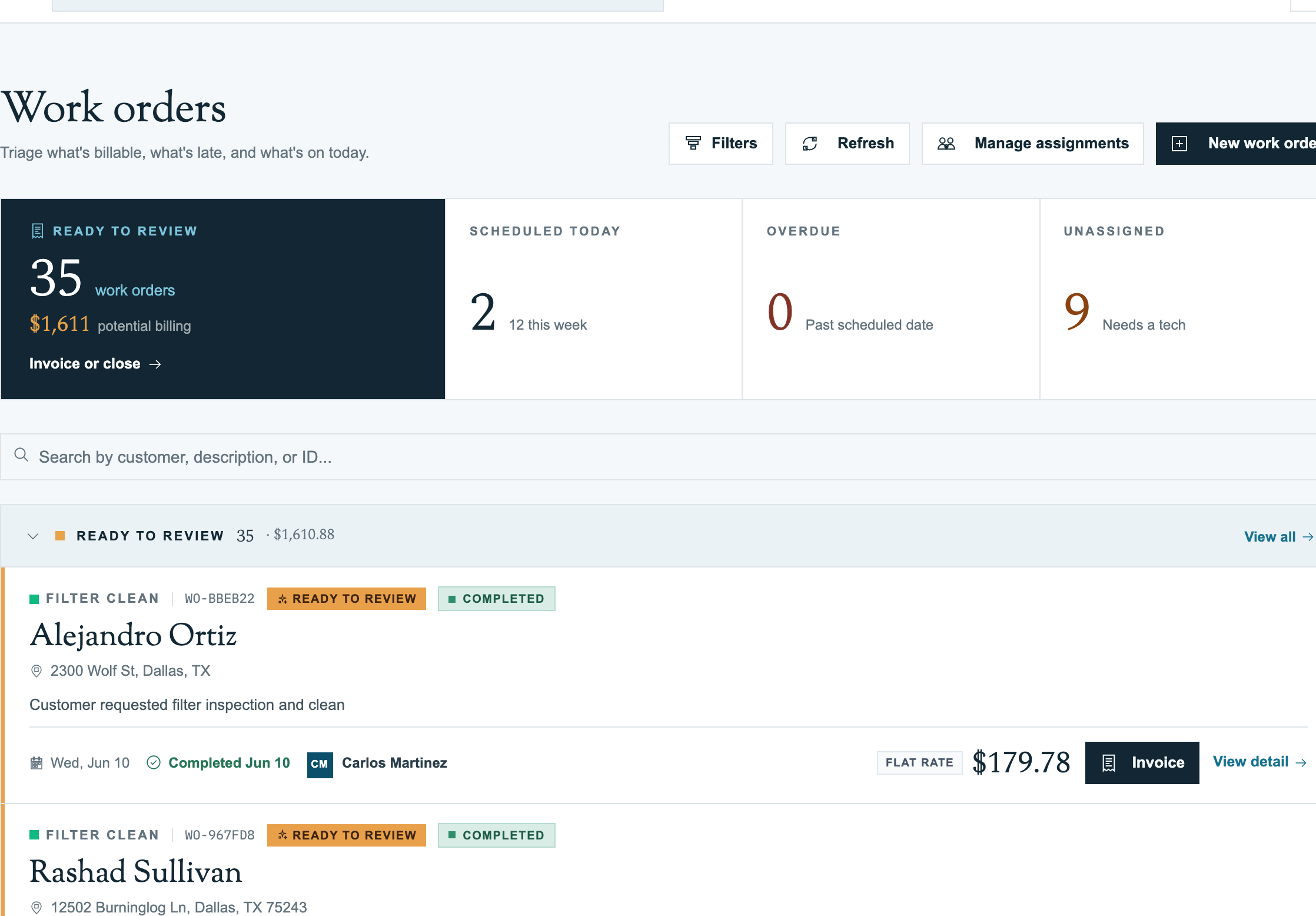
- Ready to review: completed work orders without a linked invoice, with their potential billing total. Review the work before deciding whether to invoice or close it without an invoice.
- Scheduled today: the count booked for today. The smaller this week count summarizes upcoming dates separately.
- Overdue: active work with a scheduled date in the past.
- Unassigned: work orders that need a technician.
Select Ready to review, Overdue, or Unassigned to filter the matching work. Use the list's search and filters to narrow it further. Scheduled today shows a summary count.
The buckets
The list groups work orders into Ready to review, Overdue, Today, This week, In the future, Invoiced, and Archive. Archive contains closed and cancelled work; In the future also includes open work without a scheduled date.
Each card shows the work order type, WO- ID, status, customer, property or address, description, schedule, assigned crew, and price. Select Open or View detail to review the full work order.
Search and filters
Search by customer, description, or ID. Open Filters to select statuses or use Ready to review, Unassigned only, Overdue only, and Has property. Clear a filter or search term when you need to return to the broader list.
Schedule an open work order from Job Bin
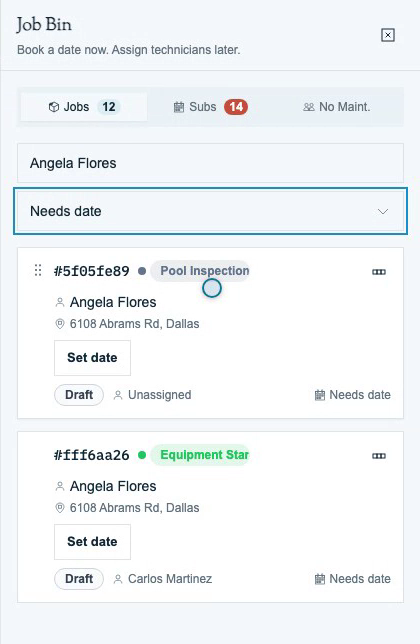
A planning job is a work order. Job Bin → Jobs lists open work that needs a scheduled date, a technician, or both. A job with a date can remain in the bin until a crew is assigned.
Download video · Captions (VTT) · Transcript (TXT)
- Open Schedule → Job Bin, then select Jobs.
- Search by customer, city, or job type. Use Needs date or Needs technician to narrow the list.
- Check the customer, property, and work order type. Job Bin cannot schedule a work order without a property; resolve a missing property before scheduling it.
- Select Set date for a job without a date, or Assign technician for a dated job without a crew.
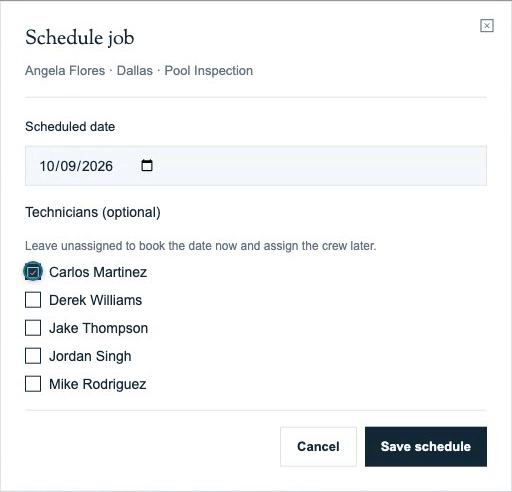
- In Schedule job, choose the Scheduled date. Select the required Technicians, or leave them unselected to book the date and assign the crew later.
- Select Save schedule. Wait for the dialog to close successfully; resolve any displayed error before treating the job as booked.
Close Job Bin and review the result on Schedule → Month → Jobs & tasks. Find the job on its selected date and check its assigned crew. Open that day's details or Day view to check the technician's work and route. A job booked without a technician still needs a crew; return to Needs technician when ready to assign it.
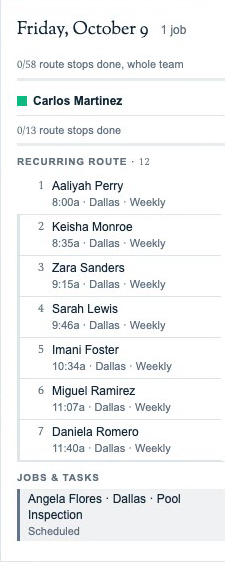
See Scheduling for the calendar's Week, Month, and Day views.
Changing status
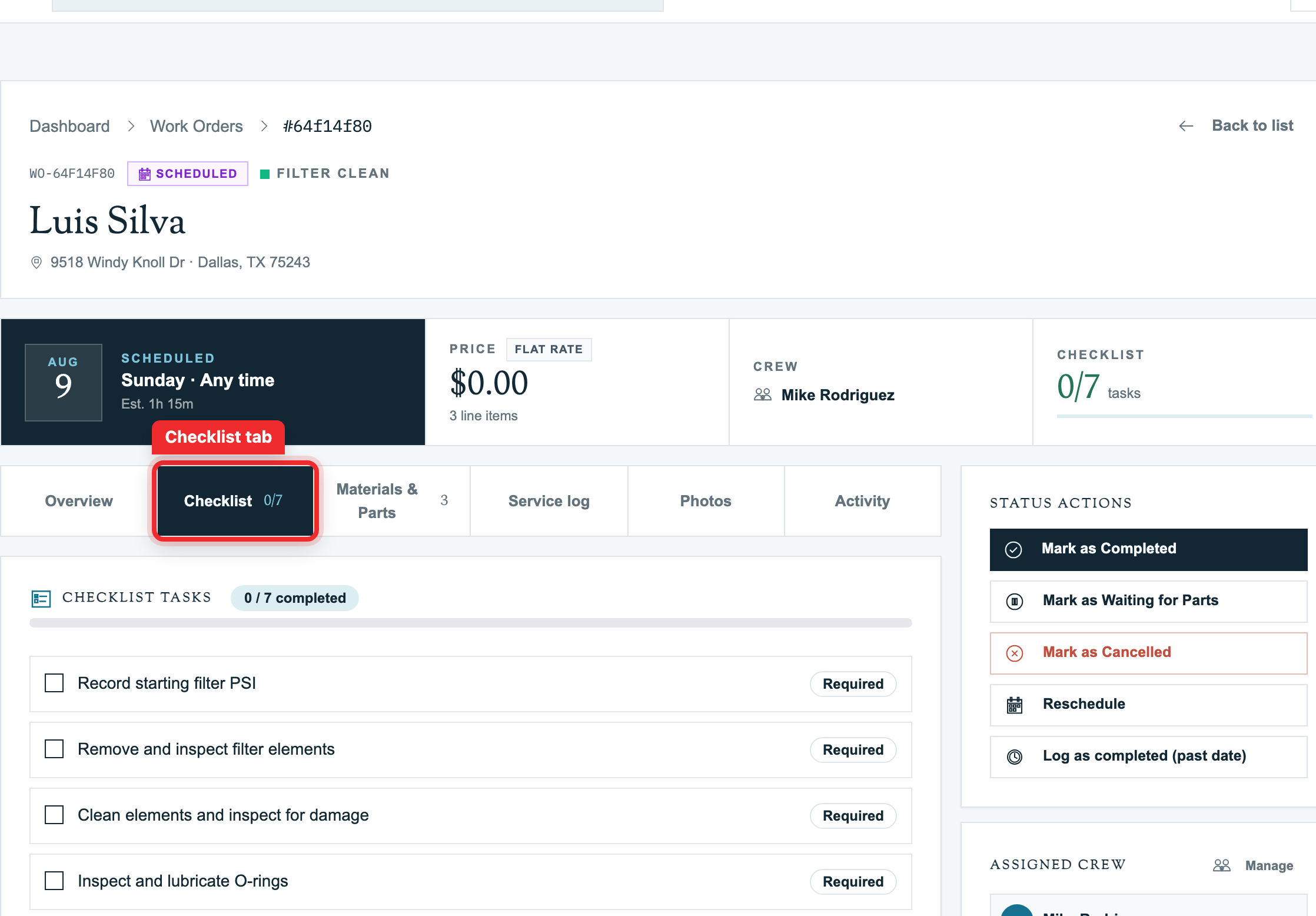
Open the work order and review Status actions. The available actions depend on its current status and your role. A scheduled work order can offer Mark as Completed, Mark as Waiting for Parts, Mark as Cancelled, and Reschedule.
Use Log as completed (past date) only for work that already happened. Choose the actual service date in that flow instead of rescheduling a future job into the past.
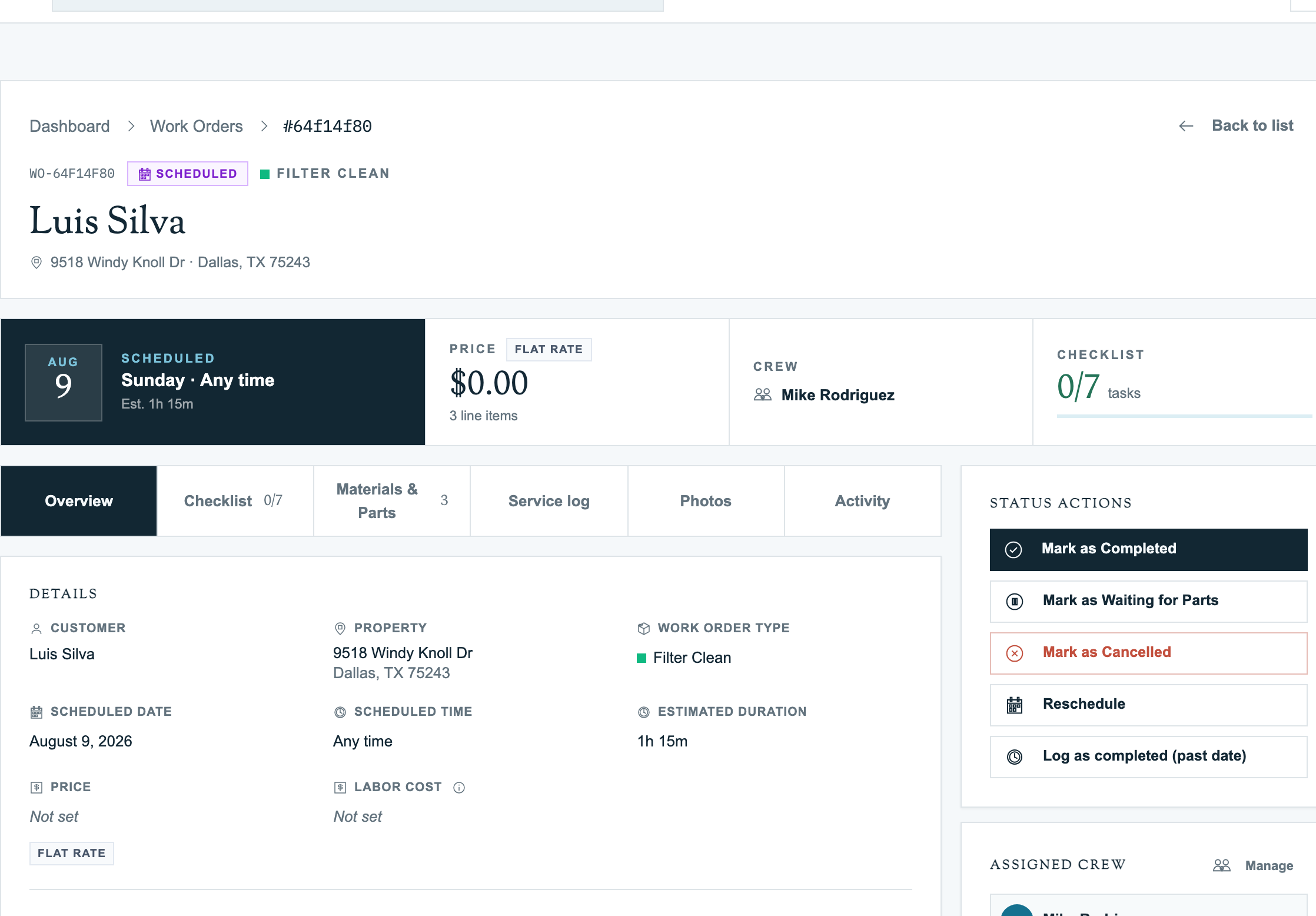
Review the Checklist, Materials & Parts, Photos, and Activity tabs as needed. Service log is available when the work order has linked visits.
Assigning technicians
Use Manage assignments on the Work Orders page to plan assignments across jobs, or Manage in a work order's Assigned crew panel to update a single crew. The lead technician is marked in the crew list.
After changing the crew, review the job's scheduled date and the affected technicians' dated routes.
Rescheduling
- Open the work order and select Reschedule when it is available.
- Choose today or a future Scheduled date. Select the time option: Appointment, Preferred window, or Anytime, and enter the time or window when required.
- If the date changes, review Placement on new day and any technician-specific route positions.
- Select Reschedule, then check the saved work order and affected dated routes.
With the same crew, existing Scheduled and In progress visits move to the new date in place. Completed and Skipped visits remain on their original dates as history. Crew changes can affect which visits are moved, created, or removed, so review each technician's result. If the work order has no assignees, rescheduling updates its schedule without assigning a technician.
Cancelling
Select Mark as Cancelled and review the confirmation before proceeding. Cancellation removes scheduled route stops for the work order; In progress, Completed, and Skipped stops are kept. Check customer appointments and the affected technicians' schedules before confirming.
Cancelled work orders remain in Archive. When your role allows it, reopen the work order using the available status action, then review its date and crew before scheduling it again.
FAQ
Q: A job has been in Overdue for two weeks. What should I do? A: Open it and review what actually happened. Reschedule work that still needs to be done, record completed work with its actual service date, or cancel work that will not proceed. Overdue is a date-based flag, not a status change.
Q: Can technicians change work order statuses from the office view? A: Available actions depend on the role and assignment. An assigned technician can mark a scheduled work order completed. Admins and office staff have additional actions, including closing completed work without an invoice. Technicians can also record service through their dated stops in the mobile app.
Q: What happens to the route stop if I reschedule a work order? A: Scheduled and in-progress visits for the retained crew move in place. Completed and skipped visits stay as history. Review the dated routes after rescheduling or changing the crew.