Creating Work Orders (Web)
Create and schedule a work order from the Pool Runs web admin, with types, template defaults, and technician assignment.
Creating Work Orders (Web)
Create a work order any time a job needs its own scope, date, and price: a pump repair, a filter clean, a green pool recovery.
Create a work order
-
Click Work Orders in the left sidebar.
-
Click Create work order in the top-right.
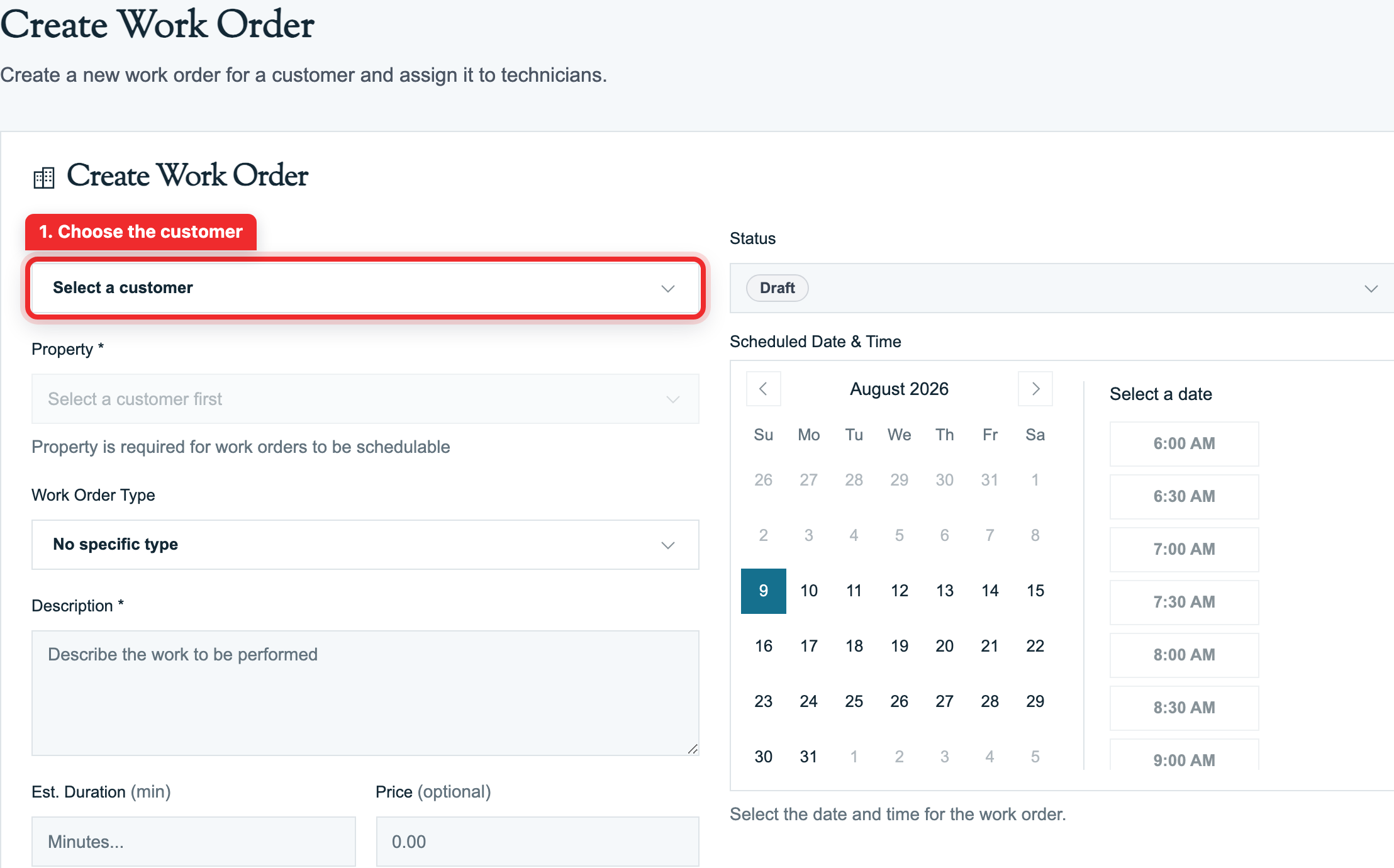
-
Pick the Customer, then the Property. Property is required, a work order needs an address to be schedulable.
-
If the property has pools or spas on file, pick which Water Features the job covers. At least one is required.
-
Pick a Work Order Type (optional but recommended, see below) and write a Description of the work.
-
Add technicians under Assign Technicians. Click the crown icon to set the lead tech.
-
Set the Status (usually Scheduled), pick the date and a time slot, and choose a Time Commitment: Appointment (customer expects this exact time), Preferred window, or Anytime.
-
Click Create Work Order.
Scheduling a work order with a tech and a date automatically puts a stop on that tech's route for the day.
Tip: No date or tech yet? Save it as a Draft and schedule it later from the dashboard.
What picking a type does
Selecting a type loads its Template Defaults: estimated minutes, default price, and the template's checklist tasks and materials. You can override any of them for this one job without touching the template.
With no type selected, you instead get plain Est. Duration and Price fields.
Other ways work orders get created
- From a quote: approving a quote lets you convert it to a work order with the line items copied over. See Converting Quotes.
- From the Schedule board: use Schedule Work Order on the schedule to create and place one in a single step.
- From the mobile app: techs with permission can create work orders in the field. See Creating Work Orders (Mobile).
FAQ
Q: Why is the form telling me to select a water feature? A: If the property has bodies of water on file, the work order must name which one it covers. Pick the pool or spa in Water Features to Service.
Q: Do I have to pick a work order type? A: No. Leave it on No specific type and you get plain Est. Duration and Price fields instead of template defaults. That is the right call for one-off oddball jobs. Types earn their keep on work you repeat, since the checklist, parts, and pricing come pre-filled. See Work Order Types.
Q: Can I create a work order without a price? A: Yes. Price is optional. You can set or adjust it any time before invoicing.
Q: Does creating a work order bill the customer? A: No. Billing only happens when you generate an invoice from the completed work order. See Work Order to Invoice.
Q: What do the three Time Commitment options actually do? A: They tell the route how firm your promise is. Appointment pins the stop to its time: route optimization plans around it instead of moving it, and if the assigned tech already has an appointment at that time you get a warning before you double-book. Preferred window targets a range instead of a moment, with Morning, Afternoon, and Evening presets. Anytime makes no promise, and the job slides to wherever the route runs best. Leaving the time blank entirely also schedules the job as an anytime stop.
Q: I switched Time Commitment cards and my time disappeared. Why? A: Switching between Appointment, Preferred window, and Anytime clears the selected time slot. Re-pick the time after you land on the card you want. An Appointment can't be saved without a time.
Q: What happens if I schedule a second work order at the same property on the same date? A: The form warns you: "Already a work order at this property on this date," and lists the existing job. You can still create it, but consider adding the work to the existing work order instead. Duplicate stops can split photos and service emails across two records.