Work Orders on Mobile
Where technicians find their work orders in the Pool Runs mobile app and what the detail screen shows.
Work Orders on Mobile
Technicians see work orders in two places on the app: the Work Orders tab for the full list, and their daily Route, where scheduled work orders show up as stops.
The Work Orders tab
Tap Work Orders in the bottom tab bar. The list uses the same buckets as the web dashboard, with Today first so the day's jobs are on top, then Overdue, Ready to review, and the rest. Search by customer or description, or narrow with Filters.
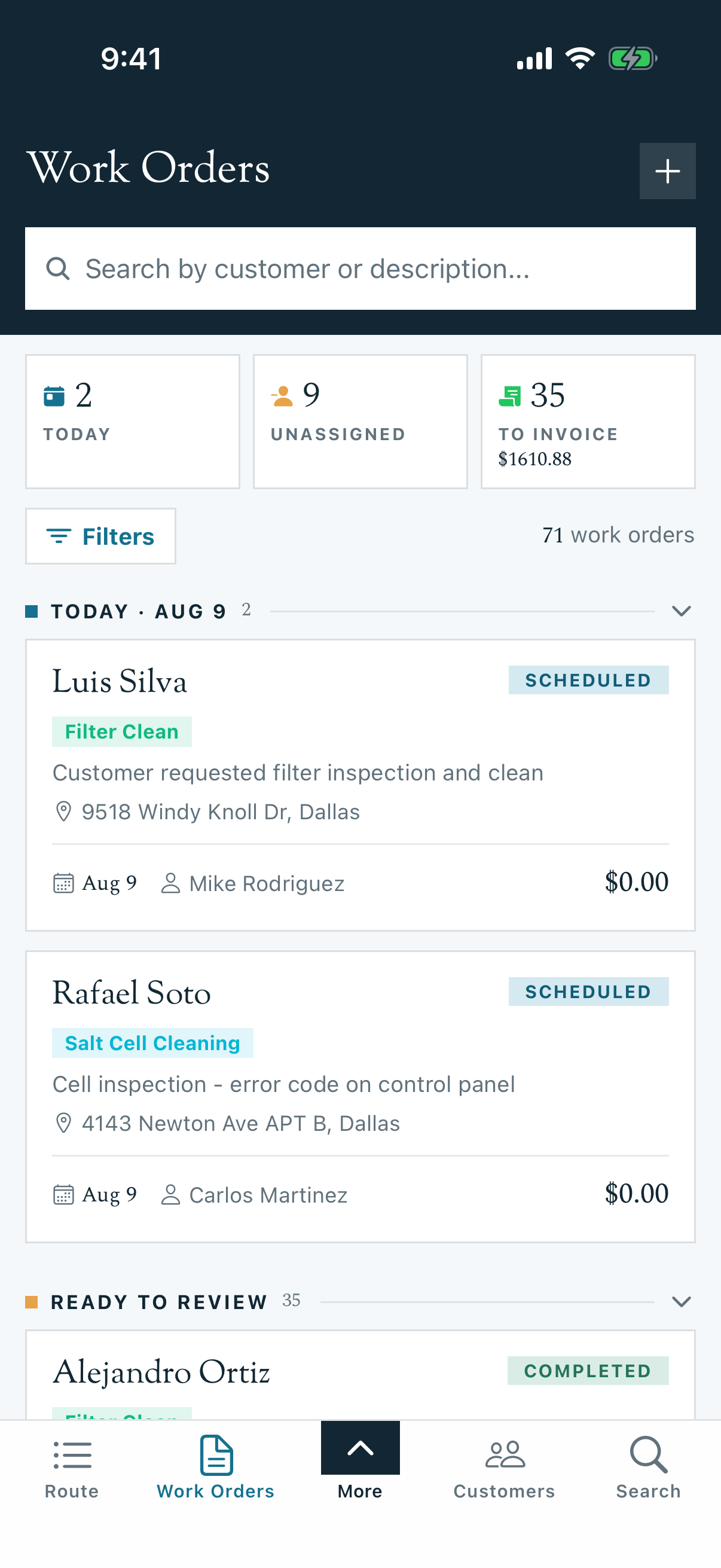
Technicians see the work orders assigned to them.
The work order detail screen
Tap any card to open the job. The detail screen is the read-only briefing: type, description, schedule, estimated time, assigned techs, checklist progress, and the parts list.
To actually do the work, scroll to Route Visits and tap the visit. That opens the stop screen, where Start Service, the checklist, photos, and parts logging live. See Running a Work Order (Mobile).
Note: Price shows only for techs whose role can view financials.
What permissions control
Several things on mobile depend on the tech's role, set by the office under Members:
| Capability | Controlled by |
|---|---|
| Seeing the Work Orders tab at all | Role can view work orders (all, or assigned-only) |
| Seeing every job vs only their own | View-all vs assigned-only on the role |
| Seeing prices on jobs | The role's financials permission |
| Creating work orders in the field | The role's create permission, plus each type's Technician Can Create switch |
If a tech reports something "missing" from the app, check their role before suspecting a bug.
FAQ
Q: Why can't I change the status from the work order screen? A: Status moves with the field work. Start and complete the job from its route visit, and the status follows.
Q: My tech says a job is missing from their list. A: Check the work order has that tech assigned and a scheduled date. Unassigned jobs only appear for roles that can view all work orders.