QuickBooks Online Integration
Connect Pool Runs to QuickBooks Online so customers, invoices, payments, products, and refunds stay in sync without double-entry.
QuickBooks Online Integration
Most pool service companies already keep their books in QuickBooks Online (QBO). Pool Runs connects directly to your QBO company file so you never have to enter the same invoice or payment twice. Customers, invoices, payments, products, refunds, and (optionally) Stripe deposits sync automatically between the two systems.
In This Section
- QuickBooks Overview — What the integration does, what syncs in each direction, how QBO Items / income accounts fit together, and sync error handling.
- Setting Up QuickBooks — Walkthrough for picking the right QBO company, authorizing Pool Runs, the six-step setup wizard (default accounts, customer matching, product matching, tax rates, sync settings, review & start), plus disconnecting and reconnecting.
- What Syncs to QuickBooks — Customer sync, item & product sync, invoice sync, and payment sync details — what triggers each, what fields move, and how conflicts resolve.
What Pool Runs Syncs At a Glance
| Data | Pool Runs → QBO | QBO → Pool Runs |
|---|---|---|
| Customers | Yes | Yes |
| Invoices | Yes (non-draft) | Updates only (no new invoices imported) |
| Payments | Yes | Yes |
| Refunds | Yes | Yes |
| Parts & Chemicals | Yes | Updates only |
| Work Order Types (services) | Yes | Updates only |
| Stripe Payouts | Yes | — |
| Tax Rates | — | One-time import |
- Pool Runs to QBO flows within seconds of saving a record.
- QBO to Pool Runs is real-time, with a check every 15 minutes as a safety net.
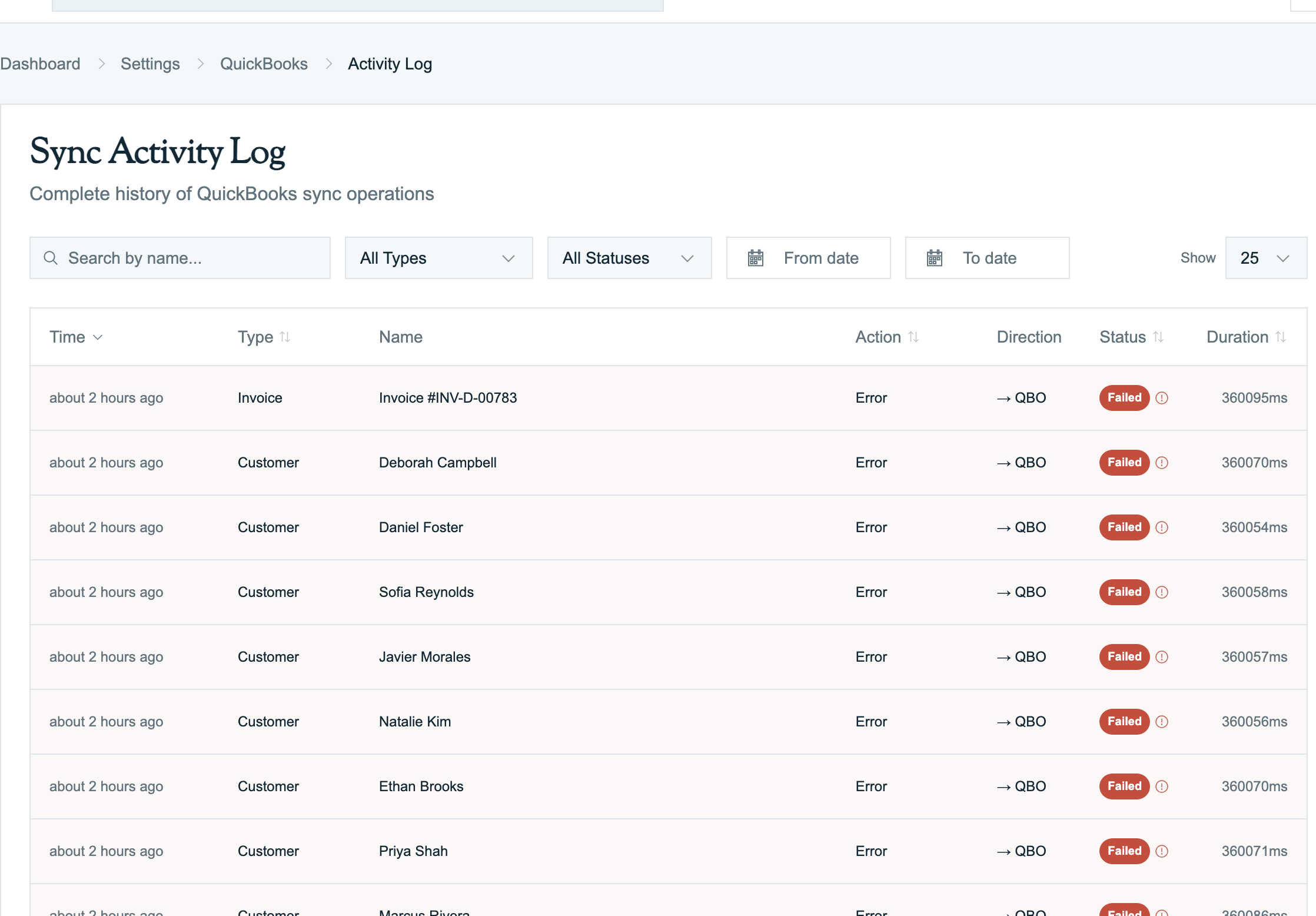
- Failed syncs retry automatically over the next 24 hours. Most resolve themselves; the ones that don't show up in the activity log for review.
Who Should Read This Section
- Owners and bookkeepers — want to know what shows up where, and how to keep the P&L clean.
- Office admins — running the setup wizard, fixing duplicate-name errors, re-mapping items.
- Anyone migrating from another platform (Skimmer, Pool Brain, ServiceTitan, Jobber) — the wizard imports your existing QBO customer and item lists rather than forcing you to re-key them.
Prerequisites
- A QuickBooks Online subscription (Simple Start, Essentials, Plus, or Advanced).
- Pool Runs Admin role (or any role with permission to manage settings).
- About 5–10 minutes to run the setup wizard. Larger books (1,000+ customers) may take 15–20 minutes for the initial sync to complete in the background.
Tip: If you are still evaluating Pool Runs, you can connect a QBO sandbox company first to see how syncing behaves without touching live books. Contact support to enable sandbox mode for your trial company.
Related Sections
- Invoices — How invoices are generated in Pool Runs before they push to QBO.
- Customers — Customer profiles, properties, and how QBO sub-customers map to Pool Runs properties.
- Settings → Payment Settings — Stripe configuration, payout banking, and how those tie into QBO Deposits.
Need help? Contact Pool Runs support from the in-app Help menu.
Manual Payment Recording
How to log payments received outside Stripe — cash, mailed checks, Zelle, Venmo, CashApp, wire transfers, and applied credit. The full Record Payment workflow with field-by-field guidance.
QuickBooks Overview
What the QuickBooks Online integration does, what syncs in each direction, and how QBO Items, income accounts, and invoices fit together.