Sending a Quote
How quote delivery works in Pool Runs — the email, the secure approval link, the customer's PDF, and resending.
Sending a Quote
When you click Send on a quote, choose For approval or For viewing only. Pool Runs moves a draft to Sent, emails a secure link, and saves the exact PDF that was sent. An approval send lets the customer approve or reject; a viewing-only send shows the same quote without decision buttons.
Two Ways to Send
You can send a quote either when you save it for the first time or later from the detail page.
Send while creating
In the quote builder, click Save & Send instead of Save as Draft. The quote is created in Sent status and the email goes out immediately.
Send a draft you saved earlier
Open the draft from the quote list and click Send Quote in the top-right action bar. Choose For approval when the customer should approve or reject, or For viewing only when you are sharing a proposal without requesting a decision yet.
Access: Your role must allow quote sending to use either button. If the buttons are missing, ask an admin to update your role.
What the Customer Receives
The email is sent from your organization's configured Resend address (default: noreply@poolruns.com until you set up a custom domain). The subject line reads:
Quote [number] from [your company]The body includes:
- Your company logo (if uploaded under Settings → Quote Settings)
- A summary of the quote (number, total, expiration date)
- A bold View & Approve Quote button linking to the public approval page
- The down-payment amount if a deposit was set
- The quote PDF as an email attachment
Tip: If you haven't uploaded a company logo, the email goes out without branding. Take 30 seconds to upload one under Settings → Quote Settings → Company Logo. The logo appears on quotes, invoices, and all customer-facing emails.
The Public Approval Link
The button in the email opens a unique, secure customer link on app.poolruns.com. The customer does not need a Pool Runs login. The link:
- Is reused while it remains valid, so links already in the customer's inbox keep working
- Expires after 90 days (the link goes dead — they'd need a resend)
- Is invalidated immediately if you Void or Void & Recreate the quote
- Cannot be used to take another action after the quote is approved, rejected, expired, or voided
What the Public Approval Page Shows
The customer sees a clean, branded document that mirrors the PDF:
- Header with
QUOTEheading, your logo, quote number, and your company name - "Quote For" — the customer name, email, and service address
- Quote date and "Valid Until" date
- Payment terms (if set)
- The line items table with description, quantity, unit price, amount
- Discounts (if any)
- Subtotal, sales tax, total
- Down payment callout (if a deposit was set) with deposit and balance-after-deposit lines
- "Valid until" notice in amber if there's an expiration
- Customer message (if set)
- Customer Approval section with adopt-or-draw e-signature controls when sent for approval
- Approve Quote and Reject Quote actions when approval is enabled
- "Download PDF" link at the bottom
The customer can scroll, review, download the PDF, share it with a spouse, then come back and approve.
Tip: The Activity Log on the quote detail page records when the customer viewed the quote (loaded the page) — useful for follow-up calls. ("I see you opened the quote yesterday — any questions before you approve?")
The Stored PDF
On the first send of a quote, Pool Runs:
- Renders the quote to PDF using your branded template
- Stores an unchangeable copy securely
- Links that copy to the quote for future downloads and resends
This means:
- Resends use the stored PDF, not a re-rendered one. Even if you change something else on the quote, the customer sees the same PDF they saw the first time.
- The PDF is your audit trail. Months later, you can prove exactly what the customer was shown when they approved.
- If you need a different PDF, use Void & Recreate — the new draft renders a new PDF when sent.
Resending
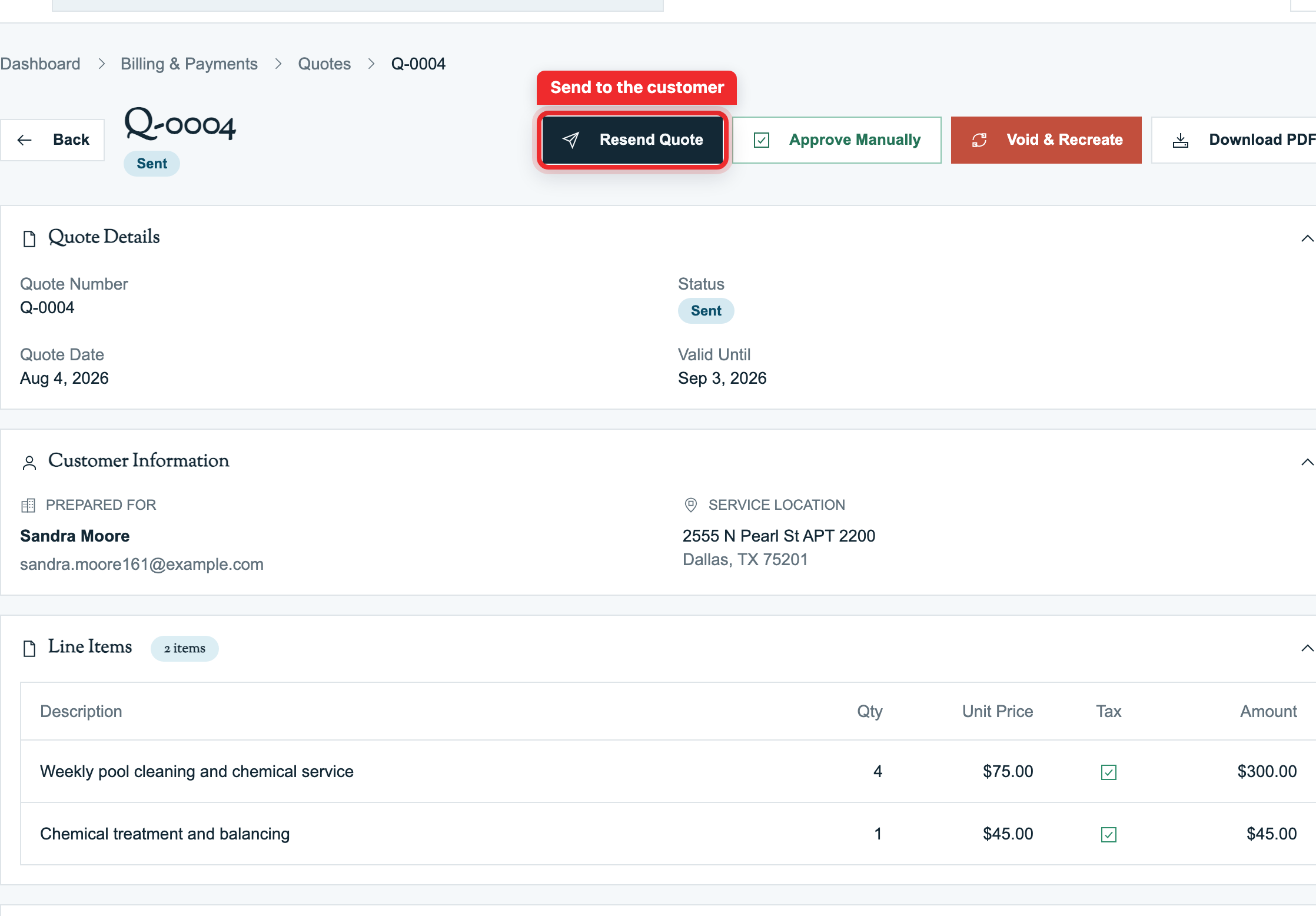
If a customer says "I never got the email," click Resend Quote on the quote detail page. This:
- Reuses the existing secure link, so earlier emails do not break
- Extends the link for 90 days from the resend
- Re-emails the same stored PDF
- Adds a resend entry to the Activity Log
The button label changes from "Send Quote" to "Resend Quote" once a quote has already been sent at least once.
Tip: Before clicking Resend, double-check the customer's email on the customer profile. If they typo'd it during onboarding, fix the email FIRST, then resend. Otherwise the bounced-email cycle continues.
What If the Customer Has No Email?
If the customer record has no email address:
- The status will still flip to
Sent(the system records that you tried to send) - The Activity Log shows the failed send and its reason
- No email goes out
To fix: add an email to the customer profile, then click Resend Quote.
If the customer does not use email, open the quote in the mobile app and tap Share Link. Choose Messages or another installed app from the iOS share sheet. You can also download and print the PDF. If the customer approves outside the public link, use Record Approval or Approve Manually and document how they confirmed.
SMS Delivery
Pool Runs does not automatically send quote SMS messages. On mobile, tap Share Link and choose Messages from the iOS share sheet; the app creates or reuses the secure 90-day link. This is useful when the customer prefers text but still needs the same approval, rejection, signature, and audit flow.
Tracking & Activity Log
Every send-related event lands in the Activity Log on the quote detail page:
| Event | When |
|---|---|
created | Quote was first drafted |
sent | First time Send was clicked (status moved draft → sent) |
resent | Subsequent sends |
| Email sent | Email handed off successfully with the recipient address recorded |
| Email failed | Email failed to send, with the reason recorded |
viewed | Customer loaded the public approval page |
approved / rejected | Customer or staff acted on the quote |
FAQ
Q: Can I bcc myself on the quote email? A: Not as a per-quote toggle today. Set the office notification email in your organization settings — that address gets a notification when a customer approves a quote. (The send itself doesn't currently bcc a custom address.)
Q: My customer says the link is broken. What do I check? A: Three common causes:
- Secure link expired (90 days passed since send) — click Resend.
- Quote was voided — the link is dead by design. Send a new quote.
- Quote was approved — the link redirects to a "Already approved" page. The customer is just confused; nothing is broken.
Q: Can I customize the quote email body? A: Not via per-quote text today (the customer message field is shown on the quote document, not the email body). Org-level email body customization is on the roadmap.
Q: Does the customer need to create an account to approve? A: No. The secure link opens only that quote. No login, signup, or password is required.
Q: How do I know if the customer actually clicked the link vs. just got the email? A: The Activity Log records when the approval page is viewed. If it only shows the email send after a few days, the customer has probably not opened the quote yet.
Q: Can two customers (e.g., a husband and wife) both view the same link? A: Yes — the same secure link can be opened from any device. Only one decision can happen, and the signer name, signature image, IP address, and timestamp are recorded for approval.
Troubleshooting
- Email never arrived. Have the customer check their spam / promotions folder. Resend if needed. If it persistently goes to spam, set up a custom email domain under Settings → Email Settings so you're sending from your own domain.
- PDF attachment is missing on resend. The first send creates the PDF; resends use the saved copy. Check the Activity Log to confirm the original email sent successfully.
- Customer says the totals don't match what we discussed. Open the quote — you'll be looking at exactly what they're looking at. If pricing actually was wrong, Void & Recreate the quote to issue a corrected version.
Customer Approval
The single most important moment in the quote lifecycle is when the customer clicks Approve. That click is your written authorization to proceed with the work, your locked-in price, and (in most states) your contractual record if a dispute arises.
What the Customer Does
After receiving the quote email, the customer:
- Clicks the View & Approve Quote button in the email
- Lands on the public approval page (no login required)
- Reviews the quote — line items, totals, deposit, terms
- Optionally downloads the PDF
- Scrolls to the Approve Quote button (sticky at the bottom on mobile)
- Clicks the button → an Approve Quote dialog appears
- Types their full name and either adopts the generated signature or draws their own
- Clicks Approve
The page flips to a green confirmation screen with a "We'll be in touch" message and (if a deposit was set) a notice that an invoice for the deposit is coming.
What Pool Runs Records
The moment the customer clicks Approve in the dialog, the system records:
| Captured | What it is | Why |
|---|---|---|
| Approved by | The full name the customer typed | Who authorized the work |
| Approved at | Approval date and time | When approval happened |
| Approved IP | Customer's IP address | Helps document where the approval came from |
| Approval method | Customer approval or staff-recorded approval | Shows how the approval was received |
| Signature | Adopted or hand-drawn signature image | Preserved on the quote and approval PDF |
The quote status moves from Sent to Approved and the quote is locked from editing. Line items, prices, and totals are now committed.
Industry note: Pool Runs stores the customer's name, adopted or drawn signature, IP address, timestamp, and the exact quote they reviewed. Keep your own contract language and local requirements in mind for unusually large or regulated jobs.
What Happens After Approval
Three things fire automatically:
1. Office Notification Email. If you've set an office notification email under organization settings, Pool Runs emails that address with the customer name, property address, total amount, approved by + timestamp, a link to the quote, and the original PDF as an attachment. This is your "won deal" trigger.
2. Customer Confirmation Email. The customer receives a separate "Quote approved — thank you" email with the PDF attached again, a summary of what they approved, and (if a deposit was set) notice that an invoice for the deposit is coming.
3. Quote Detail Page Shows New Actions. When you open the quote detail page, the action bar gains three new buttons: Generate Invoice, Create Work Order, and Void & Recreate.
See Converting a Quote for what each does.
The Manual Approve Path
Sometimes customers approve outside the system — they reply by email, send a text saying "go ahead", call you, or sign a printed copy. For these cases, you can approve a Sent quote on the customer's behalf.
- Open the Sent quote
- Click Approve Manually in the action bar
- In the dialog, enter a note explaining how the customer confirmed approval (required, max 1000 chars). Example:
"Customer texted back saying 'approved, please proceed' on Apr 12 at 2:14pm — text saved to customer profile" - Click Approve Quote
The quote moves to Approved, your note is recorded, and the detail page shows a Manual badge.
Best practice: When you manually approve, also save the customer's authorization in the customer profile's Notes — paste the email, screenshot the text. Manual approvals are weaker than e-sig approvals; back them up with the actual evidence.
Approval Validation Rules
The system blocks approval (customer-facing or manual) under these conditions:
| Condition | What customer sees |
|---|---|
Quote status is Draft | "This quote has not been sent yet" |
Quote status is Approved | "This quote has already been approved" |
Quote status is Void | "This quote has been voided and is no longer available. Please contact us for an updated quote." |
Quote status is Rejected or Expired | Generic "cannot be approved" |
| Past expiration date | "This quote has expired and cannot be approved." |
| Secure link expired (90 days since send) | "Link has expired" |
| Sent more than 90 days ago | "This quote is too old to approve. Please contact us for an updated quote." |
If the customer hits any of these, your fix is usually a new quote (Void & Recreate, then re-send) — not poking at the failed one.
Rejection (Customer Declines)
When a quote was sent For approval, the public page includes Reject Quote next to Approve. The customer enters a reason and confirms; Pool Runs records the rejection timestamp and reason and moves the quote to Rejected.
Viewing-only quotes intentionally show neither action. If a customer declines outside the link, staff can preserve the outcome by voiding the quote with a clear reason.
Customer-Side Concerns (and How to Handle Them)
"Why is this so much?" Anticipate this in the customer message: itemize labor, parts, and warranty. The customer message is your chance to summarize why this work matters. Example: "Your salt cell is 6 years old, well past its 4-5 year typical life. Replacing now prevents a chlorine outage during the swim season."
"Can I get a second opinion?" Encourage it. The 30-day expiration gives them time. Don't pressure — pressure tactics backfire. If they go elsewhere, mark the quote rejected with reason "Got cheaper second opinion".
"Why a deposit?" Bake the answer into your default terms: "50% deposit confirms your spot in our schedule and covers the wholesale cost of parts ordered specifically for your job. Refundable up until parts ship."
"Can I see the cell / motor / part you're recommending?" Add a part number or model into the line item description. Make sure your catalog entries say "Hayward T-cell-15 (40,000-gal salt cell, 5-year mfr warranty)" not just "Salt Cell".
Approval FAQ
Q: Can the customer e-sign instead of typing their name? A: Yes. The customer types their name, then either adopts the generated signature or uses the Draw tab to sign with a mouse, trackpad, or touch screen. Pool Runs stores the signature image with the name, IP address, and timestamp.
Q: Can two people on the customer's side both need to approve? A: No multi-party approval today. The first person to approve via the link locks it. For commercial/HOA cases requiring two signatures, use the manual-approve path after both have confirmed.
Q: What if the customer types a fake name like "Mickey Mouse"? A: The system records exactly what they type. A fake name plus their IP address still gives you a record. The IP address and the email recipient tie back to the customer regardless.
Q: Customer approved at the wrong total — what do we do? A: If the price you sent was wrong (your error), don't dispute the approval — honor the price. If you must revise, use Void & Recreate to send a corrected quote and have them re-approve.
Q: Can the customer pay the deposit during approval? A: Not today. Approval and payment are separate steps. After approval, you generate the deposit invoice; the customer pays via the invoice's payment portal.
Q: What's the audit trail if I get sued over a job? A: The quote history retains the customer's name, signature, IP address, approval date and time, exact line items, the PDF that was emailed, and the activity log. Together, these details document the scope and price the customer authorized.
Approval Troubleshooting
- Customer says they approved but I don't see it in the dashboard. Refresh the quote list. Check the activity log on the quote detail —
approvedevents are logged immediately. If the customer's "approval" was actually a verbal yes, you need to log it via Approve Manually. - Office notification email never arrived. Check Settings → Organization for the office notification email field. If it's blank, no notification fires.
- Approval link says it expired but the quote is recent. Secure links expire 90 days after send. Click Resend Quote to refresh the link.
Related Articles
- Creating a Quote — Build the quote first; includes editing & Void & Recreate
- Converting a Quote — Approved → invoice / work order
- Quotes Overview — The full status lifecycle