Creating a Quote
Step-by-step walkthrough of the Pool Runs quote builder — customer, line items, parts catalog, taxes, discounts, deposit, and live preview.
Creating a Quote
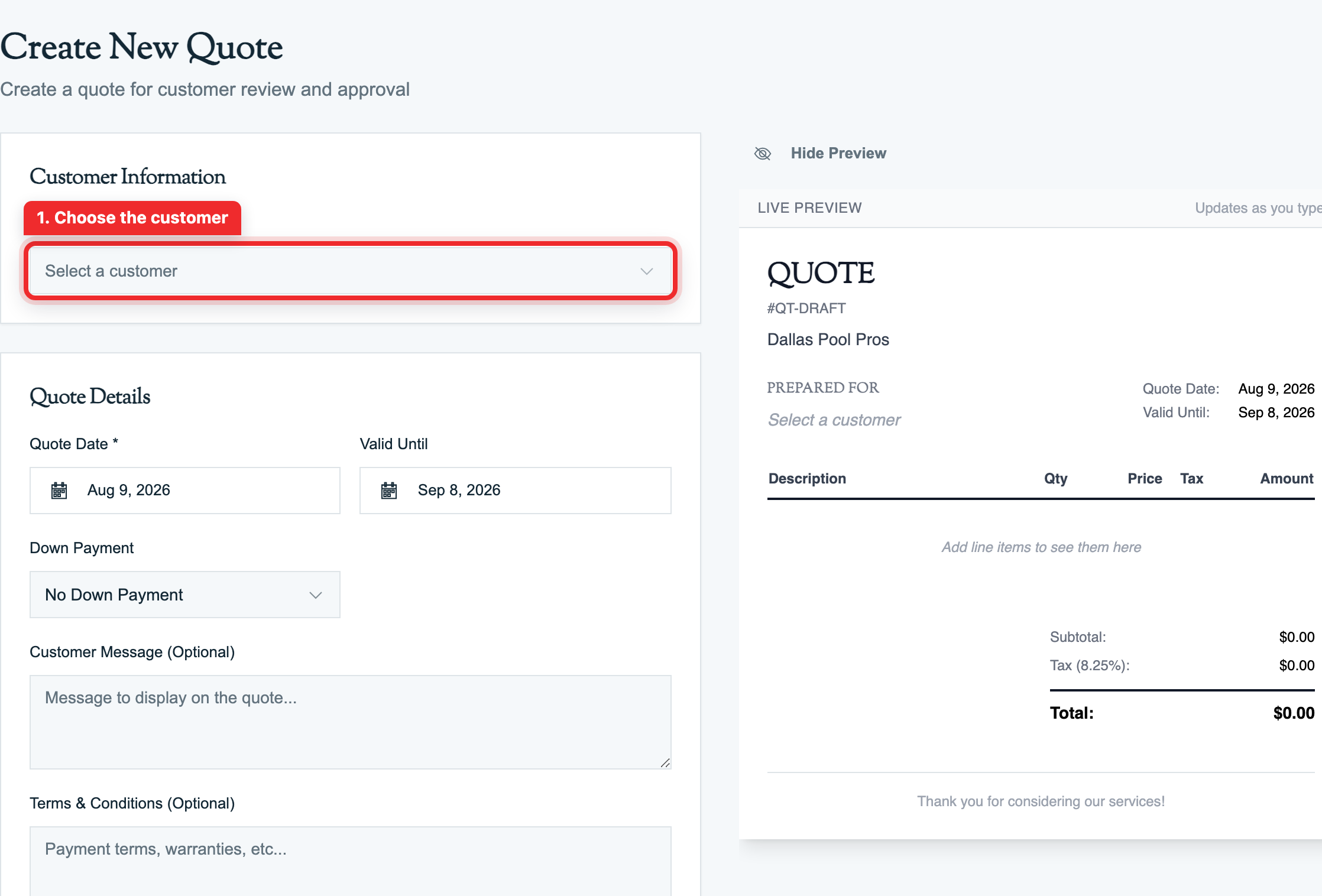
The quote builder is a two-pane editor: a form on the left, a live PDF preview on the right that updates as you type. Most quotes — even complex equipment installs — take less than five minutes to draft once you know the layout.
Opening the Builder
- Click Billing → Quotes in the sidebar
- Click Create Quote in the top-right of the quote list
You can also start a quote from a customer profile (which pre-fills the customer for you) or from the dashboard quick actions.
Access: Your role must allow quote creation to access this page. If the button is missing, ask an admin to update your role under Settings → Team & Permissions.
Step 1 — Choose the Customer (and optional Property)
The first card on the form is Customer Information.
- Customer (required). Type to search by name, company, or email. The dropdown respects the customer's "Display by company" setting — commercial accounts show the company name, residential shows the person.
- Property (optional). Once you pick a customer, the property dropdown loads only the properties that belong to that customer. If the work is at a specific service address, attach it. Leave blank for "we'll figure out where" jobs (rare).
Tip: No property at this stage is fine, but if you intend to Create Work Order from the approved quote later, the system will prompt you to attach a property at conversion time. Saves a click to do it now.
Step 2 — Quote Details
| Field | Notes |
|---|---|
| Quote Date | Defaults to today. The date the quote was prepared. |
| Valid Until | Defaults to 30 days from today. Customers cannot approve after this date. Leave blank for "no expiration". |
| Down Payment | None, Flat amount ($), or Percentage (%). Drives the deposit invoice when the quote is approved. |
| Customer Message | Free-text shown on the quote PDF and approval page. Pre-fills from your org's default in Quote Settings. |
| Terms & Conditions | Same — free-text on the customer-facing document. Use this for warranty language, payment terms, scope exclusions. |
| Internal Notes | Never shown to the customer. Use for "remind ourselves to bring the long pole vacuum" or "this customer always pays slow". |
Industry tip: 30 days is the standard quote validity in pool service because parts pricing and supplier availability shift quickly. If you're quoting a salt cell where wholesale prices change weekly, 14 days is more honest.
Step 3 — Line Items
This is the meat of the quote. Each line is one part, chemical, service, or fee.
For each line:
- Pick a product from the catalog dropdown. The picker pulls from your Parts, Chemicals, Work Order Types (services), and Fee Types catalogs and color-codes the type with a badge:
- 🟦 Part (pumps, salt cells, filter cartridges)
- 🟩 Chemical (chlorine, shock, acid)
- 🟪 Service (labor, diagnostic, install)
- 🟧 Fee (trip charge, after-hours surcharge)
- Description auto-fills from the catalog item but you can edit it for the customer.
- Quantity — typically
1for a part install,2for a 2-hour service. - Unit Price — auto-fills from your catalog. Override per quote if you're discounting or marking up.
- Taxable checkbox — most parts and chemicals are taxable; labor varies by state. Defaults to taxable.
- Total — calculated automatically from quantity and unit price.
Click Add Line Item to add another row, the trash-can to remove one. Order doesn't affect math but it does affect what the customer sees on the PDF.
Validation rule: Every line item must reference a product (part / chemical / service / fee). The system blocks save with "Every line item must have a product selected." This keeps your sales reports clean — you can see how often you're quoting "Salt Cell Replacement" vs. "Pump Motor Repair".
Common quote items in pool service
| Item | Typical Range | Tax? |
|---|---|---|
| Salt cell replacement (T-cell-15 or equivalent) | $600 – $1,200 | Yes |
| Pump motor (1HP, single-speed) + labor | $300 – $800 | Parts yes / labor varies |
| Filter cartridge clean & inspect | $150 – $250 | Mostly labor — varies |
| Green pool shock + balance | $300 – $500 | Chemicals yes |
| Spring opening (residential 20K gal pool) | $250 – $500 | Mixed |
| Heater igniter / control board | $400 – $1,500 | Yes |
| Multiport valve gasket replacement | $80 – $200 | Yes |
Step 4 — Discounts (Optional)
The Discounts card lets you knock dollars or a percent off the subtotal.
- Label — what the customer will see (e.g., "Volume discount", "Loyalty 10%", "Spring promo").
- Mode —
Flat ($)orPercent (%). - Value — the dollar amount or 0–100 percent.
- Applies to —
Subtotal,Labor,Parts,Chemicals, orServices. Today the most-used option isSubtotal.
Discounts reduce the taxable base proportionally — if half your line items are taxable and you discount the subtotal, half the discount comes out of the taxable amount. (See the math example in Quotes Overview.)
Industry tip: Avoid stacking promotional discounts on top of large jobs unless your margin can absorb it. A 10% discount on a $1,500 salt-cell job is $150 — sometimes that's your entire labor profit.
Step 5 — Deposit (When You Need One)
If you set a down payment in Step 2, the live preview shows a "Down Payment Required" callout the customer will see.
- Use percent for big jobs (50% deposit on equipment installs is industry standard).
- Use flat amount when you want the deposit to cover specifically the parts cost ("$650 deposit covers the salt cell; balance due upon install").
When the customer approves the quote, the system surfaces a Generate Invoice action and the modal lets you choose:
- Deposit invoice only — for the deposit amount; balance later.
- Final invoice only — for the full amount (no deposit).
- Final invoice with deposit credit — automatically nets the previously-paid deposit out.
See Converting a Quote for the full flow.
Step 6 — Live Preview
The right pane is exactly what the customer will see on the approval page and the emailed PDF — your logo, address, line items, totals, deposit callout, terms.
Toggle the preview off with the Hide Preview button if you need more screen real estate on a small monitor. Re-open with Show Preview in the floating top-right button.
Step 7 — Save and (Optional) Send
You have two save buttons:
| Button | What it does |
|---|---|
| Save as Draft | Creates the quote in Draft status. You can keep editing or send later. Nothing is sent to the customer. |
| Save & Send | Creates the quote in Sent status and emails it to the customer immediately with the secure approval link. |
Tip: A common pattern is Save as Draft → review with the technician (or owner) → Send. The draft state lets a senior estimator double-check pricing before it goes to the customer.
If a customer doesn't have an email on file, the email send will fail gracefully — the quote will be marked Sent but the activity log will note the email failure. Add an email to the customer record and click Resend from the quote detail page.
Validation & Common Errors
| Error | Cause | Fix |
|---|---|---|
| "Please select a customer" | No customer chosen | Pick from the customer dropdown |
| "Please add at least one line item" | Empty line items list | Add a row with a product, qty, price |
| "Every line item must have a product selected" | Free-text-only line | Pick a part / chemical / service / fee from the catalog |
| "Down payment percentage cannot exceed 100%" | Entered > 100 in percent mode | Cap at 100 or switch to flat mode |
| "Please enter a valid down payment amount" | Mode set but value 0 | Enter the deposit amount or set mode to None |
FAQ
Q: Can I duplicate an existing quote to skip retyping line items?
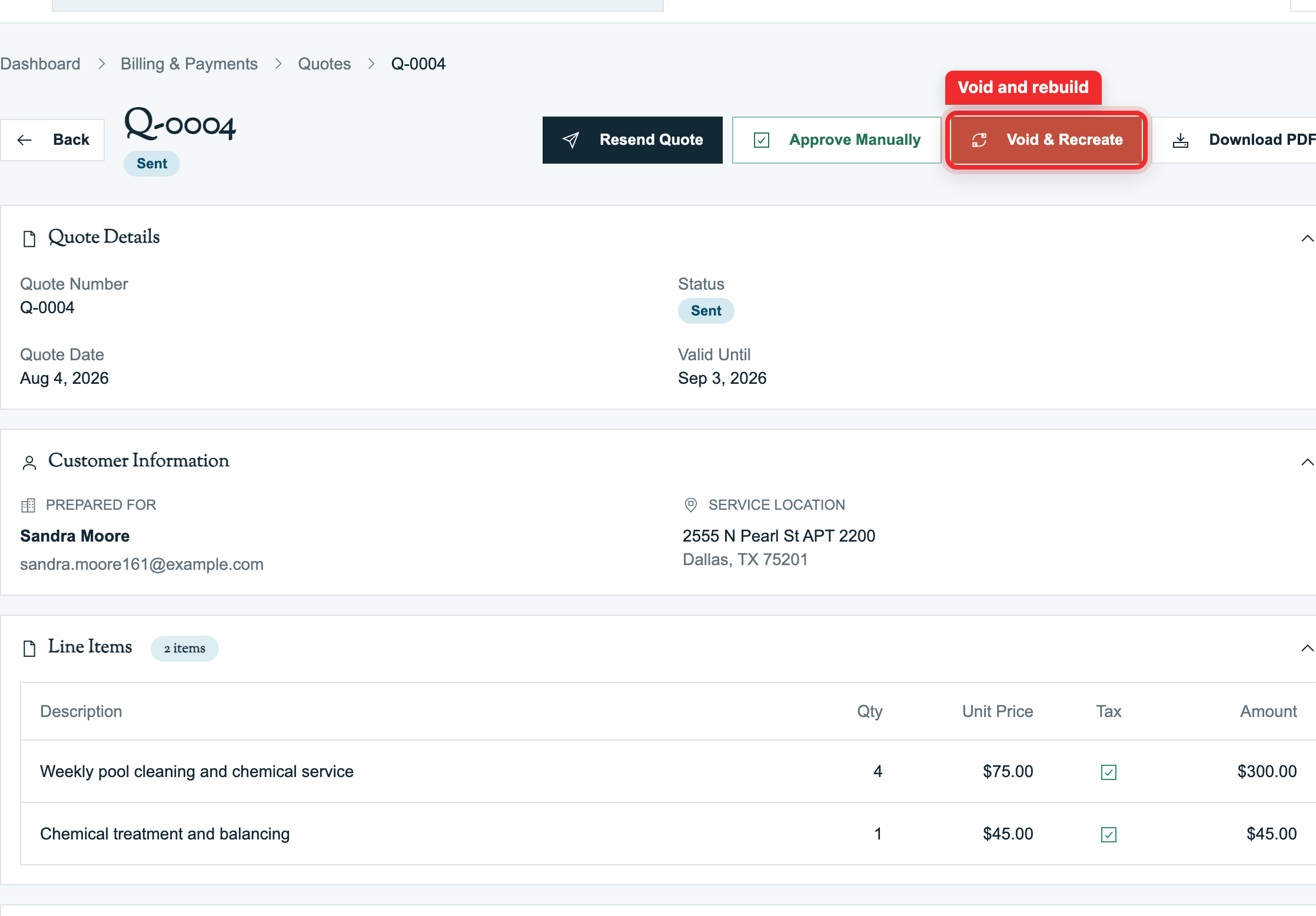
A: Not as a one-click "Duplicate" action today. The closest workflow is Void & Recreate — even on a Sent or Approved quote, the void & recreate action creates a new draft pre-filled with the same customer, property, line items, adjustments, message, and terms. See Editing & Versioning Quotes below.
Q: My products catalog is empty — what do I do? A: You'll need to seed it before you can save line items. Go to Settings → Catalogs and add a few Parts (e.g., "Salt Cell - T-cell-15"), Chemicals (e.g., "Liquid Chlorine 12.5%"), Work Order Types for services (e.g., "Equipment Installation - Hourly"), and Fee Types (e.g., "Trip Charge"). The picker will populate immediately.
Q: How does tax work if I serve customers in two states?
A: Pool Runs supports an org-level default tax rate plus optional ZIP-mapped tax zones (Settings → Tax Zones / Settings → Invoicing). For per-quote control, toggle the Taxable flag on individual line items. See Tax Zones & Tax Management for the full picture.
Q: Can I attach a photo of the broken equipment to the quote? A: Not in the current version. The workaround is to include a paragraph in the customer message ("Photo of cracked salt cell attached separately") and send the photo over your normal email/SMS to the customer.
Q: My customer wants to see two pricing options. Can I put both in one quote?
A: One approach is two line items with Option A: / Option B: prefixes in the description and a customer message that says "select your preferred option and reply". A cleaner approach is to send two separate quotes and let the customer approve the one they want — the activity log will tell you which.
Q: Can technicians create quotes from the field? A: Yes. In the mobile app, open More → Quotes and tap +. Staff whose role allows quote creation can build the quote natively on iPhone, including the customer, property, line items, tax, deposit, message, terms, and internal notes.
Troubleshooting
- The Customer dropdown is empty. You haven't added any customers yet. Start at Add, Edit, or Delete a Customer (Web).
- Live preview shows wrong totals. Refresh the page. If totals don't recalculate when you change a value, you may have entered a non-numeric character (a comma, $, etc.) — those fields accept digits and decimals only.
- Preview shows "$0.00" but I entered prices. Make sure each line has both a quantity AND a unit price. If quantity is left blank, the row total stays $0.
Editing & Versioning Quotes
A quote's editability changes the moment the customer sees it. Drafts are wide open — you can change anything. Once a quote is sent, it's locked from line-item edits because changing what the customer was looking at would break the audit trail. Pool Runs handles "I need to revise this" with a workflow called Void & Recreate.
What's Editable When
| Quote status | Editable fields | How |
|---|---|---|
| Draft | Everything — customer, property, line items, prices, tax, deposit, message, terms, internal notes | Click Edit on the quote detail |
| Sent | Internal notes and the property used for work-order conversion | Use the available quote actions, or revise into a new draft for pricing changes |
| Approved | Internal notes and property assignment (same as Sent) | Same |
| Rejected / Expired / Void | Read-only | n/a |
Trying to edit anything else on a non-draft quote returns: "Only draft quotes can be edited. Approved quotes are locked." Once a customer has seen a price, that price IS the quote.
Editing a Draft
- Open the quote detail page
- Click Edit in the action bar. It appears only for drafts and users allowed to update quotes.
- The quote builder opens in edit mode with all fields populated
- Change whatever you need
- Click Save Changes (stays as draft) or Save & Send (saves and emails)
Editing a draft saves the line items and adjustments as one updated version. This is safe because the customer has not received it yet.
Deleting a Draft
You can fully delete a draft quote (no audit trail kept). From the quote list or detail page, use the dropdown action and pick Void Quote.
Caution: A deleted draft is gone — no recovery. Use this only on truly garbage drafts. For anything that has even minimal value as a record, void it instead.
Expiration Dates
Every quote can have an expiration date (defaults to 30 days from quote date). The expiration affects two things:
- Customer approval is blocked after the expiration date. The public approval page shows: "This quote has expired and cannot be approved."
- The dashboard does not auto-flip the status to
Expiredthe moment midnight passes. The quote staysSentuntil either the customer attempts to approve and gets the expired error, or you manually act on it.
This is a deliberate UX choice — it gives you the chance to handle the expiration gracefully (call the customer, refresh the quote) rather than the quote silently aging out.
Tip: Filter your quote list by
Sentweekly. Sort by quote date ascending — anything older than 25-28 days is approaching expiration.
The quote detail page shows an amber "Expiring Soon" badge when the expiration is within 7 days.
Void & Recreate — The Safe Way to Revise
For any change to a Sent or Approved quote (price went up, customer wants to add a chemical clean, you spotted a typo), the right tool is Void & Recreate. It:
- Voids the original quote with a reason you provide
- Closes the original customer link immediately
- Creates a new draft pre-filled with the same customer, property, all line items, all adjustments / discounts, down payment configuration, customer message, and terms & conditions
- Links the new draft back to the original for a clear history
- Logs activity on both the original (voided) and the new draft (created from quote)
You're then dropped into the new draft so you can edit it before sending. The original quote stays as a permanent record.
When to use Void & Recreate
- Customer requested a scope change ("can you also clean the filter while you're there?")
- Pricing changed (your wholesale cost on the salt cell went up)
- Customer pointed out an error (you forgot the trip charge)
- Reissuing an expired or rejected quote with updated terms
When NOT to use Void & Recreate
- The quote is still in
Draft— just edit it directly. The system blocks Void & Recreate on drafts. - The quote is already
Void— just create a new quote. - You want to "amend" an approved quote while keeping the original alive. There's no amendment flow; void & recreate kills the original.
Voiding a Quote (Without Recreating)
If the deal is dead and there's no version 2, just Void the quote.
- For
Draftquotes: the destructive action is labeled Void and effectively deletes the quote. - For
SentandApprovedquotes: the destructive action is Void & Recreate (cancel out of the new draft to void without recreating).
Voiding always:
- Changes the quote status to Void
- Records the required void reason and timestamp
- Closes any active customer approval link
- Keeps the quote record forever as part of your audit trail
Industry tip: Void with descriptive reasons.
"Customer chose competitor","Job no longer needed — they sold the house". Six months later, when you're trying to figure out close rates, those reasons are gold.
Only users allowed to manage quote statuses can void a quote. Office staff and managers typically have this access; field technicians typically do not.
The "Approval Lock"
Once a quote is Approved, the line items, prices, taxes, and totals are committed. This applies even to admin users with full permissions. Exceptions: Internal notes (private to your team) and Property assignment (for work order conversion).
This lock is what makes the approval evidentiary. If you need to change anything material on an approved quote, you must void & recreate (and ideally have the customer re-approve the new version).
Versioning vs. Audit Trail
Pool Runs does NOT support multiple "versions" of the same quote in the v1 / v2 / v3 sense. Each quote is its own record. What you DO get:
- Activity Log on every quote — who created, sent, viewed, approved, modified
- Links between voided originals and their recreated replacements
- Unchangeable PDF copies — you can always pull up exactly what the customer saw
Editing FAQ
Q: I voided a quote by accident. Can I un-void it? A: No — voiding is one-way. Your options: (1) Void & Recreate the voided quote (yes, you can recreate from a void); (2) Send the new draft to re-approve.
Q: Customer says "actually let's add the filter clean" — quote is approved, deposit invoice paid. What's the cleanest path? A: Two choices: (1) Just add the work as a separate quote (or skip quoting and bill via invoice add-on) — simpler if it's small. (2) Void & Recreate the original quote with the added scope, have the customer re-approve, then void the original deposit invoice and reissue. Recommend option 1 for additions under ~$200.
Q: How long does Pool Runs keep voided/expired/rejected quotes? A: Indefinitely. They're never deleted (only drafts can be hard-deleted).
Q: I want to extend an expiration on a sent quote. How? A: There's no "extend expiration" action. The fix is Void & Recreate — the new draft inherits everything, you adjust the expiration date, then send.
Q: Where do I see "outstanding quotes" reporting (won/lost/open)?
A: Today, the closest equivalents are: the quote list filtered by Sent (open quotes), Approved (won), or Rejected + Void + Expired (lost). A dedicated Quote Reports view is on the roadmap.
Editing Troubleshooting
- Edit button is missing on a draft quote. Ask an admin to confirm your role can edit quotes. Also verify the status is Draft. Once it changes to Sent, the edit button is replaced by Resend and Void & Recreate.
- Void & Recreate creates a draft but the line items aren't pre-filled. Refresh the new draft page. If items are still missing, contact support.
- The customer sees an expired-link message on a recently sent quote. If you used Void & Recreate, the original secure link stopped working when you voided the quote. Send the customer the new quote email.
Related Articles
- Quotes Overview — How quotes fit into the pipeline
- Sending a Quote — What happens after you click Send; customer approval and the manual approve path
- Converting a Quote — Approved → invoice / work order