
Creating Customers
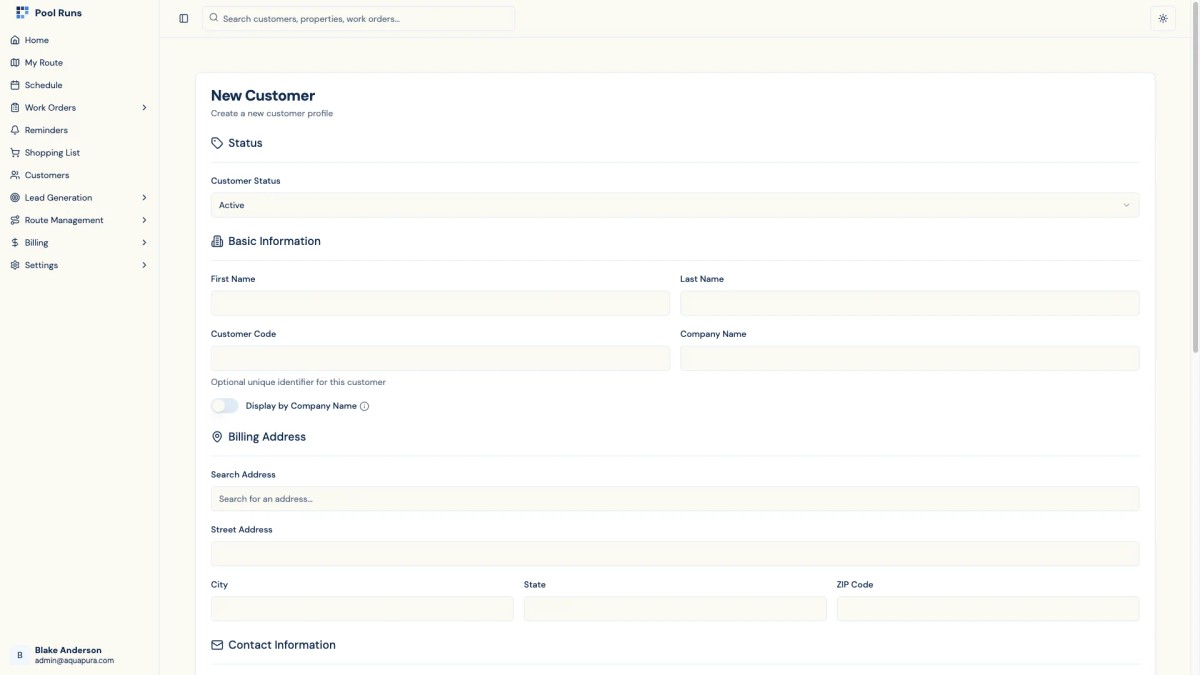
Adding customers to Pool Runs is the first step in managing their pool service. This guide walks you through the customer creation process and explains each field in detail.
Customer Status
Select a status that reflects the customer's current relationship with your business:
- Active - Receiving regular service (default for new customers)
- Prospect - Potential customer, not yet receiving service
- Paused - Temporarily suspended service (vacation, seasonal, etc.)
- Archived - No longer a customer, kept for historical records
Basic Information
Name Fields
- First Name (required) - Customer's first name
- Last Name (required) - Customer's last name
- Customer Code (optional) - A unique identifier for your internal reference (e.g., "SMITH-001")
Company Information
- Company Name (optional) - For commercial accounts or property management companies
- Display by Company - Toggle this on to show the company name instead of the person's name in lists and reports
When to Use Display by Company
Enable this for commercial accounts, HOAs, or property management companies where the business name is more recognizable than the contact person's name.
Billing Address
Enter the customer's billing address for invoices. Start typing in the address search field to use Google Places autocomplete:
- Street Address - Auto-populated from address search
- City - Auto-populated from address search
- State - Auto-populated from address search
- ZIP Code - Auto-populated from address search
Billing vs Service Address
The billing address is where invoices are sent. Service locations (where pools are actually located) are added separately as Properties after the customer is created.
Contact Information
Email Address
Enter the customer's email address. This is used for:
- Sending invoices electronically
- Service notifications and updates
- Account invitation (if sending)
Phone Numbers
Add one or more phone numbers. Numbers are automatically formatted as you type. Click Add Phone to add additional numbers (mobile, work, home, etc.).
Tags & Categories
Tags help you organize and filter customers. Select from predefined tags or create custom ones:
Service Frequency Tags
- Weekly - Service once per week
- Bi-Weekly - Service every two weeks
- Monthly - Service once per month
Service Type Tags
- Pool Service / Spa Service
- Residential / Commercial
- VIP - For priority customers
To add a custom tag, type the tag name in the input field and click Add Tag.
Notes
- General Notes - Any information about the customer (preferences, special instructions, etc.)
- Billing Notes - Internal notes about billing arrangements or payment history
Account Invitation
Check the Send Account Invitation option to email the customer an invitation to create their own Pool Runs account. This allows them to:
- View service history and upcoming visits
- Access and pay invoices online
- Set up automatic payments
Email Required for Invitations
If you enable Send Account Invitation, the email field becomes required. Make sure the email address is correct before sending.
After Creating a Customer
Once you save the customer, you'll typically want to:
- Add a Property - Add the service location with address and access details
- Configure Bodies of Water - Add pools and spas at the property with size and equipment info
- Schedule Route Stops - Assign the customer to a technician's route